Formats and playback
How to save old home videos as MP4, and keep them safe
We saved a minute of a 1940s home movie as NTSC and PAL DVD files and as an AVI, turned each back into MP4, converted Cutlia's MiniDV, AVCHD, phone, camera and DVD test files too, and measured what changed.
By the Cutlia team · Updated · 17 min read
The short version
- Get each video onto your computer as a file first: copy a DVD's VIDEO_TS folder or a camcorder's whole AVCHD folder, and capture tapes, which take as long as they run.
- Convert every file to MP4 with H.264, the copy that plays on phones, TVs and in browsers: our minute of home movie went from a 24.4 MB DVD file to a 13.8 MB MP4.
- Check the shape after converting: our DVD files stored their 4:3 picture 720 pixels wide, and only a conversion that makes the pixels square gives 640 × 480 or 768 × 576, exactly 4:3 on any player.
- Keep the original files next to the MP4s: every re-encode loses a little, and our MP4 made through the NTSC DVD file was 1.9 levels in 255 off the film transfer on average, against 1.1 for one made straight from it.
- Give each file a name that says what's in it, keep at least two copies on separate media in different places, and check them at least once a year, as the Library of Congress advises.
Home videos from the DVD and camcorder years are stuck on things that are going away. A DVD needs a disc drive, a MiniDV tape needs a camcorder that still runs, a camcorder's .MTS files won't play in Chrome, and an old phone's 3GP clips can hold H.263, a picture codec Chrome can't decode. Saving them takes two jobs: getting each video off its disc, tape or card as a file, and turning that file into an MP4 that plays almost anywhere.
We tested the second job on a real home movie: a road trip through the American West and Mexico, filmed in color by someone whose name is lost, now in the Prelinger Archives and on Wikimedia Commons as a silent 640 × 480 file, the old 4:3 shape. With Cutlia's Video Converter we saved one minute of it the way a family's DVD would hold it, in both TV standards, and as an AVI, then opened each of those files again and converted it to MP4. For the formats the converter can't write, a MiniDV capture, an AVCHD camcorder clip, an old phone's 3GP and an early digital camera's AVI, we used the two-second test files Cutlia's own tests are built on. Everything ran in Chrome on a MacBook Air with an Apple M5 chip, and no file left the laptop.
Start by working out what you have
Sort the videos by where they live, because that decides the first step. Nothing can convert a video until it's a file on your computer, and getting it there takes minutes for a disc or a memory card but hours for a box of tapes.
| Where the video is | Files you'll find | First step |
|---|---|---|
| A DVD from a DVD recorder, a camcorder or a wedding videographer | .VOB files in a VIDEO_TS folder | Copy the VIDEO_TS folder to your computer |
| A MiniDV tape | None until it's captured; then .dv, or DV inside .avi or .mov | Play the tape into a computer, in real time |
| An AVCHD camcorder | .MTS or .M2TS files inside an AVCHD folder | Copy the whole AVCHD folder from the camera or its card |
| An older mobile phone | .3gp or .3g2 | Copy them from its memory card or over USB |
| An early digital camera's movie mode | .AVI | Copy them from its memory card |
For a disc, the Library of Congress's guide to transferring video says to put it in a computer without playing it, open the VIDEO_TS folder and copy the .VOB files, short for Video OBject, into a folder of their own; they're the largest files there, and if in doubt, copy everything. Its rule holds for every row of the table: never modify the original video file, only a copy. The disc must also be one you have the right to copy, and Cutlia can't decode a DVD scrambled with CSS copy protection anyway.
Copy an AVCHD camcorder's folder whole rather than picking out the video files. The Library of Congress's description of the format, quoting the Blu-ray specification whose file layout AVCHD shares, says each video file is numbered, and a clip information file with the same number goes with it. Copying the folder keeps every pair together, and the .MTS files are the ones Cutlia converts.
Tapes are the slow part. Apple's help for iMovie on the Mac, as of November 2026, still describes capturing DV, DVCAM, DVCPRO and HDV tapes from the camera over FireWire, through a Thunderbolt to FireWire adapter on a Mac without that port. A tape imports in real time, as long as it takes to watch, and Apple recommends playing it in the camera that recorded it. VHS was never digital at all: the Library of Congress lists playing it into a digital video camera, through a converter box into a computer, or onto a DVD, with a combined VCR and DVD recorder or a DVD burner attached to the VCR.
What the old formats are, in plain words
Every video file is two things. The container is the file format: it holds the picture and the sound and keeps them in step. The codecs are the methods that compress the picture and the sound inside it. MP4 is a container, and most MP4s hold H.264 pictures and AAC sound. Each old format differs from that in one or both.
- DVD (.VOB). An MPEG-2 program stream, the container the Library of Congress says DVDs use, with MPEG-2 pictures inside. Cutlia's DVD setting stores every picture 720 pixels wide and 480 or 576 tall, whatever its shape, with a flag that tells the player how wide to draw it, and writes Dolby Digital sound, a codec Chrome doesn't decode.
- MiniDV (.dv, or DV inside .avi or .mov). The Library of Congress describes DV as compressing each frame on its own, with the same kind of transform JPEG uses and nothing shared between frames, stored raw as .dv or .dif files or wrapped in AVI, QuickTime or MXF. Its standard, IEC 61834-2, runs at 525/60i and 625/50i: NTSC and PAL, both interlaced.
- AVCHD (.MTS or .M2TS). Sony and Panasonic's camcorder format, announced in 2006. Their announcement, as the Library of Congress quotes it, gives H.264 for the picture, at 1080i or 720p, and Dolby Digital or Linear PCM for the sound. The Library adds that the files hold a modified MPEG-2 transport stream of 192-byte packets, and quotes Sony's support saying an M2TS file can be renamed MTS and back.
- Old phones (.3gp, .3g2). The 3GPP file format behind .3gp, specified in 3GPP TS 26.244, is built on the same ISO base media file format as MP4. It lists H.263, H.264 and H.265 for the picture, and AMR speech and AAC among its sound codecs. H.263, the oldest of the three, is one Chrome can't decode.
- Early digital cameras (.AVI). AVI is Microsoft's container from 1992, and it holds whatever codec a four-letter code inside it names. The Library of Congress's description of Motion JPEG, each frame stored as a JPEG image and tagged MJPG in AVI, notes its wide use in the movie modes of digital still cameras. Other AVIs hold DivX, whose version 5 the Library, quoting DivX's own guide, calls an implementation of the MPEG-4 video standard: MPEG-4 Part 2, the codec Cutlia's own AVI files use.
In our tests Chrome could use none of the five as it came: Cutlia converted each one as it opened, on the device, with FFmpeg compiled to WebAssembly, and what it kept and what it re-encoded depended on the format.
Our test: a minute of home movie, made into DVD files and an AVI
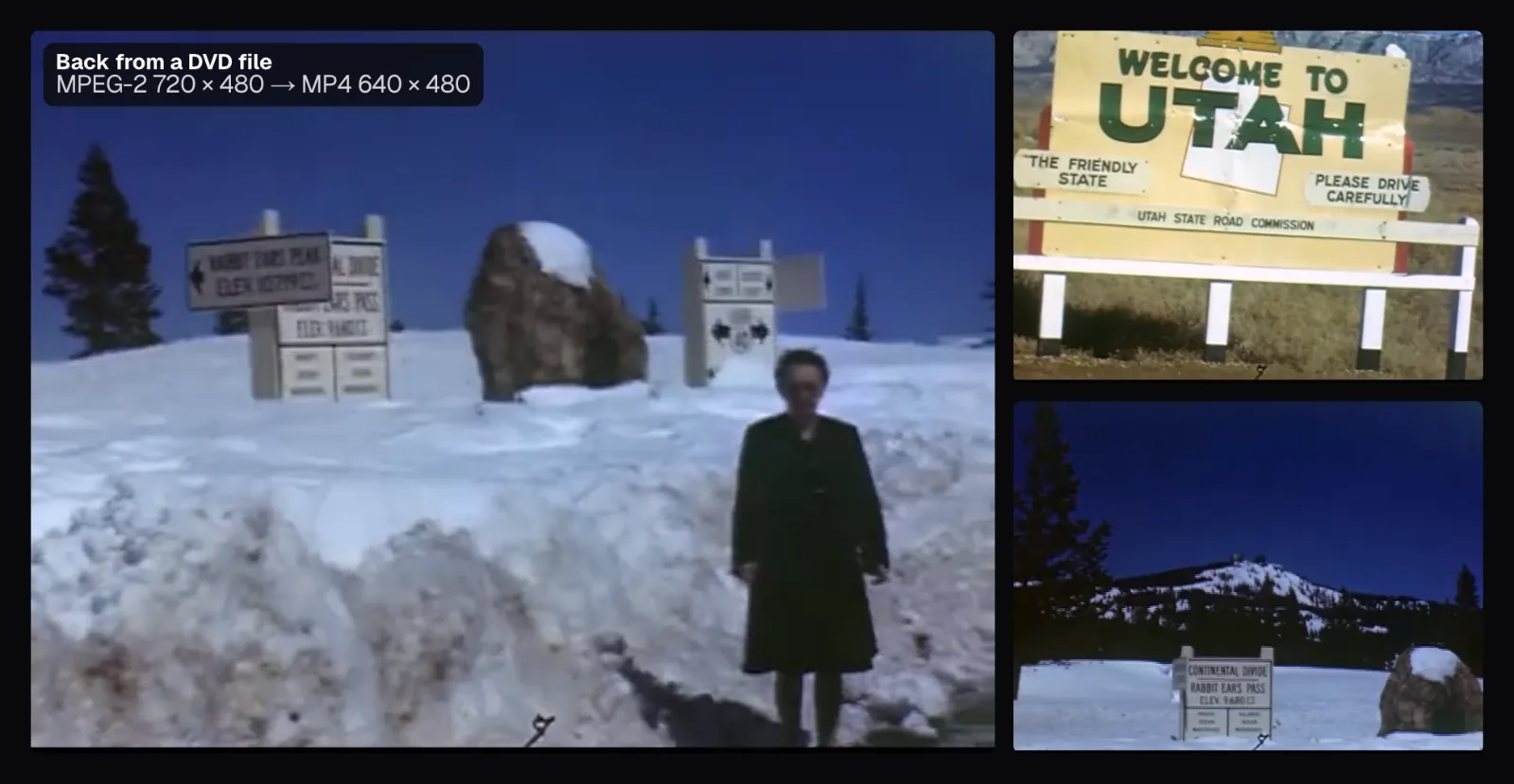
The home movie is one WebM file, the 480p VP9 copy of the reel that Wikimedia Commons serves: 42 minutes 58 seconds long, 640 × 480 at 29.97 frames a second. We call it the film transfer below, though it's a compressed copy itself. We set the converter's “Part of the video” to 32:05–33:05: red rocks, the “Welcome to Utah” and “Entering Colorado” signs, a woman in a dark coat standing below a high bank of snow at Rabbit Ears Pass, and the Continental Divide sign beside her. The reel's archive notes place the pass on U.S. 40.
Then we chose “MPG” under “For older devices” and turned on “Ready for a DVD”. The converter chose “NTSC · 29.97 fps” for the film by itself, and the line over the button read “1:00 · 720 × 480 · 4:3”: a 4:3 DVD picture, 720 pixels wide. Browsers have no MPEG-2 encoder, so the panel warns that the computer's processor makes the file, more slowly than an MP4.
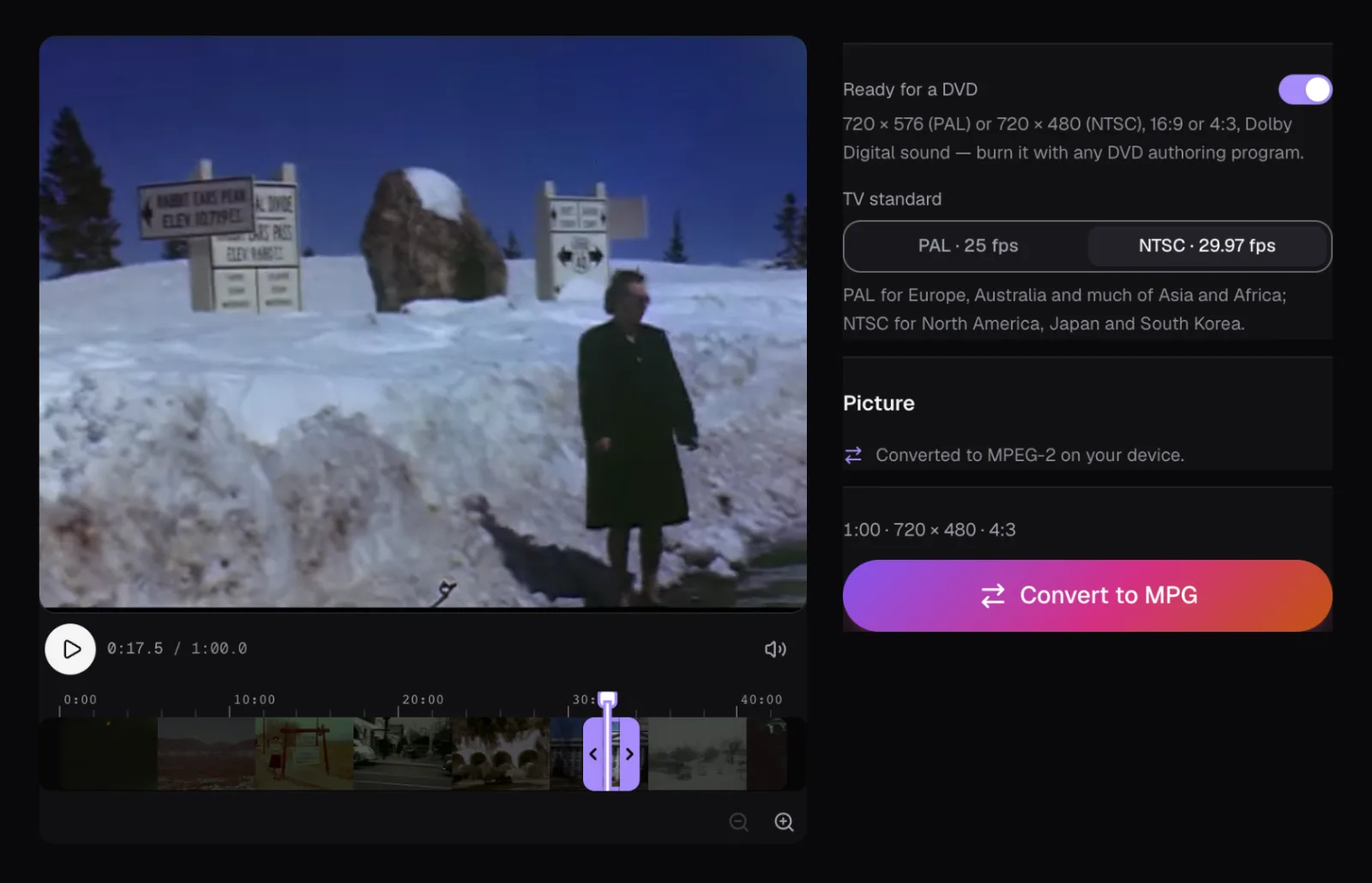
The minute came out as a 24.4 MB file of MPEG-2 in the packets a DVD uses, ready for a DVD authoring program; we named it home-movie.vob, with the ending a disc's video files have. We saved the same minute three more ways: with “PAL · 25 fps” (21.4 MB, 720 × 576), as an AVI with the converter's settings as they were (12.6 MB, 640 × 480, MPEG-4 Part 2 tagged XVID), and straight to MP4 (11.1 MB), a yardstick for the round trips. None has sound, because the film has none.
Opening the DVD file is where the conversion happens
We opened the NTSC file on the VOB to MP4 page. Chrome can't read an MPEG program stream, so the page converted the file before it showed the editor, with a progress bar and a line saying why.
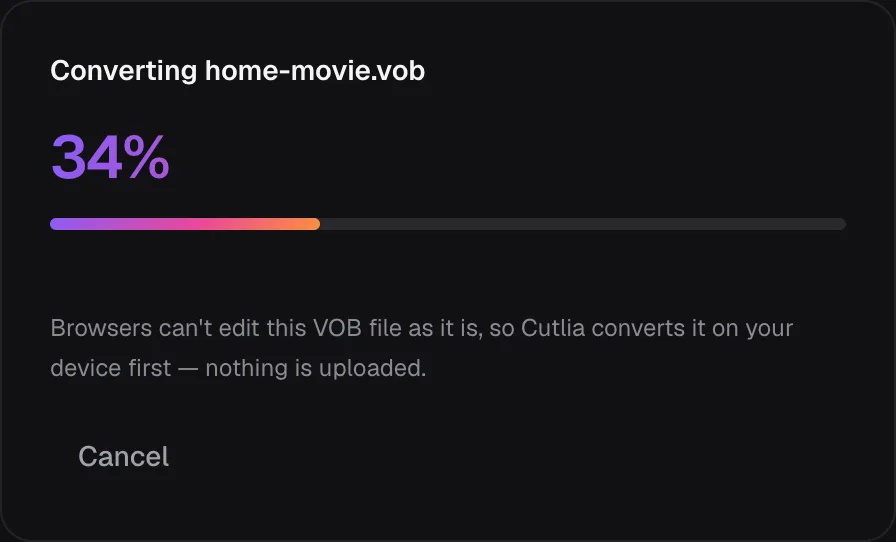
Opening the minute took 4.1 seconds, the middle of three runs. In that time FFmpeg decoded the MPEG-2, reshaped every picture to square pixels and passed it to Chrome's own H.264 encoder, usually the computer's video hardware. The editor then described the file as “1:00 · 640×480 · MPEG-2 · 24.4 MB · Converted from VOB” and its picture as “Converted to H.264 on your device.” Pressing “Convert to MP4” took 0.1 seconds in the same runs, because the H.264 was already made: it only had to be put into an MP4.
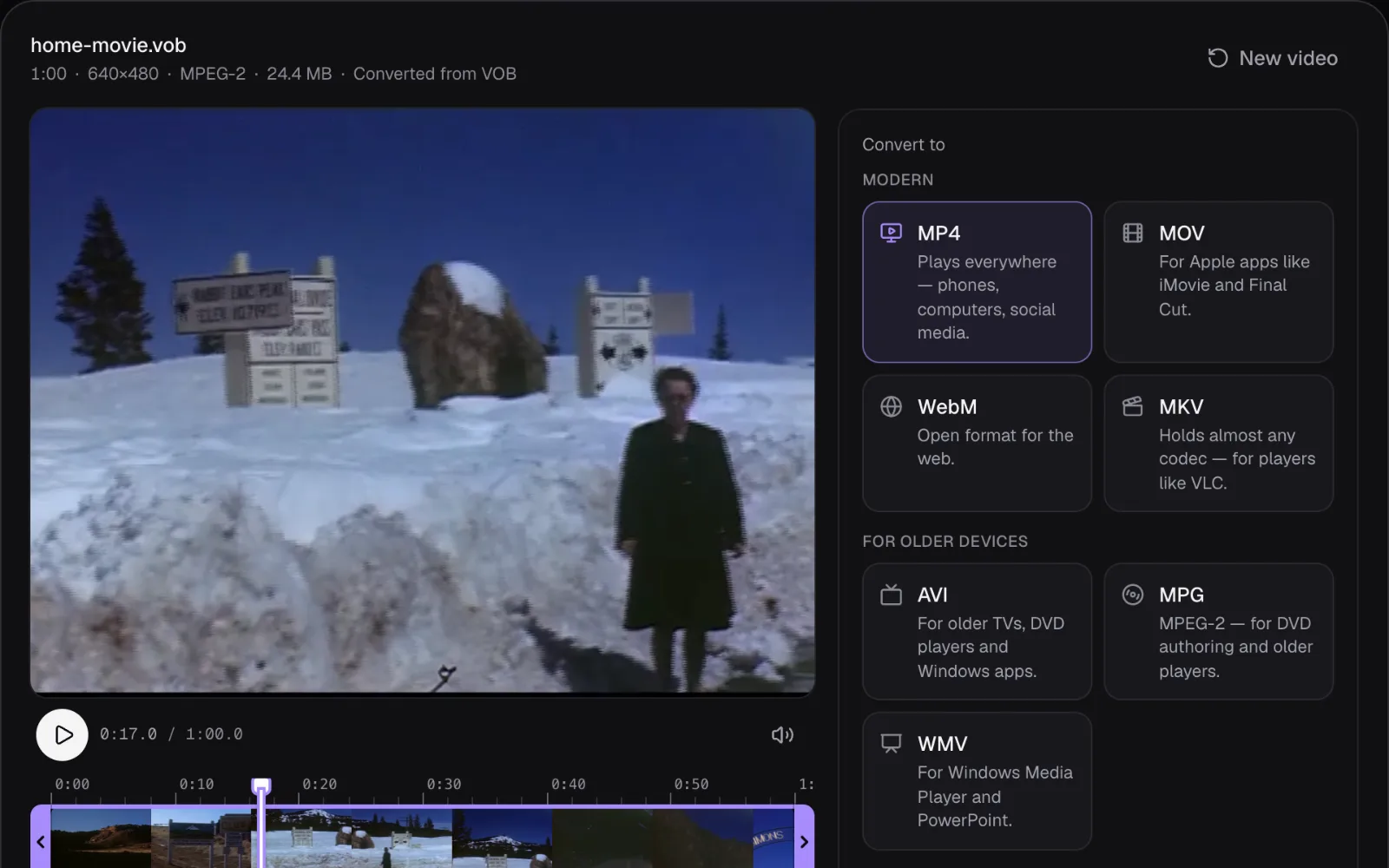
The MP4 came out at 13.8 MB, 57% of the DVD file's 24.4 MB: a 1.84 Mbps picture where the DVD file averaged 3.25 Mbps. H.264 needs fewer bits than MPEG-2 for the same picture, but Cutlia doesn't squeeze it, so the copy looks like the disc: a picture converted as its file opens is aimed at one and a half times the old picture's bitrate, up to about a quarter of a bit for each pixel of each frame at this size. Ours used a fifth. A smaller copy for sending is the Compress Video page's job.
Square pixels: why 720 × 480 came back as 640 × 480
Both DVD files store a 4:3 picture 720 pixels wide, but it should be drawn 640 pixels wide in NTSC and 768 in PAL. So their pixels aren't square: an NTSC pixel is drawn eight-ninths as wide as it's tall, a PAL pixel sixteen-fifteenths as wide. The 4:3 flag in the MPEG-2 tells a player to do that. Anything that ignores the flag draws the grid as it is, and the picture comes out the wrong shape.
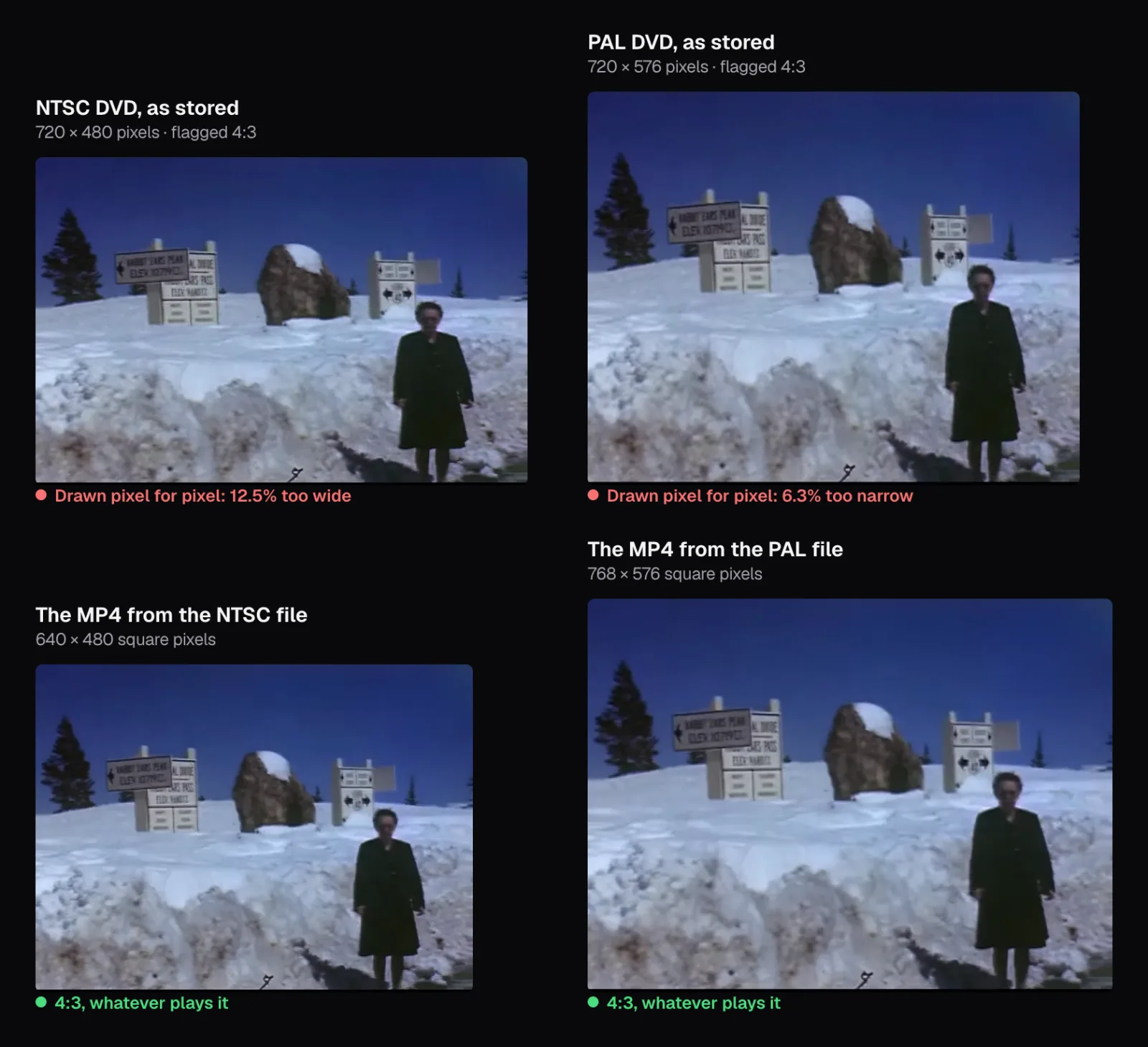
Drawn pixel for pixel, the woman in the NTSC file is 12.5% too wide and in the PAL file 6.25% too narrow. The converter makes the pixels square as it converts, so the MP4s are 640 × 480 and 768 × 576, both exactly 4:3, and their shape no longer depends on a player reading a flag. Widescreen discs follow the same rule: a 16:9 DVD picture 720 pixels wide becomes 854 × 480 from NTSC and 1024 × 576 from PAL, and our widescreen test DVD came out at 1024 × 576. A converted DVD that's still 720 × 480 or 720 × 576 is relying on the player to stretch it. For shapes in general, see Video aspect ratios explained: 16:9, 9:16, 1:1, 4:5, 4:3 and 21:9.
MiniDV, AVCHD, phone and camera files: copied or converted
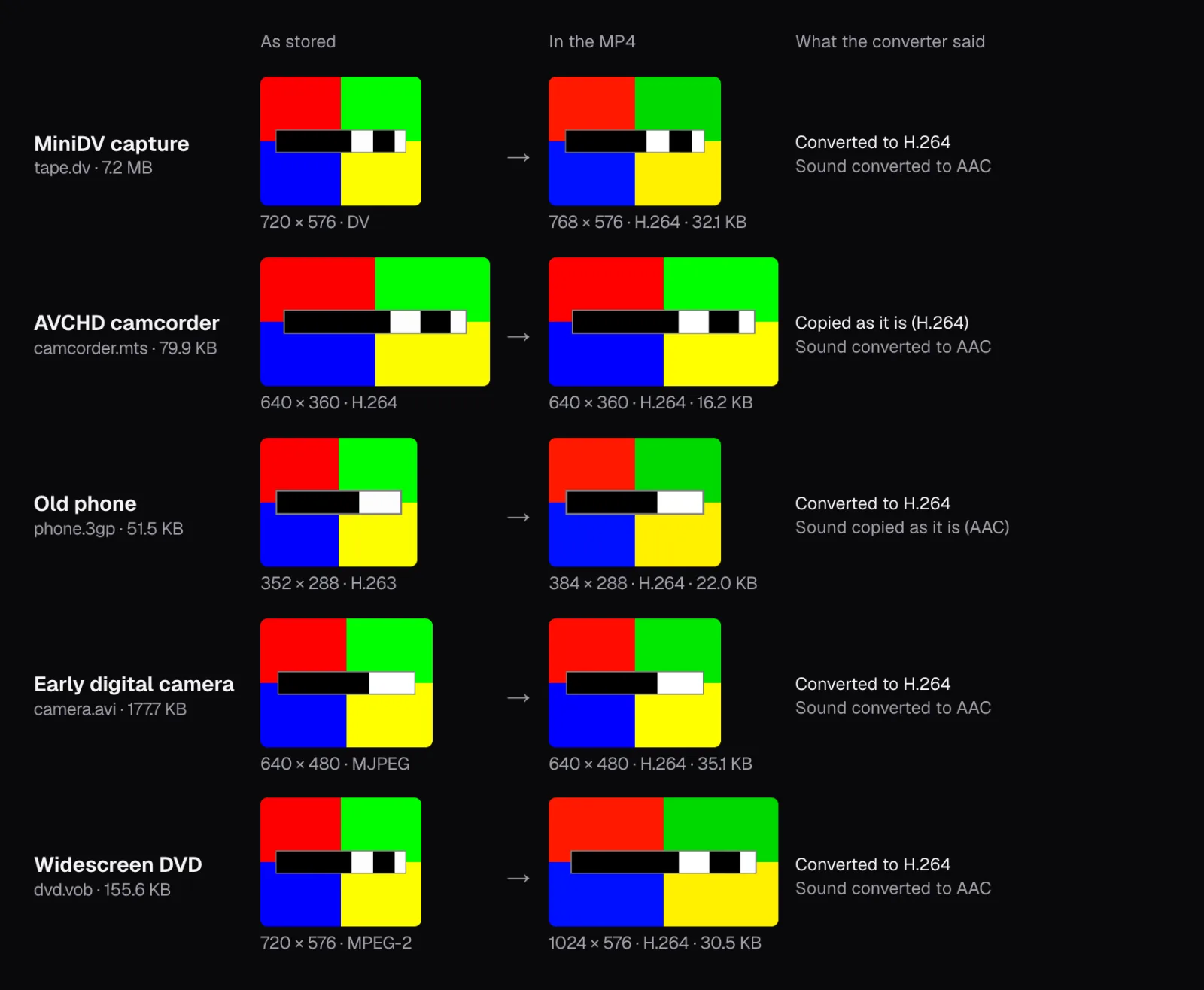
Cutlia's converter can't write DV, AVCHD, 3GP or Motion JPEG, so for these we used its own test files: two seconds each of a test pattern, four colored quadrants and the frame's number in binary, put into each format's codecs and container by the FFmpeg build Cutlia's tests use (the AVCHD clip's H.264 comes from Chrome's encoder). They're small: the AVCHD clip is 640 × 360, not a camcorder's 1080i or 720p. A widescreen, interlaced test DVD joined them, since our home-movie DVD files were 4:3. Each went to its own page, MTS to MP4, 3GP to MP4, AVI to MP4 and VOB to MP4, or the converter itself for DV, and was saved as MP4 with the settings as they opened. The pictures in the next figure are those test files, not the home movie.
| Test file | As stored | In the MP4 | Picture, sound |
|---|---|---|---|
| MiniDV capture (tape.dv, 7.2 MB) | DV, 720 × 576, 25 fps; PCM sound | H.264, 768 × 576; AAC | Converted, converted |
| AVCHD clip (camcorder.mts, 79.9 KB) | H.264, 640 × 360; Dolby Digital | The same H.264; AAC | Copied, converted |
| Phone clip (phone.3gp, 51.5 KB) | H.263, 352 × 288, 15 fps; AAC, mono | H.264, 384 × 288, 15 fps; the same AAC | Converted, copied |
| Camera clip (camera.avi, 177.7 KB) | Motion JPEG, 640 × 480, 15 fps; 8-bit sound, 11,025 Hz mono | H.264, 640 × 480; AAC, 44,100 Hz mono | Converted, converted |
| Widescreen DVD (dvd.vob, 155.6 KB) | MPEG-2, 720 × 576, 16:9, interlaced; Dolby Digital | H.264, 1024 × 576; AAC | Converted, converted |
Only the camcorder's picture survived untouched. AVCHD already records H.264, which MP4 holds as it is, and the panel said “Copied as it is (H.264) — lossless and quick.” once the clip was open; the MP4 bore it out, with the same H.264 profile and the same 50 frames. Its Dolby Digital sound was converted to AAC, because Chrome can't decode Dolby Digital and Cutlia previews and exports with the browser's own decoders. A camcorder MP4 made elsewhere that plays silently may still hold Dolby Digital; our guide to a video with no sound covers that and other causes.
The phone clip went the other way: its H.263 picture was converted, but its AAC sound was copied, still 22,050 Hz mono, exactly as the file held it. At 384 × 288 the picture is small on a modern screen, and converting adds no detail. The camera's Motion JPEG and its 8-bit sound were both converted, and so was DV, whose size explains why tapes need so much room: our PAL test file is exactly 7,200,000 bytes, 144,000 for each of its 50 frames. That's 3.6 MB a second, or about 13 GB for every hour of tape you capture, before the MP4 shrinks it.
What a trip through an old format costs
A conversion that re-encodes the picture keeps only what it's given, and loses a little more. To see how much, we compared three MP4s of the home movie, made straight, through the NTSC DVD file and through the AVI, with the film transfer they came from, pixel by pixel, at twelve moments spread through the minute, after checking which picture of each copy matched which picture of the transfer.
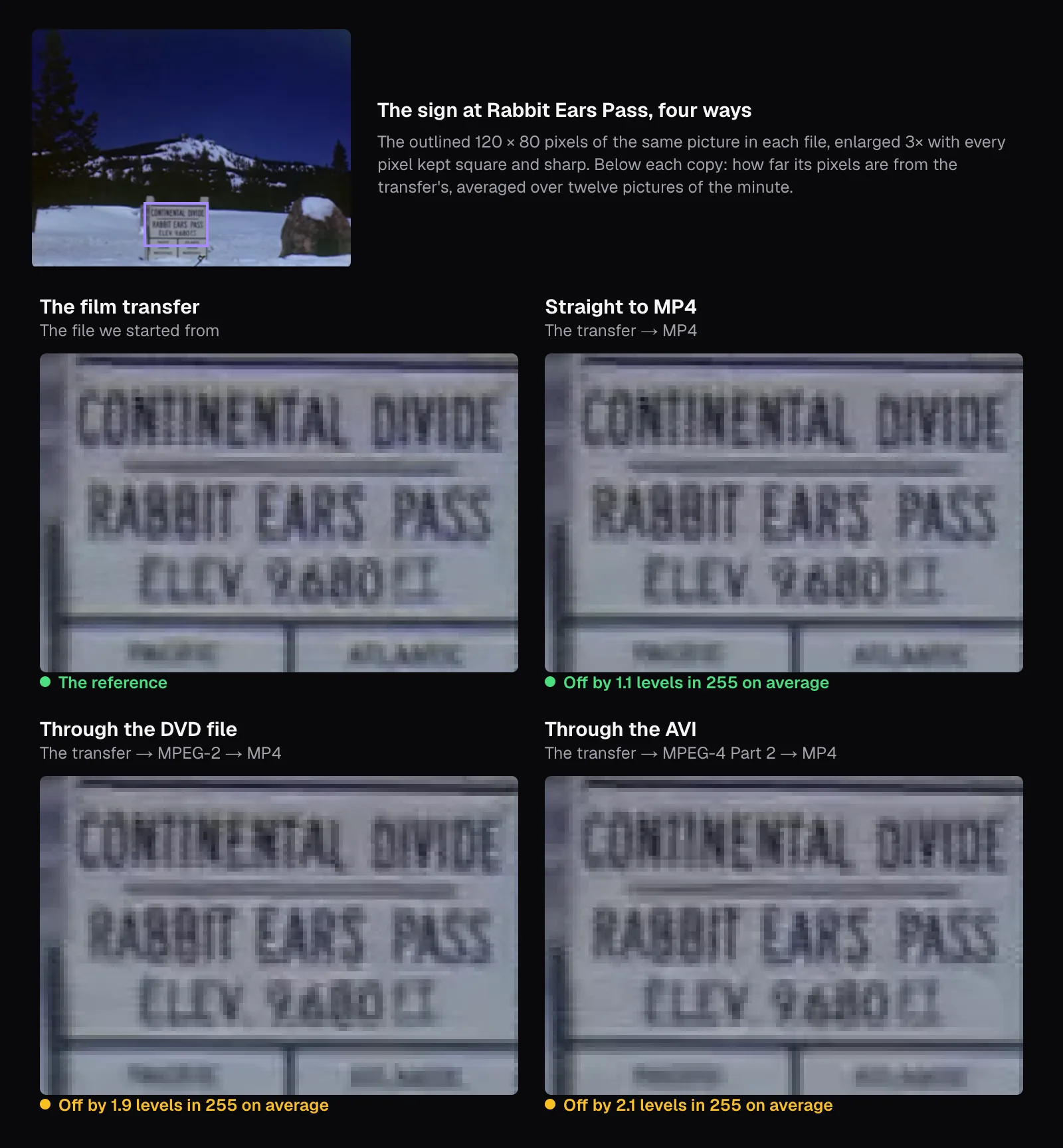
Averaged over the twelve pictures, the MP4 made straight from the transfer was off by 1.1 levels out of 255 per color channel, a PSNR of 43.7 dB; PSNR, the peak signal-to-noise ratio, measures the same closeness in decibels, and higher is closer. Through the NTSC DVD file the MP4 was off by 1.9 levels (40.6 dB), and through the AVI by 2.1 (39.7 dB). On the sign's fine lettering, measured in one picture, the gaps were wider: 2.7 levels straight, 4.4 through the DVD file, 4.8 through the AVI. At normal size none of the copies looks damaged; enlarged, the small words “Pacific” and “Atlantic” at the bottom of the sign blur a step further with each trip.
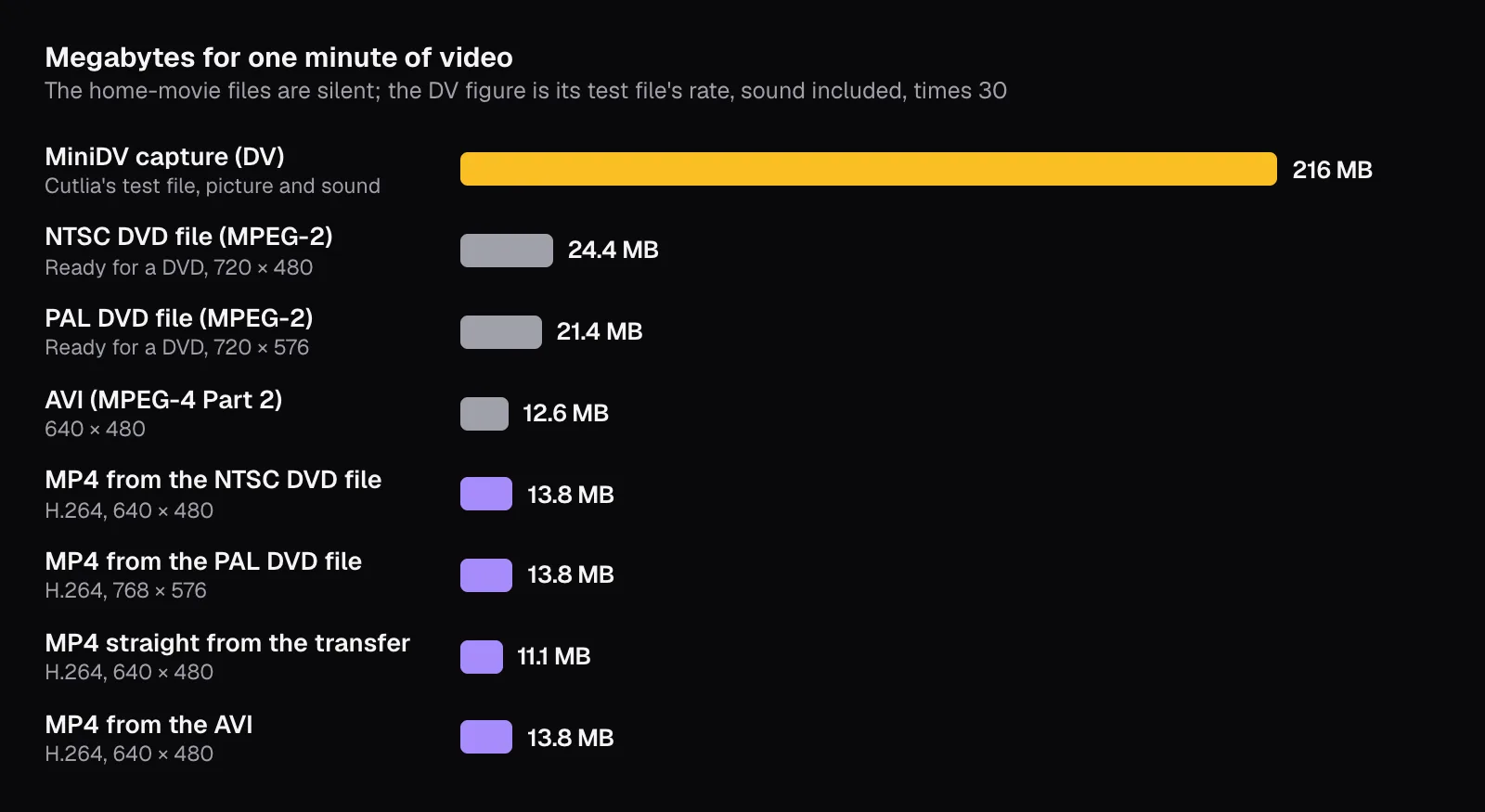
That's the case for converting once, from the best file you have, and for keeping it: nothing a converter does afterwards brings the lost detail back. The sizes show the other side. A minute of DV takes 216 MB, whatever it shows; our DVD files took 24.4 MB and 21.4 MB, the AVI 12.6 MB, and every MP4 between 11.1 and 13.8 MB. The MP4s made back from old files came out larger than the one made straight from the transfer, while holding less of it: their pictures were encoded as the old files opened, at a bitrate set from the old files' own, and the straight copy on export, at the converter's usual quality for a picture of its size.
Keep the originals, name them, and keep more than one copy
The MP4 is the copy you watch and share, not a replacement for its source: a better converter can start again from a VOB or a .dv capture, but from an MP4 it gets only what one re-encode kept. The Library of Congress agrees. Its Recommended Formats Statement, what it prefers to receive for its own collections, lists MPEG-2 in a program or transport stream among the preferred formats for file-based video as of November 2026, and an MP4 only as an acceptable viewing proxy.
Our routine, built on the Library's advice for personal video:
- Watch every MP4 to the end. A damaged file still converts: the converter keeps what it can read and skips what it can't decode, so a missing scene shows only if you look.
- Give each file a name that says what it is. “1998-07-12 Grandma's 70th, part 1.mp4” sorts by date and means something to a relative. The Library also suggests tagging videos with people's names and writing a short description of the folders and the videos in them.
- Write down what you know while someone still knows it. Our reel shows why: Wikimedia Commons dates it 1940, yet the shot notes on the same page mention an Ohio license plate from 1947. A dated name and a line of text beside the file settle questions like that for whoever inherits it.
- Make at least two copies, on separate media: one can stay on your computer, others on an external drive, a USB stick or online storage. Keep them in different places, as far apart as practical, so one disaster can't take them all.
- Check them at least once a year to make sure they still open, and copy them to new media about every five years, or sooner when that's needed to avoid losing them.
Keep the tapes and discs too while you have room: the Library's transfer guide suggests storing tapes out of direct sunlight, at about 65 °F and 45% humidity, in sleeves or plastic cases. And converting with Cutlia sends nothing anywhere, which matters when the footage is of your children; our look at whether online video editors upload your files shows how to check any tool.
What to do with a box of old home videos
- Copy before you convert. Put every VIDEO_TS folder, AVCHD folder, phone and camera file and tape capture into one folder of originals, named by source and date, and back that folder up before anything else.
- Convert each file to MP4 from those originals, not from an earlier conversion: the VOB to MP4 page for DVDs, MTS to MP4 for AVCHD, 3GP to MP4 for phones, AVI to MP4 for cameras and DivX files, and the Video Converter for DV and everything else. All of them are the same converter, starting on MP4.
- Check each MP4: its length against the original, and its picture size in the result. 640 × 480, 768 × 576, 854 × 480 or 1024 × 576 from a DVD means the shape is fixed in the file.
- Put the MP4s in a folder of their own, with the same names as their originals, and copy both folders to a second drive in another place.
If a disc's video runs across several VOB files, or a long recording comes in several MTS files, convert them in order and join the MP4s with Merge Videos. It encodes the joined video again, so keep the parts too. To send a video to relatives, see sending a large video; when the tapes are full of grandparents telling stories, a private transcript turns them into text you can search and print.
The tools in this guide
Video Converter
Convert almost any video to MP4, MOV, WebM, MKV, AVI, MPG or WMV — on your device.
VOB to MP4
Get home videos off old DVDs and into MP4.
MTS to MP4
Make AVCHD camcorder clips play everywhere — without losing a pixel.
3GP to MP4
Bring videos from old Nokia, Sony Ericsson and Samsung phones back to life.
AVI to MP4
Bring old DivX, Xvid and camera AVIs into the MP4 age.
Questions people ask
Can I convert a movie DVD I bought?
Not if it's copy-protected: Cutlia can't decode VOB files scrambled with CSS, and the Library of Congress's transfer guide reminds you that you must have the right to copy a disc. The converter is meant for discs you made or may copy, such as recordings from a DVD recorder or camcorder and family or wedding DVDs.
Should I throw away the tapes and discs after converting?
Keep them while you have room, and above all keep the files copied from them: the VIDEO_TS folder, the AVCHD folder, the .dv captures. Those are your masters; the MP4s are viewing copies made from them. A better converter, or a better upscaler, can only start again from the master.
Why is the MP4 smaller than the VOB file?
H.264 needs fewer bits than a DVD's MPEG-2 for a picture that looks the same. Our minute of home movie took 24.4 MB as an NTSC DVD file and 13.8 MB as the MP4 made from it, at 640 × 480 once its pixels were square. The picture is encoded once more, aiming to look like the disc; detail the disc never held can't be added.
Will converting make old home videos look HD?
No. A DVD's 480 or 576 lines are the same lines in the MP4, and a phone clip stays small. The Video Upscaler can take a converted DVD to 1080p or 4K, redrawing edges with AI rather than stretching pixels where your device can run it; our guide to AI upscaling shows what that recovers. Keep the unscaled MP4 too: it's the faithful copy.
How do I convert VHS tapes to MP4?
A VHS tape has to be played into something digital first, in real time. The Library of Congress lists four ways: into a digital video camera, through a converter box into a computer, or onto a DVD with a combined VCR and DVD recorder or a DVD burner attached to the VCR. Then convert the camera file or the disc's VOB files to MP4 like any other.
Sources
Where the facts in this guide come from, besides our own tests:
- Video - Personal Archiving: Keeping Personal Digital Video — Library of Congress
- Transferring Video from Tape, DVD or Camera to Your Computer (PDF) — Library of Congress
- Recommended Formats Statement: Moving Image Works — Library of Congress
- MPEG-2 Program Stream (format description) — Library of Congress
- MPEG-2 Transport Stream for Blu-ray Discs (BDAV) and AVCHD (format description) — Library of Congress
- DV, DVCAM, DVCPRO (format description) — Library of Congress
- AVI (Audio Video Interleaved) File Format (format description) — Library of Congress
- DivX Video Codec, Version 5 (format description) — Library of Congress
- MJPEG (Motion JPEG) Video Codec (format description) — Library of Congress
- 3GPP TS 26.244: Transparent end-to-end packet switched streaming service (PSS); 3GPP file format (3GP), V19.1.0 — ETSI / 3GPP
- Import into iMovie on Mac from tape-based cameras — Apple Support
Footage in this guide
The pictures were made with Cutlia's tools from this openly licensed footage, found on Wikimedia Commons:
- Home Movies - Western U.S., New Mexico, Mexico, California, Colorado, Utah — Prelinger Archives (filmmaker unknown), Public domain