Privacy and how it works
Do online video editors upload your files?
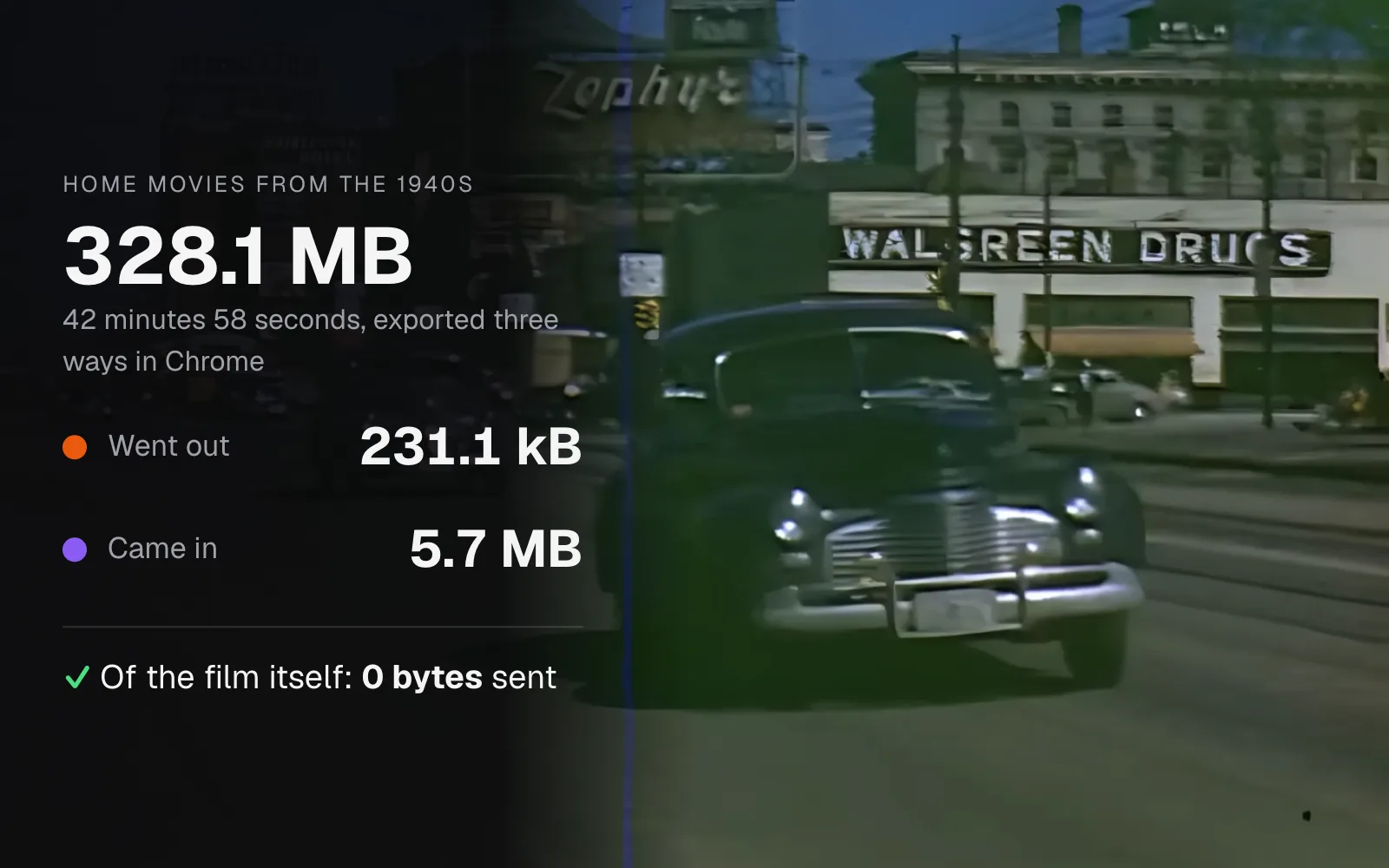
We exported a 43-minute home movie from the 1940s three ways while logging every byte Chrome sent and received, then switched the network off and exported again.
By the Cutlia team · Published · 16 min read
The short version
- Some online editors upload your video to a server and some edit it inside your browser; nothing on the screen shows which, but two simple tests do.
- Open Chrome's DevTools on the Network tab before you pick the file, export, then type “method:” in the filter: an upload shows up as POST or PUT requests whose bodies add up to roughly the file's size.
- In our test, three tools worked on a 328.1 MB home movie and sent 231.1 kB in all, almost all of it request headers; the largest thing that crossed the network was a 2.4 MB AI model coming in.
- For a second test, export once, switch off Wi-Fi and export again: our Trim Video and Video Upscaler exports finished offline, from code they had already downloaded, with nothing reaching the network.
- A tool that doesn't upload still downloads its code and models and may count anonymous events, and cutlia.com also loads Google's ad script and Cloudflare's analytics beacon: check what each page sends, not only whether it uploads.
An online video editor can do its work in one of two places. It can send your file to a server, edit it there and send the result back, or it can bring the editing software to your browser and work on the file where it already is. From your side of the screen the two look the same: you pick a file, a bar fills up, a download appears. The difference is whether a copy of your video ends up on a computer you don't control.
You don't have to take any site's word for which kind it is, ours included. We took a reel of home movies from the 1940s, 43 minutes of road trips through the American South and West, and exported it with three of Cutlia's tools while recording every request Chrome made, including those of the tools' background workers: how many bytes went out, how many came in, and what each message said. Then we switched the network off and exported again. Both checks work on any editor you're about to trust with your footage.
What uploading a video actually means
Everything a web page does over the network is a request: the browser asks, a server answers. Most requests are downloads. The browser sends a few hundred bytes naming what it wants and gets the page, a script or a picture back. When the browser has data to deliver, the data travels in the request's body, usually with one of two methods. MDN's reference puts it simply: “The POST HTTP method sends data to the server,” and PUT “creates a new resource or replaces a representation of the target resource with the request content.”
Uploading a video means exactly that: requests whose bodies carry the file's bytes. The HTTP standard says a browser should normally send such a request with a Content-Length header, which gives the length of what it carries “as a decimal non-negative integer number of octets”, that is, in bytes. Big files are often sent in pieces. Google's documentation for uploading to Drive shows both ways: one PUT request whose Content-Length is “the number of bytes in the file”, or a series of PUTs carrying chunks in multiples of 256 KB, each with a Content-Range header saying which bytes it holds.
Either way, the arithmetic can't be dodged. To get a 328 MB film onto a server, at least 328 MB has to leave your computer, in one request or in a thousand. Squeezing it first wouldn't hide it: a video small enough to pass for a few kilobytes is no longer a video anyone could edit. That is why the numbers in a network log settle the question.
What happens to a file once it's on a server isn't something you can see from the browser: how long it's kept, who can open it, whether it's used for anything else. That's decided by the service's terms. For a holiday clip it may not matter. For a film of your children, a doctor's appointment or footage under a non-disclosure agreement, it's the whole question.
How a browser can edit video without a server
Editing video takes heavy computation: decoding compressed frames, changing them, compressing them again. Browsers now have standard interfaces that do that on your own device:
- WebCodecs gives a page the browser's own video and audio codecs. MDN describes it as letting web developers “encode and decode video and audio in the browser efficiently (using hardware acceleration)”. Decoding turns the compressed file into frames, encoding turns frames back into a compact file. Cutlia's editing tools, Trim Video and Compress Video among them, use it through the Mediabunny library, which reads your file from the disk piece by piece instead of loading it whole.
- WebAssembly runs compiled programs inside the page. MDN calls it “a compilation target for languages like C/C++, C#, and Rust, allowing high-performance code to run directly in the browser.” Cutlia runs its own build of FFmpeg this way, loaded only when a file needs it: opening a format browsers can't read, such as AVI, WMV or MPEG, or saving one. It uses another for AAC sound in browsers that have no AAC encoder of their own, such as Firefox.
- WebGPU lets a page “use the underlying system's GPU (Graphics Processing Unit) to carry out high-performance computations”, in MDN's words. That's what makes AI on a laptop practical: the Video Upscaler runs the Real-ESRGAN models with its own WebGPU code, and the speech tools run OpenAI's Whisper on the graphics chip where the browser offers WebGPU, on the processor where it doesn't.
The heavy work runs in Web Workers, background threads that keep the page responsive while a file is encoded. This matters for anyone checking a site: MDN notes that workers “can make network requests using the fetch() or XMLHttpRequest APIs”, so a check that only watched the page itself would miss a worker that uploads. Ours recorded both.
As the export runs, Cutlia writes the result into the browser's private storage on your disk (or, where it can't, into memory), and the Download button hands that file to your Downloads folder. There's no server in that path, and our log confirms it: clicking Download fetched nothing, and its only trace in the log is a counting message saying the result had been downloaded.
Our test: a 1940s home movie through three tools
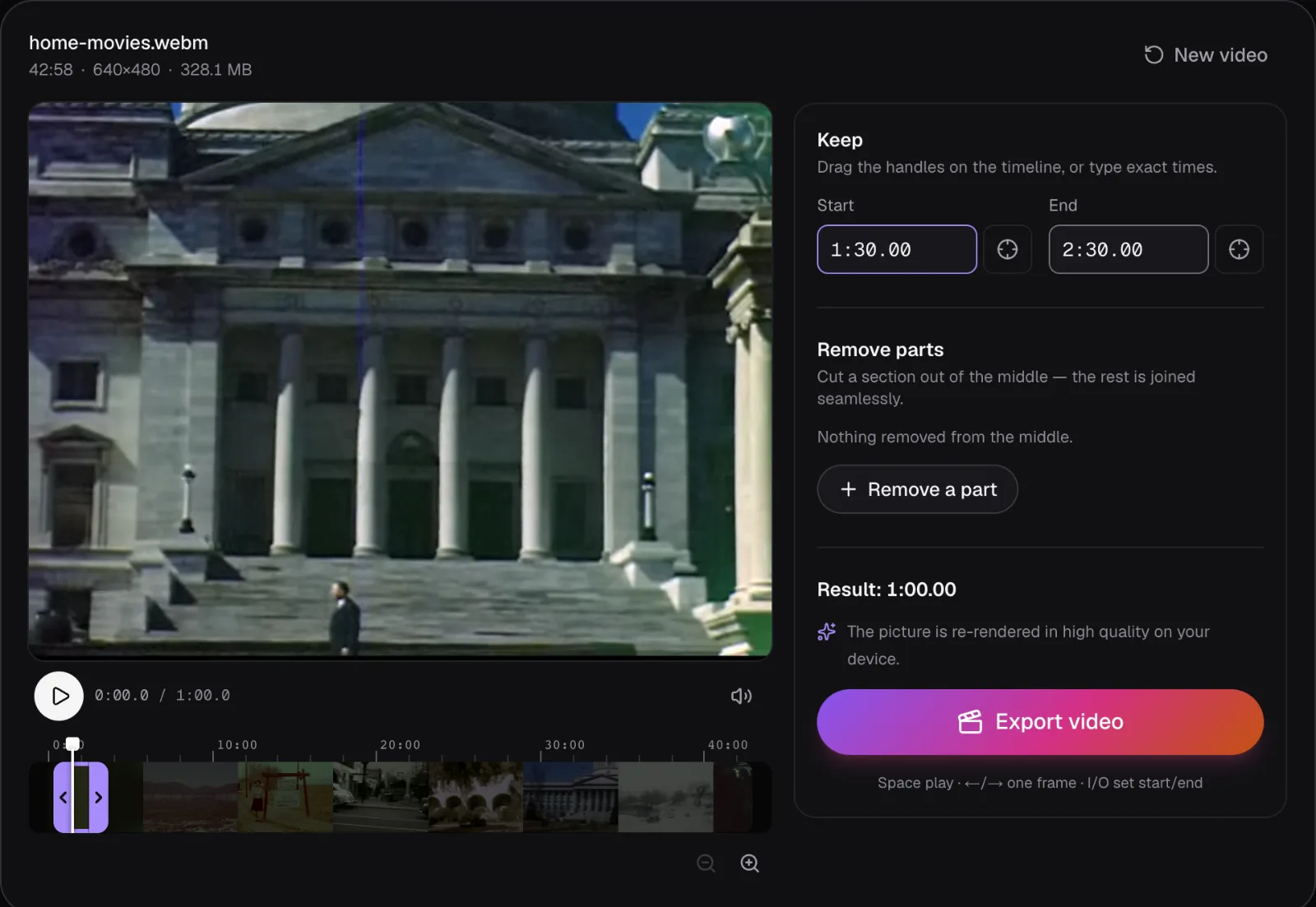
The film is a reel of home movies from the Prelinger Archives: Fort Knox, the Mississippi, state capitols, the Alamo, Mexico, the West. Its filmmaker is unknown, and Wikimedia Commons dates it 1940, though the archive's notes on the reel mention an Ohio license plate from 1947. Our copy is the 480p VP9 version Commons makes of the digital transfer there (the upload itself is VP8): a WebM with no sound, 640 × 480 pixels, 42 minutes 58 seconds and 77,273 frames, 328.1 MB. Parts of our copy are damaged by smeared blocks of color, so every stretch we used is one we looked at first.
We exported it three times, each tool in a fresh Chrome profile with an empty cache, as on a first visit:
- Trim Video: the minute from 1:30 to 2:30, a capitol that the archive's notes on the reel identify as Arkansas's, a man walking up its steps, a tall brick building and a parked car. Trim Video copies a picture into its MP4 untouched only when it's H.264 or HEVC, so for this VP9 film it said “The picture is re-rendered in high quality on your device” and made a 16.7 MB H.264 file.
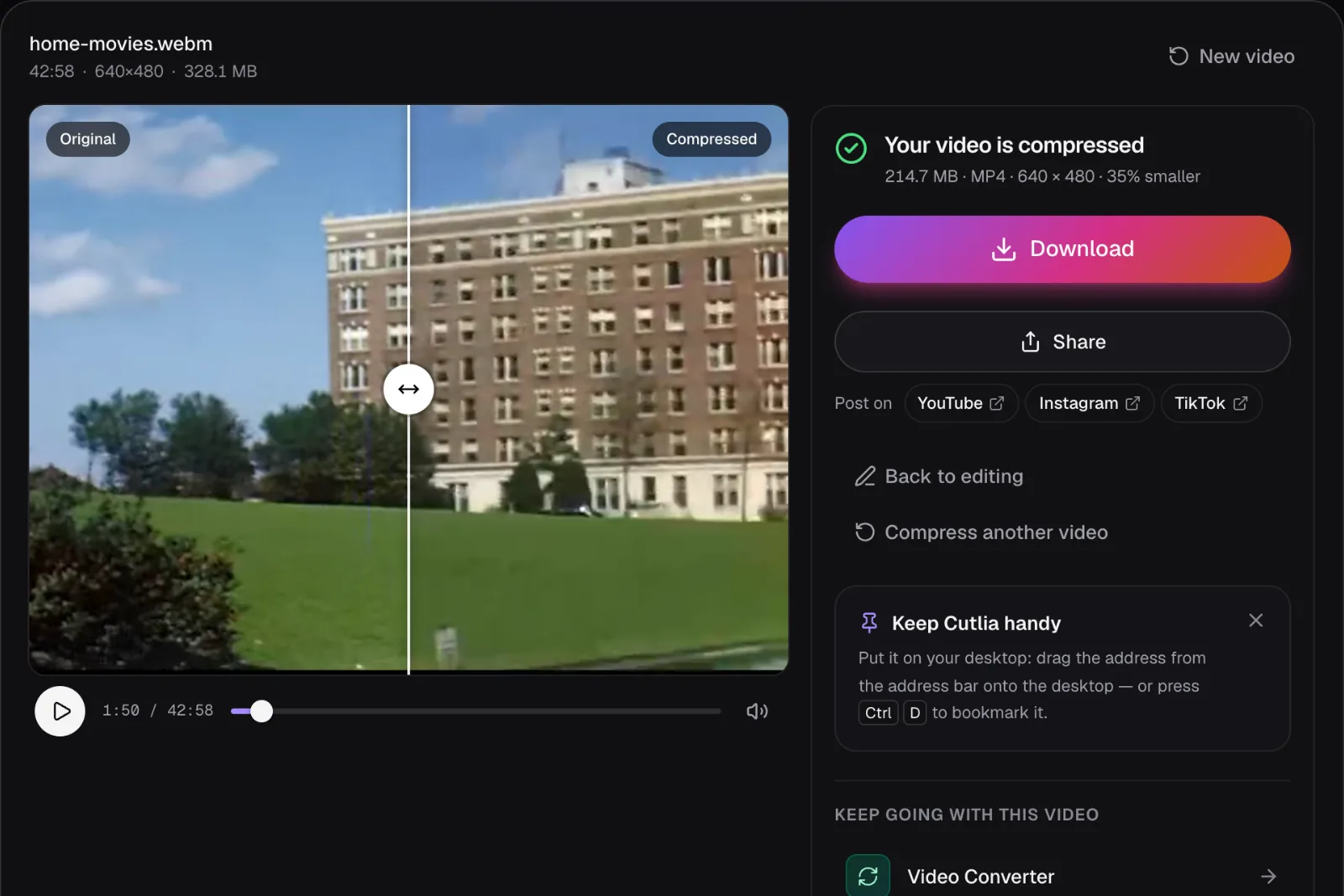
- Compress Video: the whole film, all 42 minutes 58 seconds of it, on the default goal, “Smaller, same look”. It came out as a 214.7 MB MP4, 35% smaller.
- Video Upscaler: two seconds of a downtown street, upscaled by the AI to 1440 × 1080 on the laptop's graphics chip. The tool measured “One frame takes about 0.5 s on this device” and made a 1.8 MB file of 60 frames.
Chrome ran under Playwright, a tool for driving a browser from a script, on a MacBook Air with an Apple M5 chip. Playwright saw every request the pages and their workers made, with its size in both directions: headers and body going out, headers and body coming in as transferred. We also read every body a page sent. The site was a copy of Cutlia served from the laptop itself, so it showed no ads and loaded no analytics beacon, and Playwright kept the site's service worker (the script that shows cutlia.com's offline page) switched off; a later section covers what cutlia.com adds.
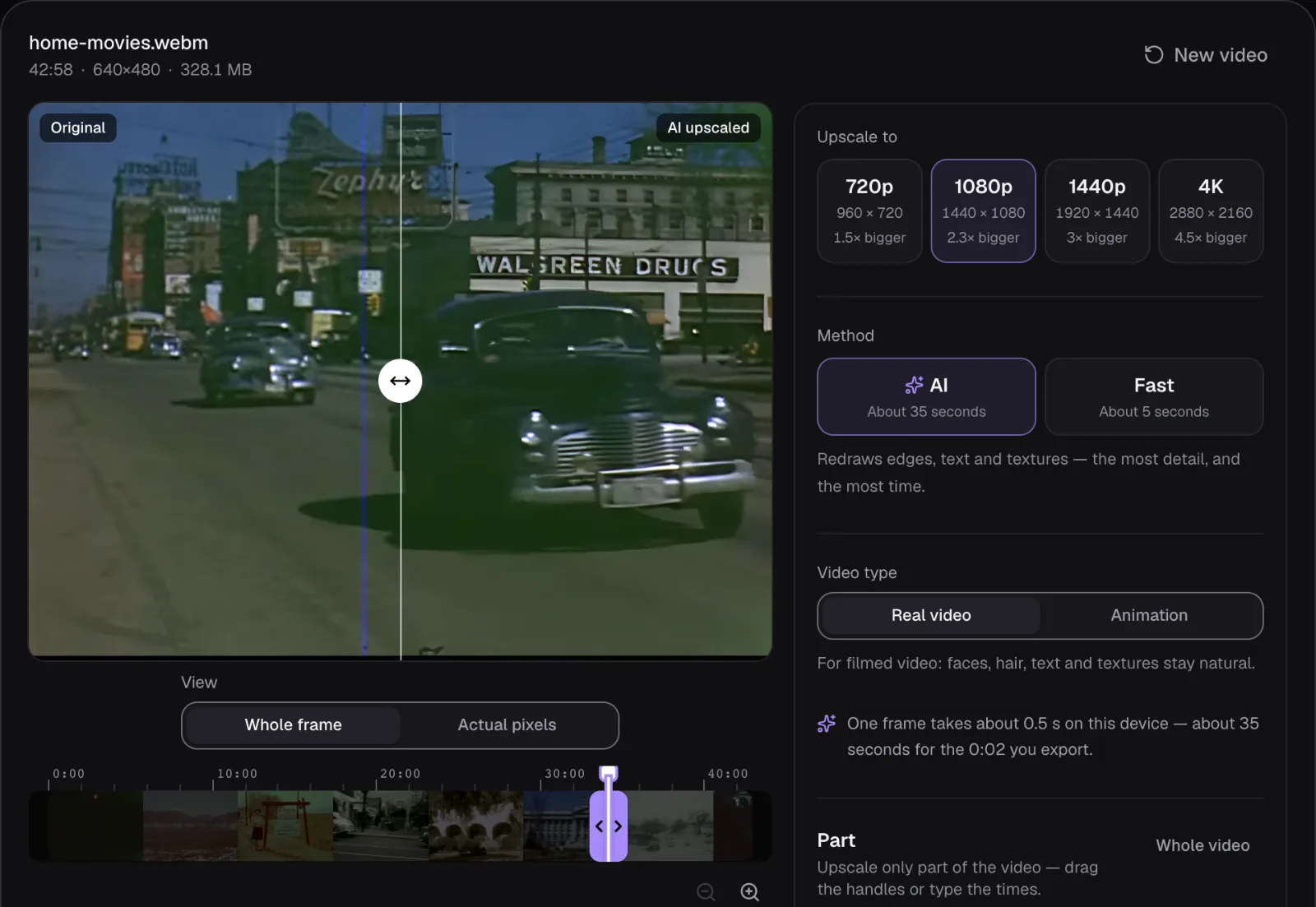
What went out and what came in
Each of the three exports sent between 73.9 and 79.6 kB and received between 1.0 and 3.5 MB. Against a 328.1 MB film, the gap is plain on a chart, even on a scale where each gridline is ten times the last:
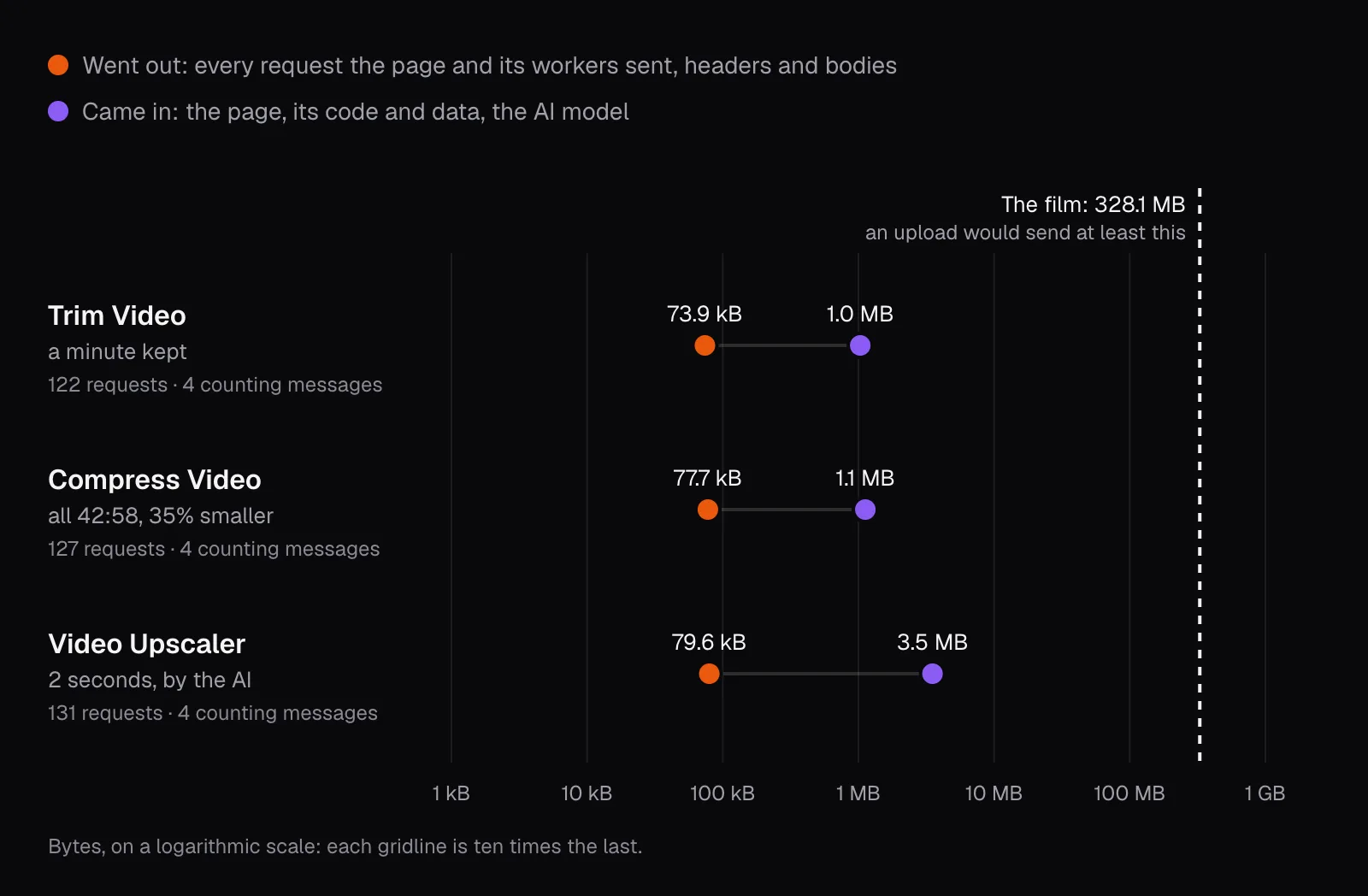
What went out was almost entirely request headers: the few hundred bytes each request carries to say what it wants, which browser asks and what it accepts. Trim Video made 122 requests, and their headers came to 72.7 kB. The only bodies were four messages to Cutlia's counting address, 1.2 kB in all, and the largest single request of the session was one of them, at 1,072 bytes. Compress Video read and re-encoded all 43 minutes of the film and sent four such messages too, 1.3 kB in total:
We read every one of those messages. They name events, such as a page viewed, a file opened, an export started and finished, and a card shown on the result screen, with details in broad ranges: the file was a WebM between 100 and 500 MB, 15 to 60 minutes long, at 480p. None held the file's name or any of its pictures. Our guide to transcribing a video without uploading it ran the same kind of log on speech recognition, where the words never left the laptop either.
What came in is more varied, and it explains the big numbers people see in their own logs:
- The page and its code: the HTML, styles, fonts and scripts when the page opened, then more code, the tool's workers among it, when the file was picked and the export started. For Trim Video that came to 633.2 kB in 49 requests.
- Pages fetched ahead: 69 requests, 397.6 kB, for pages the page links to. The site's framework, Next.js, loads a linked page's data in the background when the link comes into view, so that a click on it is faster.
- The AI model: the Upscaler downloaded Real-ESRGAN's general model in half precision, a 2.4 MB file from Cutlia's own server, when the film was opened. It was the largest thing in all three logs, and it came in.
How to check any editor with Chrome's network panel
Chrome's developer tools record the same things our script did, and you need no programming to read them. Google's documentation for the Network panel, as of November 2026, is the reference for every step below.
- Open the editor's page, then open DevTools with Control+Shift+J (Command+Option+J on a Mac) and click the Network tab. Do it before you pick the file: as Google's guide says, “DevTools only logs network activity while it's open”. Tick Preserve log so that a page change doesn't clear the list.
- Right-click the table's header and add the Method column, and Domain too if you like.
- Pick your file, edit it, export it, and download the result, as you normally would.
- Type method: into the filter box. The panel offers every method it has seen in the session. If the list holds only GET (and perhaps HEAD), no request carried a body; WebSockets, below, are a separate check.
- If POST, PUT or PATCH appear, filter for each, click every request and open its Payload tab, which shows what it sent. Under Headers, the request headers usually include content-length, the body's size in bytes. An upload is one large body, or a run of requests whose bodies add up to roughly your file.
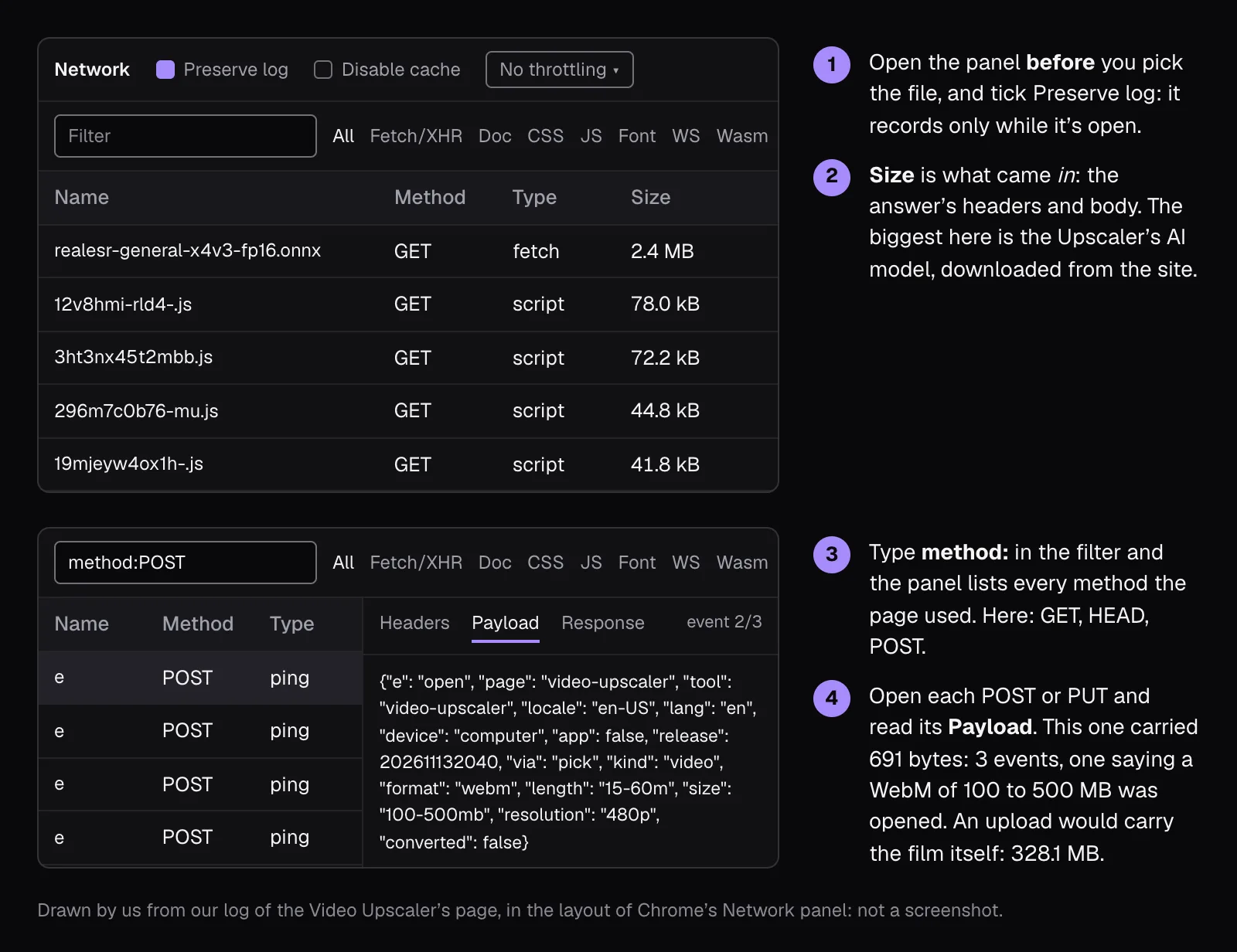
One column misleads people. The Size column is, in Google's words, “the combined size of the response headers plus the response body”: what came in. A request listed at 2.4 MB is a download, like the Upscaler's model, not an upload. The totals in the status bar at the bottom count transferred and loaded resources, so they also measure downloads. Large numbers there are code and models arriving, which a tool that works on your device needs.
Three more places are worth a look:
- WS, among the type buttons, lists WebSocket connections, a channel some sites keep open. Its Messages tab gives each message's Length in bytes.
- More filters → 3rd-party requests keeps only requests whose origin differs from the page's: ads, analytics, CDNs. On a site with ads you'll see plenty, and the same test applies to each.
- Disable cache makes the browser fetch everything again, as on a first visit, if you want to see the full list of downloads.
The second test: export with the network off
The network panel shows what a page did. Switching the network off shows what it needs. A tool that edits on a server can't finish without one: it stops with an error or waits forever. A tool that edits on your device can finish, once its code is on your computer. Passing shows that the export needs no server; it can't show what a page might send once you're back online, which is why the panel comes first.
The simplest way is your computer's own switch: turn off Wi-Fi or unplug the cable. DevTools has a switch too: choose Offline in the throttling menu, which Google describes as a way “to simulate a completely offline network experience”. Either way, do it after the page has loaded and finished one export. Pages like ours download parts of their code only when they need them: the media library when you pick a file, the export's worker when you export, an AI model the first time a tool uses it. Cut the network before they arrive and even a tool that never uploads can't start.
That's what we did. After each online export, with the same page still open, we switched the browser offline and checked that neither the page nor a worker it started could reach the laptop's own server or the internet. Then Trim Video exported another minute, a black-and-white street of parked 1940s cars from 37:25 to 38:25, into a 15.1 MB file. The Upscaler made a 2.0 MB file of two seconds of a building with a clock tower, its AI running on the graphics chip as before.
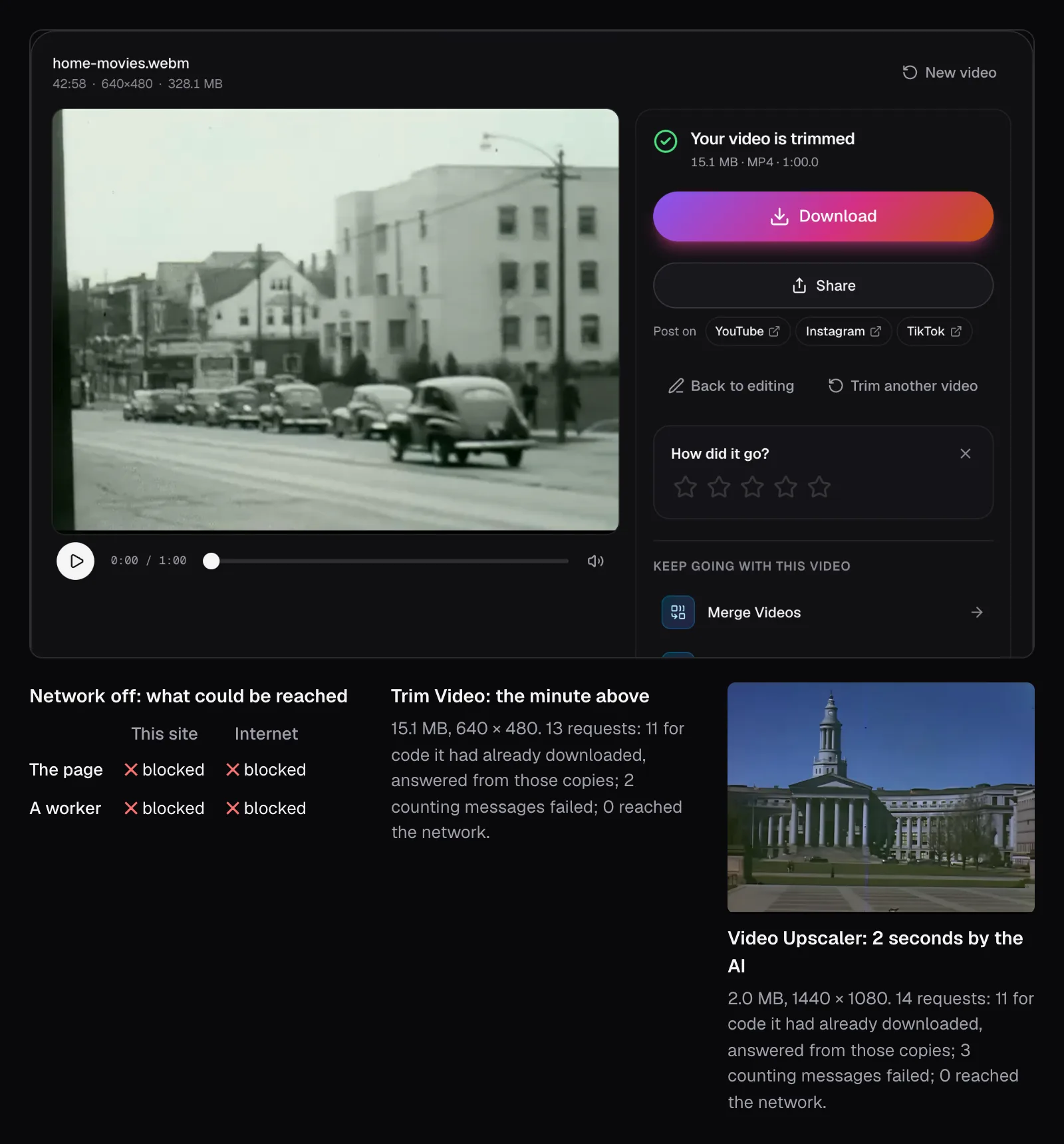
During the two offline exports, the pages made 27 requests. Twenty-two asked for code files they had already downloaded, the workers' scripts among them, and our script answered them with those copies, as the note below explains. The five others were counting messages, which failed without the tools noticing. Nothing reached the network.
What an editor that doesn't upload still sends and loads
“Nothing is uploaded” is a claim about your file, not a promise that the page talks to nobody. Here is what Cutlia's pages still do, and what to look for on any site:
- They download code and models. The AI tools fetch what they need when first used: the Upscaler its model from Cutlia's own server, the speech tools theirs from Hugging Face, with the code that runs them from jsDelivr (in mainland China, from mirrors of both). The privacy policy points out that, like any web server, those services see your IP address and browser type as they deliver the files. The downloads carry nothing about your video.
- They count anonymous events. The messages in our log are Cutlia's own counts, which have no cookies and no identifiers. They name the page and tool, the page's language and the browser's, the kind of device, where the visit came from, how quickly the page loaded, a file's format, rough ranges of its size, length and resolution, how long the work took, which settings were changed (by name, not value) and any error code, plus the first 40 characters of a tool search that finds nothing. The counting address adds your country and the kind of browser and system from the request itself. A browser that sends the Global Privacy Control signal isn't counted at all. A comment or problem report you choose to write is sent separately.
- On cutlia.com, two more scripts load. We read the live page's source on the day of our test: it loads Google's AdSense script for the ads, and Cloudflare's Web Analytics beacon, which Cloudflare says gives “information on page views and visitors” and “collects metrics using the Performance API”. Our local copy had neither, so our log doesn't show their requests and this test says nothing about what they send. On the live site the two scripts show up in the same panel, under Google's and Cloudflare's domains, along with whatever requests they make. The privacy policy describes what the ads use, including cookies and the consent message shown in Europe, and what the beacon measures.
So the honest summary of our test is narrower than “the page sent nothing”: on our copy of the site, over three exports of a 328.1 MB film, the pages sent 231.1 kB, and none of it was the film, its name or any of its pictures, only its format and codec and broad ranges of its size, length and resolution. On the live site, check the third-party requests too. The arithmetic from the first section rules the film out of them as well, since none can carry 300 MB without being 300 MB; anything smaller, such as a file's name, only their payloads can rule out.
Which kind of editor to use for private footage
For footage you wouldn't hand to a stranger, such as your family, your health, a client's material or anything under a non-disclosure agreement, use a tool that edits on your device, and check it once with both tests, on a file that doesn't matter, before you give it one that does. A site's code can change between visits, so check again now and then.
Upload-based editors have their uses: working on one project from several computers, sharing drafts with a team, rendering on hardware stronger than yours. If you use one, read its terms for how long files are kept, whether they're used for anything besides your edit, such as training, and how to delete them.
For the jobs most people have, all of these run on your device:
- Cutting a clip: Trim Video. Making a file small enough to send: Compress Video, and our guide to sending a large video for what to do once it's ready.
- Old formats from tapes, discs and early cameras: Video Converter, tested on this same home movie in our guide to saving old home videos.
- Making old or small footage sharper: Video Upscaler, explained in our guide to AI upscaling.
- Turning speech into text: Video to Text, which downloads its speech model the first time and, with its page open, transcribes without a connection.
Questions people ask
Do online video editors upload your video?
Some do: the file goes to a server, is edited there, and the result comes back. Others run in your browser, using its built-in codecs, WebAssembly and the graphics chip, and never send the file. Nothing on the screen shows which kind you're using, but Chrome's Network panel and an export with the network off will.
How can I tell if a website is uploading my file?
Open DevTools on the Network tab before you pick the file, export, then type “method:” in the filter. Uploads are POST or PUT requests whose bodies add up to roughly your file's size; open each one's Payload tab to see what it sent. The Size column only measures downloads.
Does Cutlia upload my videos?
No. Cutlia's tools work on the file inside your browser. In our test on a copy of the site without ads, Trim Video, Compress Video and the Video Upscaler worked on a 328.1 MB home movie and sent 231.1 kB between them: request headers and anonymous counts naming events and broad ranges, never the file or its name. Two of them exported again with the network switched off.
Can I edit a video online without an internet connection?
Often, with a tool that works in the browser: load its page, finish one export so its code is downloaded (an AI tool's model too), and keep the page open. Our Trim Video and Video Upscaler exports then finished with the network off, from code the browser already had, which cutlia.com's caching lets it keep. Served without that caching, our first offline try failed. A page you haven't loaded can't open offline.
Why does the network panel show megabytes coming in if nothing is uploaded?
Because tools that work on your device have to download their code and, for AI, their models. In our log the largest item was the Video Upscaler's 2.4 MB AI model. DevTools' Size column and its status-bar totals measure what arrives, not what leaves, so look at the methods and payloads instead.
Sources
Where the facts in this guide come from, besides our own tests:
- Inspect network activity — Chrome for Developers
- Network features reference — Chrome for Developers
- POST request method — MDN Web Docs
- PUT request method — MDN Web Docs
- RFC 9110: HTTP Semantics, section 8.6, Content-Length — IETF
- Upload file data — Google for Developers (Google Drive API)
- Cache-Control header — MDN Web Docs
- WebCodecs API — MDN Web Docs
- WebAssembly — MDN Web Docs
- WebGPU API — MDN Web Docs
- Web Workers API — MDN Web Docs
- About Cloudflare Web Analytics — Cloudflare Docs
- Link component: prefetch — Next.js documentation
Footage in this guide
The pictures were made with Cutlia's tools from this openly licensed footage, found on Wikimedia Commons:
- Home Movies - Western U.S., New Mexico, Mexico, California, Colorado, Utah — Prelinger Archives (filmmaker unknown), Public domain