AI tools
What does AI upscaling really do to a low-resolution video?
We upscaled an old 480p copy of a 1943 Superman cartoon with AI and without, compared it crop by crop with the 1080p restoration, and measured upscales of footage we shrank ourselves against the originals.
By the Cutlia team · Published · 16 min read
The short version
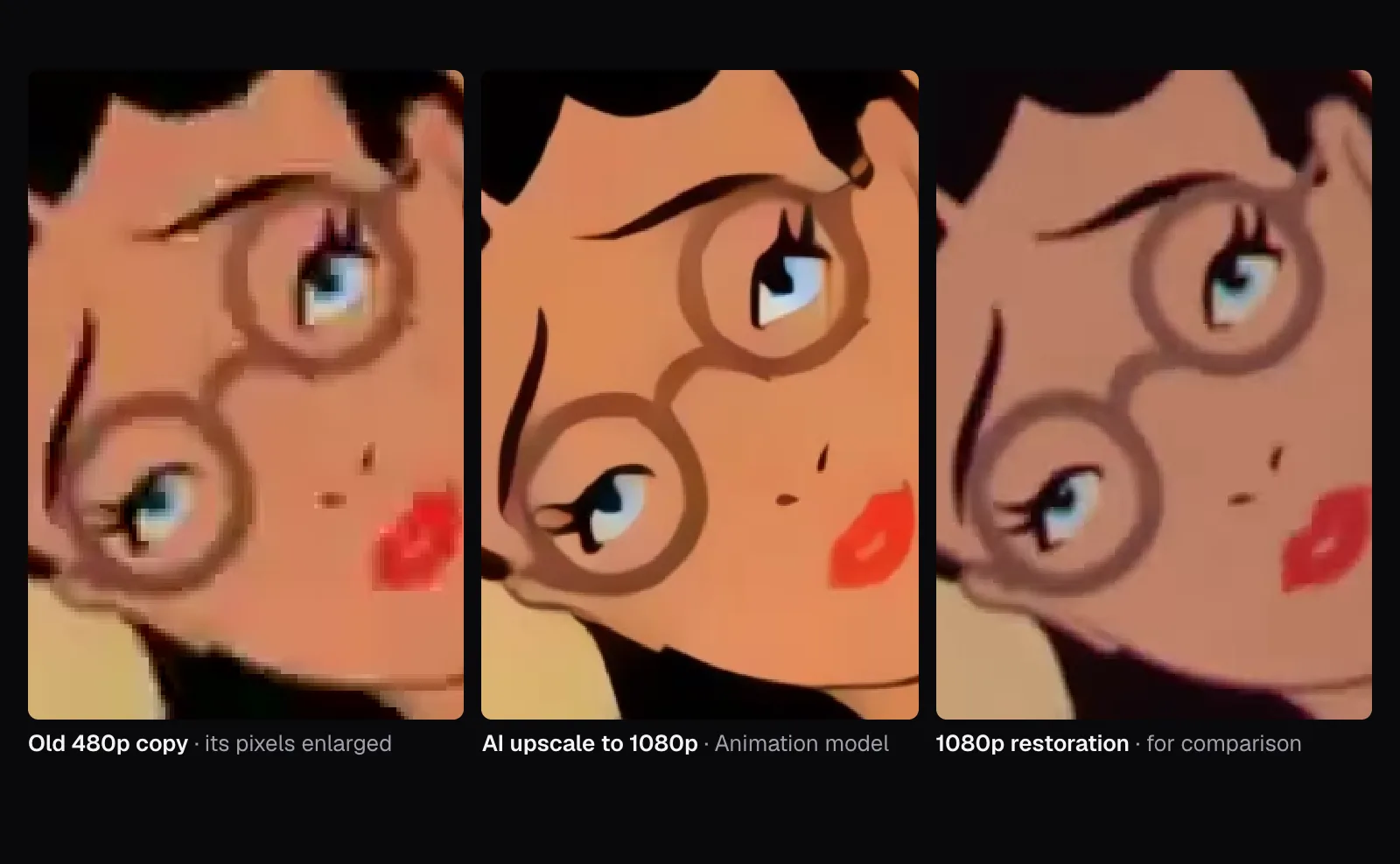
- An AI upscaler doesn't recover lost detail, it draws detail that looks right: in our test it gave Lois Lane an eye the restoration doesn't show, and a bald eagle a highlight in its eye that the camera never recorded.
- Held against true 1080p frames, the AI's upscales had about twice the fine detail of the originals and were further from them than a plain stretch: 3.6 and 4.3 levels of 255 off where the eagle has detail, against 1.8.
- Use AI upscaling for the look, not as a record: it makes lines crisp and clears compression blocks, but it keeps a bad copy's colors and framing, so start from a better source whenever one exists.
- Use Real video for anything filmed: on the eagle, the Animation model came out furthest from the original of the four ways we tried. Animation suits drawings for its clean look and its speed, though even on our cartoon Real video stayed slightly closer to the original.
- For long videos, Fast is the practical choice: one second of 1080p took 0.3 seconds with Fast, 6.4 with the AI's Animation model and 13.5 with Real video on our laptop.
Upscaling promises to turn a small, soft video into a sharp HD one. The pixels it adds have to come from somewhere, though, and the honest question is where. A plain enlargement spreads the old pixels out. An AI upscaler goes further: it draws edges, lines and texture that weren't in the file. Whether that drawing matches what the camera, or the animator, really put there is something you can only check when the real thing exists.
For one 1943 cartoon, it does. Famous Studios' Superman short The Mummy Strikes is on Wikimedia Commons twice: as an old 720 × 480 copy and as a 1080p restoration. We upscaled moments of the old copy with Cutlia's Video Upscaler and compared them crop by crop with the restoration. Then we made our own low-resolution copies of 1080p footage, so that the right answer was known to the pixel, and measured how close each method came. All of it ran in Chrome on a MacBook Air with an Apple M5 chip, the AI on the laptop's own graphics chip.
Four out of five pixels have to be made up
A 4:3 picture at 480p is 640 × 480 pixels: 307,200 of them. The same picture at 1080p is 1440 × 1080, or 1,555,200 pixels, a little over five times as many. Going from one to the other, each side grows 2.25 times and roughly four pixels in every five of the result have no pixel of their own in the source. Every upscaler fills them in; they differ in how.
- A plain stretch averages the neighbors. Each new pixel is a weighted mix of the nearest old ones, so nothing new appears and nothing jumps out, but edges turn soft and a compressed video's blocks get bigger along with everything else.
- Edge-aware scaling looks at which way the edges run and mixes along them rather than across, then sharpens. Lines come out cleaner. It still only rearranges what the small picture holds.
- AI upscaling runs a neural network that has learned, from many examples, what sharp pictures tend to look like when they're made small and blurry, and draws a sharp version that fits what it sees.
The Video Upscaler offers the last two, as “Fast” and “AI”, and its compare view shows the first: the left of its divider is the original frame scaled the way the browser does it. All three were part of our test, and on both clips we measured, nothing came closer to the original than the plain stretch.
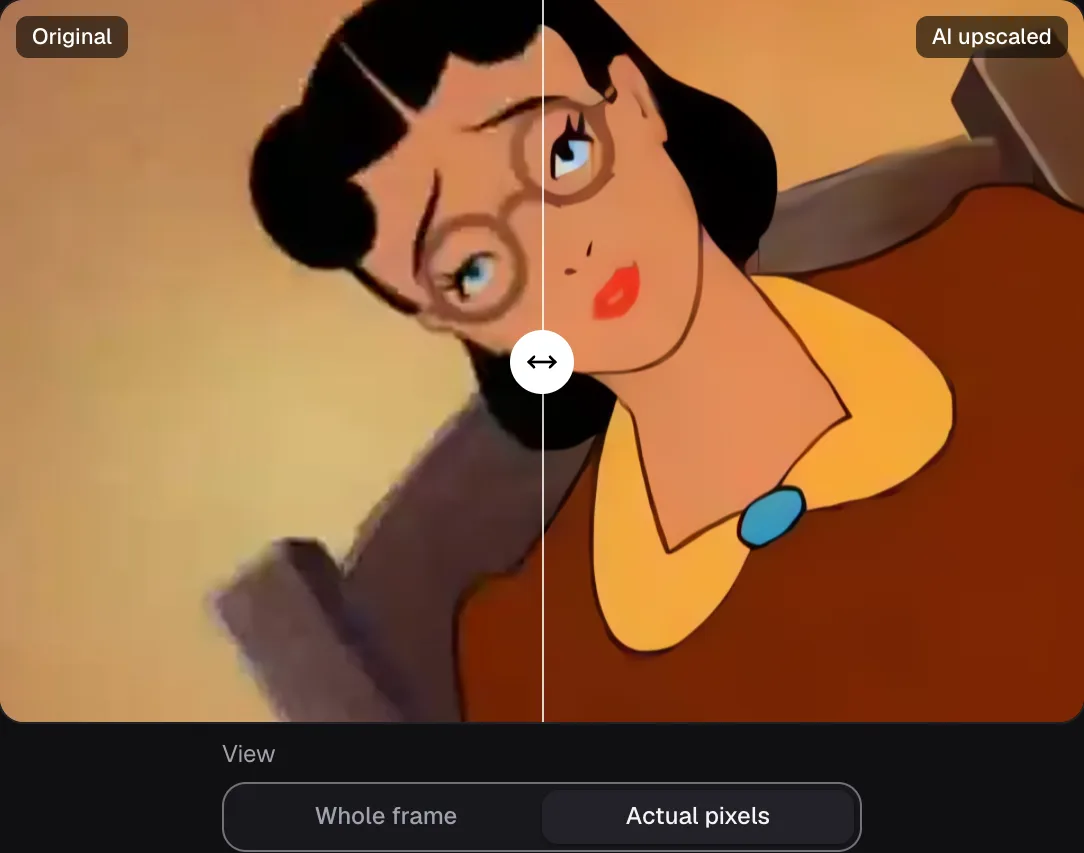
Fast: AMD's FSR 1 rebuilds edges but invents no texture
Cutlia's Fast method is AMD's FidelityFX Super Resolution 1, an open-source upscaler AMD released under the MIT license and made for video games. AMD calls it a spatial upscaler: it works on the current frame “without relying on other data such as frame history or motion vectors.” It has two passes. The first, EASU (Edge-Adaptive Spatial Upsampling), looks for what AMD calls gradient reversals, “essentially looking at how neighboring gradients differ”, and uses them to weight the pixels it builds, which recreates the edges at the higher resolution. The second, RCAS, is a contrast-adaptive sharpening pass over the enlarged frame.
In the Video Upscaler, both passes run as WebGL2 shaders on the graphics chip. Each EASU pass at most doubles a side, so 480p to 1080p takes two, followed by one RCAS pass at the final size. Where WebGL2 isn't available, Fast falls back to the browser's own high-quality scaling on a canvas, which needs no graphics programming interface at all, so Fast works on every device the tools run on. On a graphics chip it takes milliseconds a frame.
What Fast can't do is put back something that isn't there. A compression block in the source is a block with crisper edges after it, and a detail that vanished at 480p stays vanished.
AI: Real-ESRGAN draws what such pictures usually look like
The AI in the Video Upscaler is Real-ESRGAN, a family of models from researchers at Tencent ARC Lab and the Shenzhen Institutes of Advanced Technology. Their paper describes training it “with pure synthetic data”: sharp pictures are damaged on purpose, in what they call “a high-order degradation modeling process”, introduced “to better simulate complex real-world degradations”, and the network learns to turn each damaged version back into the sharp one.
The GAN in the name, a generative adversarial network, is the important part. During training a second network, the discriminator, judges whether a result looks like a real sharp picture, and the upscaler is rewarded for fooling it. That pushes it to draw convincing texture instead of a safe, blurry average. The authors of ESRGAN, the model Real-ESRGAN extends, wrote that its predecessor, SRGAN, generates realistic textures, but that “the hallucinated details are often accompanied with unpleasant artifacts.”
Cutlia runs two of Real-ESRGAN's compact models, small enough to run on every frame of a video:
- Real video is
realesr-general-x4v3, about 1.2 million parameters, blended half and half with its weaker-denoising twin, which is how Real-ESRGAN's own script runs it by default (a “denoise strength” of 0.5). - Animation is
realesr-animevideov3, about 0.6 million parameters, which the project describes as optimized for anime videos.
Both make a picture four times wider and taller, out of a stack of small 3 × 3 convolutions: 34 in the general model and 18 in the animation one. Each convolution widens what an output pixel depends on by one input pixel on every side, so every pixel the general model draws is decided by a patch of about 69 × 69 pixels of the original around it, and nothing else. It knows nothing about the scene, the story or the frames before and after: each frame is upscaled on its own. Cutlia runs the network with its own WebGPU shaders, in tiles of at most 640 pixels that join without a seam, storing its numbers at half precision where the graphics chip supports it, as the M5's did. The model files come from Cutlia's own site: 2.4 MB for Real video and 1.3 MB for Animation at half precision.
The test: one cartoon, two copies, matched to the pixel
The old copy on Commons is 720 × 480 VP8 video at 30 frames a second, 7 minutes 29 seconds long, with its 4:3 picture 640 pixels wide between black bars and its video at about 618 kbit/s. Someone burned Greek subtitles into many of its frames, so we only used moments without them. The restoration, in the 1080p VP9 version Commons serves, is 1920 × 1080 at 23 frames a second, about 1.8 Mbit/s, with a picture 1,480 pixels wide between its bars.
The two aren't frame-for-frame twins. The restored file runs 468 seconds against the old copy's 449, the old copy repeats some frames to fill its 30 a second, and the two transfers are framed differently. So for each moment the test script found the matching frame by itself: it took the old copy's frame, then tried every restoration frame within three quarters of a second of the expected time at a range of sizes and positions, and kept the one whose brightness lined up best. The best matches correlated at 0.978 to 0.996, where 1 is a perfect match. In most shots one pixel of the old copy covered 2.2 to 2.3 pixels of the restoration, close to the 2.25 of an upscale to 1080p; on the title card it was 2.55, because the old transfer shows the card smaller.
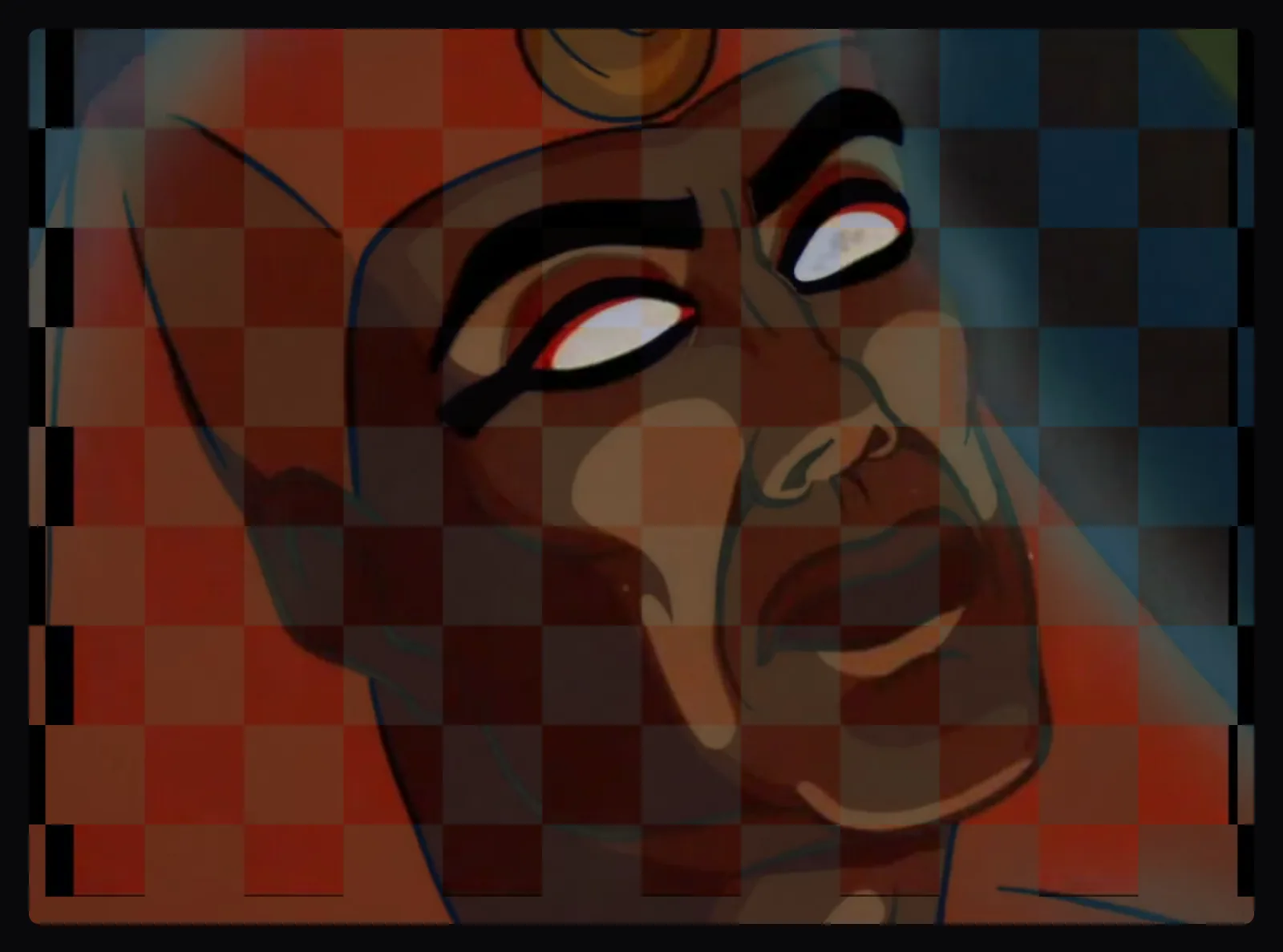
We exported one second around each of four moments: the title card, Superman lit from one side, a close-up of Lois Lane and the mummy's face. Each went through the Video Upscaler three times at 1080p, which for this copy means 1620 × 1080: the AI with “Video type” set to “Animation”, the AI with “Real video”, and Fast. The downloads are H.264 MP4s at 30 frames a second, and the crops in the next section come from them, decoded as a player would.
Crop by crop: sharper than the old copy, unlike the restoration
Next to the old copy's enlarged pixels, every upscale is an improvement in one sense: the stair steps along edges are gone. Fast gives the lines a firmer edge but keeps the copy's mottled compression, only larger. Both AI models go much further. Black outlines become clean, even strokes, the blotches in flat areas of paint disappear, and Superman's jaw, neck and eyebrows come out as crisp as a new drawing.
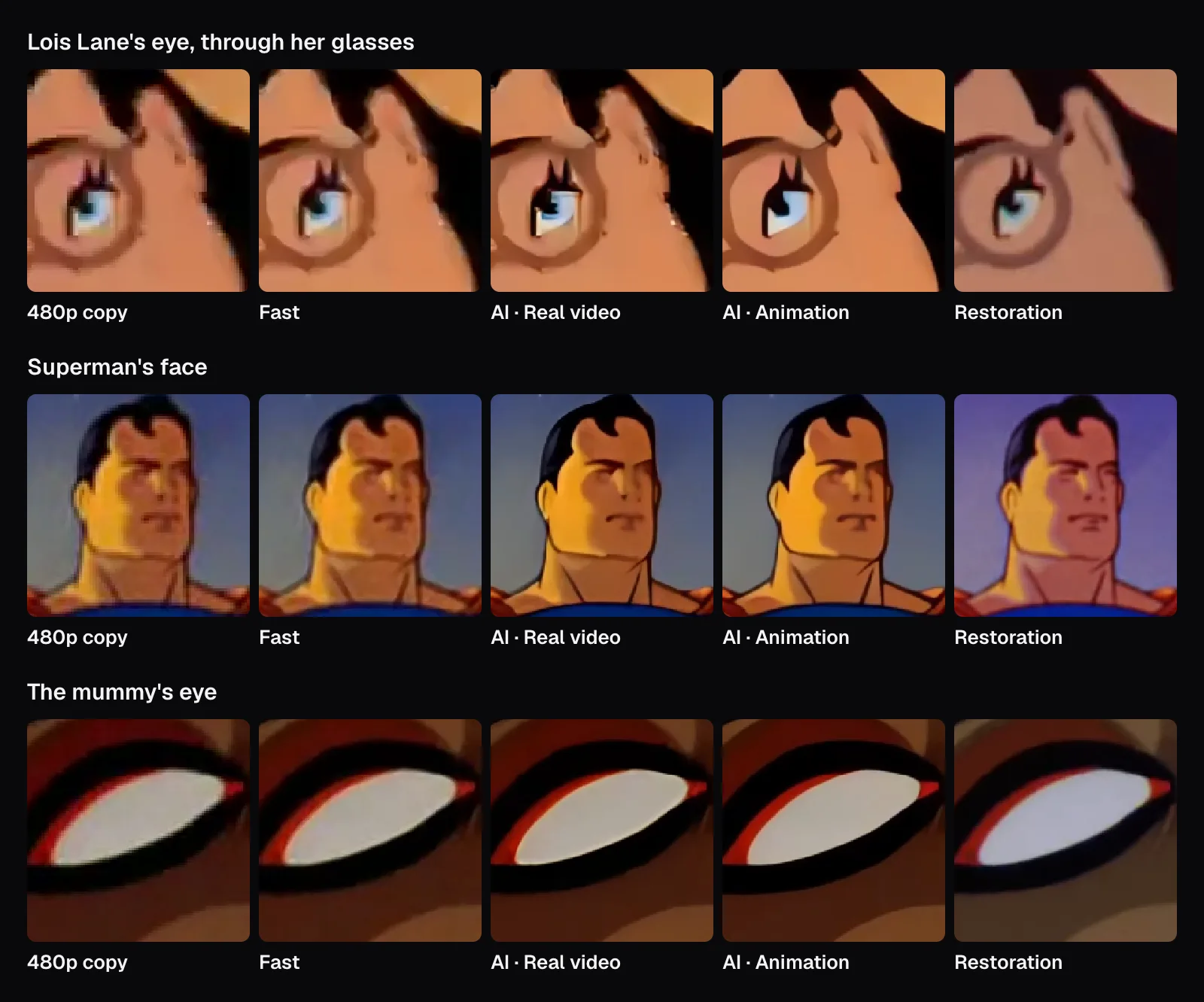
Then look at Lois Lane's eye. In the 480p copy it is a smudge of blue, white and black a dozen or so pixels across, and both AI models had to decide what it was. They drew a hard black shape against a pale, almost white wedge, a confident, inked-looking eye. The restoration shows something else: a smaller dark pupil inside a blue iris. The AI wasn't careless; the information to tell those apart wasn't in its input. It drew the kind of eye it had learned to expect.
Two things no upscale touched are the color and the framing. In the shots we compared, the old copy's colors are warmer than the restoration's: Superman's face is orange instead of pink, the mummy's background red instead of blue-green. Its upscales keep those colors. An upscaler enlarges the copy it's given; it can't know what a better copy looks like. The same goes for the edges of the frame the old transfer cut off. If your own old video is on DVD, MiniDV or AVCHD, getting the best copy off it comes first: see How to save old home videos as MP4, and keep them safe.
Between the two AI models, on this cartoon, Animation gave flatter colors and slightly bolder lines, and Real video kept a little more of the copy's grain. The Animation model also took less time: in our three runs of the same second, 6.4 seconds against 13.5 in the middle run.
A true answer: shrinking 1080p footage ourselves
The restoration isn't a perfect answer key for the old copy, because they came from different transfers. To get one, we made our own low-resolution copies. Two seconds each of 1080p footage, a bald eagle perched on a branch (0:18.5 to 0:20.5) and the mummy's close-up in the restoration (6:10.5 to 6:12.5), were cut to 4:3 at 1440 × 1080 with Resize & Crop, which keeps the middle of the frame without scaling it, then shrunk to 640 × 480 with the Video Converter at 480p. The eagle's 480p copy came out at 377 kbit/s and the cartoon's at 448, both below the old cartoon copy's 618.
Each 480p copy then went back up to 1440 × 1080 four ways: through the Video Upscaler as AI with Real video, as AI with Animation and as Fast, and through Resize & Crop again as a plain stretch, which enlarges with the browser's high-quality smoothing. Opened in the Video Upscaler, both short copies got the AI by itself. The test script then compared 12 frames of each result with the original's frames, matched to the frame and checked to line up to the pixel, using brightness only:
- Difference from the original: how far each pixel's brightness is from the original's on a scale of 0 to 255, averaged over the busiest quarter of the frame, where the original has edges and texture. Plain sky and flat paint are left out, so the number speaks of detail.
- Fine detail: how strong the finest detail is, meaning what a slight blur would remove, compared with the original's. At 100% there is as much as in the original.
- Detail that matches: how closely that fine detail follows the original's, as a correlation. At 100% it follows the original's exactly; at 0 it has nothing to do with it.
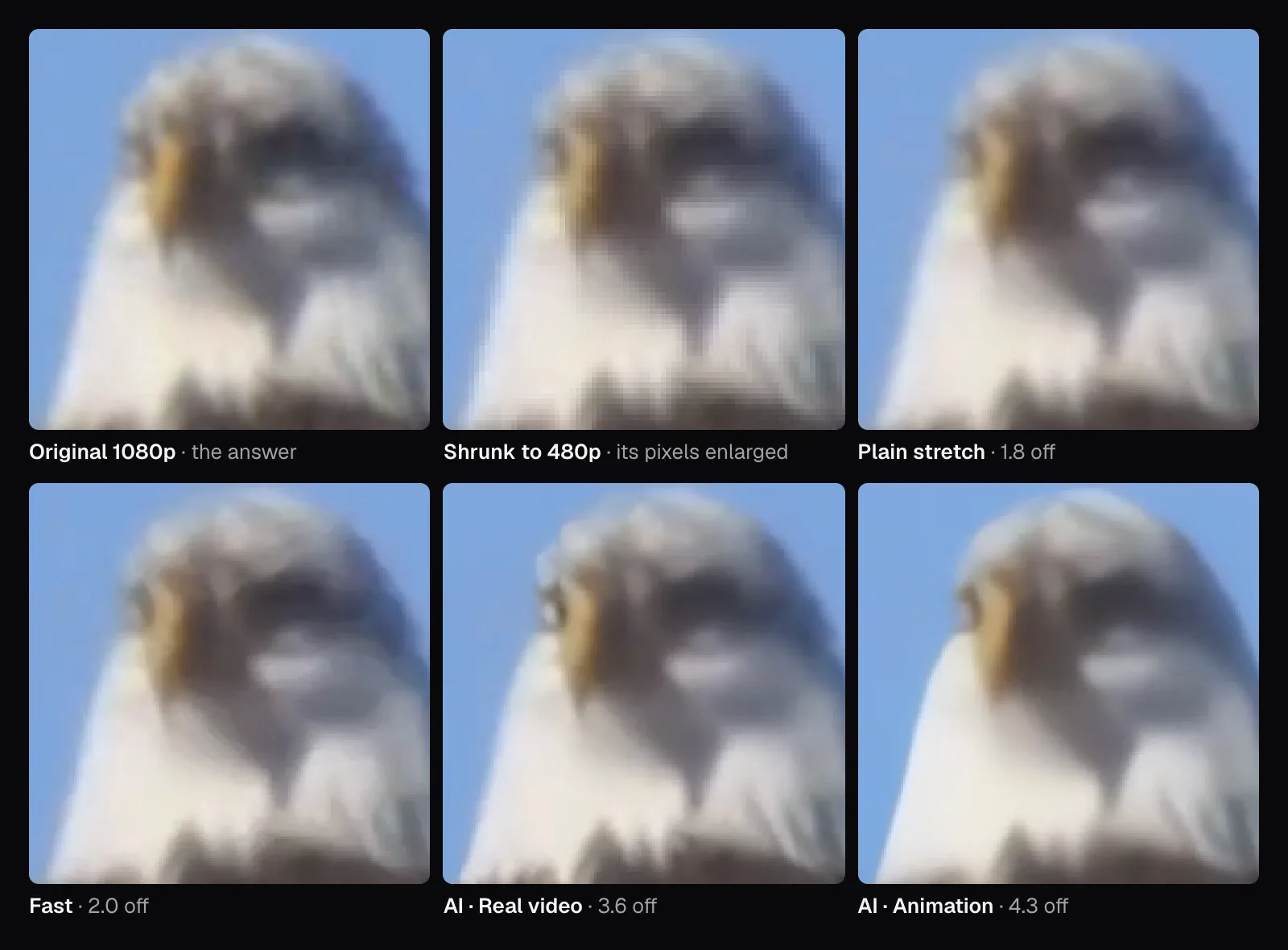
The first surprise is the original itself. The eagle's 1080p footage is soft at the pixel level, so our 480p copy lost less than you might expect: a plain stretch back to 1080p had 85% as much fine detail as the original. The second is in the eagle's eye. The AI with Real video put a bright white highlight there, like a glint of sunlight, and there is none in the original. The Animation model, meant for drawings, smoothed the feathers of the head into flat white patches.
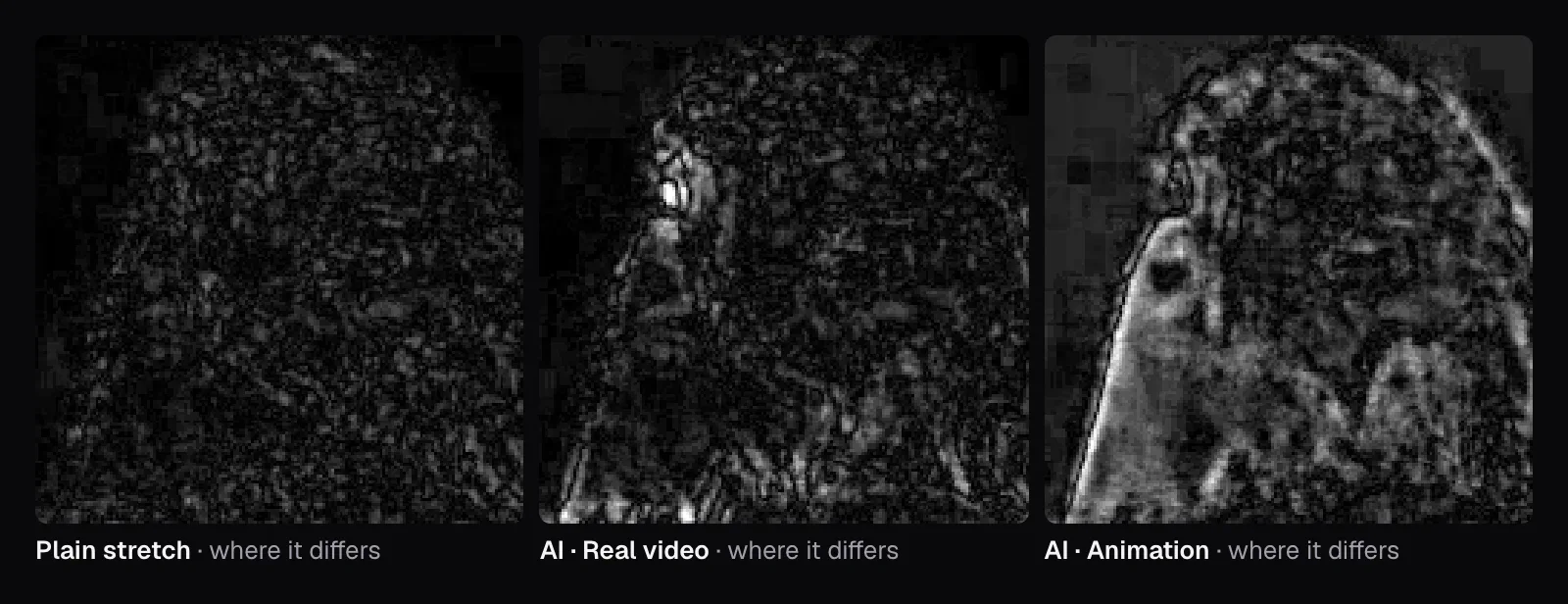
The numbers say the same. On the eagle, the plain stretch was 1.8 levels off where there's detail, Fast 2.0, the AI with Real video 3.6 and with Animation 4.3. Both AI upscales had about twice the fine detail of the original, 215% and 189%, and that detail matched the original's less closely than the plain stretch's did: 45% and 46%, against 55%. On the cartoon, the AI was again furthest from the original (2.2 and 2.5 against 1.5), with 193% and 178% of the original's fine detail, matching at 70%, the same as the plain stretch.
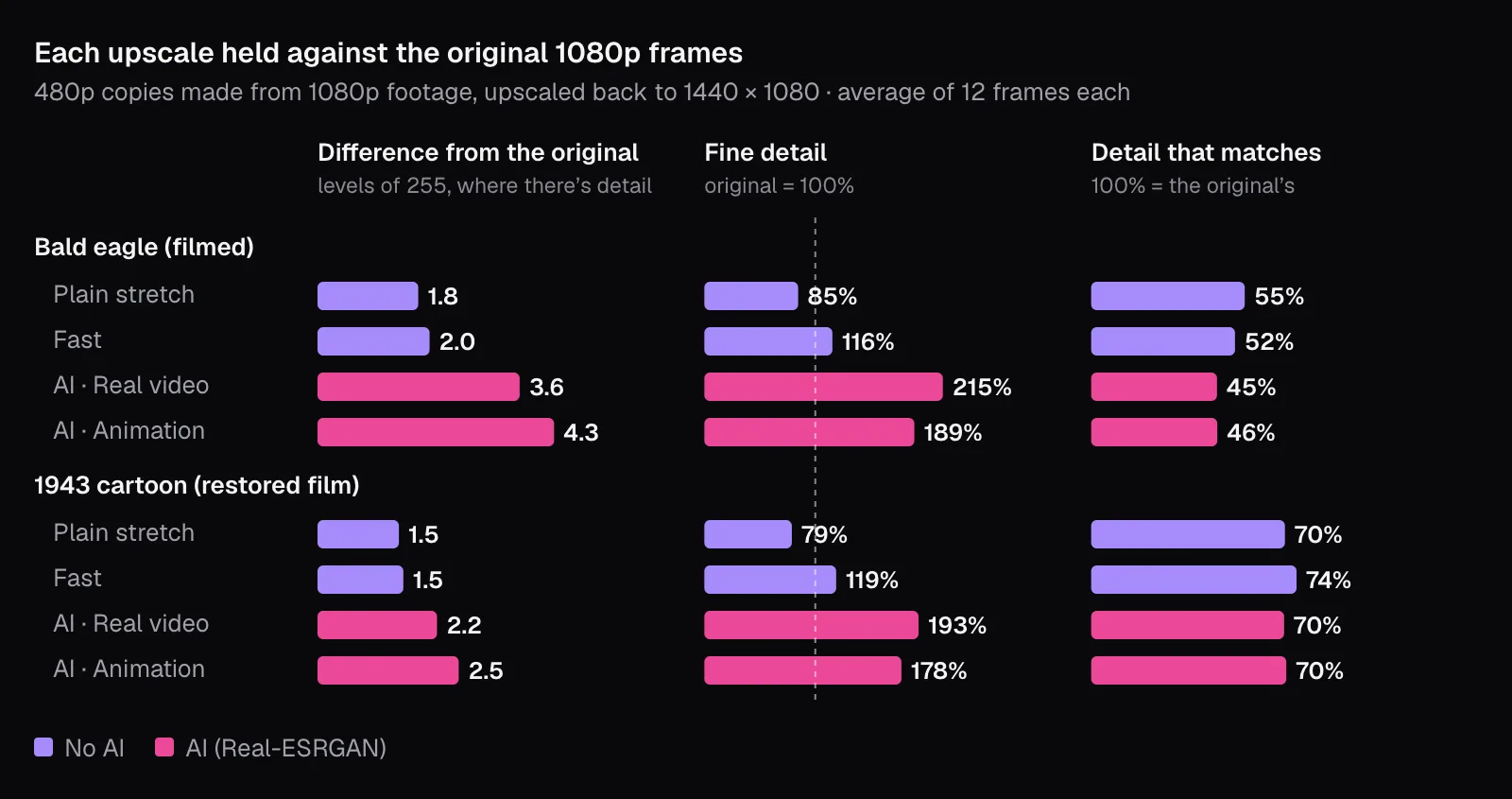
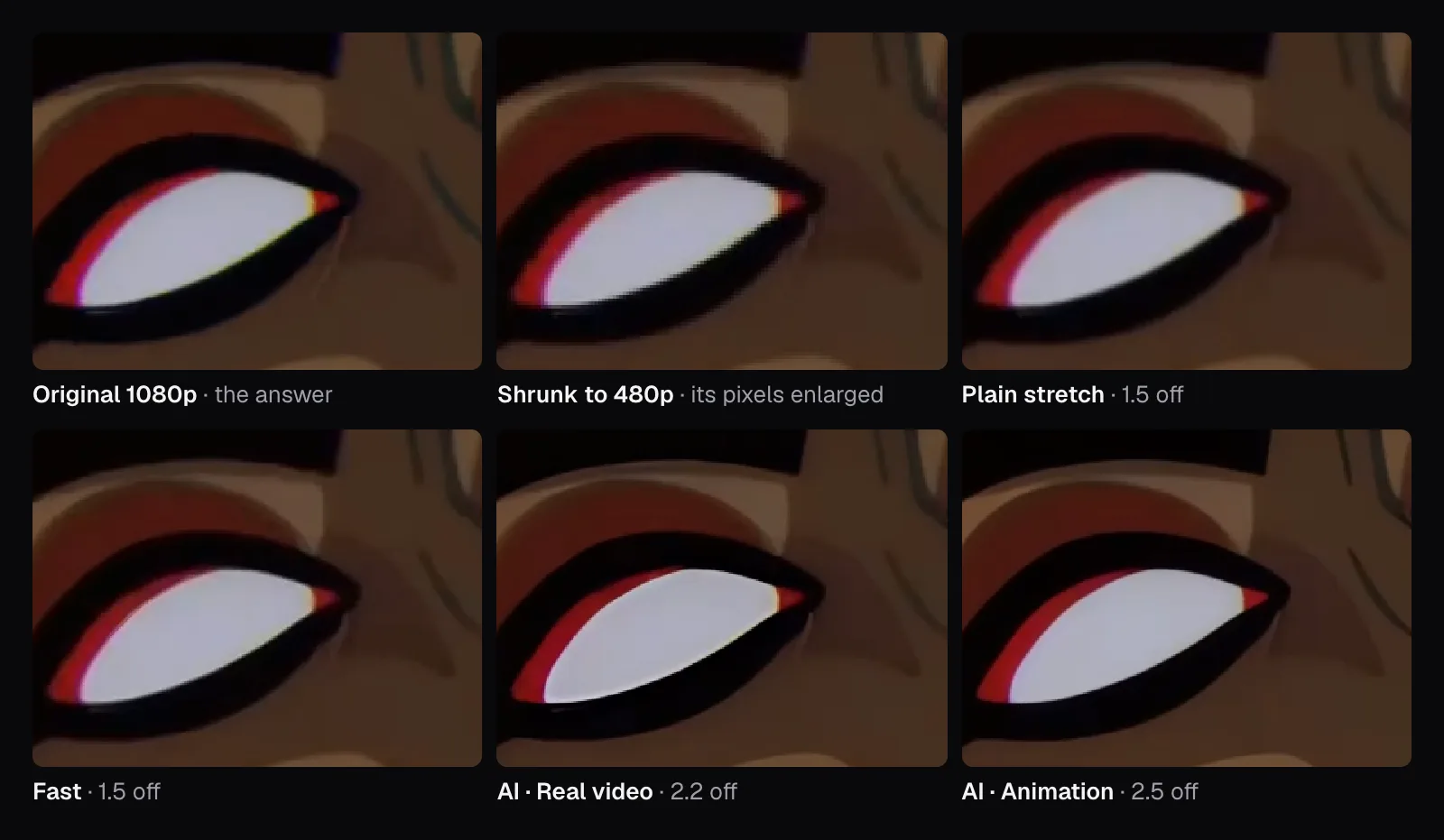
Put together: much of the detail the AI draws is new, not recovered. It makes the picture look like higher-resolution video, and in that sense it works, but it doesn't make the picture more like the higher-resolution video that was actually shot. A plain stretch is blurrier and, by the numbers, more faithful. The cartoon's crops show the same pattern in miniature.
How the Video Upscaler chooses between AI and Fast
The sizes come first. The editor offers 720p, 1080p, 1440p and 4K, meaning the frame's shorter side becomes 720, 1080, 1440 or 2160 pixels, but only sizes above the video's own and at most six times it, with the longer side capped at 3840. Each keeps the video's shape, so the old 720 × 480 copy was offered 1080 × 720, 1620 × 1080, 2160 × 1440 and 3240 × 2160, and opened on 1080p. Our 640 × 480 copies got 960 × 720 up to 2880 × 2160.
Then the method. As soon as a frame is shown, the editor times the AI on this device: it upscales a 256-pixel square of the frame (128 pixels on phones, tablets and computers with little memory) twice, the first run to prepare the graphics chip and the second to measure, and scales that time to the whole frame by the pixels the model will read. It adds 15% for encoding and multiplies by the frames in the part you export. If that comes to 45 minutes or less (3 minutes on those smaller devices), it chooses the AI. Otherwise it chooses Fast and says why. The AI needs WebGPU; without it, the editor says so and uses Fast.
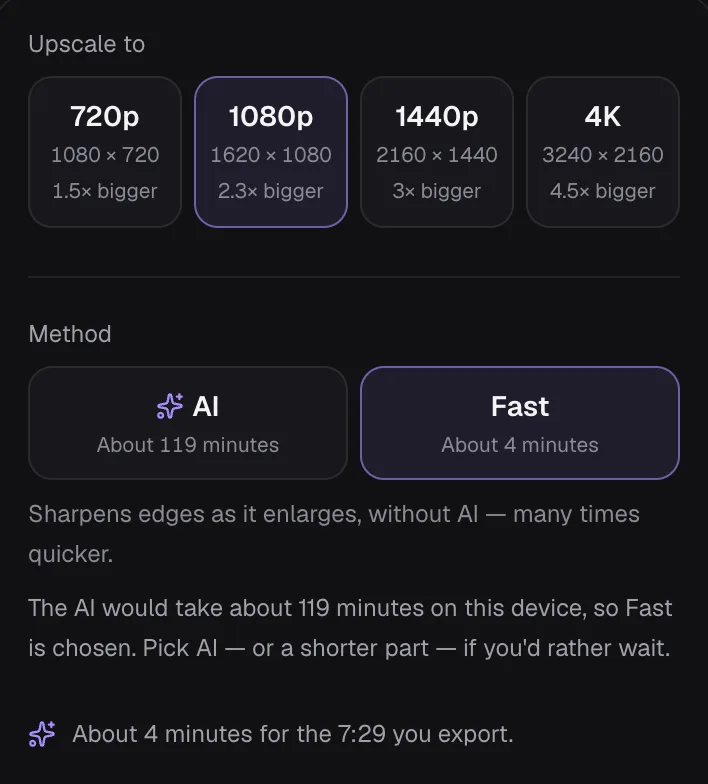
For the whole cartoon, that meant Fast. With the part set to ten seconds, the same editor chose the AI by itself: “One frame takes about 0.5 s on this device — about 3 minutes for the 0:10 you export.” With the Animation model it measured 0.2 seconds a frame. Exporting the same second of 1080p three times each way took 0.3 seconds with Fast every time, and 6.4 and 13.5 seconds in the middle runs of the AI's Animation and Real video models. Those times and estimates come from a WebGPU graphics chip in a recent laptop; on a phone, the editor measures the AI and mostly picks Fast.
The pages for one search open set up for it: Upscale Video to 1080p starts on 1080p, Upscale Video to 4K on 4K, and the Anime Video Upscaler on the Animation model.
What to use, and what to expect from it
On a cartoon whose lines and flat colors suit it, AI upscaling is pleasant to watch and cleaner than the copy it came from; its guesses show most where the source had least to go on: eyes, small faces, fine texture. Our results come down to a few practical rules:
- Look for a better source first. If a restoration, the camera's file or a higher-bitrate copy exists, start from it rather than from an upscale of a worse one: an upscale keeps the worse copy's colors. Upscaling is for when the small copy is all there is.
- Choose the AI for crisp lines and clean color, not for accuracy. It removes compression blocks and redraws edges convincingly. Before exporting, pick a frame with a face, an eye or text, switch the compare view to “Actual pixels” and check what it drew.
- Set the video type to match the footage. Real video for anything filmed, where the Animation model flattens texture. Animation for cartoons, anime and drawings, for its clean lines, flat color and speed; on our cartoon, though, Real video was slightly closer to the original, 2.2 levels off against 2.5.
- Use Fast for long videos. It sharpens edges without drawing new texture, and it finishes in a fraction of the time. Our measurements put it close to a plain stretch in faithfulness, with crisper edges.
- Upscale only as far as you need. For a 480p video, 1080p is 2.25 times; 4K asks for 4.5, beyond the model's four. A bigger file of the same guesses isn't a better video, and size costs bitrate when you share it: see How bitrate, resolution and frame rate decide a video's file size.
- Keep the original. An upscale is an interpretation. Anything you'd use as a record, where what the camera saw matters, belongs in its original resolution.
The tools in this guide
Video Upscaler
Small, old or soft videos — made HD and 4K by AI on your device.
Anime Video Upscaler
Clean lines, flat colors, no blur — anime in HD and 4K.
Upscale Video to 1080p
Old phone clips and 480p videos, made Full HD.
Upscale Video to 4K
From HD to 4K — the detail drawn anew, not stretched.
Resize & Crop
One click to the right aspect ratio for every platform.
Video Converter
Convert almost any video to MP4, MOV, WebM, MKV, AVI, MPG or WMV — on your device.
Questions people ask
Can AI upscaling recover detail that isn't in the video?
No. It draws detail that is plausible given what's there, learned from many examples. In our test against true 1080p frames, the AI's upscales had about twice the original's fine detail, yet that detail matched the original no better than a plain stretch did, and it added an eye highlight to a bald eagle that the camera never recorded.
Is an AI upscale the same as a remaster or restoration?
No. An upscale only enlarges the copy you have, with its colors, damage and framing. In our test, the upscaled 480p cartoon kept its copy's warm, red colors and tight framing, while the 1080p restoration of the same cartoon looked clearly different in both. To get closer to the original, you need a better source, not a bigger copy.
Should I upscale a 480p video to 1080p or 4K?
1080p is usually enough. From 480p it means 2.25 times each side, within the four times the Real-ESRGAN models make. 4K from 480p is 4.5 times, so the last part is ordinary scaling of the AI's result, with four times the pixels of 1080p to store. Pick 4K only when a platform or screen asks for it.
Why do faces and eyes sometimes look wrong after AI upscaling?
Small faces have the least information in a low-resolution video, and the AI fills that gap with what faces usually look like. In our test, Lois Lane's eye was about a dozen pixels across in the 480p copy, and the AI drew it as a sharp black and white shape, while the restoration shows a blue iris with a dark pupil.
Why is AI upscaling so slow, and does it work on a phone?
The network computes every output pixel from a patch of the original through 18 to 34 layers, on every frame. On our laptop's graphics chip a second of 1080p took 6.4 to 13.5 seconds, against 0.3 for Fast. The Video Upscaler measures this on your device and picks Fast when the AI would take too long, which on most phones it would.
Is my video uploaded when I upscale it?
No. The Video Upscaler runs in your browser: the AI on your graphics chip through WebGPU, Fast through WebGL2 or the browser's own scaling. The models download to the browser from Cutlia's site, and the video itself is read and written on your device, never sent anywhere.
Sources
Where the facts in this guide come from, besides our own tests:
- Real-ESRGAN: Training Real-World Blind Super-Resolution with Pure Synthetic Data — arXiv (Wang, Xie, Dong, Shan)
- ESRGAN: Enhanced Super-Resolution Generative Adversarial Networks — arXiv (Wang et al.)
- Real-ESRGAN — Xintao Wang (GitHub)
- inference_realesrgan.py — Xintao Wang (GitHub)
- Anime Video Models — Xintao Wang (GitHub)
- AMD FidelityFX Super Resolution 1 (FSR 1) — AMD GPUOpen
Footage in this guide
The pictures were made with Cutlia's tools from this openly licensed footage, found on Wikimedia Commons:
- The Mummy Strikes (1943) — Issy Sparber, Public domain
- The Mummy Strikes — Famous Studios, Public domain
- Bald Eagle (Haliaeetus leucocephalus) in USA — U.S. Fish and Wildlife Service, Public domain