Short video and social
What are the best video settings for a YouTube upload?
We read YouTube’s recommended upload settings line by line, exported a 4K rocket launch and a near-1080p eagle clip to MP4 in the browser, and checked every file against them.
By the Cutlia team · Published · 16 min read
The short version
- Export an MP4 with H.264 picture and AAC sound at 48 kHz, at the frame rate and shape you recorded: that’s YouTube’s own recommendation as of November 2026, and Cutlia’s Video Converter made such a file from both of our clips.
- Use YouTube’s bitrate table (35–45 Mbps for 4K, 8 Mbps for 1080p at up to 30 fps) when you export your own edit, not as a target for a file that’s already compressed: our converted 4K launch spent 4.1 Mbit/s and its frames still averaged 51 dB of PSNR against the source.
- Upload the best copy you have and let YouTube do the compressing, since it re-encodes every upload: Compress Video’s 2.3 Mbit/s copy of the launch visibly smeared the smoke, a loss no later encode can undo.
- Don’t pad a video with black bars to make it 16:9: YouTube’s help asks you to avoid them, and its player adapts to other shapes. Upload the shape you filmed, or crop it to 16:9 with Resize & Crop when you want the frame filled.
- Expect a new upload to look soft at first: YouTube processes a low-quality version first, and says 4K can take four times as long as 1080p to become available.
YouTube answers this question itself, on a help page called “YouTube recommended upload encoding settings”: a container, a video codec with seven encoder settings, a rule for frame rates, bitrate tables for standard (SDR) and HDR video, audio bitrates, and a long section on color. There's a good deal more to it than the row of its table that gives 35 to 45 Mbps for 4K. We read the whole page as it stood in November 2026, along with YouTube's pages on resolution, HDR and quality after upload, and quote it below.
Then we followed it with two pieces of NASA footage. One is the Artemis I launch from Kennedy Space Center on November 16, 2022, filmed in slow motion from the NASA Causeway: 3840 × 2160 pixels at 29.97 frames per second, a WebM file of 1 minute 56 seconds with VP9 picture, 50.4 MB. The other is 2 minutes 27 seconds of bald eagles at their nest at Kennedy, filmed on March 13, 2026: 1920 × 1013 pixels, VP9 too, 74.2 MB. We made MP4s from both with Cutlia's Video Converter, Compress Video and Resize & Crop, in Chrome on a MacBook Air with an Apple M5 chip, then read every file back: its boxes, its H.264 settings, its frame rate and the bits its picture spent in every second. We didn't upload them. What YouTube does with a file is for YouTube to say, and where it says something, we quote it.
Who YouTube’s settings page is for, and how strict it is
The page opens with a notice: “These features are only available to partners who use YouTube Studio Content Manager.” The very next line addresses everyone: “Below are recommended upload encoding settings for your videos on YouTube.” None of the settings that follow mentions partners, so we read them as advice for any upload.
Advice is the right word. The page calls its bitrates “recommendations for uploads”, and its video section says “No bitrate limit is required, though we offer recommended bit rates below for reference”. What YouTube actually accepts is far wider. Its list of supported file formats, as of November 2026, names .MOV, .MPEG-1, .MPEG-2, .MPEG4, .MP4, .MPG, .AVI, .WMV, .MPEGPS, .FLV, 3GPP, WebM, DNxHR, ProRes, CineForm and HEVC (H.265). Our two clips, both WebM, were in a listed format exactly as NASA published them. MKV isn't on it. The size limit is generous too: “The maximum file size you can upload is 256 GB or 12 hours, whichever is less.”
Read that way, the settings page describes a well-made file rather than a gate you must pass. Each line has a reason behind it, and the reasons decide which lines matter for the file in front of you.
MP4 and H.264: the file YouTube describes, line by line
The container YouTube recommends is MP4, with two conditions: “No Edit Lists (or the video might not get processed correctly)” and “moov atom at the front of the file (Fast Start)”. The moov atom, or box, is the file's index, the list of where every frame sits. Placed first, it lets a program start on the file before the rest has arrived. An edit list tells players to skip or shift part of a track. The codec is H.264, and the page lists what it wants from the encoder:
- Progressive scan, High Profile, chroma subsampling 4:2:0. Whole frames rather than interlaced half-frames; the H.264 profile with more compression tools than Main or Baseline; and color stored at half the width and half the height of brightness.
- 2 consecutive B frames. B-frames are predicted from the frame after them as well as the one before, which saves bits.
- Closed GOP, “GOP of half the frame rate”. A GOP, a group of pictures, starts with a keyframe, a complete picture. Half the frame rate means a keyframe every half second, 15 frames at 30 fps.
- CABAC and a variable bitrate. CABAC is the tighter of H.264's two entropy coders, the last stage that turns the compressed picture into bits; the other, CAVLC, is simpler and larger. A variable bitrate lets busy seconds take more bits than quiet ones.
In the Video Converter there's nothing to set for any of this. We chose MP4 and kept the resolution on “Original”, and the panel said what would happen: “Converted to H.264 on your device.” for the picture, since the converter copies only H.264 and HEVC pictures into an MP4, and “Sound converted to AAC.”
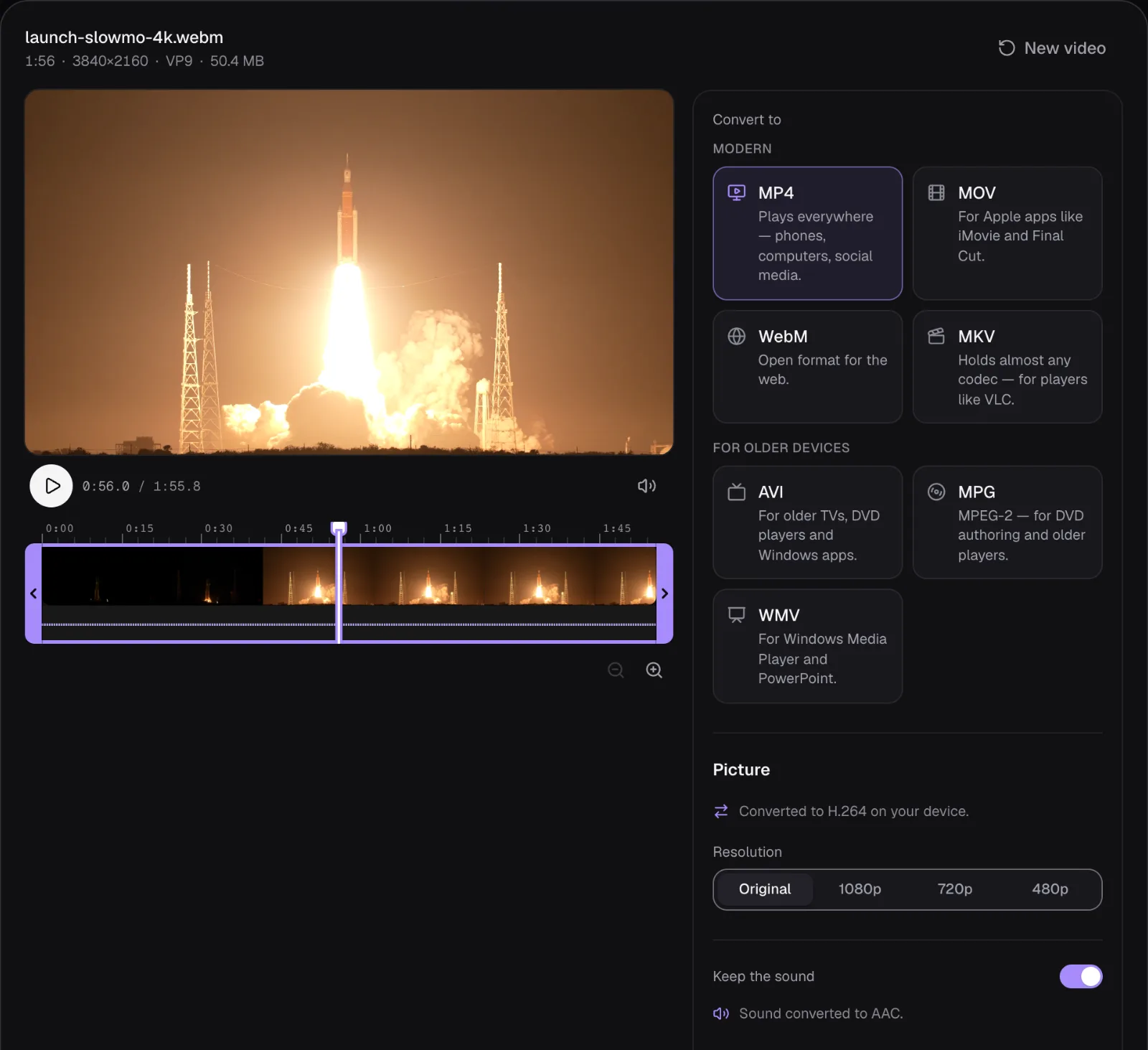
Then we read the three main files back, box by box and from the H.264 stream's own settings. On most lines they match the page: MP4, H.264 High at level 5.1 for the 4K launch and 4.0 for the eagles, progressive, CABAC, 4:2:0 in 8 bits, 29.97 fps, AAC-LC sound in stereo at 48 kHz. On four of the container and video lines they differ; color and sound come later. The index sits at the end of the file, because the tools write a file out as they make it. The sound track carries one edit list, which hides the first 44 milliseconds of sound, the warm-up an AAC encoder adds. There are no B-frames. And a keyframe comes every 2 seconds, not every half second.
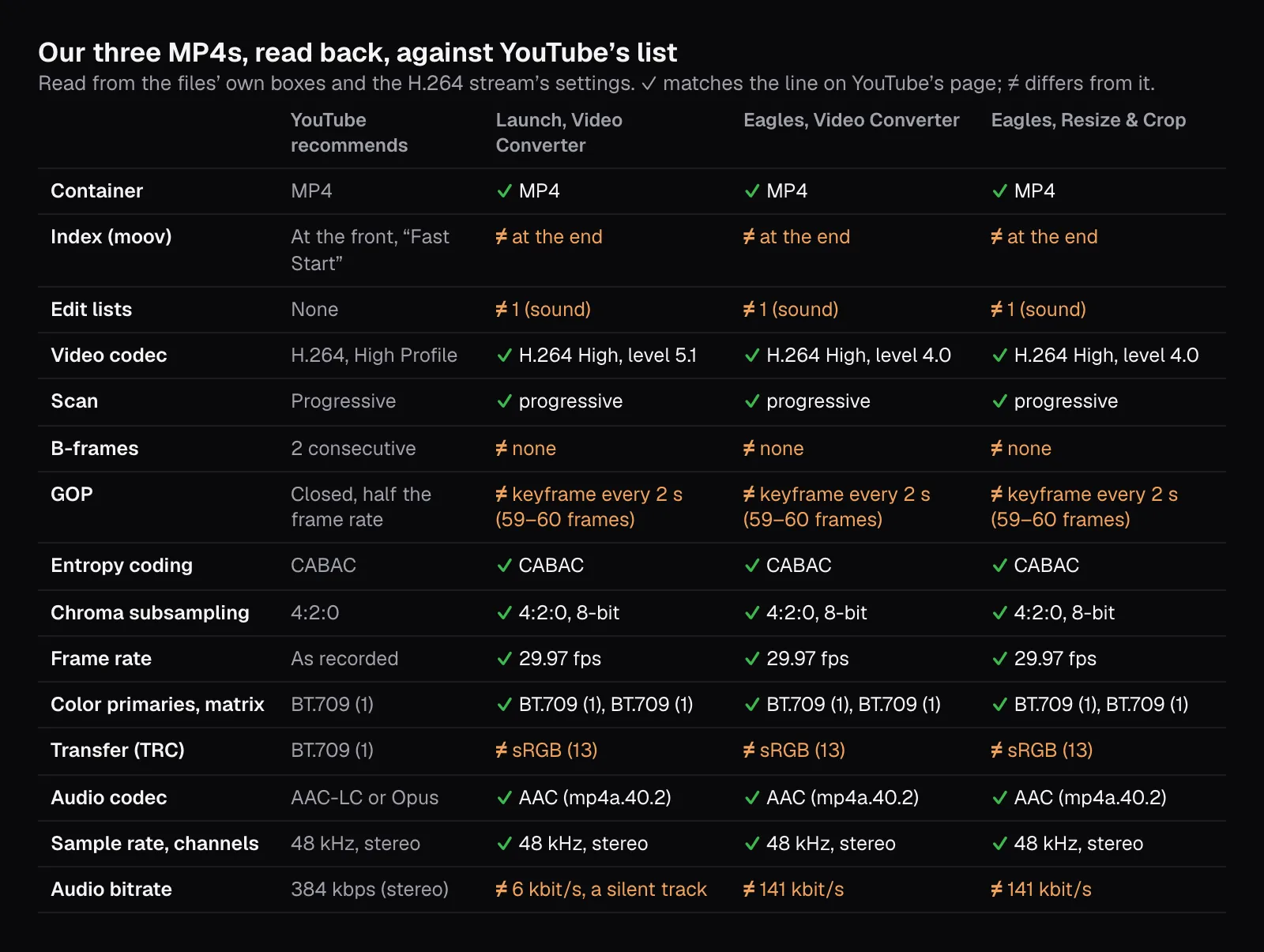
YouTube calls the whole list recommendations and doesn't say how much each line weighs, except that edit lists might keep a video from being “processed correctly”. Since we didn't upload these files, we can't tell you what YouTube made of them. Edit lists and the moov box are MP4 and MOV features; a WebM file has neither, and YouTube lists WebM as a supported format. Our guide to TikTok, Reels and Shorts specs found the same four lines in vertical exports, and our guide to cutting without re-encoding explains edit lists in more depth.
Frame rate: the one you recorded, even for slow motion
YouTube's rule fits in one sentence: “Content should be encoded and uploaded in the same frame rate it was recorded.” It names 24, 25, 30, 48, 50 and 60 frames per second as common rates and adds that “other frame rates are also acceptable”. Interlaced video, the half-frame kind some camcorders and TV recordings use, should be deinterlaced first: “1080i60 content should be deinterlaced to 1080p30.”
Both of our clips run at 29.97 frames per second, and every file we made kept that rate: in each MP4, every frame lasts exactly 1001/30000 of a second. The Video Converter and Resize & Crop keep the source's rate up to 60 fps, and so does Compress Video's “Smaller, same look”; its other goals stop at 30 fps. The launch is a useful case. It's slow motion, yet its file plays at an ordinary 29.97: the slowing-down is already in the frames. YouTube's pages don't mention slow motion, so we kept the file's own rate; converting it to anything else would only repeat or drop frames, the resampling YouTube's page for music partners warns “can cause images to shudder”.
The rate also picks the column of the bitrate table. YouTube splits it into standard rates (24, 25, 30) and high ones (48, 50, 60); 29.97, which YouTube's HDR page names next to 30 in its own list, belongs with the standard ones. What changing a frame rate does to motion, and how slow motion is made, is the subject of our guide to slow motion and frame rates.
Resolution and shape: YouTube’s sizes, and no bars of your own
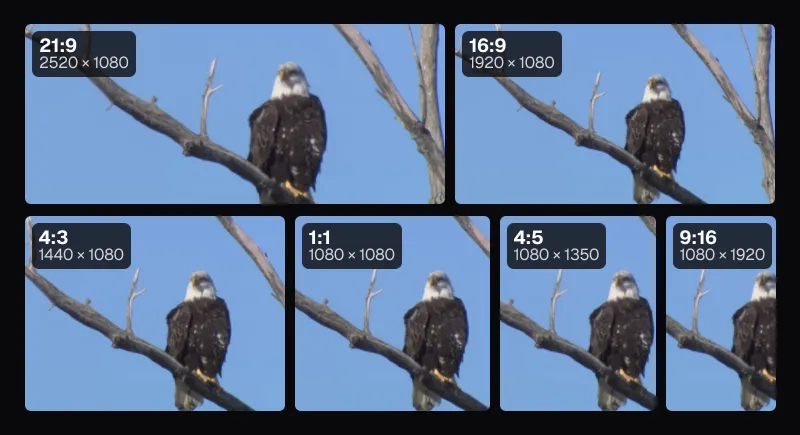
For its default 16:9 shape, YouTube's page on resolution lists eight sizes, from 426 × 240 to 7680 × 4320, with 1920 × 1080 for 1080p and 3840 × 2160 for 4K. Our launch is exactly 3840 × 2160. The eagles are not 16:9 at all: the file we used is Wikimedia Commons' 1080p copy of a 4096 × 2160 original, which works out to 1920 × 1013, a shape of 1.90:1. The Video Converter's MP4 came out 1920 × 1014, because Cutlia makes even sizes and rounded the odd row count up.
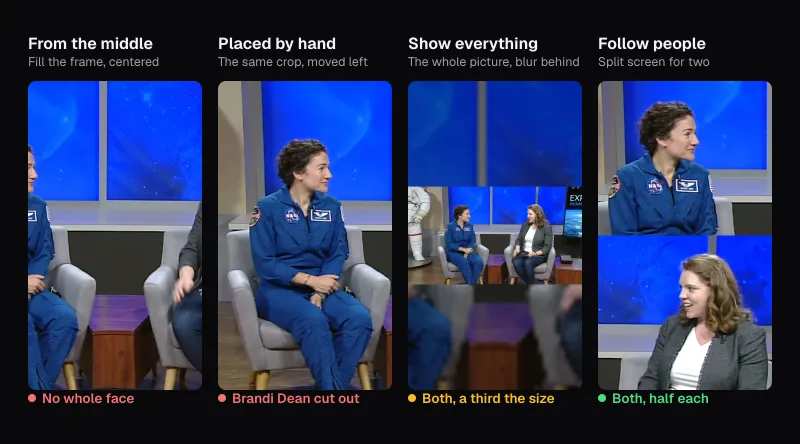
A wider shape needs no fixing for YouTube. Its help says that when a video's shape differs from 16:9, “the player will automatically change to the ideal size to match your video and the viewer's device”. What it asks you not to do is the reverse: “For best results, avoid adding padding or black bars directly to your video.” Its reason is that padding “interferes with YouTube's ability to change the player dynamically to your video size and the viewer's device”.
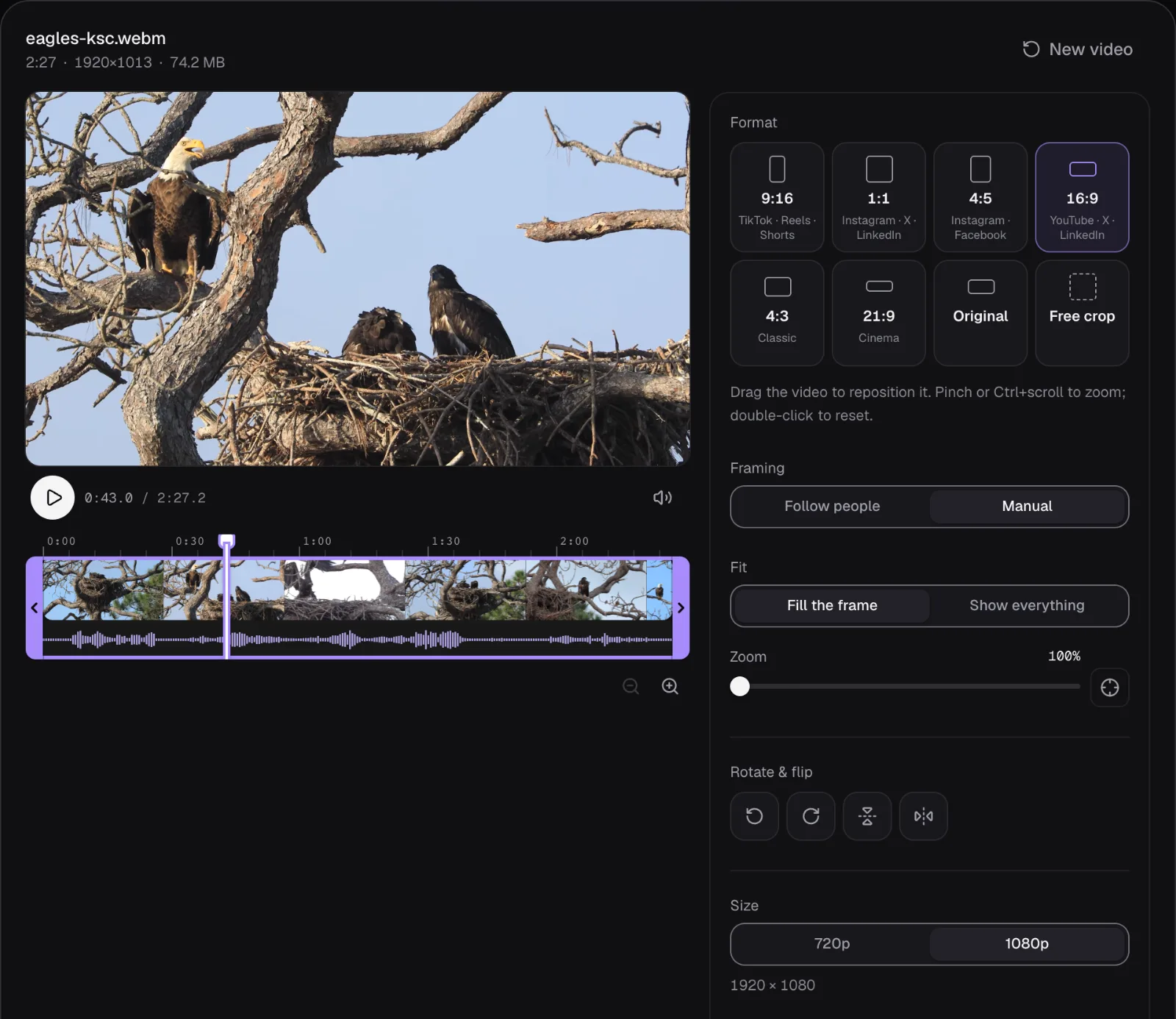
If you'd rather the eagles filled a 16:9 screen edge to edge, crop them. In Resize & Crop we chose the 16:9 tile, labeled “YouTube · X · LinkedIn”, kept “Fill the frame” and the 1080p size it had selected, and got 1920 × 1080: 3.1% of the width cut from each side, the rest enlarged by about 7% to fill. Its other fit, “Show everything”, puts a blurred or colored background around the picture, which is padding by another name.
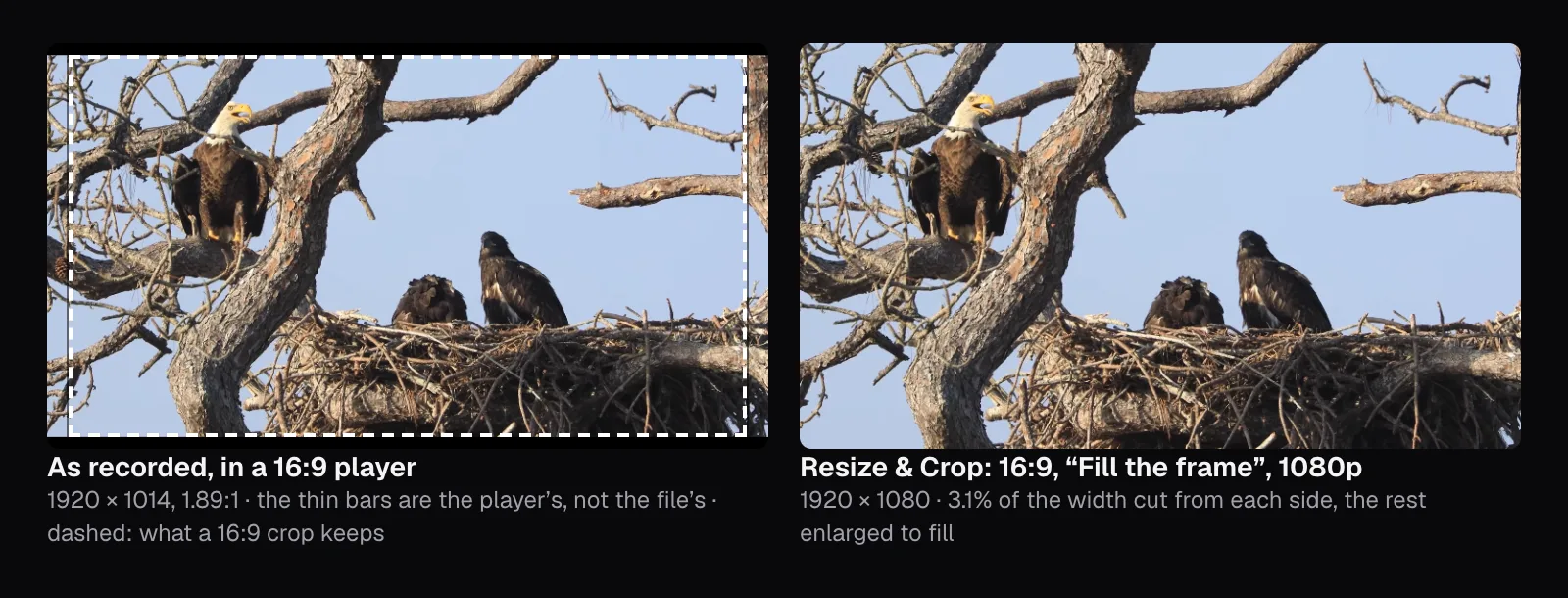
Which to upload is a matter of taste: the original keeps the whole frame, the crop fills a television. Our guide to aspect ratios measures how much picture bars cost on different screens.
The bitrate table, and what our files actually spent
Here is YouTube's table of recommended video bitrates for SDR uploads, standard dynamic range, as of November 2026. The page gives a second table for HDR: 44–56 Mbps for 4K at standard frame rates, 10 Mbps for 1080p, and “Not supported” for 480p and 360p.
| Type | Video bitrate, standard frame rate (24, 25, 30) | Video bitrate, high frame rate (48, 50, 60) |
|---|---|---|
| 8K | 80 - 160 Mbps | 120 to 240 Mbps |
| 2160p (4K) | 35–45 Mbps | 53–68 Mbps |
| 1440p (2K) | 16 Mbps | 24 Mbps |
| 1080p | 8 Mbps | 12 Mbps |
| 720p | 5 Mbps | 7.5 Mbps |
| 480p | 2.5 Mbps | 4 Mbps |
| 360p | 1 Mbps | 1.5 Mbps |
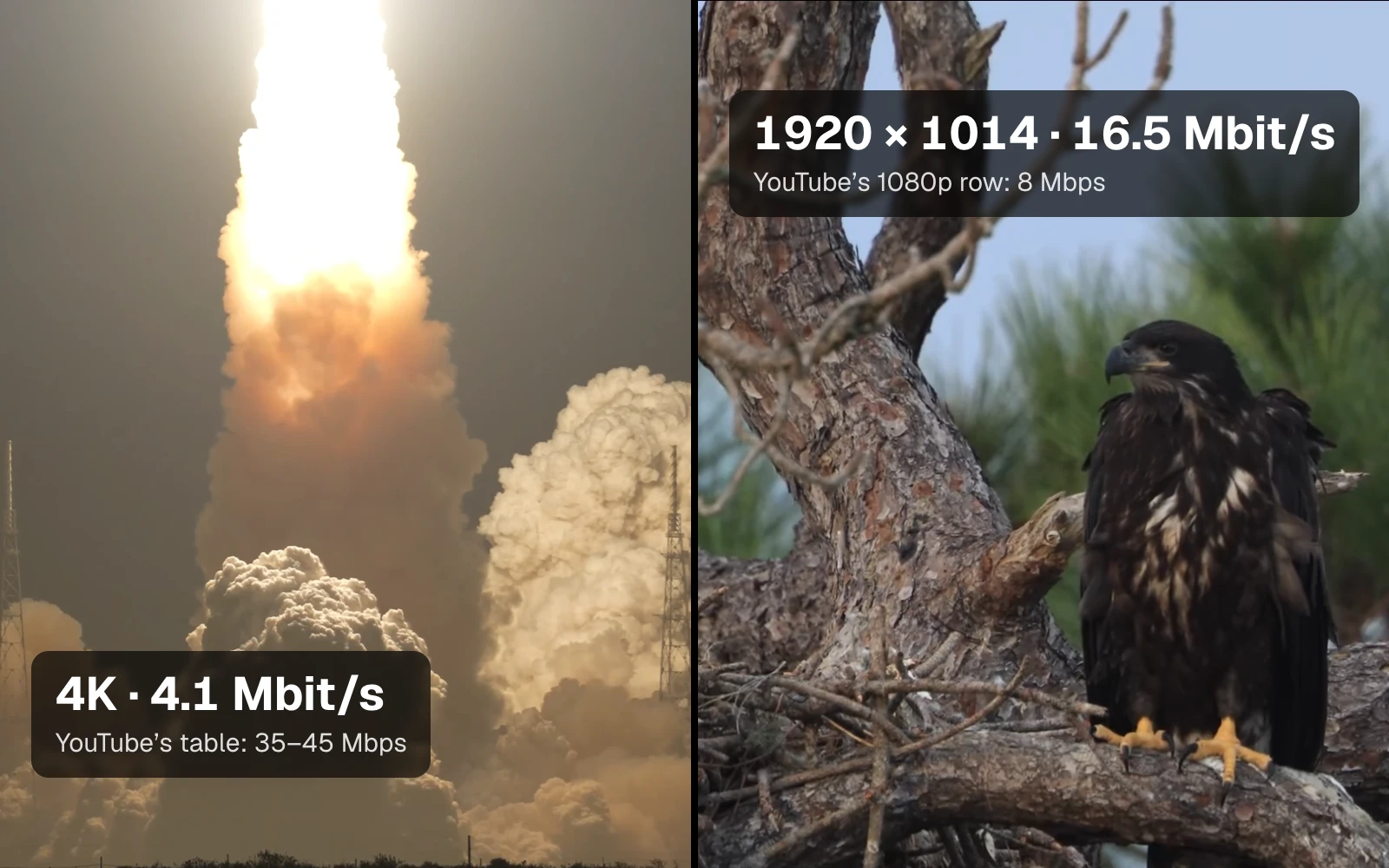
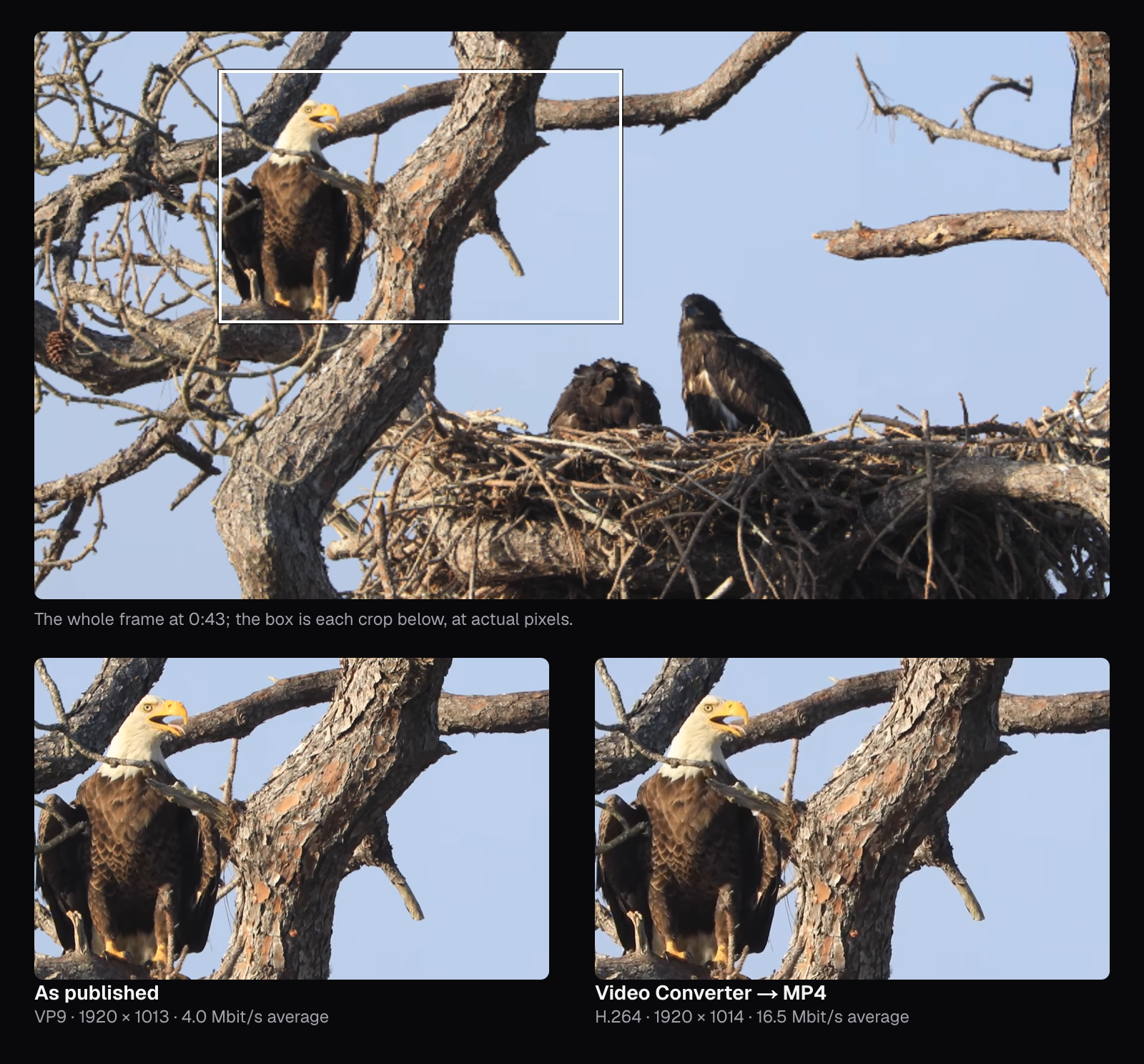
The Video Converter doesn't aim at a bitrate. It asks the browser's H.264 encoder for a fixed level of quality, falling back to a bitrate only where the encoder can't work that way, and Chrome's could: the bitrate followed the picture. That made our two clips land on opposite sides of the table. The 4K launch averaged 4.1 Mbit/s of picture, 8.3 in its busiest second: about a tenth of the 35–45 YouTube gives for 4K. The eagles, nearest to YouTube's 1080p row, averaged 16.5 Mbit/s and peaked at 34.7, twice YouTube's 8 Mbps on average. The launch is a dark sky and soft glowing haze; the eagles are a tangle of twigs, bark and feathers, and every edge of them costs bits. The eagles' MP4 came out at 305.7 MB, four times the size of the 74.2 MB WebM it was made from.
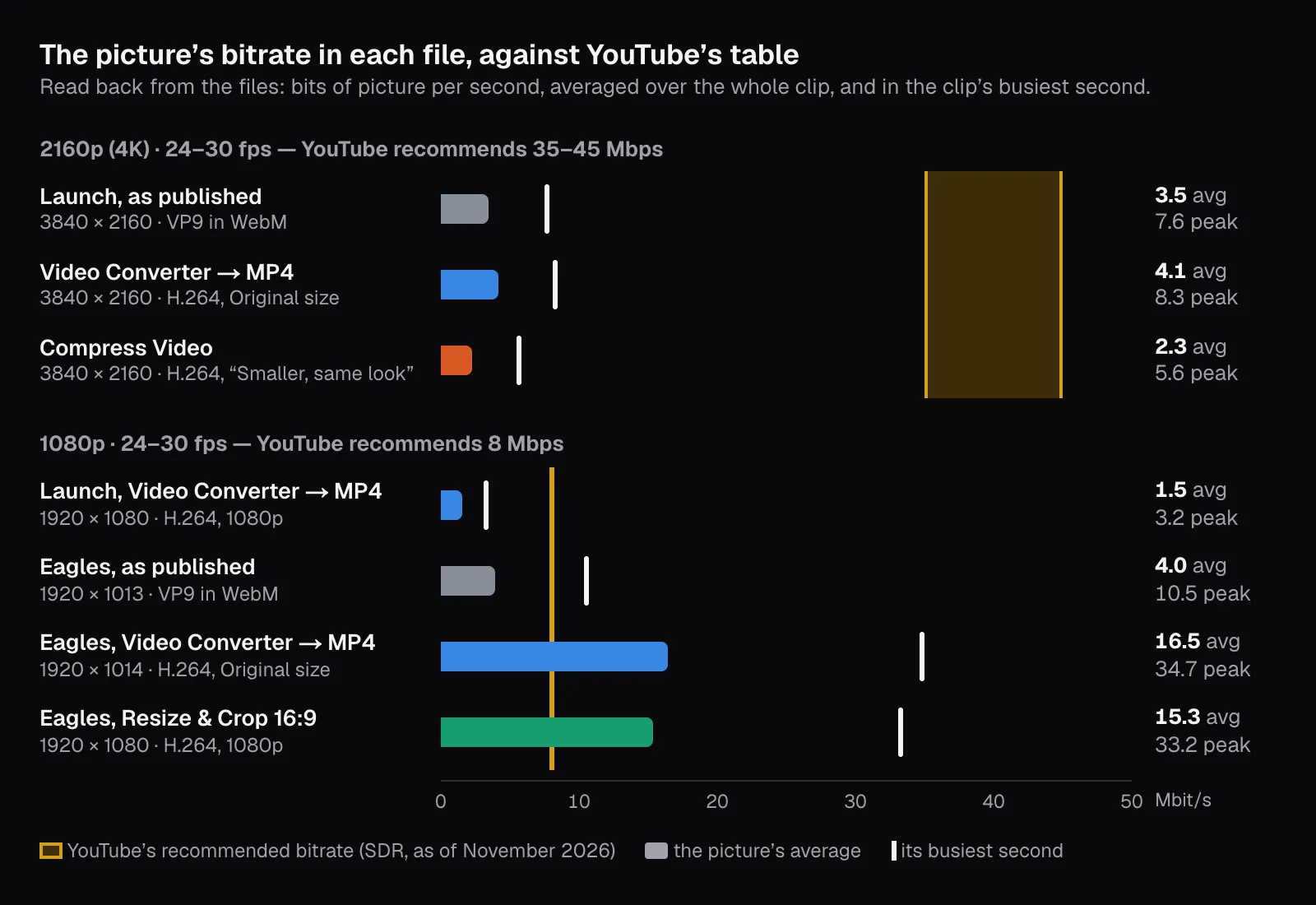
Second by second, the launch shows what a variable bitrate does. In both MP4s, the first 25 seconds of night cost under 1 Mbit/s a second. Once the engines lit, the converter's MP4 rose to 7 or 8, then fell away with the smoke. No second came near YouTube's band.
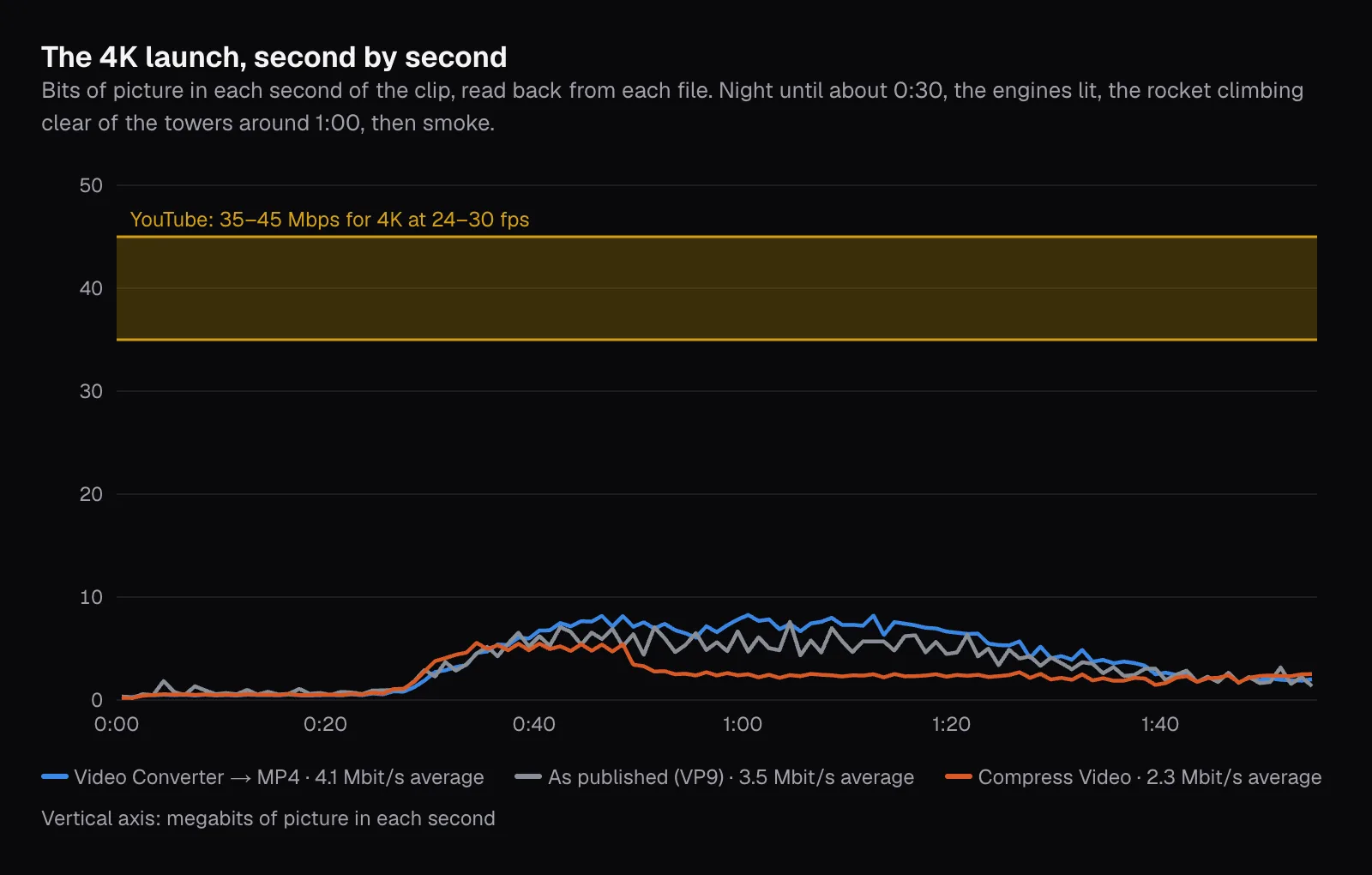
That doesn't make the launch MP4 too thin, judging by what it holds. We compared five of its frames with the original's, pixel by pixel: they averaged 51.1 dB of PSNR, the lowest 47.8 (PSNR measures how much the pixels' values differ, in decibels; higher means closer). The eagles, with four times the bits of their source, look the same as the source at actual pixels. YouTube's table goes by resolution and frame rate alone; it can't know what your picture shows. Its figures are a sound budget for exporting your own edit, where the encoder starts from full-quality frames. A file that's already compressed, like both of ours, already has all the detail it will ever have, and more bits can only describe it again. The arithmetic of what a bitrate means for file size is in our guide to bitrate, resolution and file size.
YouTube re-encodes every upload: send the best copy you have
Viewers never watch the file you upload. YouTube's formatting page for music partners says so plainly: “Note that YouTube always re-encodes videos to optimize their playback quality.” It encourages them to upload video “as close to the original, high quality source format as possible”. The general settings page hints at the same thing: “To view new 4K uploads in 4K, use a browser or device that supports VP9.” Since the same page recommends uploading H.264, 4K watched in VP9 is an encode YouTube made itself.
Every encode loses a little, and YouTube's comes after yours. What you control is how much is gone before it starts. We compared one area of the launch at 1:02, with the flame at full glare, smoke billowing beside a lightning tower's lattice, across our files. The converter's 4K MP4 scored 43.1 dB against the original there, and we couldn't tell them apart. Compress Video's “Smaller, same look” copy dropped to 35.7 dB, and the smoke's folds turned to smooth smears. That goal never plans more than 70% of the original's bitrate, sound included, and on a source of 3.5 Mbit/s that came to 2.3 Mbit/s of picture at 4K. The 1080p copy kept a quarter of the pixels, and the lattice went soft.

That's also the case for uploading 4K when you have it. YouTube's page on 4K says “After you edit your video, export it in 4K”, reports that videos uploaded in 4K “consistently achieve higher watchtime on TVs compared to lower resolutions”, and adds a warning: “enabling 4K can't fix video that was shot in poor lighting”.
The re-encoding takes time, and the first version is the weakest. In YouTube's words, “When you upload a video, it will initially be processed in low quality”; higher qualities follow, and a video “may seem to be missing higher qualities for several hours”. YouTube puts numbers on it: “It can take 4 times longer for 4K quality to be available after an upload finishes”, and a 60-minute 4K video at 30fps “can take up to 4 hours to finish high-resolution processing”. To check, open the video's watch page and look in the player's Settings under Quality.
Sound and color: AAC at 48 kHz, BT.709, and HDR
For sound the page asks for “AAC-LC or Opus or Eclipsa Audio”, in stereo (or stereo plus 5.1, or stereo plus Eclipsa Audio), at 48 kHz. Its audio bitrates are 128 kbps for mono, 384 kbps for stereo and 512 kbps for 5.1, and it adds that “Audio playback bitrate is not related to video resolution”.
Our MP4s hold AAC-LC in stereo at 48 kHz. Their bitrates are below 384, for two reasons. The Video Converter and Resize & Crop ask the AAC encoder for 192 kbit/s, and the eagles' tracks averaged 141. The launch's track averaged 6, because there was nothing to encode: NASA's file carries a silent sound track, whose loudest sample, as Chrome decoded it, was effectively zero. Nor would a higher figure have helped the eagles, whose sound arrived as Opus at 57 kbit/s. When a file's sound is already AAC or MP3, the converter copies it into the MP4 untouched (“Sound copied as it is”), which is better than any re-encode.
For color, YouTube recommends BT.709 “as the standard color space for SDR uploads”: BT.709 primaries, transfer curve and matrix, each tagged with the value 1. It also says what it does without them: an unspecified transfer curve “Assumes BT.709 TRC”, unknown primaries and matrix are assumed BT.709 too, and “YouTube converts full color range to limited color range”. Our MP4s are tagged BT.709 primaries and matrix, limited range, with the sRGB transfer curve (13) rather than BT.709's, and the page covers that as well: “sRGB TRC will convert to BT.709 TRC.” The eagles' source carried no color tags at all, the case where YouTube assumes BT.709.
HDR is a different file. YouTube's HDR page asks for 10 or 12 bits, Rec. 2020 primaries and a PQ or HLG transfer, recommends VP9 Profile 2, AV1 or HEVC, and warns that H.264 10-bit needs “very high bitrates”. Cutlia's tools re-encode pictures in 8 bits, as every one of our files shows, so an HDR video belongs on YouTube as the camera made it.
What to export for YouTube, case by case
Put together, the page and our measurements come down to a short list.
- A file straight from your phone or camera: upload it as it is. MOV, MP4 and HEVC are all on YouTube's list, and the camera's file is the closest thing to the original you have.
- Your own edit: export an MP4 with H.264 High Profile and AAC-LC at 48 kHz, at your footage's size and frame rate, with a variable bitrate at or above YouTube's table, color in BT.709. This is the case the table suits best.
- A file in a format YouTube doesn't list: the Video Converter to MP4. When the picture is already H.264 or HEVC and the resolution stays on “Original”, it's copied untouched (“Copied as it is (H.264) — lossless and quick”); for HEVC, switch “Convert HEVC to H.264” off. Other pictures are re-encoded at a fixed quality, as our two were.
- A shape other than 16:9: upload it as it is, or crop it with Resize & Crop's 16:9 tile and “Fill the frame”. Don't add bars.
- A file too big to upload in reasonable time: Compress Video, knowing that “Smaller, same look” lowers the bitrate (our launch's went further below YouTube's table) and that YouTube will compress the result again.
Whichever it is, give YouTube time after the upload before judging the result. For a vertical video made for Shorts, the sizes and lengths are different; see what TikTok, Reels and Shorts need. For how H.264 compares with VP9, which YouTube names for watching new 4K uploads, and with HEVC and AV1, see our comparison of H.264, HEVC, VP9 and AV1.
Questions people ask
What bitrate should I use for 1080p on YouTube?
YouTube recommends 8 Mbps for 1080p at 24, 25 or 30 fps and 12 Mbps at 48, 50 or 60, as of November 2026, and says no bitrate limit is required. Those figures suit an export from your own edit. For a file that’s already compressed, more bits add nothing: our 1920 × 1014 eagle clip at 16.5 Mbit/s looked the same at actual pixels as its 4.0 Mbit/s source.
Is MP4 or MOV better for YouTube?
YouTube recommends MP4 with H.264 picture and AAC sound, and also lists MOV among its supported formats, so both upload. The quality comes from the codec and bitrate inside, not the container. If your camera made a MOV, upload it as it is. If you’re exporting from an editor, MP4 is what YouTube’s settings page names.
Why does my video look blurry right after uploading to YouTube?
Because YouTube processes a low-quality version first, which helps the upload finish faster, and adds HD and 4K later. Its help says higher qualities may seem to be missing for several hours, that 4K can take four times as long as 1080p, and that a 60-minute 4K video at 30 fps can take up to 4 hours.
Should I upload in 4K or 1080p?
Upload 4K if you filmed or edited in 4K. YouTube’s own 4K page says to export in 4K after editing and reports higher watchtime on TVs for 4K uploads. In our test the 1080p copy of a 4K launch kept a quarter of the pixels and visibly softened a tower’s lattice. 4K takes longer to process, though, and can’t fix poor lighting.
What audio settings does YouTube recommend?
As of November 2026, AAC-LC, Opus or Eclipsa Audio, at a 48 kHz sample rate, in stereo, stereo plus 5.1, or stereo plus Eclipsa Audio. The recommended bitrates are 128 kbps for mono, 384 kbps for stereo and 512 kbps for 5.1, with 128 kbps per channel for Eclipsa Audio. YouTube adds that audio playback bitrate is not related to video resolution.
Can I upload a WebM or MKV file to YouTube?
WebM, yes: it’s on YouTube’s list of supported formats, so a WebM like the NASA clips we used can go up as it is. MKV isn’t on that list as of November 2026, though YouTube’s HDR page names it among containers tested to work. Converting an MKV to MP4 with the Video Converter copies an H.264 picture untouched, and an HEVC one too with “Convert HEVC to H.264” switched off, so the picture changes container without losing anything.
Sources
Where the facts in this guide come from, besides our own tests:
- YouTube recommended upload encoding settings — YouTube Help
- Video resolution & aspect ratios — YouTube Help
- Low video quality after upload — YouTube Help
- Create and upload YouTube videos in 4K — YouTube Help
- Upload High Dynamic Range (HDR) videos — YouTube Help
- Supported YouTube file formats — YouTube Help
- Upload videos longer than 15 minutes — YouTube Help
- Video and audio formatting specifications — YouTube Help
- Artemis I Launch from NASA Causeway (Slo Mo): the footage's record — Wikimedia Commons (NASA)
- Wildlife Video - Bald Eagles: the footage's record — Wikimedia Commons (NASA)
Footage in this guide
The pictures were made with Cutlia's tools from this openly licensed footage, found on Wikimedia Commons:
- Artemis I Launch from NASA Causeway (Slo Mo) (GX010506) — NASA Marshall Space Flight Center, Public domain
- Wildlife Video - Bald Eagles (KSC-20260313-MH-JBS01-0001-Wildlife Video Bald Eagles BROLL-M19993) — NASA Kennedy Space Center, Public domain