Short video and social
How to make a horizontal video vertical without cutting people off
We turned one NASA studio interview into a 9:16 video four ways, exported each in full, and compared the same seconds from every file to see who stayed in the frame.
By the Cutlia team · Published · 14 min read
The short version
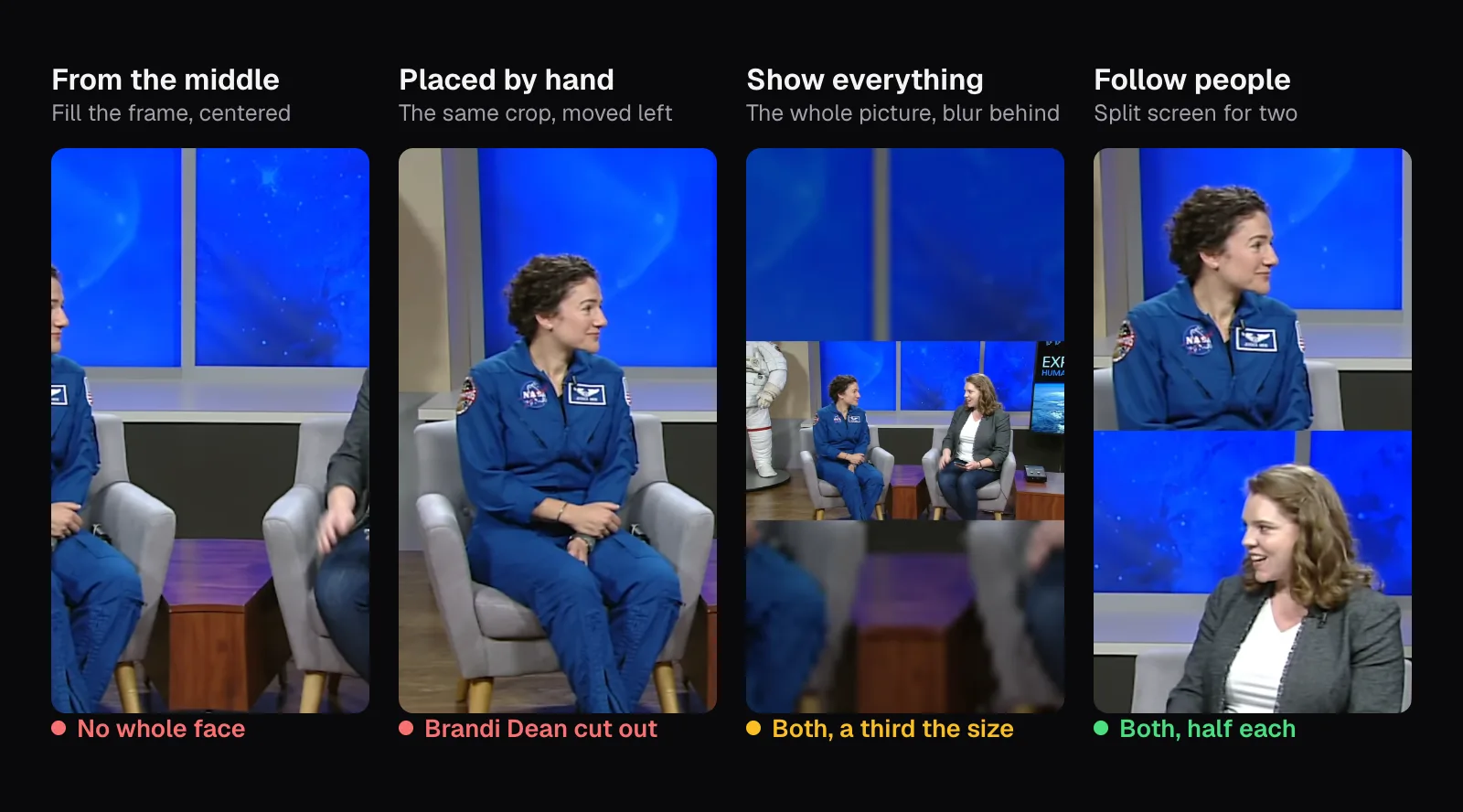
- A 9:16 frame cut from a 16:9 video keeps only 31.6% of its width, so a crop from the middle misses anyone sitting off-center: in our two-person interview it kept two armchairs and no whole face.
- Framing by hand suits a video with one camera position, because the position you choose holds for the whole export: moved onto one guest, our crop showed only an arm of the astronaut in the station shots.
- “Show everything” keeps every person and every on-screen name, at about a third of the size; over black instead of a blurred copy, our file came out 30% smaller.
- “Follow people” frames each shot on its own (one person centered, two people apart in a split screen, a group shown whole), which makes it a good start for edited footage, as long as you watch the result: it took a spacesuit on a stand for a second person.
- If two people have to share one frame, choose a square: a 1:1 crop keeps 56% of the width and held both faces in our test, where 4:5 kept one face and half of the other.
A vertical video, made for a phone held upright, is 9 units wide and 16 tall; a landscape video is the same shape turned on its side. Before it can fill that frame, about two thirds of its width has to go, and in an interview or a podcast the part that goes is often a person.
To see which way of handling that works, we took a NASA video from April 2019: astronaut Jessica Meir and Brandi Dean talking in two armchairs, cut together with shots of Christina Koch on the space station and a close-up of each of the two. It runs 1 minute 50 seconds at 1920 × 1080. We made it 9:16 in Cutlia's Resize & Crop four ways (cropped from the middle, cropped by hand, the whole picture over a blurred copy of itself, and “Follow people”), exported each in full at 1080 × 1920, and pulled the same seconds out of every file.
How much of a wide picture a vertical frame keeps
A 16:9 picture is 1.78 times as wide as it is tall; a 9:16 frame is 0.56 times as wide as it is tall. Fill the frame from top to bottom and it can take only 0.56 ÷ 1.78 of the picture's width: 31.6%. From a 1920 × 1080 video that's a strip 607.5 pixels wide. Fit the whole width in instead and the picture covers 31.6% of the frame's height. Either way, two thirds of something is lost: either the picture or the screen.
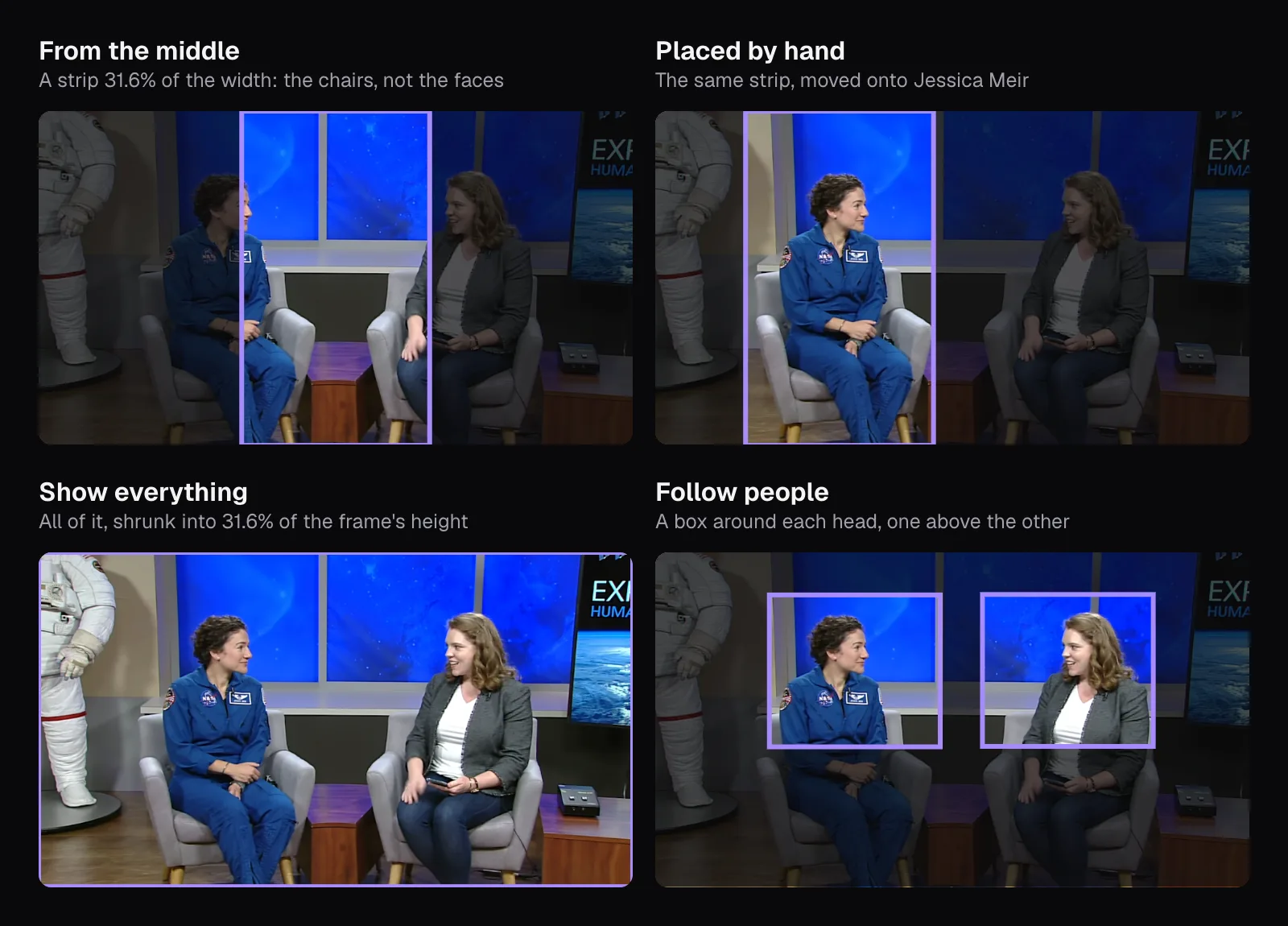
Where the people sit decides what a crop keeps. At 1:06 of our interview, the face detector put the middle of Meir's face 34% of the way across the picture and Dean's at 70%. The middle strip runs from 34.2% to 65.8%, so it cuts Meir's face down its middle and misses Dean's completely. Every two-shot in this video is framed the same way, for a wide screen: the two women toward the sides, the set between them.
A crop also costs sharpness. The 607.5-pixel strip is stretched 1.78 times to fill a 1080 × 1920 frame, so every person in it looks softer than in the original. A 4K original has a strip 1,215 pixels wide for the same crop, more than the vertical frame needs, so nothing is stretched. If you film something that will also be posted vertically, filming it in 4K buys you that room.
The default crop: the middle of every shot
Resize & Crop opens a video on 9:16 with “Framing” set to “Manual” and “Fit” on “Fill the frame”, centered: the middle strip. For our 1080p video it offered “720p” and “1080p”, set to 1080p, for a 1080 × 1920 result.
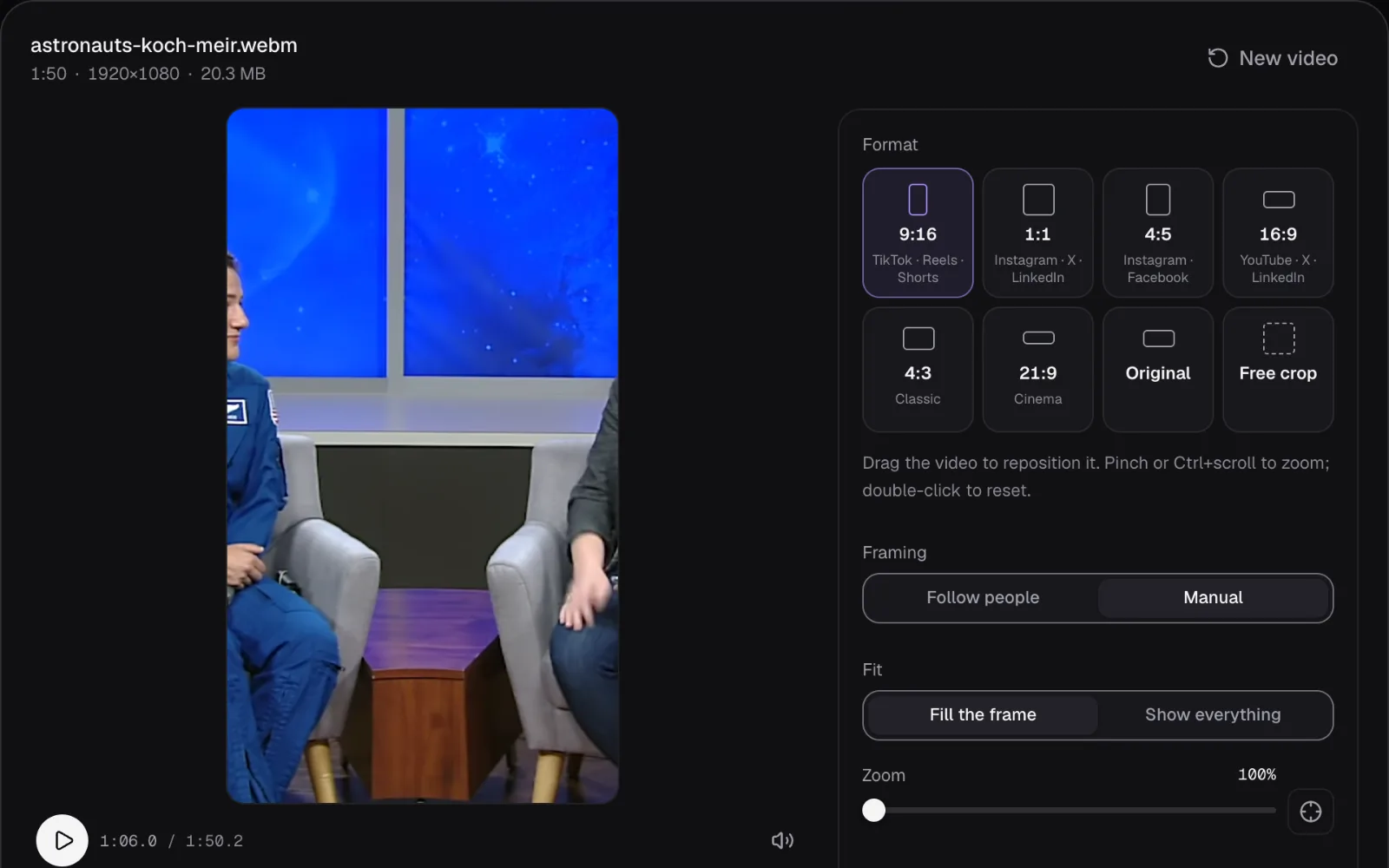
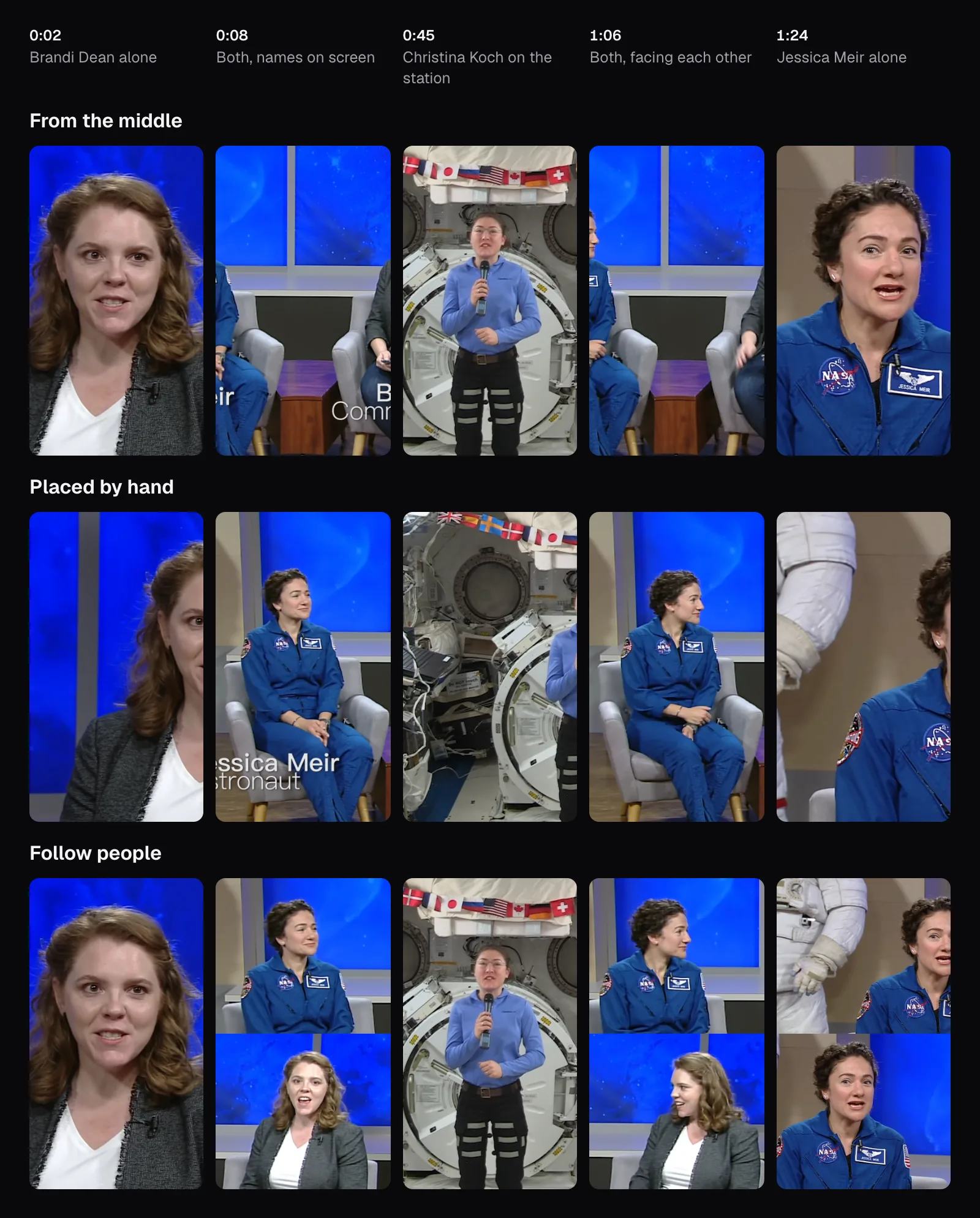
Played through, the middle crop is right as often as the original camera put someone in the middle. It worked on Dean's close-up at the start, on Koch, who stands in the middle of her shots on the station, and well enough on Meir's close-up. It failed in all four stretches of the two-person shot (0:03 to 0:10, 0:15 to 0:33, 1:04 to 1:14 and 1:30 to 1:44). At 0:08 it also cut the two names shown on screen down to fragments: “ir” on one side, “B” and “Comm” on the other.
Placing the crop by hand: one position for the whole video
To move the crop, drag the picture in the preview until the person you want is inside the frame. Lines dividing the frame into thirds appear while you hold it, for placing the eyes. The “Zoom” slider goes from 100% to 500%, the “Center” button beside it puts the picture back in the middle, and a double-click on the preview resets both. With the preview focused, the arrow keys move the picture a twentieth of the frame per press (a fifth with Shift), plus and minus zoom, and 0 resets. Three presses of Shift and the right arrow moved our crop onto Meir.
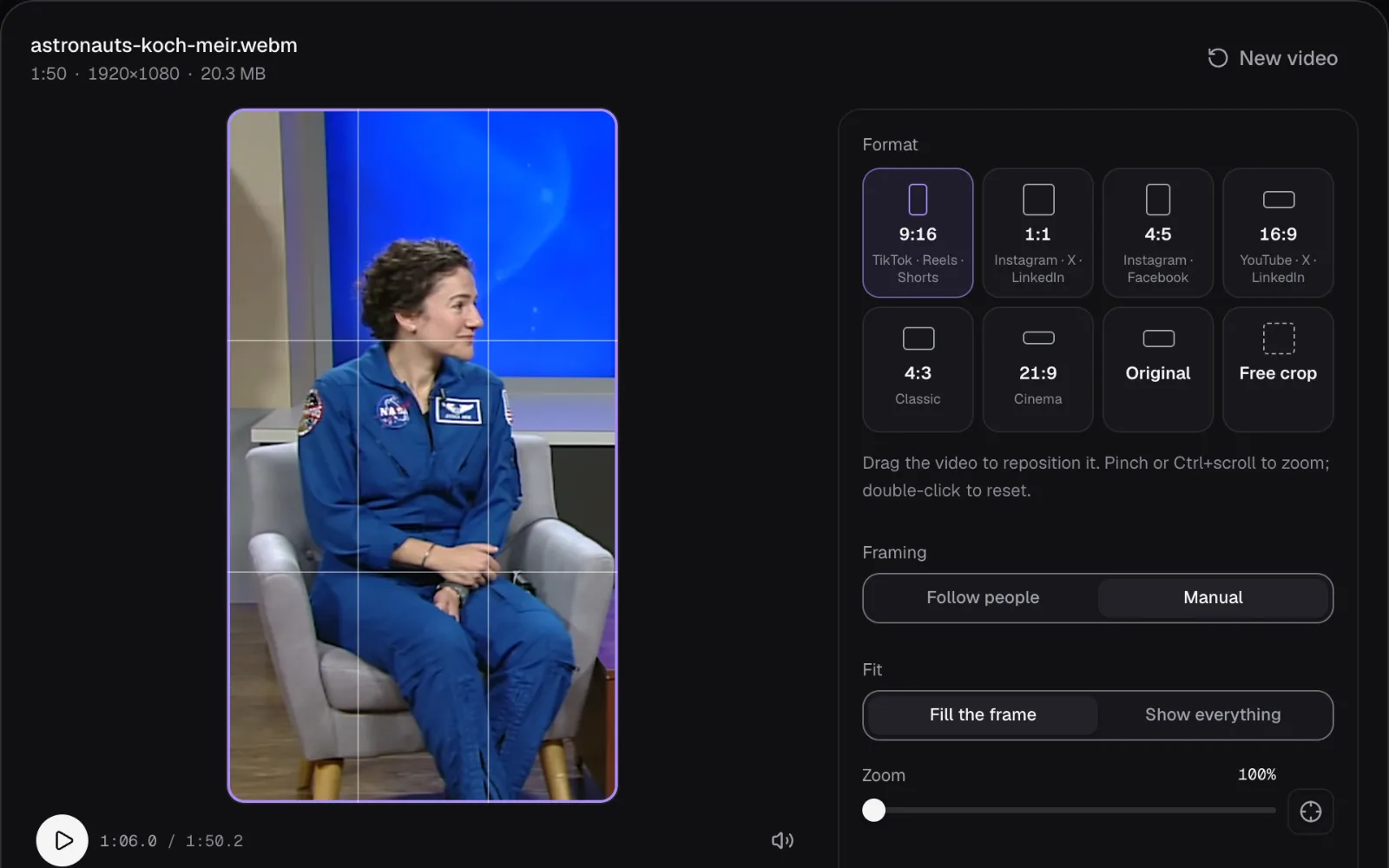
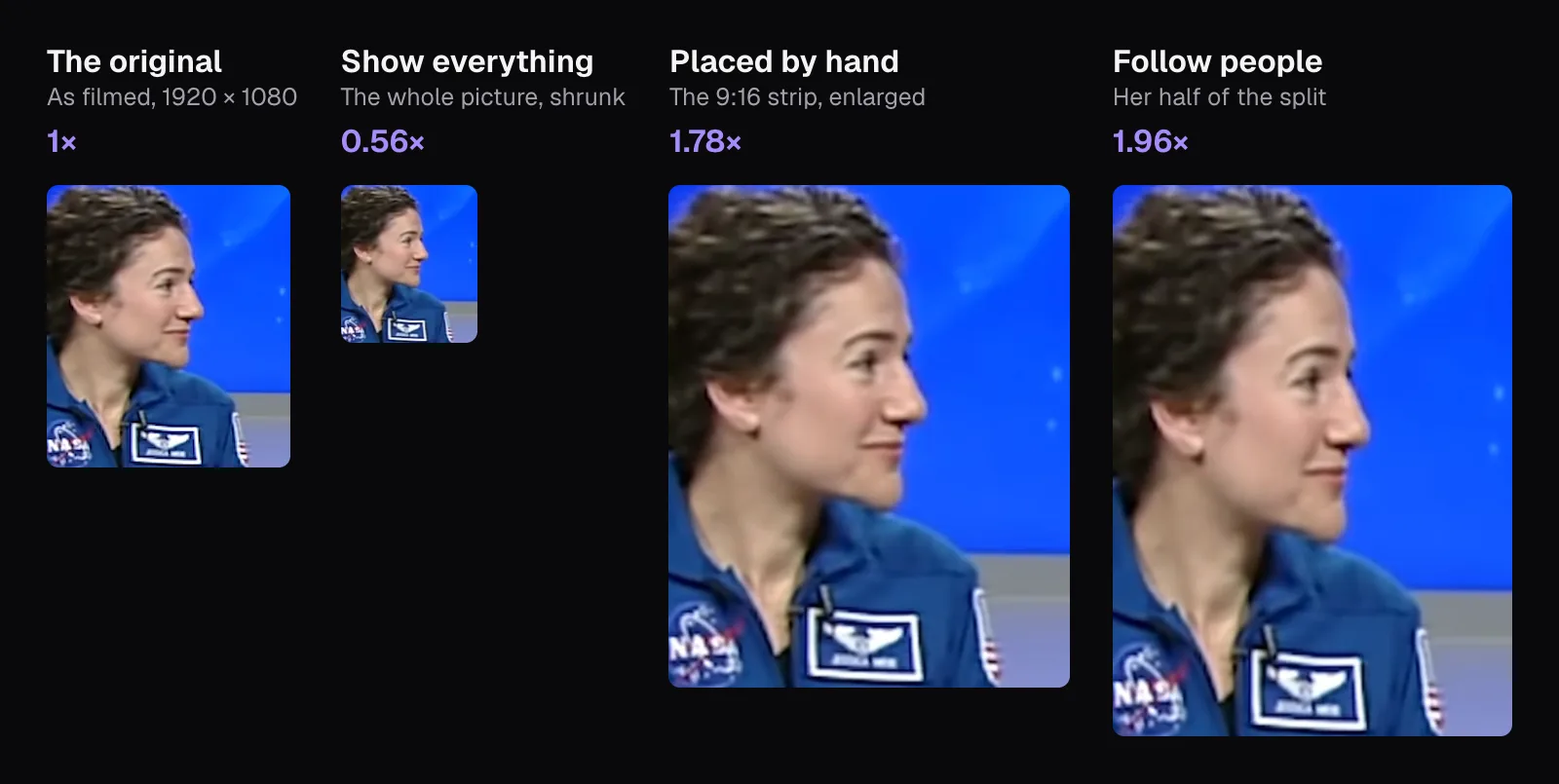
A position set by hand holds for the whole export, and that's its weakness on edited footage. The same crop that framed Meir at 1:06 showed half of Dean's face at 0:02, a wall of the station with Koch's arm at its edge at 0:45, and a spacesuit's sleeve beside Meir's shoulder at 1:24, where her close-up is framed further to the right. It did keep her on-screen name at 0:08 almost whole.
That makes manual framing the right choice for a video shot from one position: a talk, a recipe, a vlog filmed on a tripod. For one moment of a longer video, keep just that stretch with “Part” (drag the handles or type the times), and the position only has to suit it. “Free crop” gives you a box to drag to any shape, when the result doesn't have to be 9:16.
Show everything: nobody cut off, everybody smaller
“Show everything” turns the problem around: the whole 16:9 picture sits across the middle of the tall frame at full width, 1080 × 607.5 pixels of the 1080 × 1920. Nothing is cropped, so both women stay in every two-shot and text burned into the original survives: at 0:08 both on-screen names are whole, which neither crop managed.
Above and below goes a “Background”. “Blur”, the default, fills it with the same picture enlarged to cover the frame, shrunk to 40 pixels across, enlarged again and darkened by about a third. Only large shapes survive, as soft patches of color, and the effect doesn't depend on the browser having a blur filter of its own. “Color” fills the space with one color instead: black when you switch to it, or a swatch or a color of your own.
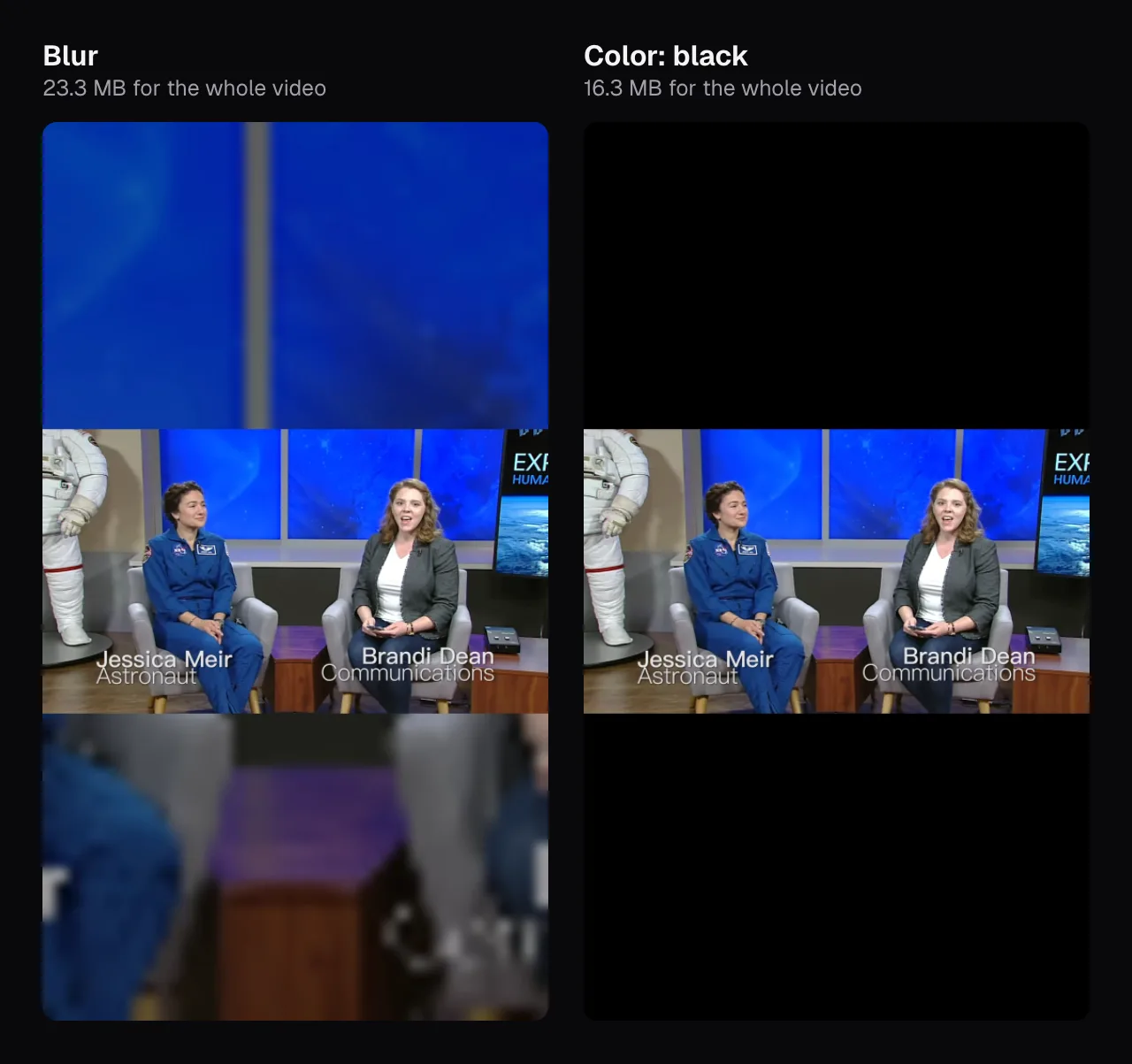
The background changes the file size. Over black, our 1:50 export was 16.3 MB; over the blurred copy, 23.3 MB, so black came out 30% smaller. An encoder spends almost nothing on a flat color that never changes, while the blurred copy moves with every frame of the video. If the file has to stay small, a color is the cheaper background. Our guide to bitrate, resolution and file size explains what else decides it.
The price is size on screen. In the fitted picture, everyone is 0.56 times as big as in the original, against 1.78 times in a crop: about a third as tall. It suits slides, screen recordings, landscapes and groups, where no crop could hold what matters. For a face that has to speak to the viewer, a third is too small.
Follow people: a new frame for every shot
In Resize & Crop, switch “Framing” to “Follow people”; the Auto Reframe Video page opens with it already on. The first time, the whole video is searched while “Finding people to follow” counts up in percent, and the export button waits: “You can export once the people are found.” For our 1:50 video that took 14.4 seconds in Chrome on a MacBook Air with an Apple M5 chip (the middle of three runs). On a first visit the detectors download into the browser before the search starts; the video itself never leaves the computer.
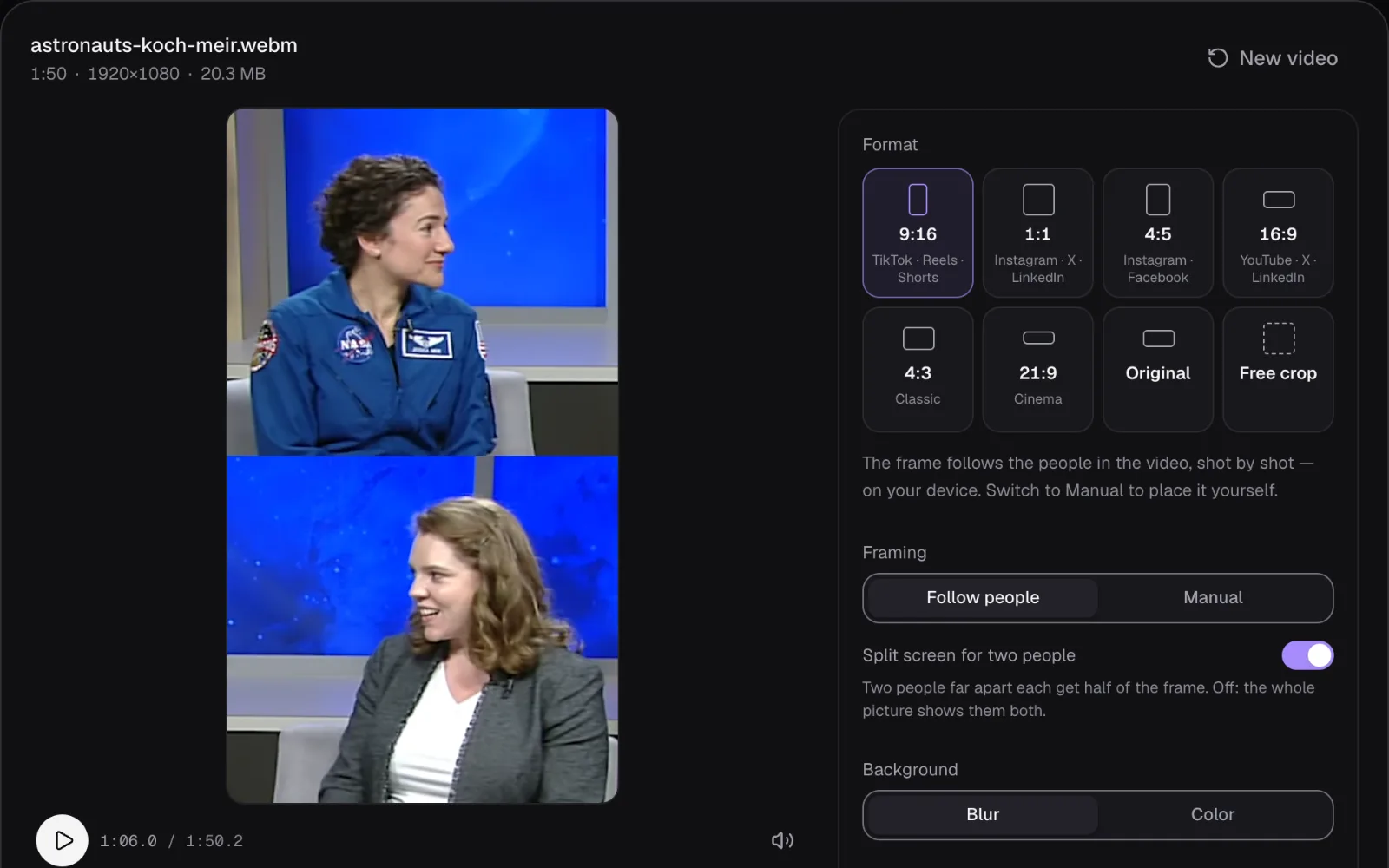
It decides in two steps. First it looks: every quarter of a second it checks a frame for a change of shot (440 frames in our video; it found 11 shot changes), and every half second it searches one for people, with a person detector and a face detector. Then it chooses a layout for each shot:
- One person, or several close enough to fit together: the frame holds still on their head, glides after it over 0.6 seconds when it leaves the middle of the frame, and cuts where the video cuts.
- Two people too far apart: a split screen, each person in half of the frame, the one on the left on top. Turn off “Split screen for two people” to show the whole picture over the background instead.
- Three or more people apart: the whole picture over the background, as “Show everything” would show it.
- Nobody: the middle of the picture. If no one turns up in the part you keep, the panel says so.
People less than half as tall as the tallest person in a shot don't count, so an audience behind a speaker doesn't turn a close-up into a group. A layout also has to last two seconds, or it joins the one around it, so a missed look doesn't make the frame jump. The AI Clip Maker frames its clips with the same code; its “Framing” menu offers “Follow faces”, “Split screen”, “Middle” and “Whole picture”.
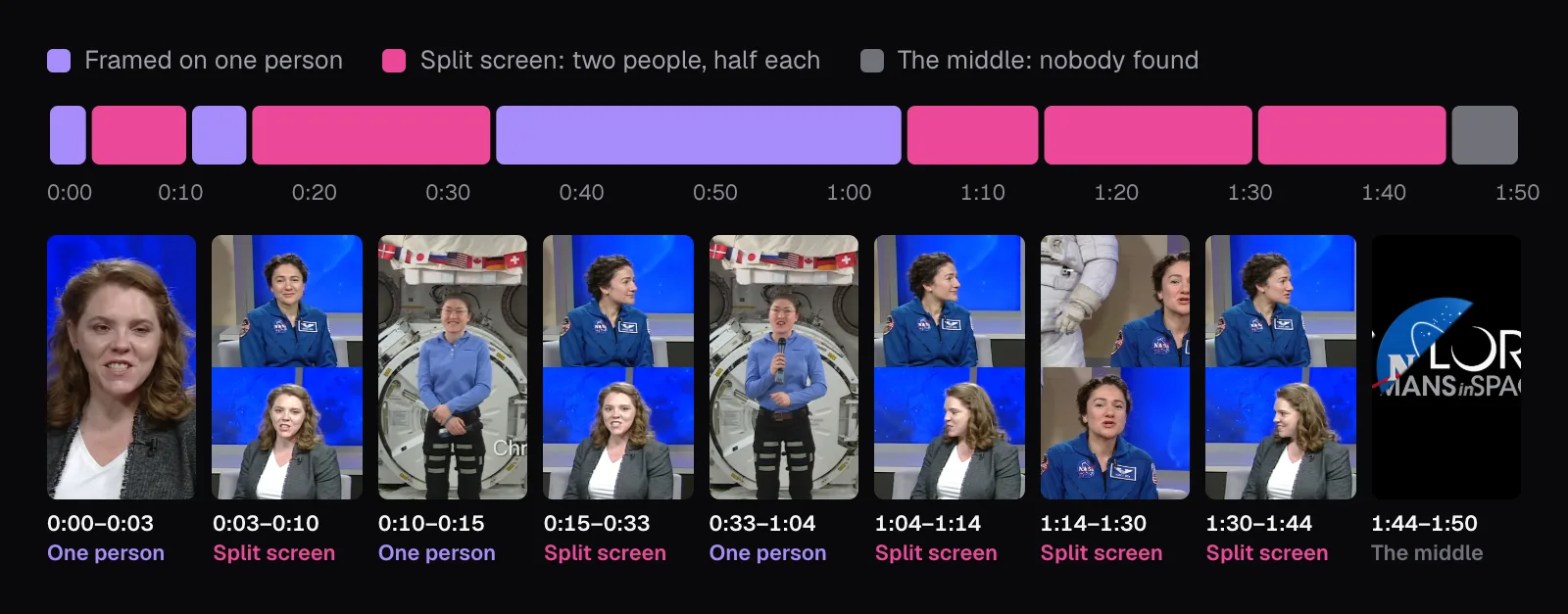
Over the whole video it framed one person for 38.4 seconds, split the screen for 66.5 and left the last 5.4 seconds, NASA's end cards, in the middle. Every two-shot became a split screen with both women framed on their faces, and in the two shots of Koch, who stands in the middle, its frame sat almost where the middle crop does. It frames faces, not text: the names shown on screen at 0:08 fell outside both halves of its split, and Koch's name at 0:12 was cut to its first three letters.
Where automatic framing went wrong, and what a split costs
One shot came out wrong. From 1:14 to 1:30, Meir talks alone in a close-up, with a white spacesuit on a stand behind her shoulder. The person detector took the suit for a second person: its box ran from the top of the picture to the bottom, taller than Meir's, with no face found in it. Two people that far apart make a split screen, so the shot became one: the suit's arm and glove on top, with part of Meir's face at its edge, and Meir again below. Nothing in the editor warns of it; you see it only by watching, in the preview or the exported file. “Framing” applies to everything you export, so the fix is to export that stretch on its own: set “Part” to it with “Framing” on “Manual”, export the stretches around it with Follow people, and join the files in Merge Videos.
The split screen also enlarges more than a plain crop. Each half is 1080 × 960 pixels, and at 1:06 each was filled from a box 552 × 491 pixels of the original around one head, so each face is enlarged 1.96 times.
The five full exports of our video, each an MP4 with H.264 video and AAC sound at 1080 × 1920:
| Version | At 1:06 you see | Size |
|---|---|---|
| From the middle | Two chairs, no whole face | 26.7 MB |
| Placed by hand | Meir alone | 22.1 MB |
| Show everything, blur | Both, a third of the size | 23.3 MB |
| Show everything, black | Both, black above and below | 16.3 MB |
| Follow people | Both, half the frame each | 33.9 MB |
All five were encoded with the same quality setting, so their sizes follow what's in the picture. The split screen, two enlarged close-ups, made the largest file; the fitted picture over black, with two thirds of every frame plain black, the smallest.
Groups: when no vertical crop holds everyone
Two people are the hard case for a vertical crop; four are past it. In April 2026 the four astronauts of Artemis II, Christina Koch among them, talked with four astronauts on the space station, Jessica Meir among them, from their capsule in deep space. We kept 0:20 to 1:25 of NASA's 10½-minute video of the call and made it 9:16 from the middle and with Follow people.
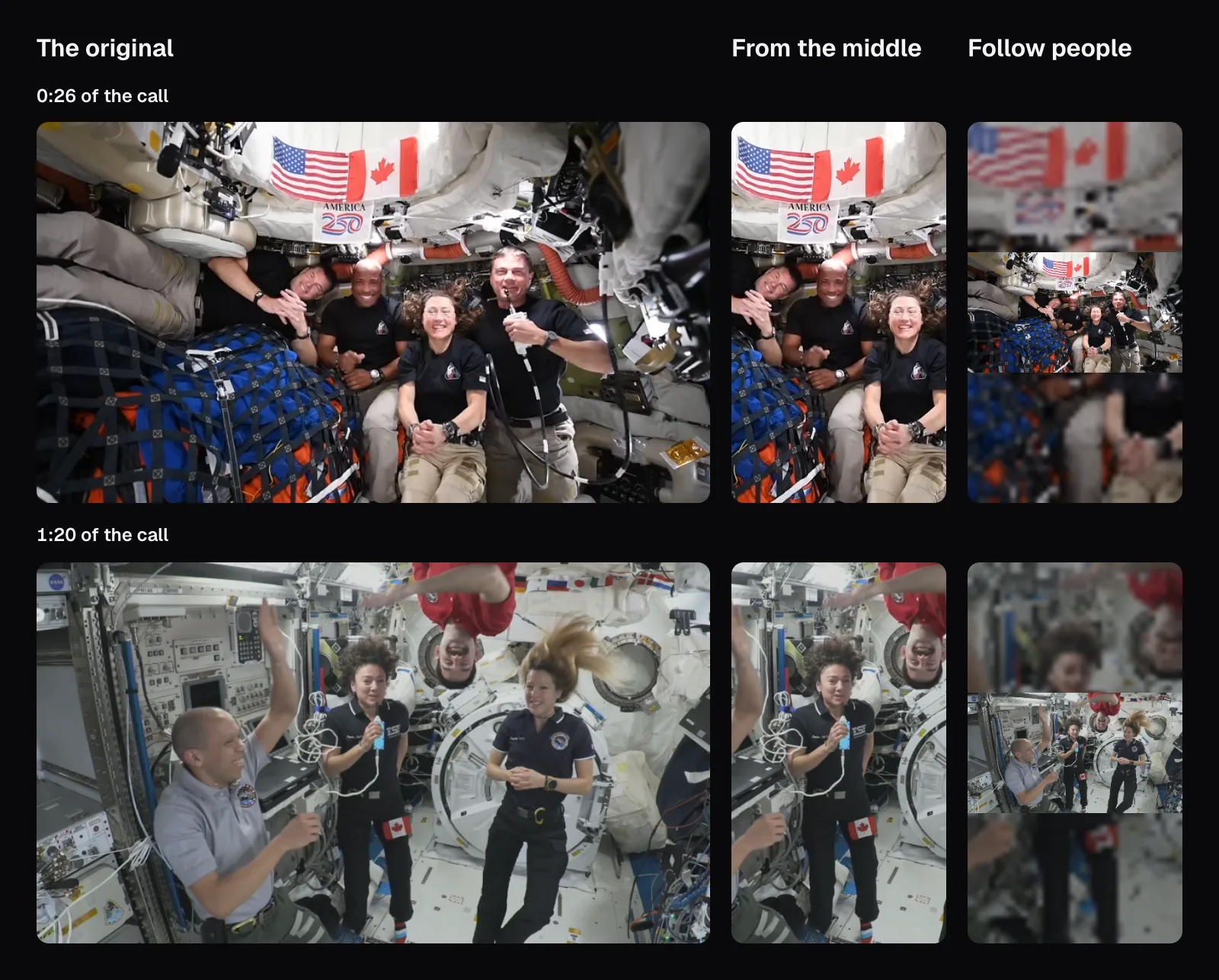
The middle crop kept three of the four in the capsule and two of the four on the station: even squeezed into a capsule, four people spread wider than a 31.6% strip. Follow people showed the whole picture over the blurred background from 0:20 to 1:21, through six shots, because more than two people apart make a group and no crop holds one. At 0:26 its detectors had found only three of the four astronauts in the capsule, still enough for a group. In the last shot of our part, the capsule again, it framed three of them in a crop and left the fourth out: worth catching before you post.
For a group, there's no trick that gives everyone a close-up. Either show the whole picture and accept the smaller size, or crop to the person speaking and accept that the others are gone. If one person carries the moment, frame them by hand for that part; if the group is the point, as in a team photo or a crowd at a launch, show everything.
Less tall shapes: 4:5 and square
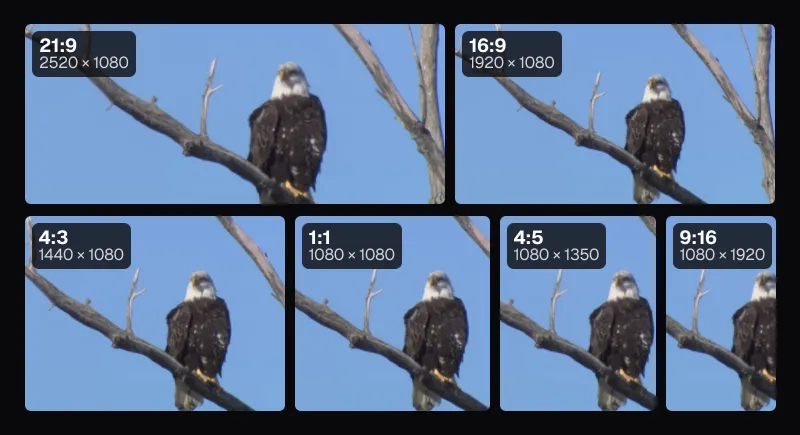
A shape that is less tall keeps more of the width. Resize & Crop offers 4:5 and 1:1 beside 9:16: a 4:5 crop keeps 45% of a 16:9 picture's width (864 pixels of 1,920, enlarged 1.25 times to 1080 × 1350), and a square keeps 56% (1,080 pixels, not enlarged at all for a 1080 × 1080 file).
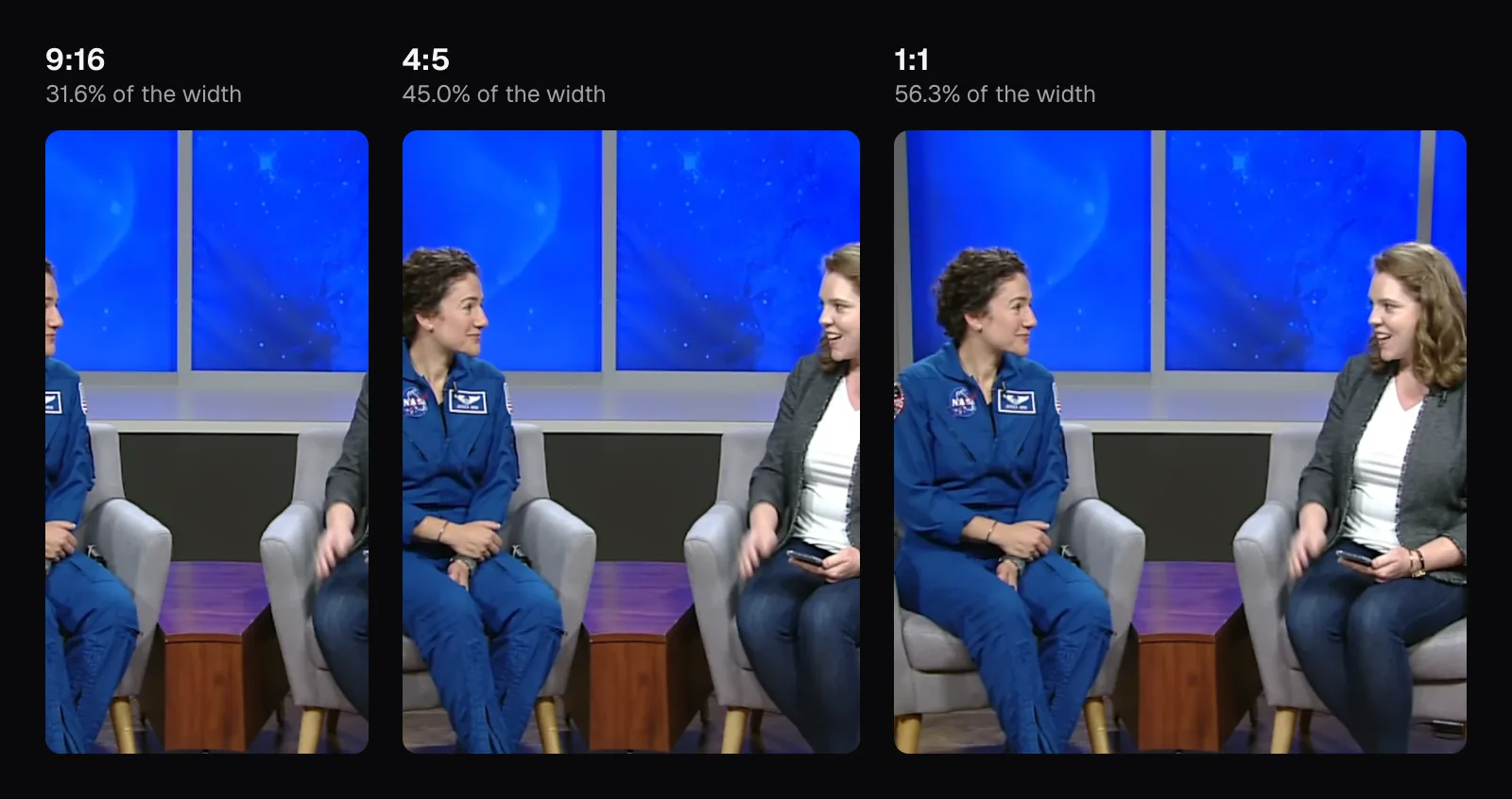
On our two-shot, the square kept both women, smiling at each other, without moving the crop at all, and with no split down the middle. Whether a square will do depends on where it's going. As of November 2026, YouTube's help asks for a Short with a square or vertical aspect ratio, up to 3 minutes long, and TikTok's specifications for in-feed ads list vertical 9:16 (at least 540 × 960 pixels) as recommended, ahead of horizontal 16:9 and square 1:1 (at least 640 × 640).
Follow people works in 4:5 and 1:1 too. Its split screen needs a frame clearly taller than it is wide, so it happens in 4:5 but not in a square, where two people too far apart get the whole picture instead. For the sizes, lengths and frame rates each app asks for, see our TikTok, Reels and Shorts video specs, and for how the shapes compare beyond social apps, video aspect ratios explained.
Which method to use for your footage
| Your footage | Use | Why |
|---|---|---|
| One person, one camera position | Fill the frame, placed by hand | One position suits the whole video, at full size |
| An interview or podcast with two people | Follow people, split screen on, or a square | Both stay large; a square needs no split |
| An edited piece with many shots | Follow people, then watch it | The frame changes with each shot |
| A group, a landscape, sports | Show everything | No vertical crop holds all of it |
| Slides, a screen recording, captions in the picture | Show everything | Text at the edges isn't cut |
| A file that has to stay small | Show everything over a color | Black came out 30% smaller than blur |
If you're filming something that will also be posted vertically, plan for it: keep the people who matter inside the middle third of the frame, add titles after cropping rather than burning them into the edges, and film in 4K if you can. Our guide to captions people actually read covers where text sits best on a tall screen, and if the vertical video is a moment of a long one, see how to turn a long video into short clips.
Questions people ask
How do I make a horizontal video vertical without cropping it?
In Resize & Crop, choose 9:16 and set “Fit” to “Show everything”. The whole picture sits across the middle of the tall frame, and “Background” fills the space above and below with a blurred copy of the video or a color you pick. Nobody is cut off, but everything is about a third of the size it would be in a crop.
Does turning a video vertical lower its quality?
Cropping does. A 9:16 crop of 1080p video uses a strip 607.5 pixels wide and stretches it 1.78 times to fill 1080 × 1920; a split screen stretched each half 1.96 times in our test. Showing the whole picture stretches nothing but makes it small. From a 4K original, the same crop needs no stretching for a 1080 × 1920 file.
Why does auto reframe split my video into two halves?
Because it found two people too far apart for one vertical crop, as in an interview filmed side by side, or took something for a person, as it took a spacesuit on a stand in our test. Each gets half of the frame, the person on the left on top. Turn off “Split screen for two people” to show the whole picture over the background instead; a square format keeps more of the width, too.
Can I upload a horizontal video as a YouTube Short?
Not as a 16:9 video. As of November 2026, YouTube's help says a Short uploaded from a computer should be up to 3 minutes long, with a square or vertical aspect ratio. Make it 9:16 or 1:1 first, by cropping, by fitting the whole picture over a background, or by following the people in it.
Is my video uploaded when the frame follows people automatically?
No. Cutlia's person and face detectors download into your browser the first time and run on your own device; the video isn't sent anywhere. They look through the whole video once, before you can export, and whatever shape or part you choose afterwards reuses what they found, so changing your mind costs no second search.
Sources
Where the facts in this guide come from, besides our own tests:
- Upload YouTube Shorts — YouTube Help
- TikTok Auction In-Feed Ads — TikTok Ads Manager
- Astronauts Koch and Meir React to International Space Station Mission Updates (description) — NASA, on Wikimedia Commons
- Artemis II and Space Station Expedition 74 Astronauts Call in Space (description) — NASA Johnson Space Center, on Wikimedia Commons
Footage in this guide
The pictures were made with Cutlia's tools from this openly licensed footage, found on Wikimedia Commons:
- Astronauts Koch and Meir React to International Space Station Mission Updates — NASA, Public domain
- Artemis II and Space Station Expedition 74 Astronauts Call in Space (jsc2026m000083) — NASA Johnson Space Center, Public domain