Short video and social
Video aspect ratios explained: 16:9, 9:16, 1:1, 4:5, 4:3 and 21:9
We cut one shot of a bald eagle into six shapes, put a 1940 home movie and a NASA vertical short into frames they weren't made for, and measured what each file kept and lost.
By the Cutlia team · Published · 16 min read
The short version
- An aspect ratio is a frame's width divided by its height: 1920 × 1080 is 16:9 (1.78:1) and 1080 × 1920 is 9:16 (0.56:1), so the ratio tells you the shape, never the number of pixels.
- Changing a video's shape always costs the same share, of the picture or of the screen: our 4:3 film made 16:9 lost 25% of its picture when cropped, or left 25% of the frame to bars when fitted.
- Choose the shape for the screen it will be watched on: 16:9 for YouTube and TVs, 9:16 for TikTok, Reels and Shorts, and for a feed post the shape that feed's own guide recommends, such as 4:5 for Facebook's, since a taller shape covers more of a phone held upright.
- Don't put black bars into the file yourself: YouTube's help asks you not to, and when we made a barred 16:9 copy of a 4:3 film square, the picture shrank to 42.2% of the frame, against 75% from the original.
- Before you crop, look at what the edges hold: a 16:9 crop from the middle of our 1940 film took the clock off a tower, and moving the crop up saved the clock but lost a woman crossing the plaza.
A video has a shape before it has anything else. A widescreen television, a phone held upright and a square post in a feed are three different rectangles, and a video that doesn't match the one it lands in has to give something up: its edges, its size, or part of the screen, handed over to bars. The names for those shapes look like a code, but each is only a width and a height, and each exists for a reason.
To show what each one does rather than describe it, we used Cutlia's Resize & Crop on three pieces of real footage. Three seconds of a bald eagle, filmed by the U.S. Fish and Wildlife Service at 1920 × 1080, went out in all six of the tool's preset shapes. Four seconds of Kodachrome from a home movie dated 1940, a 640 × 480 file in the old 4:3 shape, were fitted, cropped and made square. And a vertical NASA short, part 2 of the series Our Home in Space at 1080 × 1920, went onto a widescreen. We measured every file that came out, and the frames below are taken from those files and from the originals.
What an aspect ratio is, and how to read one
An aspect ratio is the width of a frame divided by its height, written as two whole numbers with a colon between them. A 1920 × 1080 video is 16:9 because both sides divide by 120: 1920 ÷ 120 = 16, and 1080 ÷ 120 = 9. Divide the width by the height instead and you get 1.78, the same shape written as one number, which is why it also appears as 1.78:1. Anything above 1 is landscape, exactly 1 is square, and anything below 1 is portrait.
The ratio says nothing about how many pixels there are. YouTube's help lists eight sizes for its default 16:9, from 426 × 240 up to 7680 × 4320, and all eight are the same shape to the nearest pixel. Nor is 9:16 a separate idea from 16:9: it's the same rectangle stood on its end, which makes the two easy to mix up.
And the shape you see isn't always the shape of the pixel grid. The glossary of the Federal Agencies Digitization Guidelines Initiative keeps the two apart: the storage aspect ratio is the grid (720 × 480 is 3:2), and the display aspect ratio, the shape a player draws, is the storage ratio multiplied by the shape of each pixel. NTSC video files commonly have pixels of 10:11, slightly taller than they are wide, so a player that ignored the display aspect ratio would draw them too wide. Our guide to saving old home videos shows what square pixels mean for a DVD.
These are the six shapes as Resize & Crop makes them at its 1080p size, which keeps the short side at 1,080 pixels:
| Shape | Width ÷ height | File at 1080p | Million pixels |
|---|---|---|---|
| 21:9 | 2.33 | 2520 × 1080 | 2.72 |
| 16:9 | 1.78 | 1920 × 1080 | 2.07 |
| 4:3 | 1.33 | 1440 × 1080 | 1.56 |
| 1:1 | 1.00 | 1080 × 1080 | 1.17 |
| 4:5 | 0.80 | 1080 × 1350 | 1.46 |
| 9:16 | 0.56 | 1080 × 1920 | 2.07 |
Each of our six eagle files came out at exactly the size in this table, the same size the panel showed before we pressed “Export video”.
Where each shape came from
The oldest shape is 4:3. The short history of aspect ratio published by the National Film and Sound Archive of Australia says it was fixed at 4×3 (1.33:1) in the silent era. When sound arrived, part of the film strip went to the soundtrack, and the picture became the Academy ratio of 1.37:1, used for most films made between the 1930s and the 1950s and common on standard 16 mm. Television kept 4:3. Our home movie, dated 1940 on its Commons page, has that shape: its file is 640 × 480, which is exactly 4:3.
Cinema went wide once it had television to compete with. In the 1950s, the archive notes, the industry moved to wider ratios: CinemaScope, at 2.35:1 or 2.39:1, filmed through anamorphic lenses that squeeze a wide image onto 35 mm film and unsqueezed by a matching lens in the projector; and 1.85:1, which became the US and UK widescreen standard for 35 mm. Resize & Crop's 21:9, which it labels “Cinema”, borrows that wide look without matching either standard. As a number it's 2.33:1, a little narrower than 2.39:1: at 1,920 pixels wide, a 21:9 frame is 823 pixels tall and a 2.39:1 frame 803.
16:9, or 1.78:1, is what the archive calls the standard aspect ratio for widescreen and high-definition television, and what YouTube calls the standard aspect ratio for YouTube on a computer. It sits between the old television shape and the widest cinema ones, so both fit on it with bars covering about a quarter of the screen: 25% for 4:3, 23.8% for Resize & Crop's 21:9.
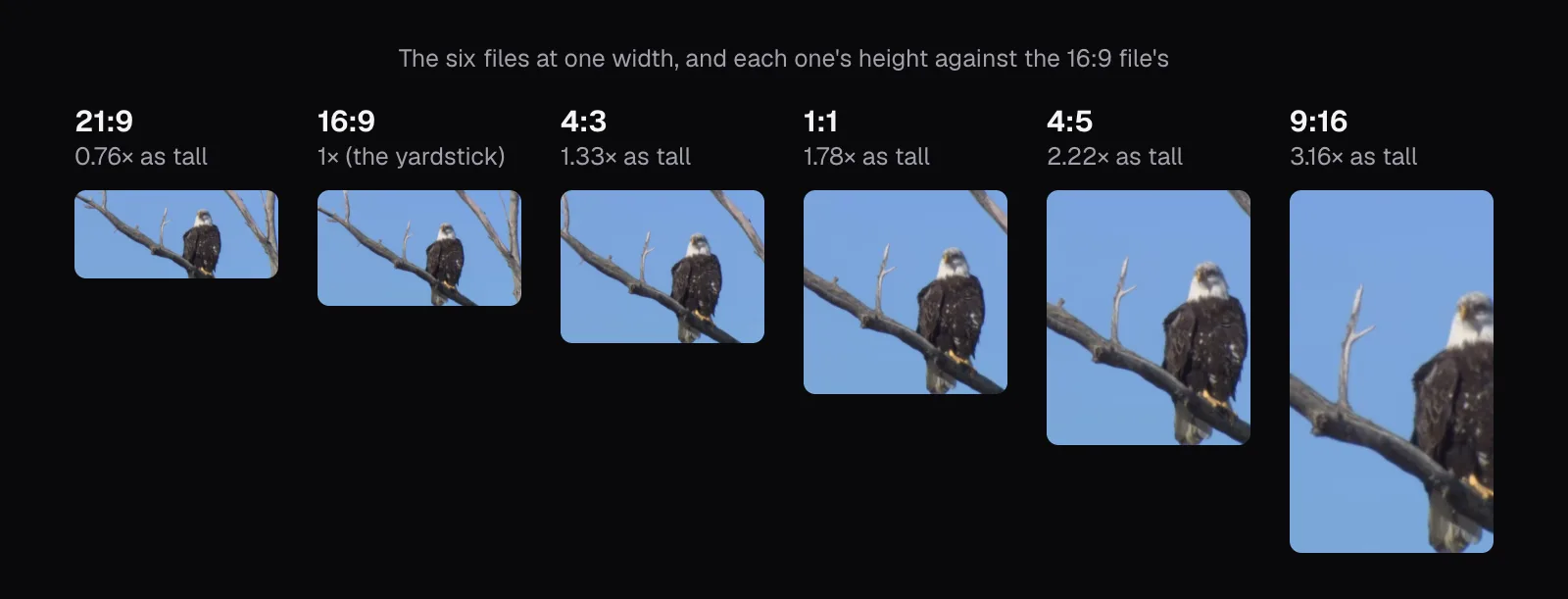
The other three, 1:1, 4:5 and 9:16, make sense on a phone. A phone held upright is taller than it is wide, so a landscape video uses only a strip of it. Give all six eagle files the same width, as a column of a phone screen does, and the taller shapes simply cover more of the screen: the square is 1.78 times as tall as the 16:9 file, 4:5 is 2.22 times, and 9:16 is 3.16 times. That difference is the reason to make a portrait version of anything meant to be watched on a phone.
What each shape keeps of the same picture
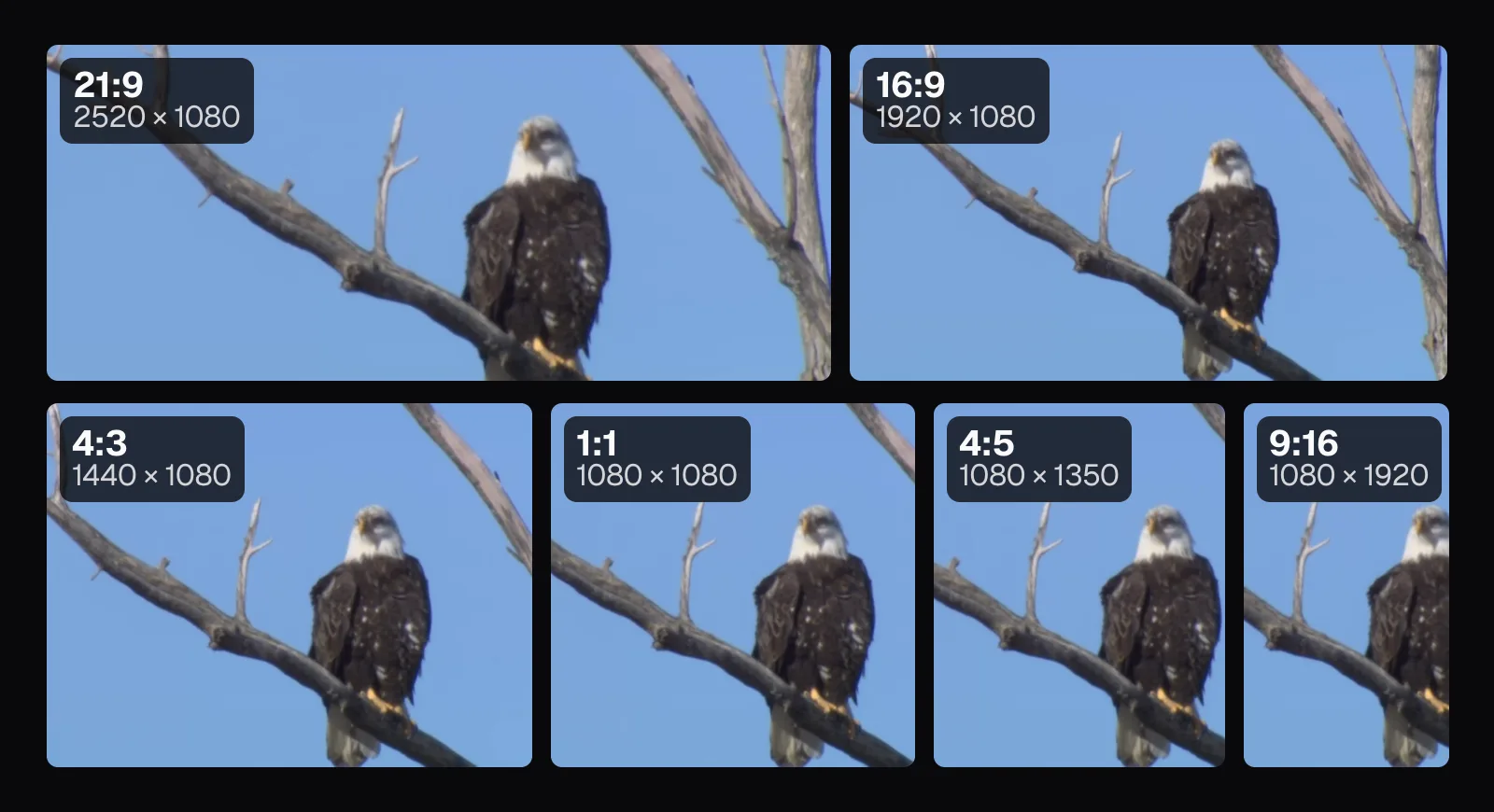
For the eagle, we set the part to 0:18–0:21 of the shot, the bird on a bare branch looking straight at the camera, and exported it in every shape with “Fill the frame”, which is how Resize & Crop starts: the new frame filled from the middle of the picture. The source is 16:9, so the 16:9 file keeps everything. Every other shape has to drop a slice.
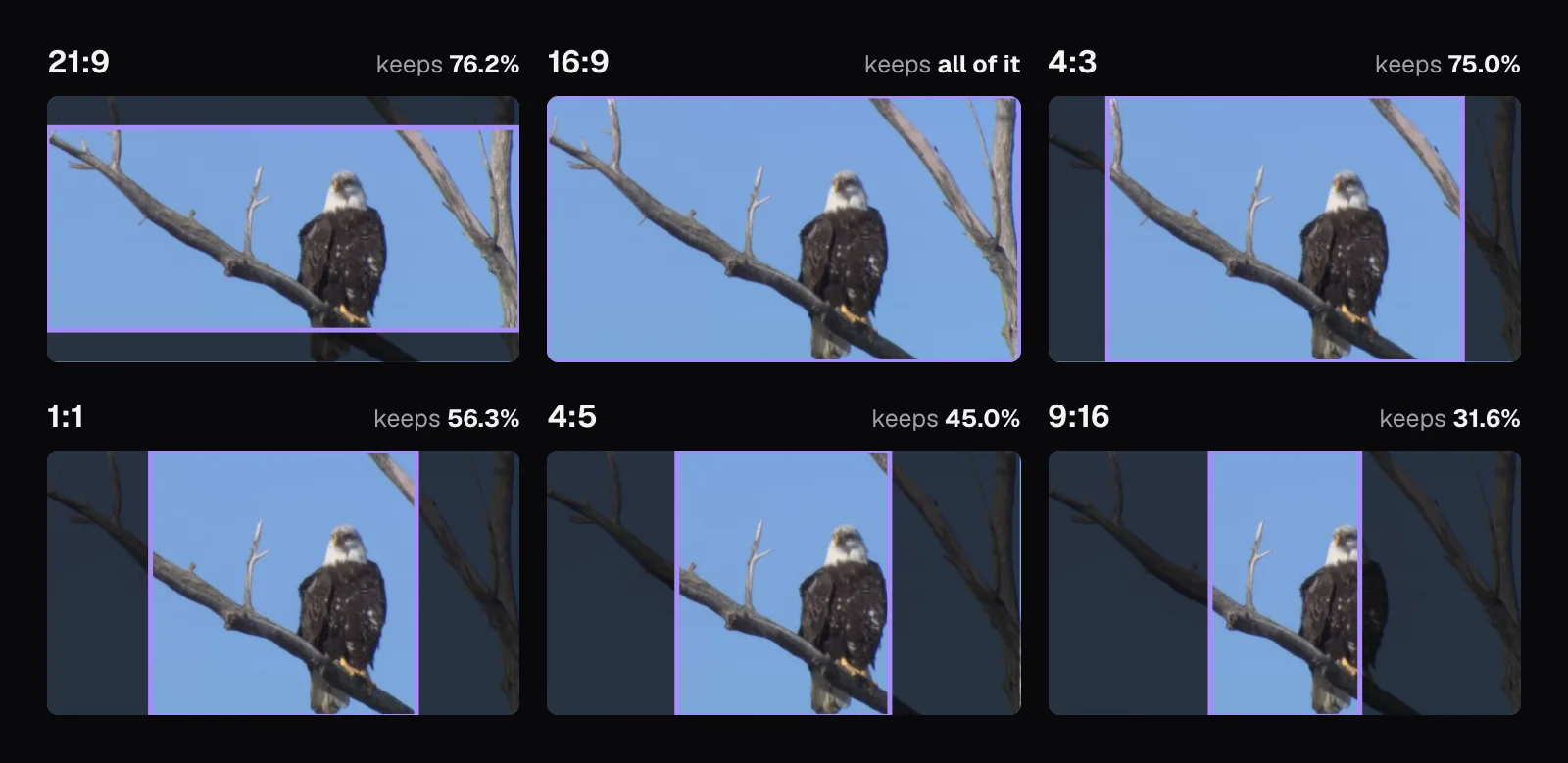
The narrower shapes keep the full height and lose the sides: 4:3 keeps 75% of the picture, the square 56.3%, 4:5 45% and 9:16 only 31.6%. 21:9 goes the other way, keeping the full width and losing the top and bottom, 76.2% of the picture in all. The eagle sits right of center, so the middle of the frame doesn't suit him. 4:5 just holds him; the edge of the 9:16 frame runs through his side. And 21:9, cut from the middle of the height, loses the tips of the branches above and his tail feathers below the perch.
The portrait shapes also need more pixels than the slice they keep. A 4:5 file at 1080 × 1350 is made from 864 × 1080 pixels of the original, enlarged 1.25 times. A 9:16 file at 1080 × 1920 is made from 607.5 × 1080, enlarged 1.78 times, which is why a vertical crop of 1080p footage can look softer than the original. Footage filmed in 4K has width to spare: the same 9:16 slice of a 3840 × 2160 frame is 1,215 pixels wide.
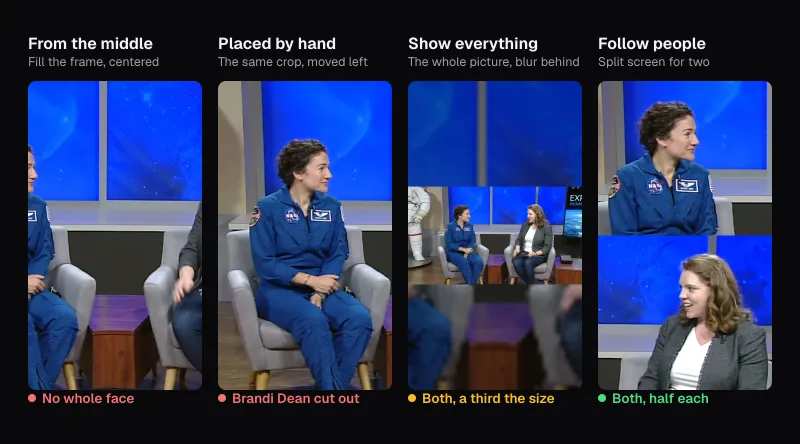
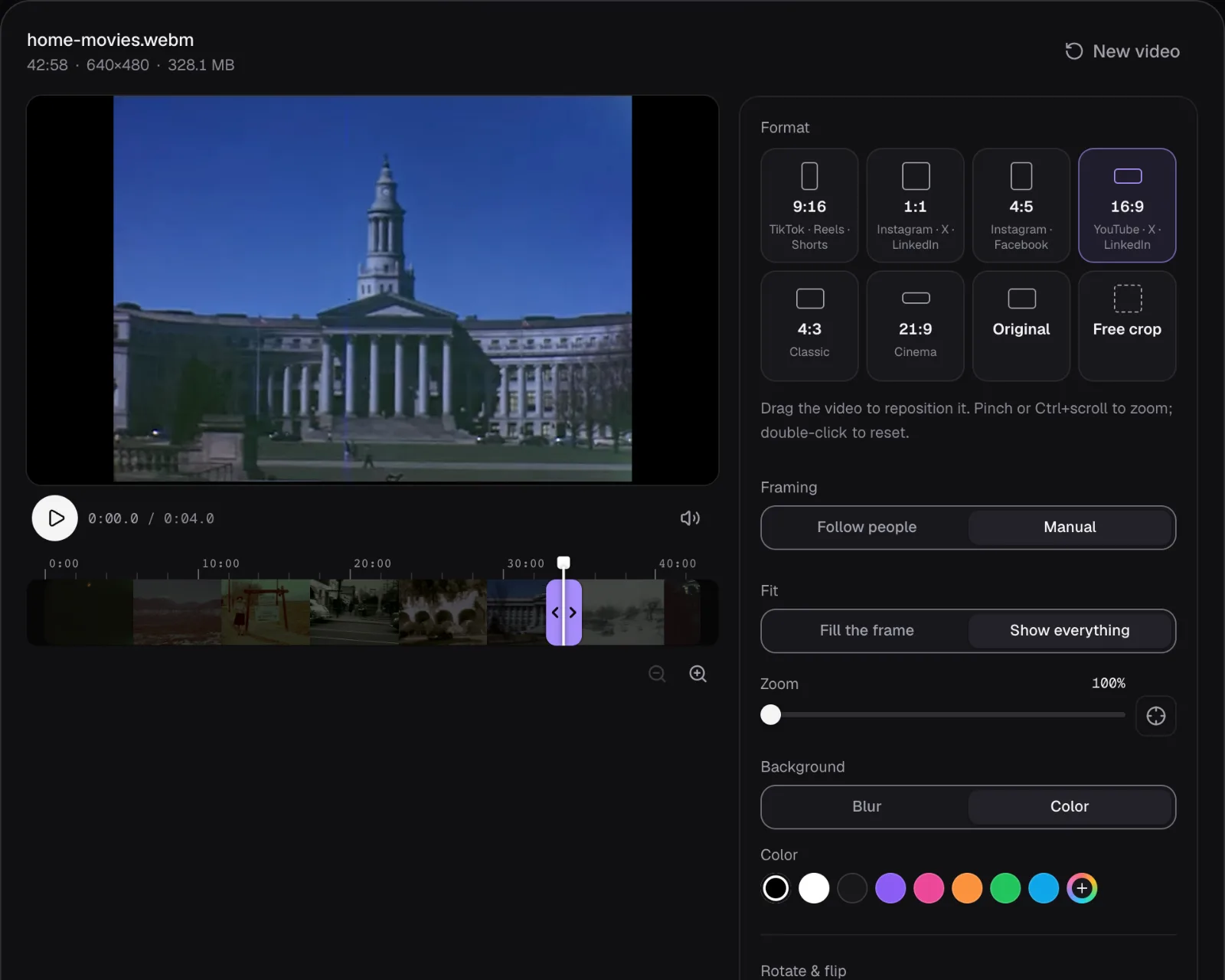
The middle is only where the tool starts. Drag the picture in the preview, or use the arrow keys once the preview has focus, to choose another slice. For people who move around, the Auto Reframe Video page opens Resize & Crop with “Follow people” on, which moves the frame with them shot by shot; our test of the ways to make an interview vertical compares them on two people sitting apart.
Letterbox, pillarbox and windowbox
Keep the whole picture instead and the frame has room left over, which something has to fill. Bars above and below a picture that's wider than its frame are a letterbox. Bars at the sides of a picture that's narrower than its frame are a pillarbox. Bars on all four sides are a windowbox: what a video with bars of its own gets when it's put into a frame of yet another shape, as our test further down shows.
We made the first two with “Show everything” and a black background, and measured the bars in the files. The 21:9 eagle file, put back into a 16:9 frame, came out with bars of 128 pixels above and below a picture 1,920 pixels wide. The home movie in a 1280 × 720 frame got bars of 160 pixels on each side of a picture 960 pixels wide: exactly the 25% of the screen that 4:3 can't cover.
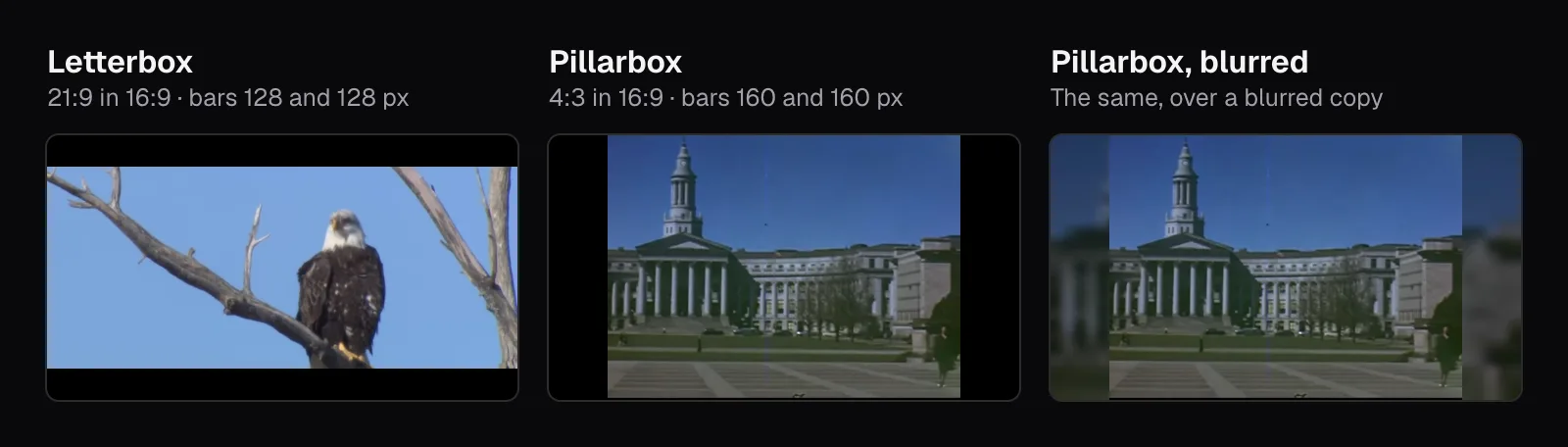
Bars don't have to be black. Resize & Crop's background starts on “Blur”: the picture enlarged to cover the frame, shrunk to 40 pixels wide, scaled back up and darkened, so the sides carry the picture's own colors and the eye reads one image. “Color” gives a flat background, black by default. Black is the classic look, and it costs less to store: over black, our four-second film clip came out 8% smaller than over the blur, and the NASA clip further down 36% smaller.
Crop or fit: the same share is lost either way
Changing a video's shape without distorting it comes down to two choices. Crop, and the picture fills the new frame but loses a slice. Fit, and the picture stays whole but leaves part of the frame to bars. The amount is the same either way: divide the narrower ratio by the wider one. For a 4:3 film going into 16:9 that's 1.33 ÷ 1.78 = 0.75, so cropping throws away 25% of the picture, 60 of its 480 rows at the top and 60 at the bottom, and fitting leaves 25% of the screen to bars. What changes is only what you give up: part of the scene, or part of the screen.
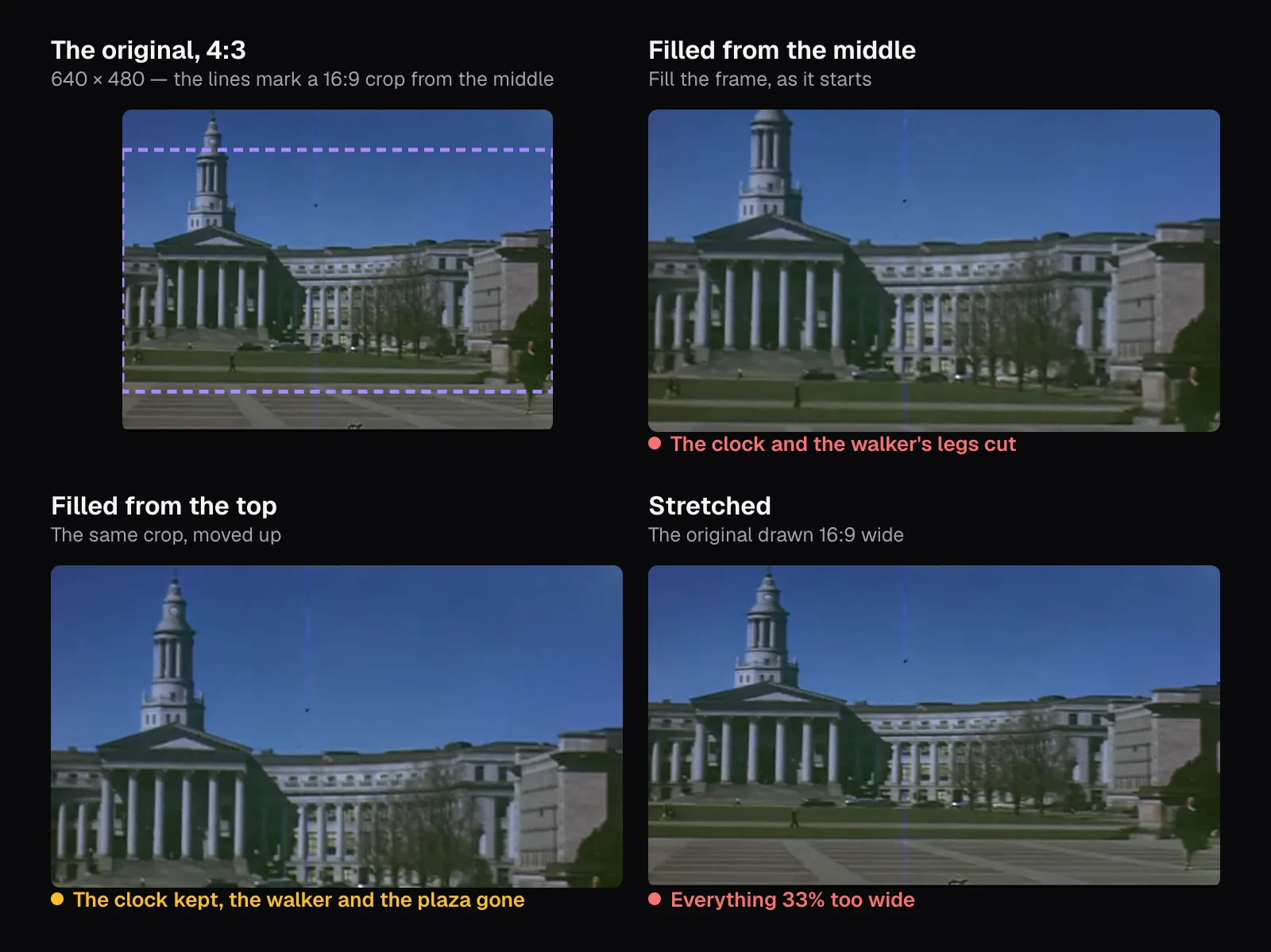
We exported four seconds at 34:00 of the home movie: a civic building with a clock tower and a long curved colonnade, and a woman walking across the plaza at the right. From the middle, the crop took the tower's clock off at the top and the woman's legs off at the bottom. Moving the crop up as far as it goes, with one Shift+↓ while the preview has focus, brought the clock back and took away the woman and the plaza instead. No position keeps both: the clock and her feet are further apart than a 16:9 slice of the frame is tall.
The third option, stretching, fills the frame without cutting anything by making everything wider. A 4:3 picture pulled out to 16:9 is 33% too wide, and round towers and faces give it away at once. Resize & Crop doesn't offer it: its two choices are “Fill the frame” and “Show everything”, and both keep the picture's proportions.
So crop when the edges hold nothing you need: sky, a wall, an empty floor, or a subject in the middle that the crop leaves alone. Fit when the frame is a composition you shouldn't cut: an old film, a slide with text near its edges, a group of people spread across the picture. For a 4:3 film, fitting costs a quarter of a widescreen; for a 9:16 short on the same screen, more than two thirds.
A vertical video on a widescreen
The NASA short is the opposite case: made for phones at 1080 × 1920, then shown on a 16:9 screen. Fitted into a 1920 × 1080 frame, its picture is 608 pixels wide with bars of 656 pixels on either side, the 31.6% of a 16:9 frame that 9:16 can cover. Filled instead, it keeps 31.6% of its own height, and the Sun that opens the short loses its top and bottom: what's left is a band across its middle, its curved sides at the frame's edges.
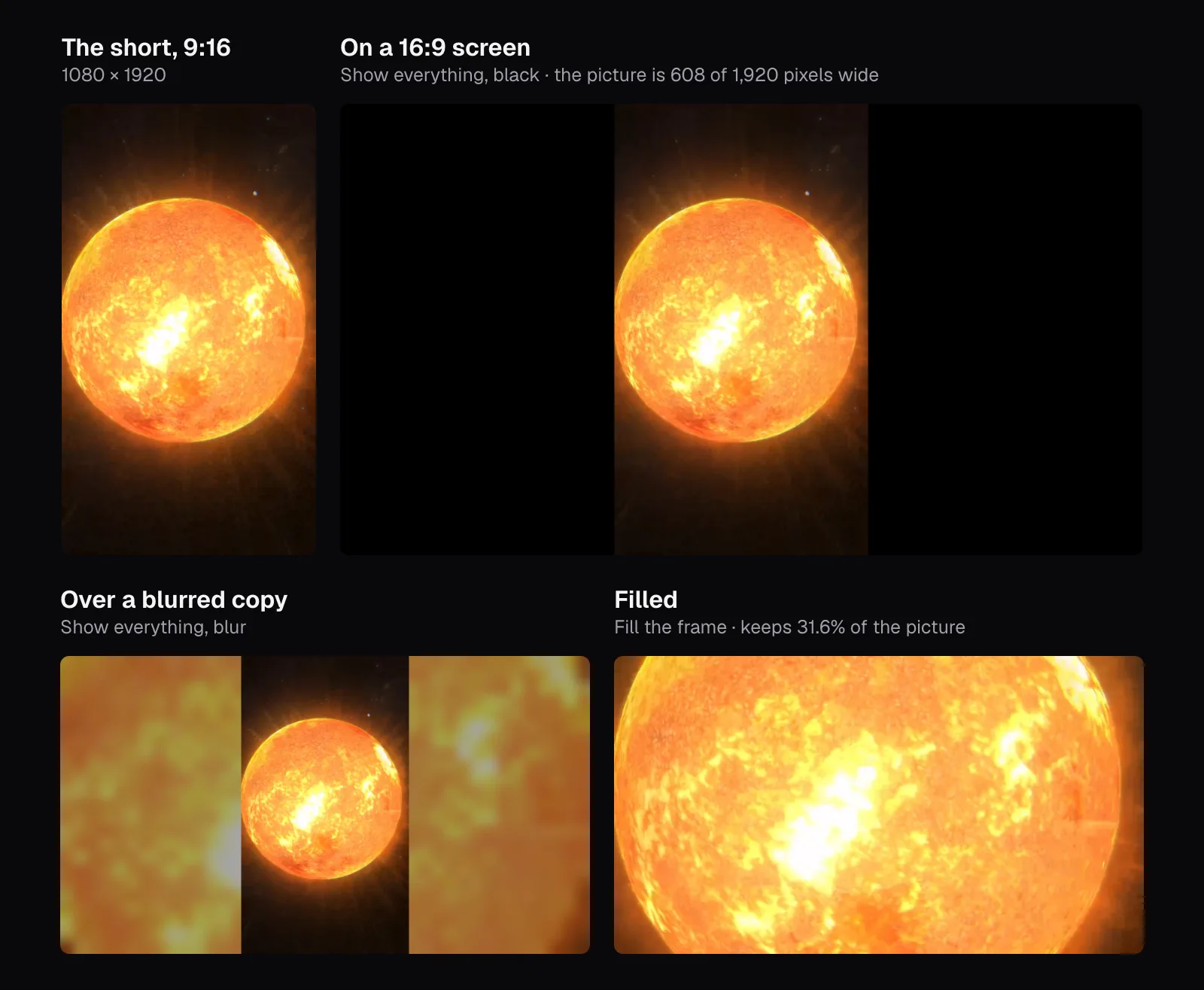
Players handle this by themselves when you let them. YouTube's help says its player adapts to the size of each video, and that for 9:16 videos in computer browsers it may add padding, white by default and dark gray in Dark theme. In the YouTube apps for Android and iPhone, the vertical player takes the video's own shape, getting taller for square and vertical videos and shorter for widescreen ones. That's the argument for leaving a vertical video vertical: the platform draws bars only on the screens that need them.
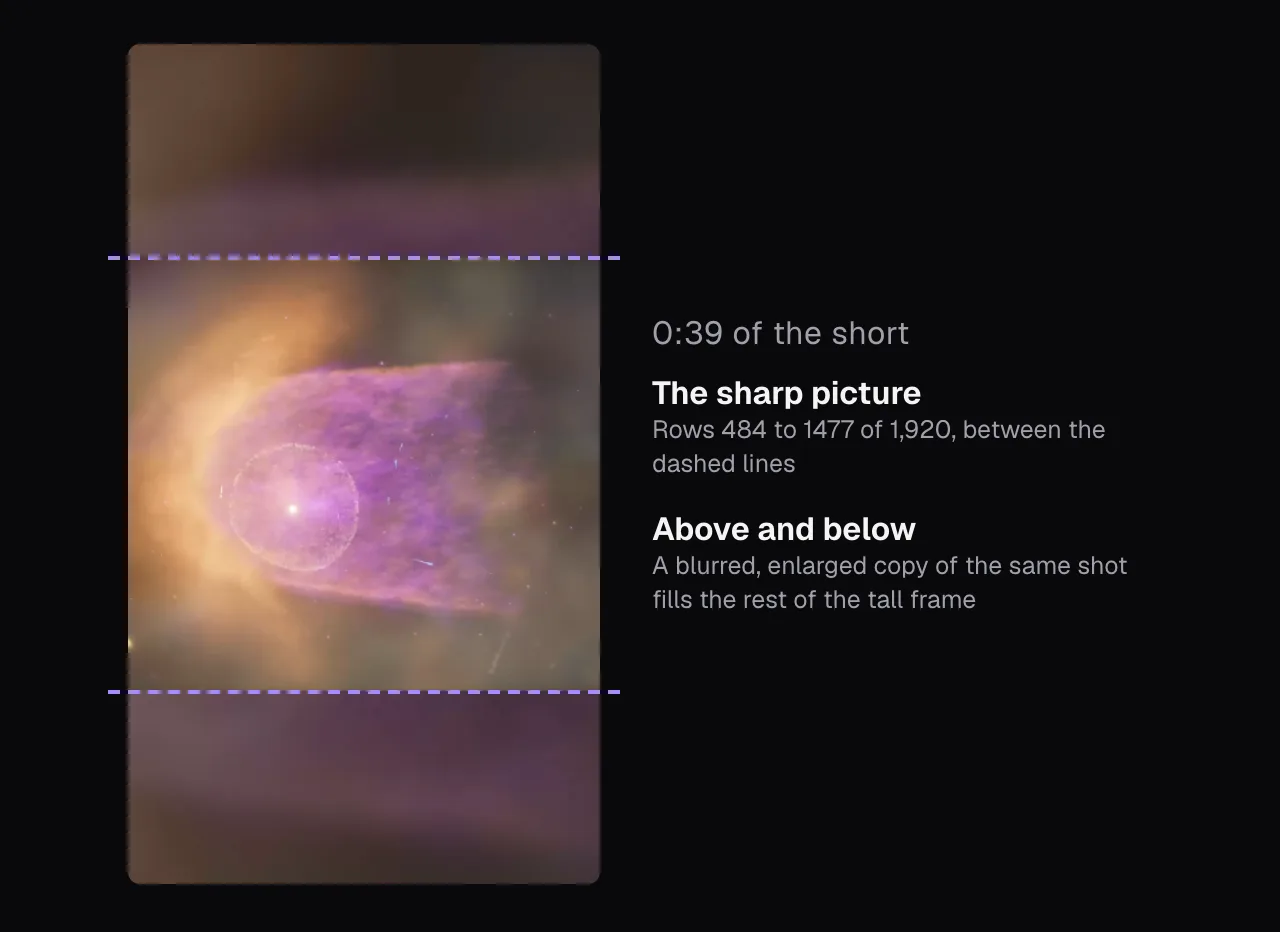
The NASA short does the reverse itself. At 0:39 it shows an animated scene that isn't as tall as its frame, placed near the middle with a blurred, enlarged copy of the same scene above and below. Measured row by row, the sharp picture runs from row 484 to row 1,477 of the frame's 1,920. It's the same idea as “Show everything” over “Blur”, used by the short's own editors.
Don't put bars into the file
Bars added in an editor stop being bars once the file is saved. From then on they're part of the picture, and players, platforms and editors treat them as image. YouTube's help puts it plainly: “For best results, avoid adding padding or black bars directly to your video,” because padding gets in the way of the player fitting itself to the video and the viewer's device.
Here is what happens when a barred file meets a frame of another shape. We put the pillarboxed home movie, the 16:9 file with its 160-pixel bars, into a 1:1 frame with “Show everything”. The square added bars above and below the ones already at the sides, and the picture ended up about 540 × 405 pixels in a 720 × 720 frame: 42.2% of it. Made square from the original 4:3 file, the same film fills 75% of the frame, with bars only above and below.
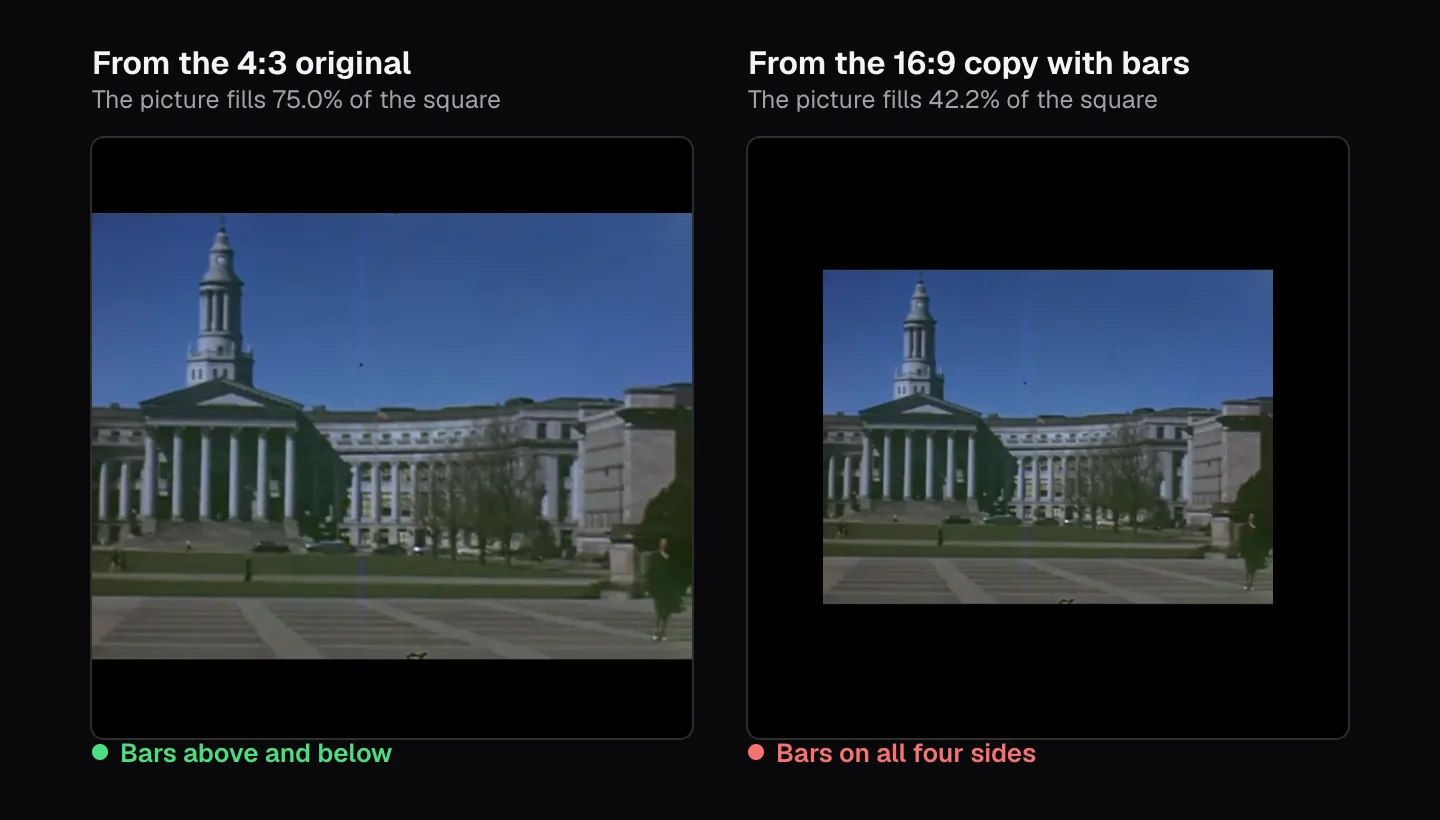
If you already have a file with bars in it, take them off before using it anywhere else: choose the shape of the picture inside the bars, and “Fill the frame”. We did that with our pillarboxed file, 4:3 filled from the middle, and got back a 960 × 720 file with no bars at the sides. Better still, make every new shape from the original.
What the platforms ask for, as of November 2026
This is what each platform's own help pages say, read in November 2026; most of them accept more than one shape. Ad guides are marked as such: they're written for advertisers, but for some platforms they're the only pages we found that name a preferred shape.
| Where | What its help says |
|---|---|
| YouTube videos | 16:9 is the standard on a computer; the player adapts to other shapes. Don't add bars. |
| YouTube Shorts | A square or vertical aspect ratio, up to 3 minutes |
| Instagram Reels | Any ratio between 1.91:1 and 9:16 |
| Instagram photos | Kept between 1.91:1 and 3:4; other shapes cropped to fit |
| Instagram Feed (ad guide) | 9:16 recommended, 1080 × 1920 |
| Facebook Feed (ad guide) | 4:5 recommended, 1440 × 1800 |
| TikTok (in-feed ad specs) | 9:16 recommended; 16:9 and 1:1 also accepted |
| Shared videos from 1:2.4 to 2.4:1; for ads, 4:5 recommended, and 16:9, 1:1 and 9:16 accepted |
Two things stand out. Every range given for video includes 9:16, so a 9:16 file fits every limit listed here. And the feeds disagree: Meta's ad guide recommends 9:16 for Instagram's feed and 4:5 for Facebook's, and LinkedIn's ad specs recommend 4:5, which makes a feed post the one job where a 4:5 version can earn its place. For sizes, lengths and frame rates, see what TikTok, Reels and Shorts need.
Which shape to choose
- YouTube or a TV: 16:9, the standard shape of widescreen television and of YouTube on a computer, so nothing is cut and nothing is added.
- TikTok, Reels and Shorts: 9:16, the tallest of the six shapes and the one that covers the most of a phone held upright. Shorts also takes square videos.
- A post in a feed: the shape that feed's guide recommends: 4:5 for Facebook's feed and LinkedIn's ads, 9:16 for Instagram's feed. If one file has to do for all of them, 1:1 falls inside every range in the table.
- A cinema look: 21:9, knowing it plays with bars on a 16:9 screen (128 pixels above and below at 1080p in our test) and as a thin strip on a phone held upright.
- An old 4:3 film or tape: keep it 4:3 and let the player add the bars. Make a 16:9 or vertical copy only for a place that needs one, and move the crop by hand rather than trusting the middle.
When one video has to serve several shapes, keep what matters near the middle while filming. In the eagle shot, only the middle 31.6% of the width and the middle 76.2% of the height survived all of our crops from the middle, so a subject inside that box needs no reframing in any shape. And export each version from the original rather than from another version, so no file inherits another's crop or bars.
Clips of different shapes in one video are a job of their own: Merge Videos sets one shape for the whole result and fits or crops each clip into it, with the same “Show everything” and “Fill the frame” choice. Combining videos of different sizes walks through it.
Questions people ask
What aspect ratio is 1920 × 1080?
16:9. Divide both sides by 120 and you get 16 and 9; divide the width by the height and you get 1.78, the same shape written as 1.78:1. The other common HD and 4K sizes, such as 1280 × 720 and 3840 × 2160, are 16:9 as well. Stood upright, 1080 × 1920 is 9:16, the shape of TikTok, Reels and Shorts.
What is the difference between 16:9 and 9:16?
Only the orientation. 16:9 is 16 units wide and 9 tall, the landscape shape of televisions and YouTube; 9:16 is the same rectangle stood on its end, the shape of a phone held upright. At 1080p both hold 2.07 million pixels, 1920 × 1080 and 1080 × 1920, but a video made for one covers only 31.6% of the other when it's fitted in whole.
How do I get rid of black bars on a video?
If the bars are part of the file, crop them off: in Resize & Crop, choose the shape of the picture inside the bars and “Fill the frame”. Our pillarboxed 16:9 copy of a 4:3 film came back that way as a 960 × 720 file with no bars at the sides. If the bars only appear while playing, the player is fitting the video to a screen of another shape, and the file itself is fine.
Is 21:9 the same as the 2.39:1 of cinema?
Close, but not quite. 21:9 works out to 2.33:1, while CinemaScope films are 2.35:1 or 2.39:1. At 1,920 pixels wide, a 21:9 frame is 823 pixels tall and a 2.39:1 frame is 803. On a 16:9 screen both play with bars above and below; for the 21:9 file we made, they were 128 pixels each at 1080p.
Does changing the aspect ratio lower the quality?
Cropping can. A crop keeps fewer of the original's pixels and enlarges them to the new size: a 9:16 file at 1080 × 1920 made from 1080p footage comes from a slice 607.5 pixels wide, enlarged 1.78 times. Fitting keeps the whole picture at whatever size fits the frame: our 1080 × 1920 short, fitted into 1920 × 1080, was drawn 608 pixels wide. Either way Resize & Crop encodes the video again, so make each shape once, from the original file.
What aspect ratio should an Instagram video be?
Instagram's help says a reel can have any aspect ratio from 1.91:1, a wide landscape, to 9:16, a tall portrait. For video ads in the feed, Meta's ad guide recommends 9:16 at 1080 × 1920. Photos are kept between 1.91:1 and 3:4, and anything wider or taller is cropped to fit.
Sources
Where the facts in this guide come from, besides our own tests:
- Video resolution & aspect ratios — YouTube Help
- Upload YouTube Shorts — YouTube Help
- Reel size & aspect ratios on Instagram — Instagram Help Center
- Image resolution of photos you share on Instagram — Instagram Help Center
- Video ad specs on Instagram Feed — Meta Ads Guide
- Video ad specs on Facebook Feed — Meta Ads Guide
- TikTok Auction In-Feed Ads — TikTok Ads Manager Help
- Video sharing troubleshooting — LinkedIn Help
- Video ads advertising specifications — LinkedIn Help
- Display Aspect Ratio (DAR) — Federal Agencies Digitization Guidelines Initiative
- Storage Aspect Ratio (SAR) — Federal Agencies Digitization Guidelines Initiative
- Pixel Aspect Ratio (PAR) — Federal Agencies Digitization Guidelines Initiative
- Aspect ratio: a short history of aspect ratio — Australian Screen, National Film and Sound Archive of Australia
Footage in this guide
The pictures were made with Cutlia's tools from this openly licensed footage, found on Wikimedia Commons:
- Bald Eagle (Haliaeetus leucocephalus) in USA — U.S. Fish and Wildlife Service, Public domain
- Home Movies - Western U.S., New Mexico, Mexico, California, Colorado, Utah — Prelinger Archives (filmmaker unknown), Public domain
- Our Home In Space Series (SVS14898 - 2 YT) — NASA's Scientific Visualization Studio, Public domain