Editing
Combining videos of different sizes, shapes and frame rates
We joined a whale, a vertical NASA short, a home movie from around 1940, a 4K rocket launch and 24 fps fireworks into one file eight ways, and measured where each clip landed and what the result did frame by frame.
By the Cutlia team · Published · 16 min read
The short version
- A merged video has one shape, one size and one frame rate: in Merge Videos the shape is the first clip's unless you choose one, the size starts at 1080p once any clip is Full HD, and the frame rate is the fastest clip's, up to 60.
- A clip of another shape is either shown whole with bars beside it or cropped to fill the frame, and both cost the same share: our vertical NASA clip covered 31.6% of a 16:9 frame when fitted, and kept 31.6% of its picture when cropped.
- Merge applies one choice to every clip, so to crop some clips and keep others whole, crop those clips to the result's shape in Resize & Crop first: a clip that already has the result's shape fills the frame under either setting.
- Slower clips play at the fastest clip's rate by showing some of their pictures twice: our 24 fps fireworks in a 30 fps merge repeated one frame in every five.
- Clips without sound play in silence, and a fade takes picture and sound down to black and silence over the 0.3 seconds before a join and back over the 0.3 seconds after it, without making the video any longer.
A video file normally has one frame size, one shape and one frame rate from its first frame to its last. Join clips that don't agree on those, and each one has to be changed to match: enlarged or shrunk, given bars or cropped, some of its pictures shown twice. An editor makes most of those changes without asking, so it pays to know the rules before the export rather than after it.
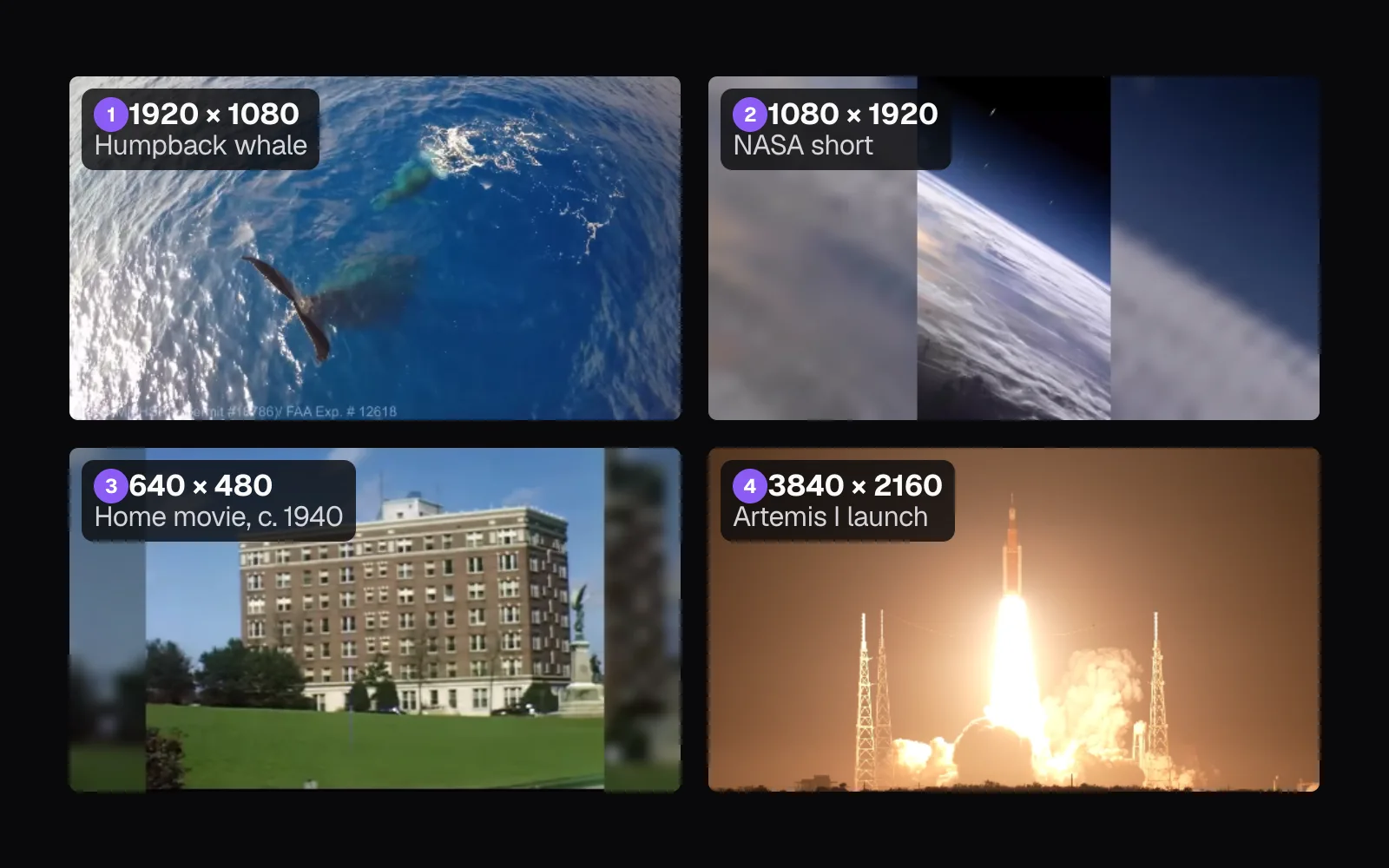
To watch them at work, we gave Cutlia's Merge Videos five clips that agree on almost nothing: a humpback whale's tail filmed from a drone, a vertical NASA short, a Kodachrome home movie of a road trip from around 1940, the Artemis I launch filmed in 4K, and a burst of fireworks filmed at 24 frames per second. We cut about three seconds from each, merged them eight times with three different clips first, fitted and cropped, over blur and over black, with cuts and with fades, and decoded the merged files in Chrome: where each clip landed and, frame by frame, how bright each frame was, which picture it showed and what the sound did. The shapes themselves, and where 16:9 and 4:3 came from, have a guide of their own.
What the merged file's size, shape and frame rate become
Merge Videos settles all three before it draws a single frame, each by its own rule:
- Shape. “Format” starts on “Like clip 1”: the result takes the first clip's shape. The other choices are 16:9, 9:16, 1:1 and 4:5, whatever the clips are.
- Size. “Size” sets the short side. It starts at 1080p when any clip is at least 1,000 pixels on its short side, and at 720p when none is. 1440p and 4K are offered only when a clip's short side reaches 1,440 or 2,160 pixels. The long side follows from the shape, rounded to an even number, as video encoders need, and never passes 3,840.
- Frame rate. The fastest clip's, rounded to a standard rate when it's within 2% of one, and never more than 60 frames per second. There is no setting for it.
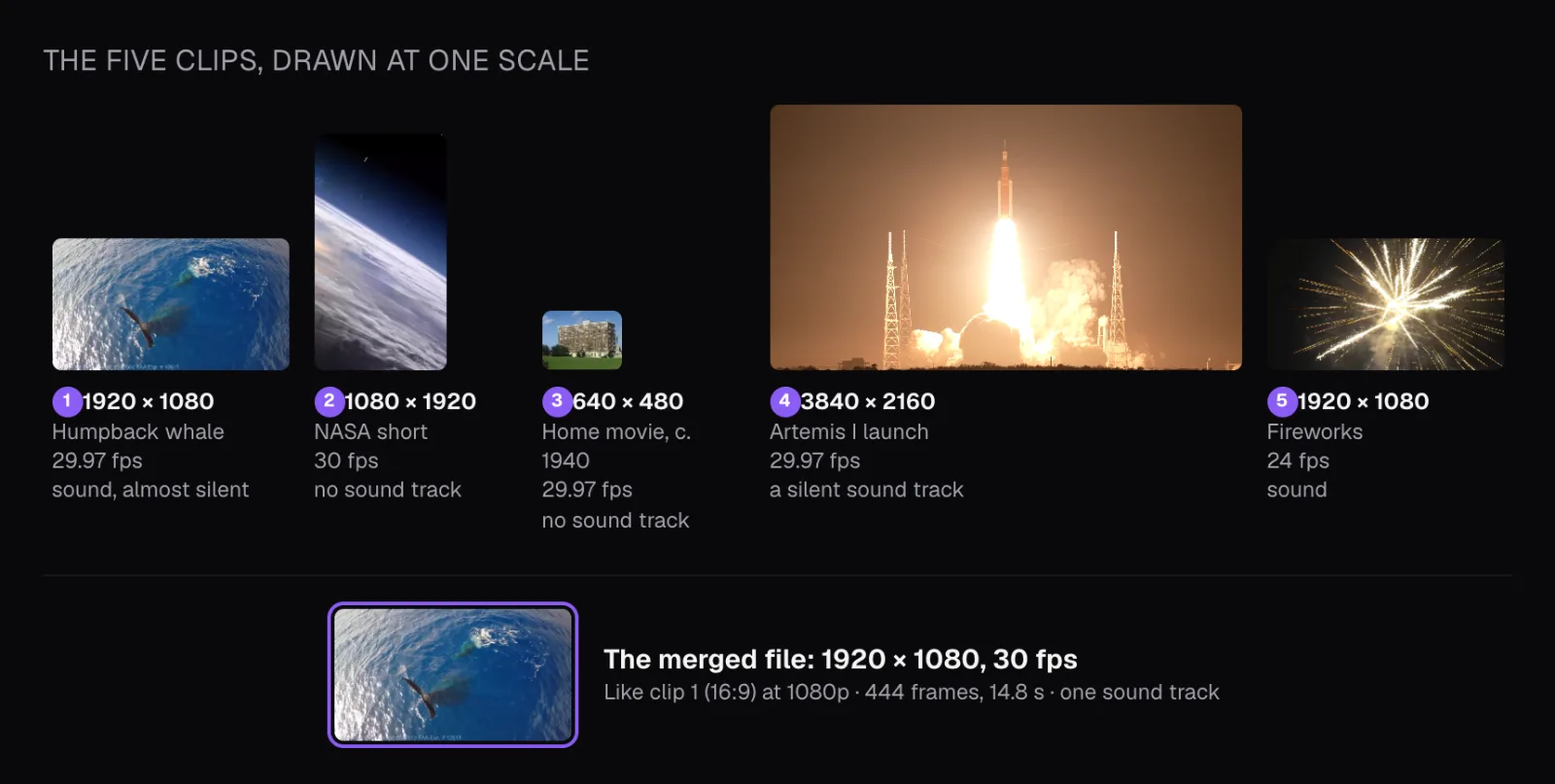
These were our five clips, as Trim Video cut them out of the original footage:
| Clip | Size | Shape | Frame rate | Sound |
|---|---|---|---|---|
| 1. Humpback whale | 1920 × 1080 | 16:9 | 29.97 fps | A track, almost silent |
| 2. NASA short | 1080 × 1920 | 9:16 | 30 fps | Removed |
| 3. Home movie | 640 × 480 | 4:3 | 29.97 fps | None |
| 4. Artemis I launch | 3840 × 2160 | 16:9 | 29.97 fps | A silent track |
| 5. Fireworks | 1920 × 1080 | 16:9 | 24 fps | Loud |
With the whale first and every setting as Merge opened, the result was 1920 × 1080 at 30 frames per second: the whale's shape, the 1080p that four of the five clips qualified for, and the NASA short's 30 fps. The 4K launch added 1440p and 4K to the Size options, but Merge didn't choose them by itself. The file was 444 frames long, 14.8 seconds: the clips' lengths added up to 14.787 seconds and rounded up to a whole frame.
Change only the order and the result changes shape. We put three different clips first and left every setting alone:
| Clip 1 | Merged file | The whale's clip inside it |
|---|---|---|
| The whale, 16:9 | 1920 × 1080 | Fills the frame |
| The NASA short, 9:16 | 1080 × 1920 | A band 1,080 × 607.5, 31.6% of the frame |
| The home movie, 4:3 | 1440 × 1080 | 1440 × 810, 75% of the frame |
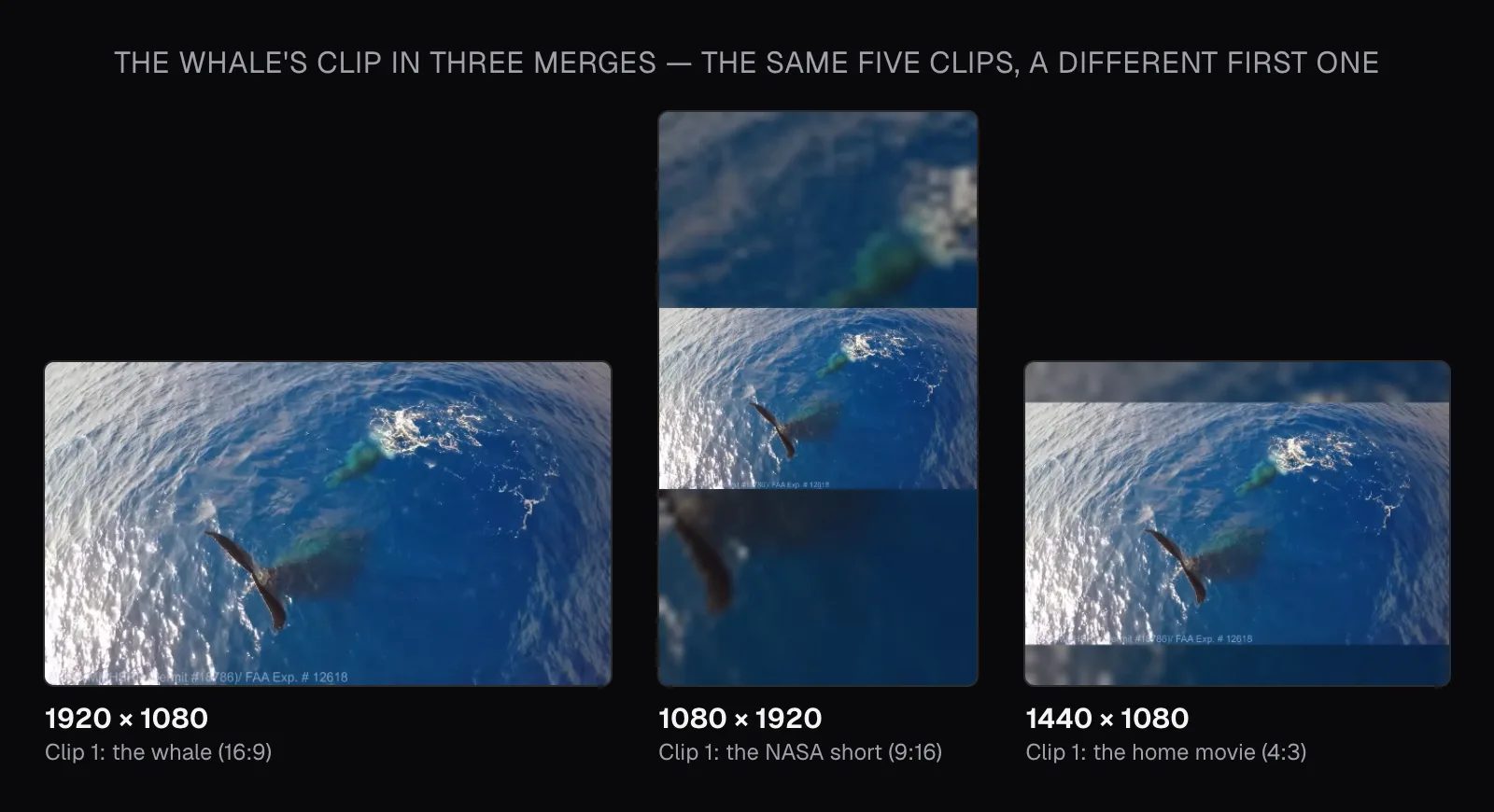
The last row is the one to remember. With the 640 × 480 home movie first, the file came out at 1440 × 1080: the shape came from the old film, but the size from the sharper clips, so the film was enlarged 2.25 times to fill its own frame. Shape and size are decided separately, and a small first clip doesn't make the result small.
Show everything or fill the frame
Every clip whose shape differs from the result's goes through the “Different shapes” setting. “Show everything” scales the clip until it touches two opposite edges of the frame and fills the rest with a background. “Fill the frame” scales it until it covers the whole frame and crops whatever spills over. Neither stretches a picture out of its proportions.
In the 16:9 file, we measured the two clips of other shapes in a frame of each. Over a black background, the NASA short's picture spanned 608 columns, with bars of 656 pixels at either side: by Merge's arithmetic a picture 607.5 pixels wide, 31.6% of the frame. Cropped instead, it kept 31.6% of its own picture, a band of 607.5 rows from the middle of its 1,920, which left only a diagonal stretch of horizon and cloud, enlarged to fill the frame. The home movie got off lightly: fitted, it was 1,440 pixels wide with bars of 240, three quarters of the frame; cropped, it kept the middle 360 of its 480 rows.
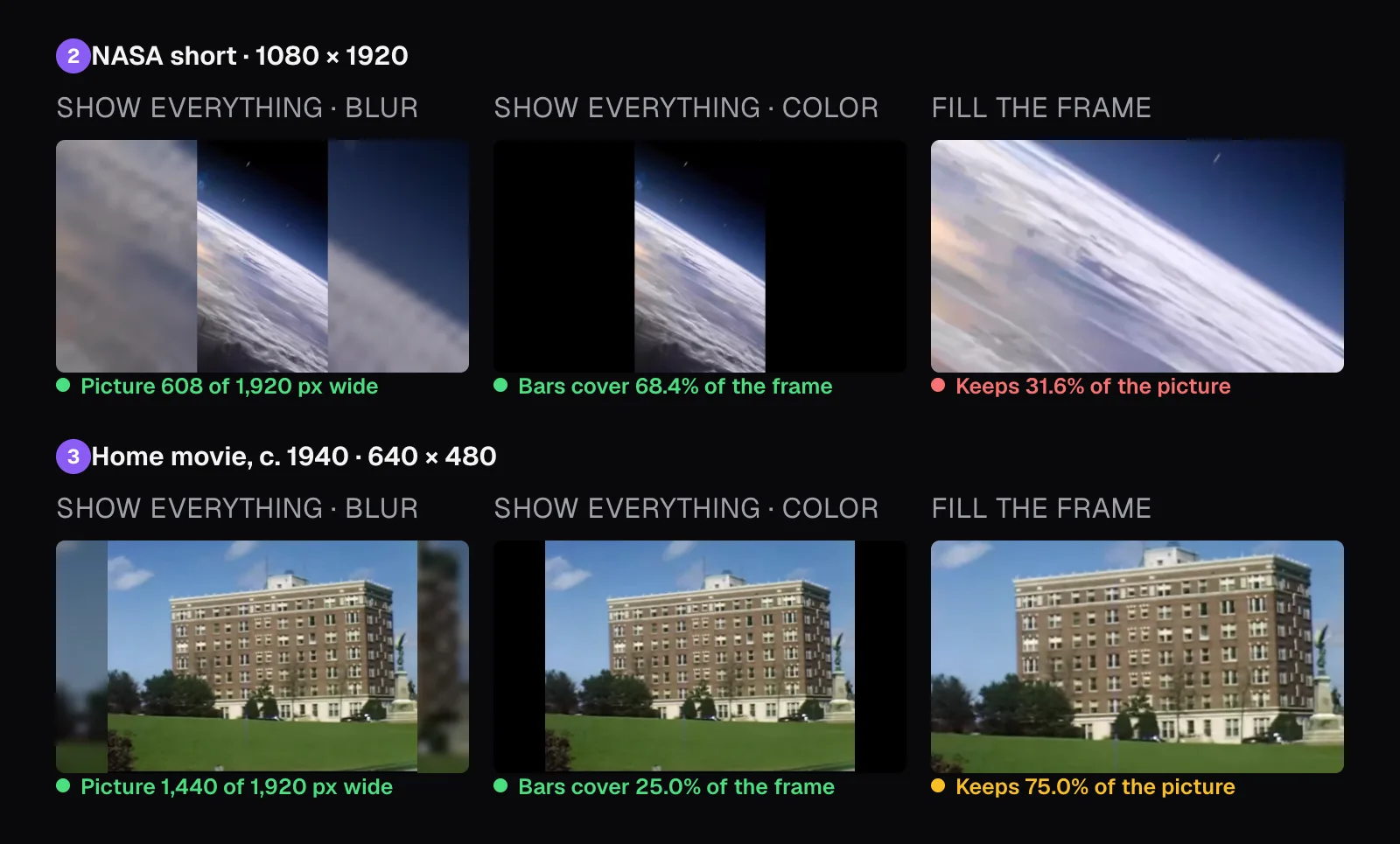
The share is the same both ways because it's simply the ratio of the two shapes. A 9:16 clip is 0.5625 times as wide as it is tall, a 16:9 frame 1.78 times, and 0.5625 ÷ 1.78 = 0.316: the clip either fills 31.6% of the frame or keeps 31.6% of itself. The setting only decides what you give up: part of the screen, or part of the clip.
The background matters only with “Show everything”. “Blur” is the default: Merge fills the frame with the clip itself, enlarged to cover it, softened by shrinking it to 40 pixels wide and stretching it back, and darkened by 35%, so the sides carry the clip's own colors and move with it. “Color” puts the clip on a flat color instead: black to start with, white, dark gray, violet, pink or orange from the swatches, or any color you pick.
Crop some clips and keep others whole
“Different shapes” applies to every clip at once, and a mixed set rarely wants that. In a vertical video for Shorts or Reels, a landscape shot of one animal is worth cropping, while an old family film or a wide group shot is better whole. The way to have both is to shape the clips you want cropped beforehand, in Resize & Crop, and then merge everything with “Show everything”. A clip that already has the result's shape fills the frame under either setting; only the others get bars.
We tried it on a vertical result: the same five clips with the NASA short first, so “Like clip 1” made a 1080 × 1920 file. With “Fill the frame”, every landscape clip lost more than half its width: the whale, the launch and the fireworks kept 31.6% of their pictures, the home movie 42.2%. The whale's tail sits left of the middle, and the crop from the middle cut through it. With “Show everything”, nothing was cut, but the whale shrank to a band 607.5 pixels tall in a frame 1,920 tall, with blur above and below.
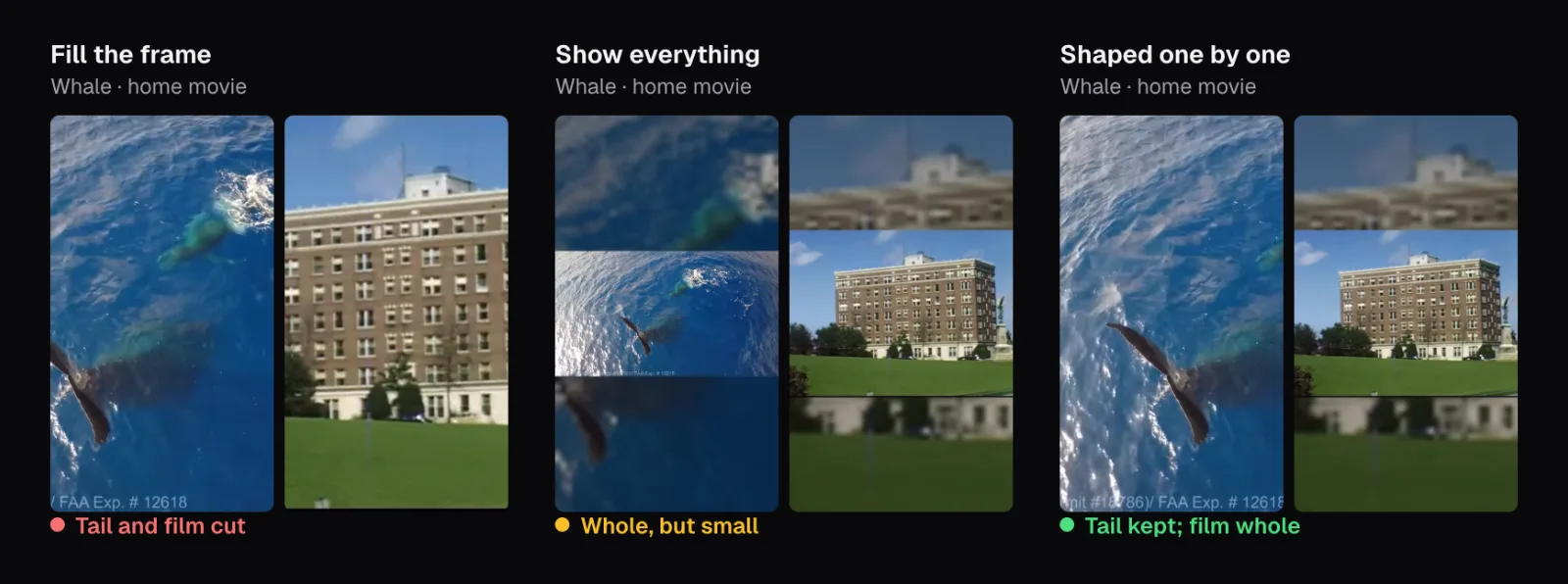
For the third version we opened the whale clip in Resize & Crop, which starts on 9:16 with “Fill the frame”, and moved the crop toward the tail with two presses of Shift+→ in the preview. Matched against the original, the crop came from columns 412 to 1,020 of the 1,920, where the middle would have been 656 to 1,264. The launch we exported just as Resize & Crop opened it, cropped from the middle, where the rocket stands. Merged under “Show everything”, both filled the vertical frame from edge to edge, the tail whole, and the home movie kept all of its picture over a blurred copy of itself.
The price is one export per reshaped clip, and one more encode for those clips: Resize & Crop's, before Merge's. Both encode at high quality, but each encode of a compressed video loses a little, so reshape only the clips that need it. For footage whose subject changes place from shot to shot, our test of the ways to make a landscape video vertical compares the crop by hand with one that follows people.
Mixed frame rates: the fastest clip sets the pace
A frame rate is the number of pictures a video shows each second. Clips from different cameras often differ: ours ran at 30, 29.97 and 24 frames per second, and the whale footage, as published, at an unusual 29.82. A merged file needs one rate, and Merge takes the highest of its clips', so no clip has pictures thrown away. Ours came out at 30, the NASA short's rate.
A rate close to a standard one is rounded to it, and for the whale that happened before the merge. Trim Video re-encoded its WebM file at 29.97 frames per second, the nearest of the standard rates (23.976, 24, 25, 29.97, 30, 48, 50, 59.94 and 60) and less than 2% from its own. 29.97 stands for exactly 30,000 ÷ 1,001 frames per second; Merge rounds by the same rule as Trim Video.
A clip slower than the result can't supply a new picture for every frame, so some of its pictures are shown twice. To see which, we compared each frame of the fireworks' part of the merged file with every frame of the fireworks clip and took the closest match. The fireworks filled 91 frames of the 30 fps file and showed all 72 of their pictures. 19 frames repeated the picture before: every fifth frame, 18 times, plus one at the very end, where the clip's sound runs 28 milliseconds past its last picture. Every frame showed the picture Merge's rule predicts: the last one due at or before that frame's moment.
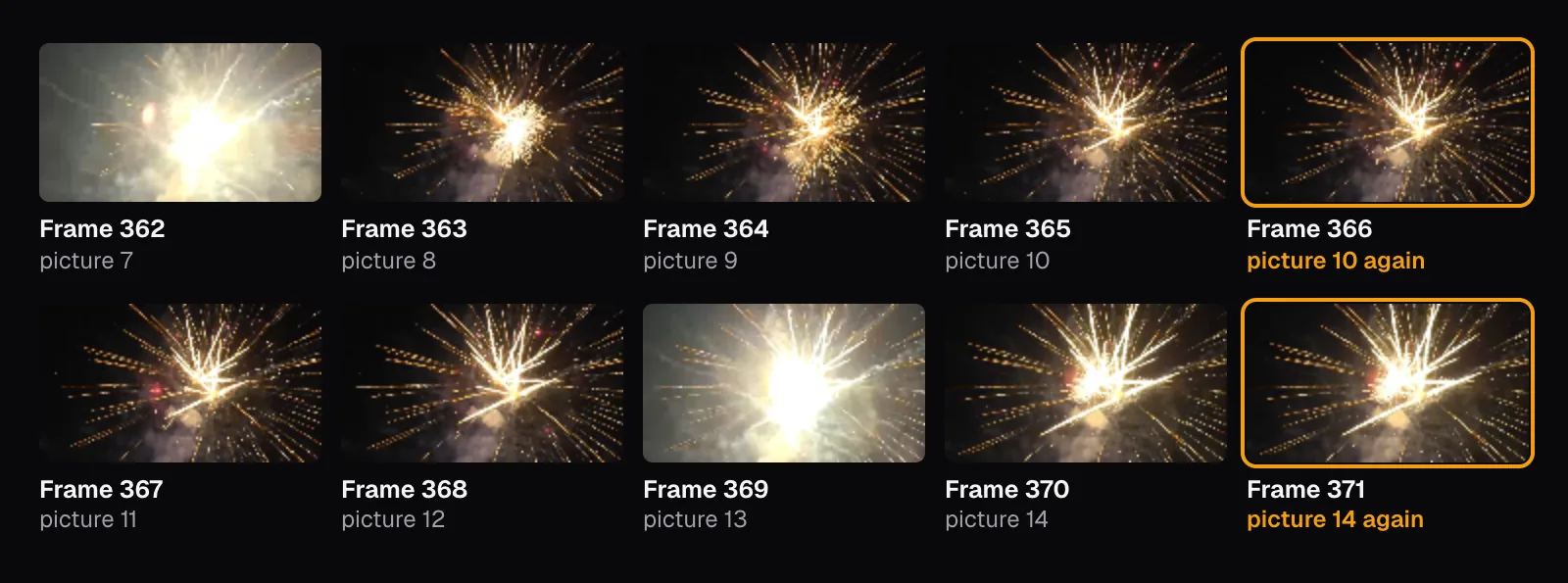
At 24 into 30, four pictures are spread over five frames, so the motion advances in steps that aren't quite even. It works the other way too: one 60 fps clip among 30 fps ones makes the whole file 60 fps, with every picture of the other clips shown twice, and only a clip faster than 60 fps would lose pictures, since the result stops there.
YouTube's upload guidance asks for video encoded and uploaded “in the same frame rate it was recorded”, and lists 24, 25, 30, 48, 50 and 60 as common rates, as of November 2026. A merge of clips recorded at different rates can match only one of them; taking the fastest keeps every recorded picture of every clip. Our guide to slow motion counts repeated pictures the same way, in clips slowed down.
Fades between clips
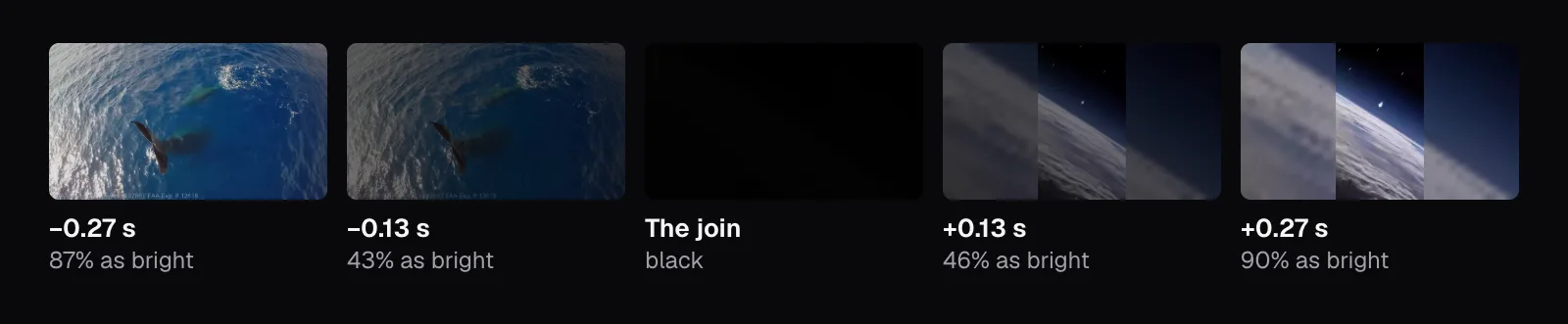
“Between clips” offers “Cut”, where the next clip starts on the very next frame, and “Fade”, which passes through black. A fade takes 0.6 seconds: the last 0.3 seconds of a clip dim to black and the first 0.3 seconds of the next brighten from it, or less when a clip is shorter than 0.6 seconds, since a fade never takes more than half a clip. Nothing overlaps, so fades don't shorten the video: our cut and faded files were both 444 frames.
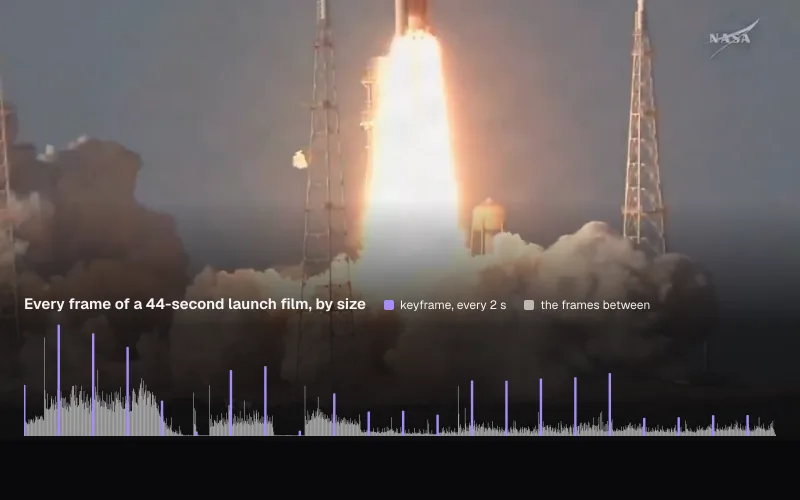
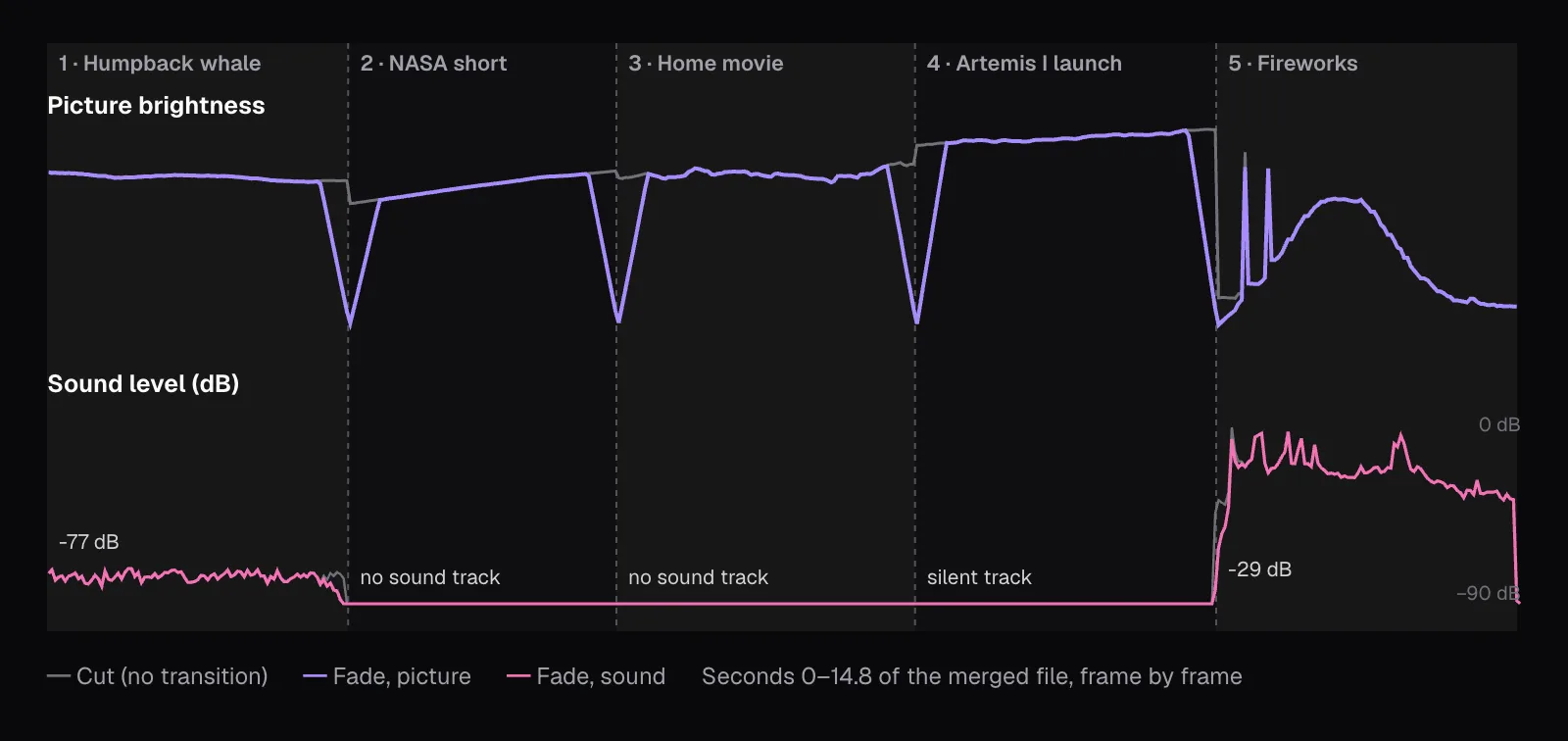
Measured frame by frame against the cut file, the whale dimmed in steps of about 11% a frame, from 98% of its brightness nine frames before the join to 9% on the frame before it. The frame at the join was almost black, at 2%, and the NASA short climbed back in steps of the same size, at full brightness nine frames later. The other three joins measured within a couple of percent of these.
The sound fades with the picture. At the last join, where silence gives way to the fireworks, the faded file was 22 dB quieter than the cut file just after the join, and the first loud crack, 0.15 seconds in, came out 5 dB quieter; a third of a second in, the two files measured the same. A fade suits a change of place or day, such as the next stop of a trip; a cut suits clips of one scene, where a dip to black would read as time passing.
Clips with sound, without sound, and with a silent track
A video file either has a sound track or doesn't, and a sound track can be silent. Our five covered every case: the fireworks with loud sound, the whale with a track so quiet it measured about −77 dB, the launch with a track of silence, the home movie with no track at all, and the NASA short with its track removed. The short's soundtrack includes licensed music, so we took it off with Mute Video before anything else, and none of its sound is in any file we made.
“Sound” has two choices, and they apply to the whole merge. With “Keep”, the result gets one AAC sound track, and every clip without sound plays in silence. It's stereo unless every clip with sound is mono, and 48 kHz unless every clip with sound shares 44.1 kHz; ours was 48 kHz stereo. In the merged file, the parts of the NASA short, the home movie and the launch measured −120 dB or lower, the floor of our measurement, in every thirtieth of a second: silence. The whale stayed at its −77 dB and the fireworks at about −29 dB. With “Remove”, the file has no sound track at all, which is how our black-background export came out.
Because the setting is all or nothing, silence one clip by muting it before the merge: Mute Video copies an H.264 or HEVC picture untouched and only takes the sound off. To put music under the whole video, merge first and add it to the merged file with Add Music, so one song runs across the joins instead of starting again with each clip; our guide to music under a voice covers how loud to make it.
Cut the clips down before you merge
Merge has a trim of its own: choose a clip in the strip and its timeline appears with a handle at each end, which ← and → move one frame at a time and Shift with an arrow one second. That suits shaving a few seconds off a clip. To take three seconds out of a 43-minute film, as we did with the home movie, Trim Video is quicker: its Start and End fields take a typed time, such as 1:49, and it exports only that part.
Trimming first can cost nothing. Trim Video copies the picture without re-encoding when the file is H.264 or HEVC and you keep one part: our NASA clip, an H.264 file by then (Mute Video had re-encoded it), got the note “Lossless — the picture is copied as it is, so the export takes seconds.” The other four started as WebM files and were re-encoded, one more generation before the merge, since Merge always encodes the whole result again. It has no lossless mode, even for clips that match exactly; our guide to cutting without re-encoding explains when copying a video is possible at all.
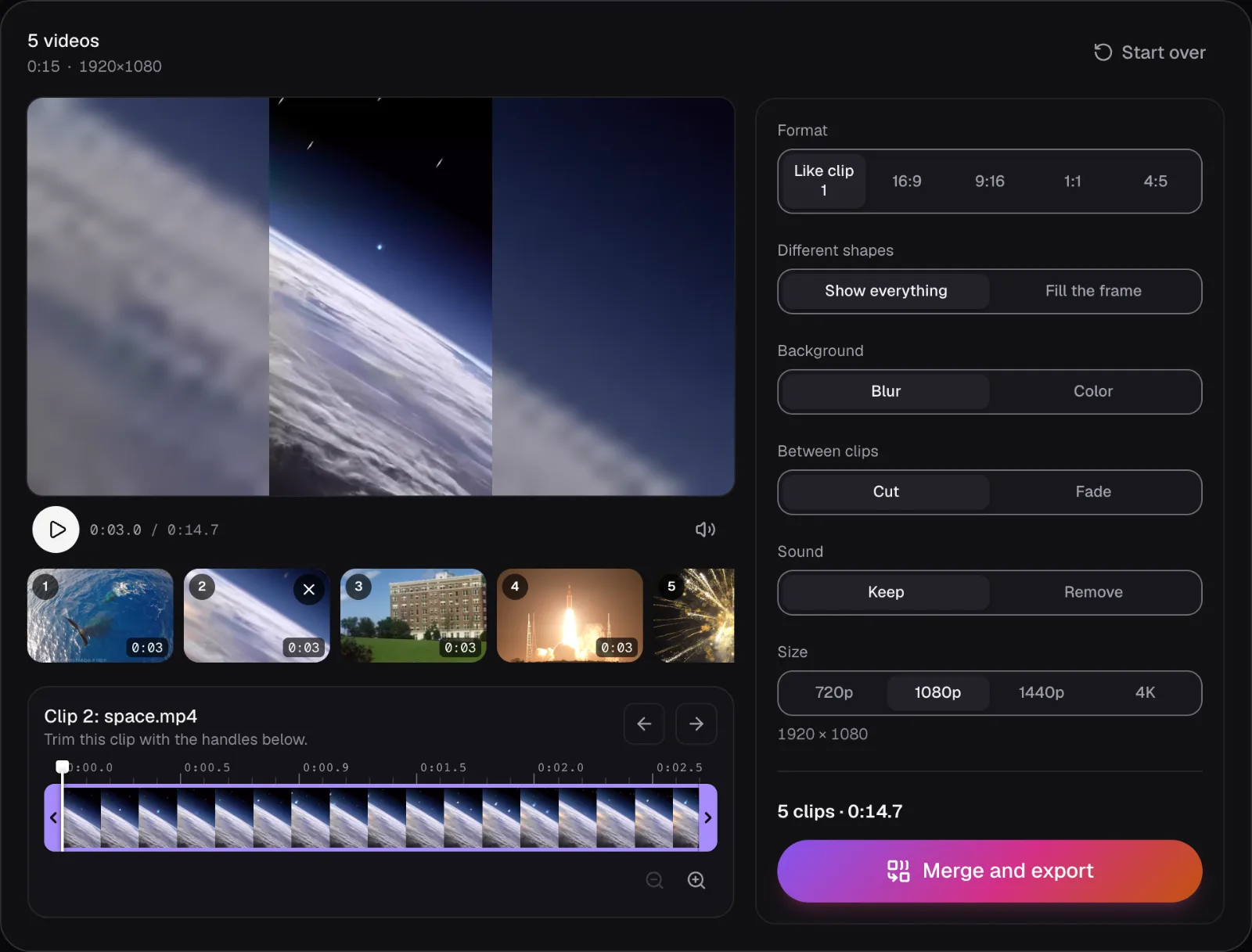
The order is set in the strip of clip cards: drag a card, or focus one and press Alt+← or Alt+→, or use the arrows beside the chosen clip's name. Under “Like clip 1”, moving a different clip to the front changes the result's shape, as it did for us. Files that browsers can't play, such as AVI, WMV or MPG, are converted one at a time as you add them, and the merged file is named after the first clip: ours was whale-merged.mp4.
Which settings to choose
- A landscape video for YouTube or a TV: 16:9, or a 16:9 clip first. Keep vertical clips whole with “Show everything”, and crop beforehand any that can lose their top and bottom. YouTube's player adapts to a video's shape, but bars inside the file stay in it.
- Shorts and other vertical feeds: 9:16. YouTube's help accepts a Short of up to 3 minutes with a square or vertical aspect ratio, as of November 2026; our guide to TikTok, Reels and Shorts has the rest. Crop landscape clips of one subject to 9:16 in Resize & Crop, placed on the subject, and let the rest show whole over blur.
- Old 4:3 films among newer clips: put a 4:3 clip first to keep the result 4:3, or choose 16:9 with “Show everything” so the old film isn't cut. Cropped to 16:9, a 4:3 picture loses a quarter of its height.
- Clips at different frame rates: nothing to set. Expect the fastest clip's rate, and repeated pictures in the slower clips, one frame in five for 24 fps in a 30 fps merge.
- Sound: mute any clip whose sound doesn't belong before you merge, and add music after.
- Size: keep the 1080p Merge chooses for anything going online. Choose 4K only when your best clips are 4K and the place you're posting to plays it: our 4K launch clip was drawn at half its width and height in the 1080p file.
For a mixed set, this order of work leaves every choice to you: cut each clip down in Trim Video, crop the clips that should fill the frame in Resize & Crop, then merge with “Show everything” in the shape of the screen the video is for. Resize & Crop can trim too, under “Part”: for a clip that isn't H.264 or HEVC, trimming it there instead of in Trim Video spares it one encode.
Questions people ask
Can I merge a vertical video with a horizontal one?
Yes. The merged file has one shape, and clips of the other shape are fitted with bars beside them or cropped. In Cutlia's Merge Videos the shape is the first clip's unless you choose 16:9, 9:16, 1:1 or 4:5. In our test, a vertical NASA clip in a 16:9 merge covered 31.6% of the frame when fitted, and a landscape whale clip in a 9:16 merge did the same. Crop a clip beforehand if it can lose its sides.
Why does my merged video have black bars?
Because one of the clips has a different shape from the result and was fitted in whole. Merge Videos fills that space with a blurred copy of the clip unless “Background” is set to “Color”. To get rid of the bars, choose “Fill the frame”, which crops instead, or crop that clip to the result's shape in Resize & Crop first, so it fills the frame while the other clips stay whole.
What resolution will my merged video be?
One size for the whole file. Merge Videos makes the short side 1,080 pixels when any clip is at least 1,000 pixels on its short side, otherwise 720, and offers 1440p or 4K only when a clip is that sharp. The long side follows the shape: our merges came out at 1920 × 1080, 1080 × 1920 and 1440 × 1080 from the same five clips, depending on which clip came first.
What frame rate will a merged video have if the clips differ?
The fastest clip's, up to 60 frames per second, rounded to a standard rate such as 29.97 when it's within 2% of one. Slower clips show some of their pictures twice: our 24 fps fireworks in a 30 fps merge repeated one frame in five. Nothing is dropped unless a clip is faster than 60 frames per second.
Does merging videos lower the quality?
Merging clips of different sizes, shapes or frame rates means encoding the video again, and Merge Videos always does, at high quality. What changes most is size: our 640 × 480 home movie was enlarged 2.25 times in a 1080p file and gained no detail from it, and a 4K clip in a 1080p merge keeps a quarter of its pixels. Choose 4K under “Size” to keep a 4K clip's detail.
Do fades make the merged video longer?
Not in Cutlia's Merge Videos. Its fade passes through black inside the clips' own time: the last 0.3 seconds of one clip dim and the first 0.3 seconds of the next brighten, and the clips never overlap. Our cut and faded versions of the same five clips were both 444 frames, 14.8 seconds. The sound fades out and back in with the picture.
Sources
Where the facts in this guide come from, besides our own tests:
- YouTube recommended upload encoding settings — YouTube Help
- Video resolution & aspect ratios — YouTube Help
- Upload YouTube Shorts — YouTube Help
Footage in this guide
The pictures were made with Cutlia's tools from this openly licensed footage, found on Wikimedia Commons:
- Humpback whale Tail Sailing behaviour — NOAA Sanctuaries, CC BY 3.0
- Our Home In Space Series (SVS14898 - 2 YT) — NASA's Scientific Visualization Studio, Public domain
- Home Movies - Western U.S., New Mexico, Mexico, California, Colorado, Utah — Prelinger Archives (filmmaker unknown), Public domain
- Artemis I Launch from NASA Causeway (Slo Mo) (GX010506) — NASA Marshall Space Flight Center, Public domain
- Close-up fireworks during Lunar New Year celebration in Zhongshan, China, 2026 — JaydenChao, CC BY 4.0