Editing
How do you cut a video without losing quality?
We cut an H.264 video 35 frames past a keyframe without re-encoding it, checked every packet, every frame and two browsers’ players, then timed and measured the same cut re-encoded.
By the Cutlia team · Published · 14 min read
The short version
- Cutting without re-encoding copies the compressed frames as they are: our 10-second cut from a 1080p H.264 MP4 took 0.2 seconds, and all 285 of its picture packets were byte for byte the original’s.
- Most frames are stored as changes to earlier frames, so a copied cut must start decoding at a keyframe: in the MP4s Cutlia encodes there is one every 2 seconds, in the two originals we used one every 128 frames.
- Trim Video still starts on the exact frame you choose: it copies from the keyframe before it and writes an MP4 edit list that hides the frames in between, and both Chrome and WebKit honored it in our test.
- It re-encodes instead when you remove a part from the middle or the picture isn’t H.264 or HEVC: our cut of nearly 3½ minutes took 21.1 seconds that way against 0.8 copied, and three re-encodes in a row left 0.33% of the pixels visibly changed.
- To keep the most quality, trim phone and camera MP4s or MOVs in one part, do any edit that needs re-encoding in a single pass from the original, and keep the original.
Every time a video is re-encoded, each of its frames is decoded into pixels and compressed again. That takes time, and the second compression can only approximate the first, so a little detail goes each time. Cutting doesn't have to work that way: the compressed frames you keep can be copied into a new file exactly as they are. The catch is the keyframe. Most frames in a video can't be shown on their own, so a copy can only begin where one can. That is why a copied cut can start earlier than you asked, back at the keyframe, and why a cutter may quietly re-encode instead.
We tested how far a copy can go with two films. Ifremer's footage of cold-water corals, filmed from an underwater vehicle, runs 3 minutes 35 seconds at 1920 × 1080 and 25 frames per second; NASA's film of the Artemis II launch runs 44 seconds at 1280 × 720 and 30. Both arrived as WebM files with VP9 picture, and Cutlia's Video Converter made each into an H.264 MP4: 232.3 MB and 7.3 MB. We read the type and size of every frame, cut the corals with Trim Video at 0:45.40, the 35th frame after a keyframe, and checked the result packet by packet, frame by frame and in two browsers' players. Then we made the same cut with re-encoding, re-encoded that twice more, and timed both ways on a cut of nearly 3½ minutes. The editing and the timing ran in Chrome on a MacBook Air with an Apple M5 chip.
Keyframes, P-frames and B-frames in plain words
A video file isn't a stack of pictures. Most frames are stored as instructions for changing the frame before them, and only a few are stored whole. Codecs such as H.264 name the kinds by letters:
- A keyframe, also called an I-frame or intra frame, is a complete picture. MDN's guide to video codecs calls key frames “full frames”, and the W3C's WebCodecs specification defines a key chunk as one that “does not depend on any other frames for decoding”. A player can start at any keyframe.
- A P-frame (predicted) is built from frames before it: which blocks of the picture moved where, plus the corrections the movement doesn't explain. Over coral drifting past a camera, that is far less to store than the whole picture.
- A B-frame (bidirectional) may also borrow from a frame that comes after it, so the encoder has to store that later frame first. Apple's documentation for its video encoders puts it plainly: to encode B frames, the order in which frames are stored, “the decode order”, differs from “the display order”.
We read the type of every frame in our two MP4s from the header of its first slice. The corals held 108 I-frames and 5,265 P-frames, the launch 22 and 1,288, and neither had a single B-frame: every frame was stored in the order it plays. The VP9 originals don't use those letters; Mediabunny, the library Cutlia reads and writes video with, marks each frame as a keyframe or not, the same “key” or “delta” a browser's decoder works with.
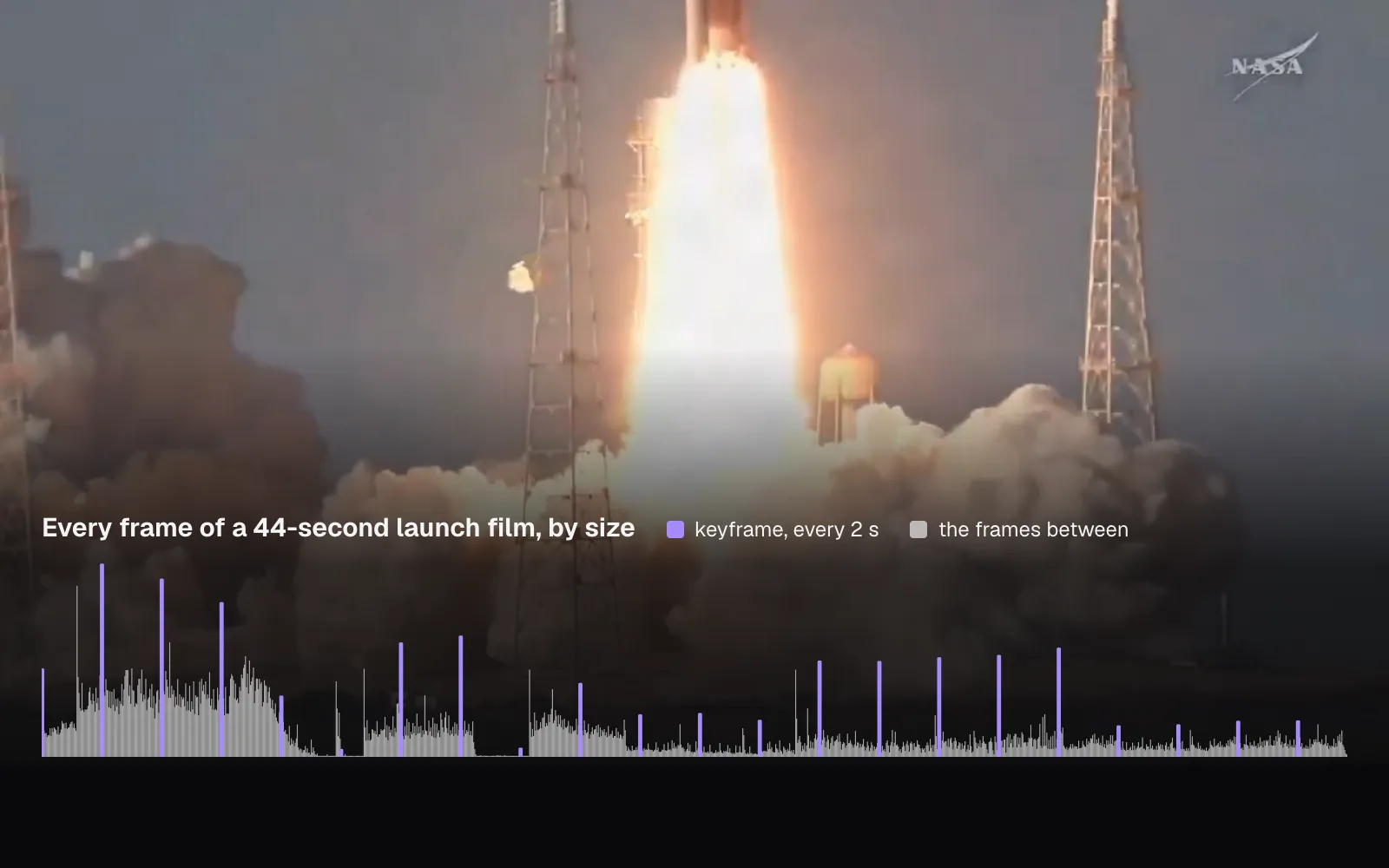
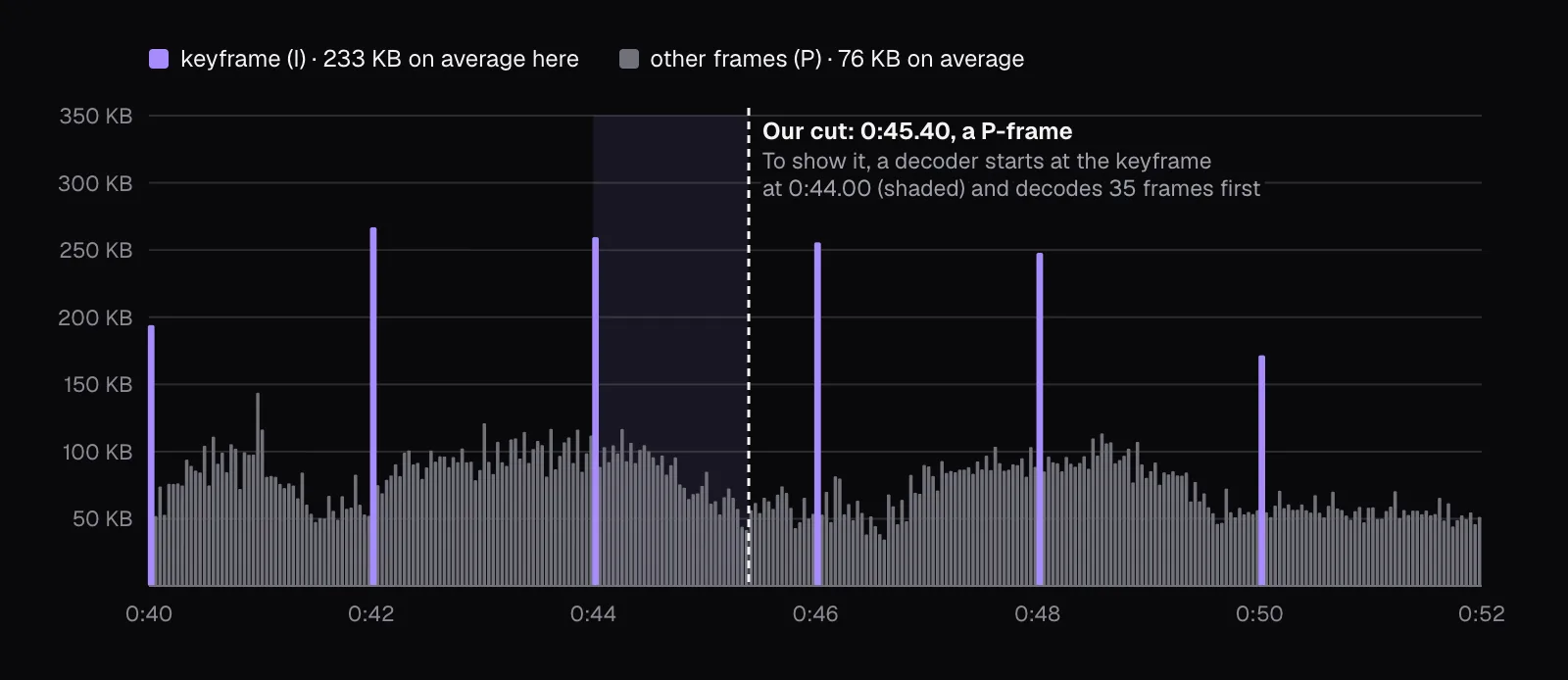
Keyframes are big. In the corals MP4 they averaged 121 KB against 41 KB for the frames between, three times as much; in the VP9 original 228 KB against 28 KB, eight times. Because there are so few of them, though, the 108 keyframes made up only 5.7% of the MP4's picture data.
How far apart keyframes are, and what decides it
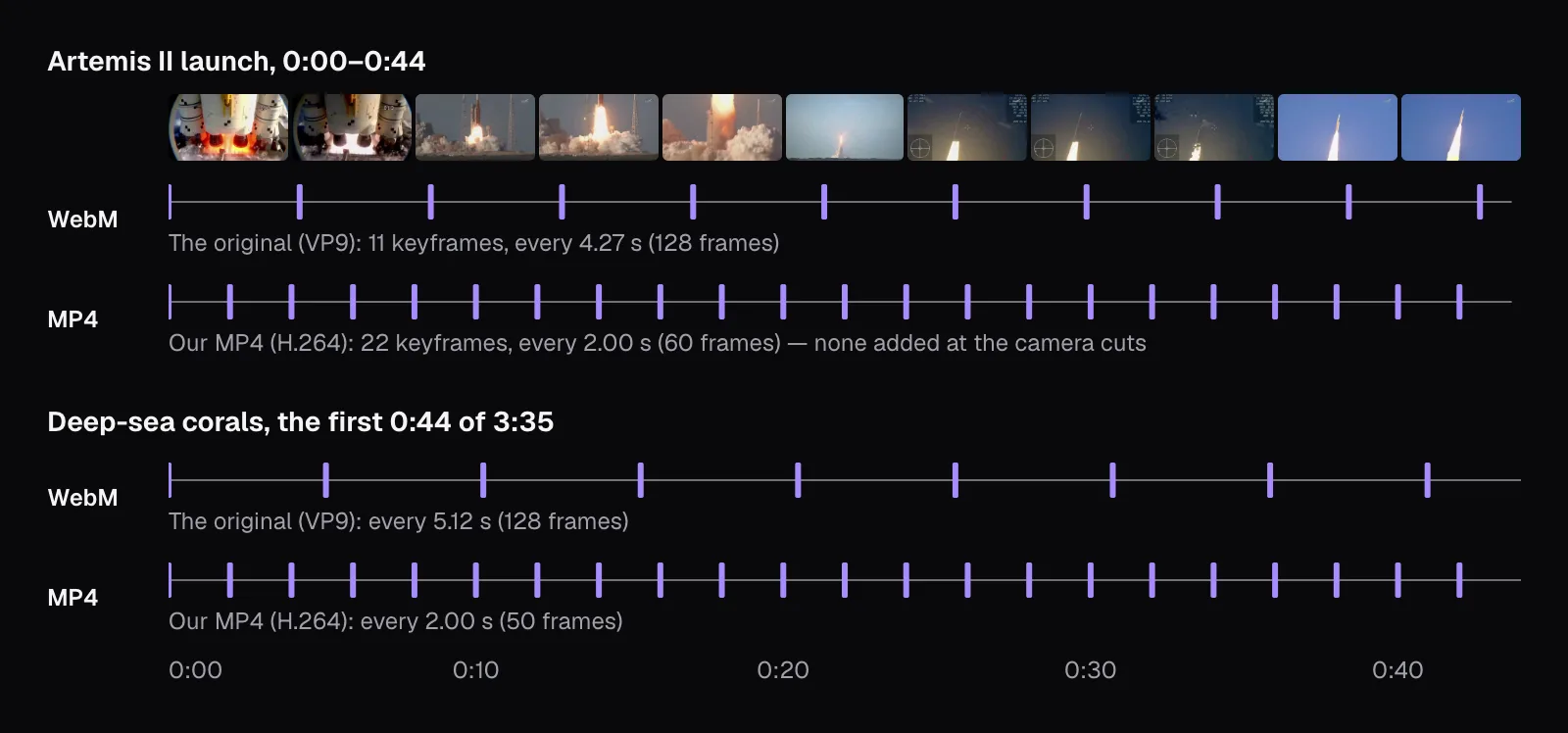
The encoder decides, and the distance varies more than you might expect. Both of our originals, as they were uploaded to Wikimedia Commons, had a keyframe every 128 frames (the corals with one shorter gap): every 5.12 seconds in the corals at 25 frames a second, every 4.27 seconds in the launch at 30. Cutlia's export engine asks its encoder for one every 2 seconds, and that is exactly what both MP4s got: every 50 frames in the corals, every 60 in the launch, 108 and 22 keyframes in all.
Shorter distances cost size, since in the corals MP4 a keyframe weighed as much as three of the frames between, and they buy you two things. MDN gives the first: key frames are placed in the file “to improve seek time”, because a player that jumps to a moment has to decode from the keyframe before it. The second is the subject of this guide: a keyframe is the only place a copied cut can start.
Keyframes don't follow the story, either. The launch film switches cameras again and again, sometimes through black, yet the MP4's 22 keyframes stayed exactly 2 seconds apart: the encoder added none at a switch, so a new shot usually begins on a P-frame. At 0:01.17 the film jumps from one close-up camera to another, and the first frame of the new shot is a P-frame of 35.2 KB, almost twice the keyframe at 0:00 (18.2 KB) and nearly as big as the next one at 0:02.00 (39.8 KB): when nothing in the frame before matches, the changes come to most of a picture. At the other extreme, most frames in the black stretches between shots took less than 1 KB, and the black keyframe at 0:16.00 took 1.9 KB.
Why a copied cut has to start at a keyframe
Our cut starts at 0:45.40, with several fish swimming over white coral. In the MP4 that frame is a P-frame, the 35th after the keyframe at 0:44.00. On its own it holds only changes, and the picture they change exists only once the keyframe and the 34 frames after it have been decoded.
We handed that one frame to Chrome's video decoder anyway, through WebCodecs, the browser's interface to its codecs. It refused before decoding anything: “A key frame is required after configure() or flush().” Labeled as a keyframe, it was refused again, with “An EncodedVideoChunk was marked as type `key` but wasn't a key frame”, whether or not we asked for its software decoder. That is the specification, not a quirk of Chrome: WebCodecs says that after a decoder is set up, the next chunk it gets must be a key chunk, or it throws a DataError, and it asks browsers to check that a chunk marked as key really is one.
So a file whose picture starts with that P-frame can't be played from its start. A cutter that copies frames has three plain choices, and each has a price:
- start at the keyframe before the cut, here 1.40 seconds you meant to cut off;
- start at the keyframe after it, losing 0.60 seconds you meant to keep;
- re-encode, and pay in time and quality.
An MP4 or a MOV allows a fourth, and it is what Trim Video does.
How Trim Video copies and still starts on your frame
MP4 is built on Apple's QuickTime format: the Library of Congress's description of the ISO base media file format, which MP4 belongs to, says it “is directly based on Apple's QuickTime container format”. QuickTime lets every track carry an edit list, an elst box that Apple's documentation says maps “from a time in a movie to a time in a media, and ultimately to media data”, and our MP4s carry theirs the same way, inside each track. Each entry gives how long a segment plays, its media time (“the starting time within the media of this edit segment”) and a rate. So a file can hold frames that are decoded but never shown.
Trim Video uses exactly that. For our cut it copied the picture from the keyframe at 0:44.00, 285 packets, the first a keyframe and every one byte for byte the packet of the MP4 at the same moment, and wrote a single entry: play 576,000 units of 1/57,600 second, which is 10.00 seconds, starting 80,640 units, 1.40 seconds, into the media. The 35 frames before that are decoded and skipped. The AAC sound was copied too, all 470 of its packets identical, with an edit list of its own that skips the first 1,218 samples, the 25.4 milliseconds of sound copied from just before the cut.
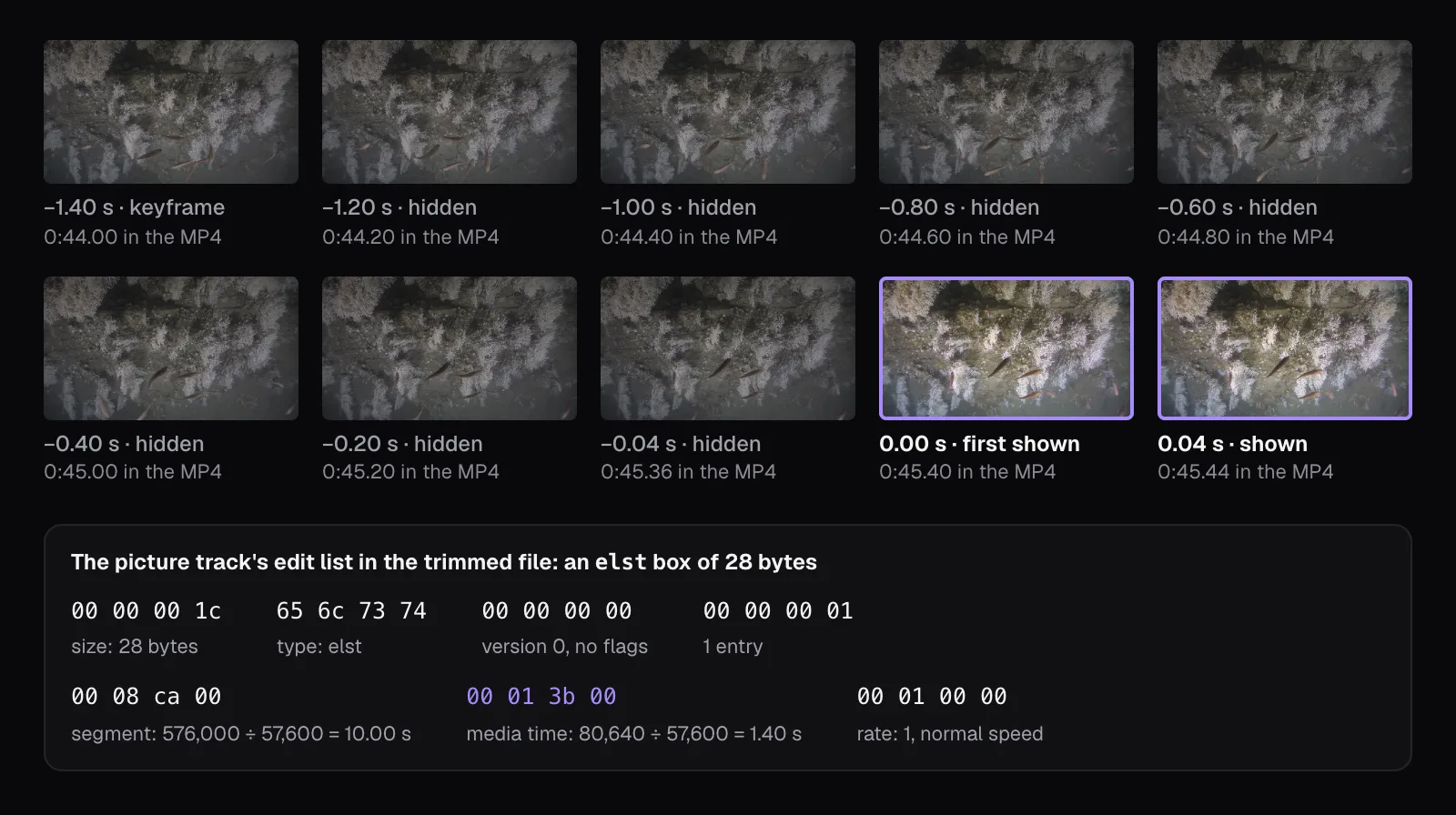
Then we checked that it worked. We decoded all 250 frames the file shows and compared each with the MP4's frame at the same moment: all 250 were identical to the last pixel, the first being 0:45.40 itself. Its neighbors, 0:45.36 and 0:45.44, differ from it by 5.5 levels out of 255 on average, so this is the frame we asked for, not a near miss. The export took 0.2 seconds.
The hidden frames are what this costs: 3.0 MB of the 19.7 MB file, 15.5%, carried along so that the first shown frame can be decoded. How much depends on where you cut. On a keyframe it's nothing; just before the next, it's nearly the whole gap, 49 frames in our MP4 and up to 127 in the originals.
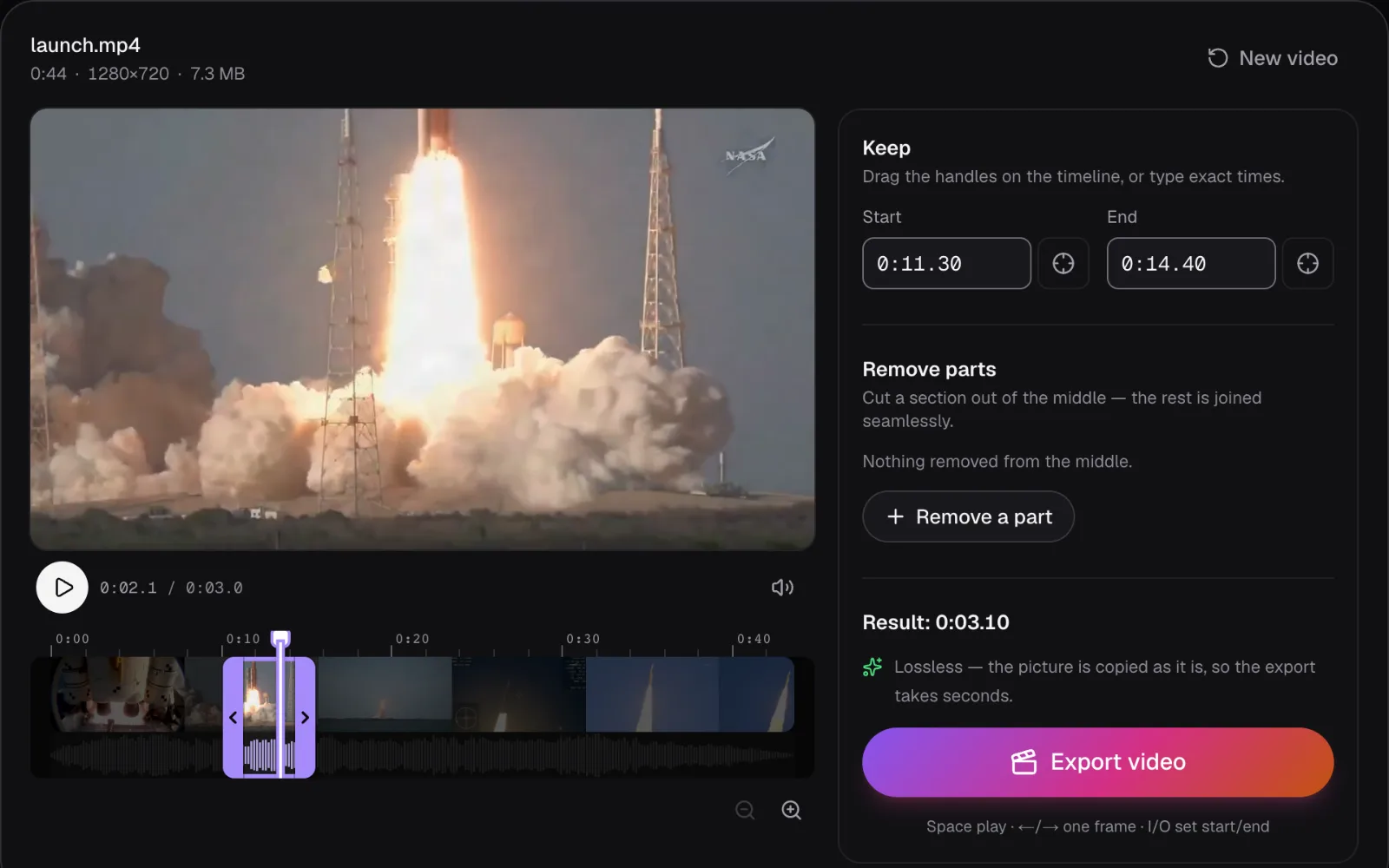
In the editor, the times go in Start and End, typed to the hundredth of a second or set from the playhead, and the arrow keys step one frame at a time. Under the result's length, the panel says what will happen before you export: “Lossless — the picture is copied as it is, so the export takes seconds.”
What players do with an edit list
Everything rests on the player reading the edit list, so we tried two. Chrome opened our trimmed file on the frame of 0:45.40 and gave its length as 10.00 seconds. WebKit, the engine Safari is built on, in the version Playwright tests with (27.2), showed the same frame when asked for the start, and also gave 10 seconds.
Edit lists aren't a trick only cut files use. The MP4 our converter made, before we cut anything, already had one, on its sound track: it skips the first 2,114 samples, 44 milliseconds, that the AAC encoder adds at the start. The WebCodecs specification has a name for them, “priming samples”, audio that represents “encoder delay or filter warm-up”. Apple's documentation also says what happens without an edit list: “the presentation of a track starts immediately”.
When Trim Video re-encodes, and what that costs
Trim Video copies when you keep a single part and the picture is H.264 or HEVC, the two codecs it puts into an MP4 as they are. Otherwise the picture is decoded and encoded again on your device, at high quality and as H.264 in any browser that can encode it, and the panel says so before you export. Three cases come up:
- A part removed from the middle. Once the result is made of two pieces, the whole of it is re-rendered, and the note changes to “The picture is re-rendered in high quality on your device.”
- Another codec. Our VP9 original, cut at the same times, got the same note: Trim Video always makes an MP4, and VP9 isn't one of the codecs it copies into one.
- A file whose picture had to be converted to open it, as an AVI's always is. Here the re-encode happens as the file opens; a one-part cut then copies that converted picture quickly, and the note says it was “converted when you opened the file”.
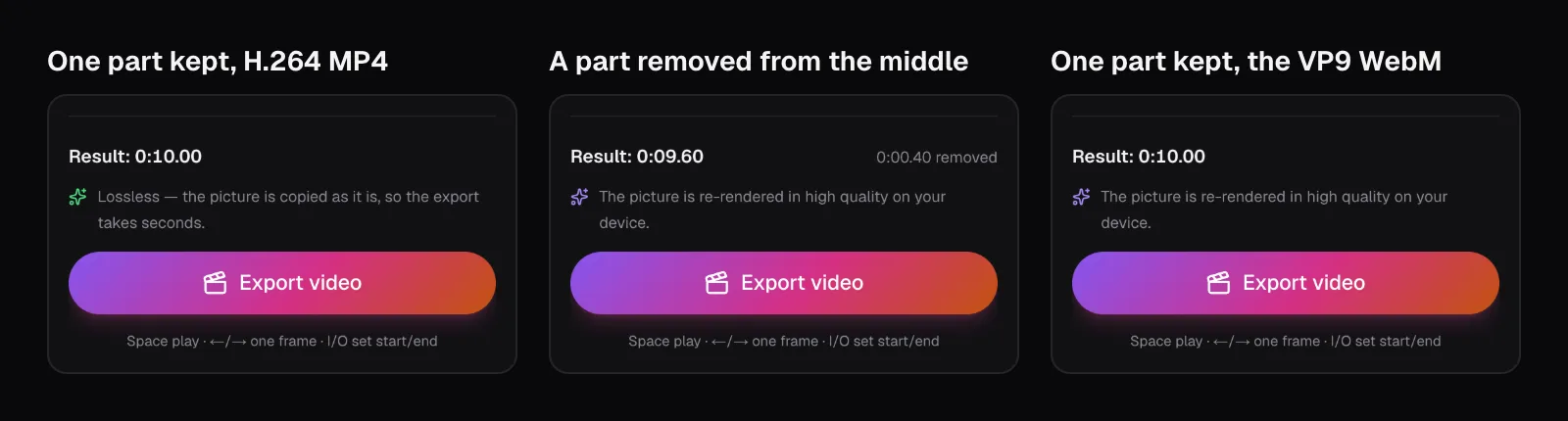
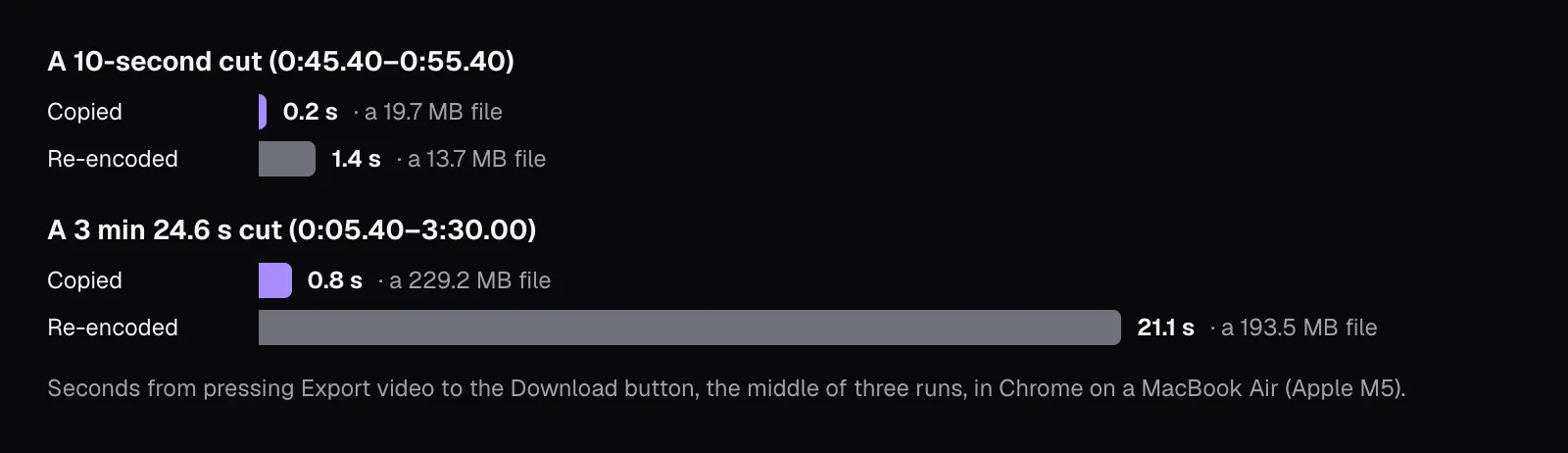
Time is the first cost, and it grows with the length. With 0.4 seconds removed from the middle of our 10-second cut, the export took 1.4 seconds instead of 0.2. On a cut of 3 minutes 24.6 seconds it took 21.1 seconds against 0.8. Each is the middle of three runs on this one laptop, so read them as a comparison rather than a promise. The re-encoded files were smaller, 13.7 MB against 19.7 and 193.5 MB against 229.2: they carried no hidden frames, they were 0.4 seconds shorter, and the encoder spent fewer bits on the same pictures than the MP4 had.
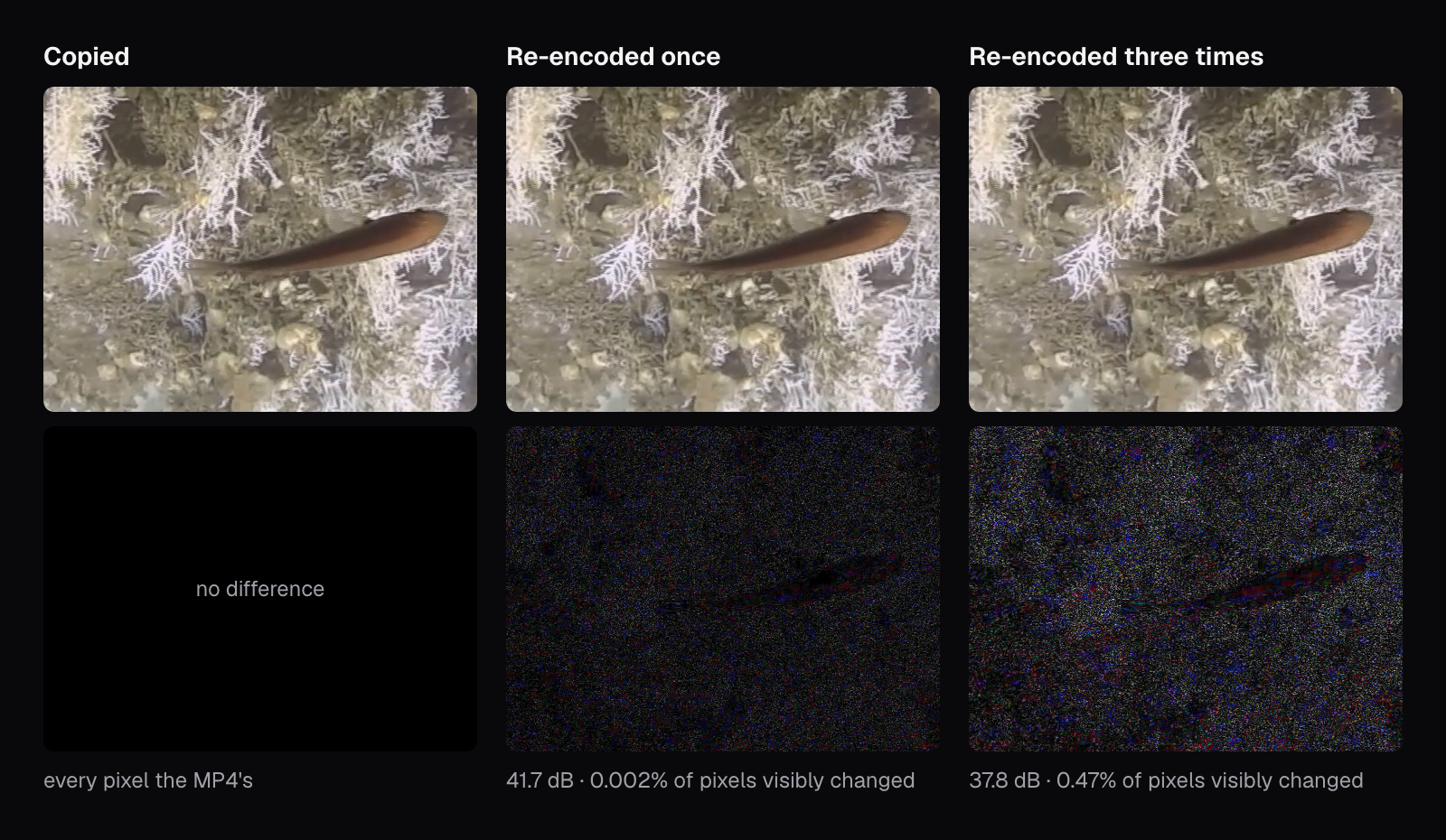
Quality is the second cost, and at the high quality Trim Video re-encodes with, a single pass costs little. We compared every frame of the re-encoded cut with the MP4's: on average the pixels moved by 1.4 levels out of 255, a peak signal-to-noise ratio of 42.2 dB (the higher, the closer to the original), and only 0.002% of them moved by more than 12 levels, our mark for a change you could see. Then we put the re-encoded file through Trim Video again, and that one once more, each time removing a sliver near the end. Over the 6.6 seconds all three passes share, the ratio fell from 42.1 to 39.9 and 38.6 dB, and the share of visibly changed pixels rose from 0.002% to 0.08% and 0.33%. Each pass starts from the last one's approximation, never from the original. A copy has nothing to approximate: its frames are the original's.
Which to use: cutting without losing quality
Most of it comes down to keeping the number of re-encodes as low as it can be, ideally zero:
- A phone or camera video, one part kept: open it in Trim Video and type the times. If the note says “Lossless”, the result is the original's own frames, starting on the frame you chose, in seconds.
- Something removed from the middle, or several edits: plan them so they happen in one export, from the original file, not from a file an earlier export made. One pass at high quality is hard to see; stacking them is how quality drains away.
- Only a different format: the Video Converter copies the picture when the new container accepts its codec, as from an H.264 MP4 to MOV or MKV (an HEVC video going into MP4 or MOV is made H.264 unless you turn off “Convert HEVC to H.264”); our guide to video formats shows which.
- Several clips into one: Merge Videos always encodes the whole result again, even when the clips match; the guide to combining videos of different sizes shows that pass, so trim each clip losslessly first and let the merge be the only re-encode.
- A WebM, or anything that isn't H.264 or HEVC: a cut in Trim Video re-encodes it once, into an MP4. If the codec matters to you, the comparison of H.264, HEVC, VP9 and AV1 weighs them.
Keep the original either way. A copy can always be made again from it, exactly; a re-encode can only be made from what it left.
Questions people ask
Does trimming a video reduce its quality?
Not if the trim is copied. Our cut from a 1080p H.264 MP4 kept every one of its 285 picture packets byte for byte, and all 250 frames it shows were identical to the original’s. A trim that re-encodes does lose a little: one pass at Trim Video’s high quality changed 0.002% of the pixels visibly, three passes 0.33%. Trim Video’s panel says which you’ll get before you export.
What is a keyframe interval?
It is the distance between keyframes, the complete pictures a player can start decoding from. The encoder sets it. Our two originals from Wikimedia Commons had one every 128 frames, about every 4 to 5 seconds; the MP4s Cutlia made have one every 2 seconds. Shorter intervals make seeking quicker and give a copied cut more places to start; in our corals MP4, each keyframe cost about as much as three ordinary frames.
Why does my trimmed video start a few seconds before where I cut it?
Either the cutter moved your cut back to the keyframe before it, the only place a copy can start without help, or the cut used an MP4 edit list and the program you play it in ignores the list. Our Trim Video cut started on the chosen frame in Chrome and in WebKit. A player that skips the edit list would show 1.40 seconds of hidden frames first.
Why is a losslessly trimmed file bigger than a re-encoded one?
It keeps the original’s bitrate, and it carries the frames from the previous keyframe that are decoded but never shown. In our 10-second cut those 35 hidden frames came to 3.0 MB of 19.7 MB. The re-encoded version of nearly the same cut was 13.7 MB, because its encoder spent fewer bits on the same pictures. Smaller here doesn’t mean better: it means different from the original.
Can I cut a WebM without re-encoding it?
Not with Trim Video, which always makes an MP4 and copies only H.264 and HEVC pictures into it: our VP9 WebM got the note that its picture would be re-rendered. That costs one pass, which at Trim Video’s high quality is hard to see. Do every edit in that same pass, so the WebM is re-encoded once and only once.
Sources
Where the facts in this guide come from, besides our own tests:
- EncodedVideoChunk: type property — MDN Web Docs
- Web video codec guide — MDN Web Docs
- WebCodecs (definitions; VideoDecoder: configure() and decode()) — W3C
- kVTCompressionPropertyKey_AllowFrameReordering — Apple Developer Documentation (Video Toolbox)
- Edit list atom ('elst') — Apple Developer Documentation (QuickTime File Format)
- Edit list atom ('elst'): Edit list table — Apple Developer Documentation (QuickTime File Format)
- Edit atom ('edts') — Apple Developer Documentation (QuickTime File Format)
- ISO Base Media File Format — Library of Congress, Sustainability of Digital Formats
Footage in this guide
The pictures were made with Cutlia's tools from this openly licensed footage, found on Wikimedia Commons:
- Sélection d'images sous-marines issues de la campagne Caladu 2019 (Ifremer 00947-105924 - 54670) — Olivier Dugornay and Marie-Claire Fabri (Ifremer), CC BY 4.0
- Artemis II Launch 2026 — NASA, Public domain