Formats and playback
Why does my video play sideways or upside down?
We made phone-style MP4s flagged 0°, 90°, 180° and 270°, opened them in Chrome, WebKit, macOS and Cutlia, and read back what Cutlia’s tools wrote.
By the Cutlia team · Published · 14 min read
The short version
- A phone often doesn’t turn the picture it records: it stores the frames the way the camera sensor delivers them and writes a rotation flag, nine numbers in the MP4’s track header, that tells players how to turn them.
- Chrome, WebKit (the engine Safari is built on), the Mac’s Quick Look and Cutlia all read the flag in our test, so a video that plays sideways is either in a program that ignores it or in a file whose flag was lost or set wrong.
- Copying the picture keeps the flag: Trim Video’s lossless cut and the Video Converter’s MP4 and MOV copied the frames byte for byte with the flag still saying 90°, so a file that was sideways in some program stays sideways there.
- To fix it for good, re-encode the picture upright: Resize & Crop draws every frame already turned and writes no flag, and if the video is sideways even in Cutlia, press “Rotate right” or “Rotate left” before you export.
- The fix costs one re-encode: our upright copy differed from the original by an average of 0.75 of 255 levels per color channel, and 0.04% of its pixels changed by more than 12 levels.
The video looked fine on the phone that shot it. Then it arrived on a laptop, in an editing program or on a TV, lying on its side, or standing on its head. Nothing is wrong with the picture itself. The file holds the frames turned on purpose, along with a short instruction for turning them back, and whatever shows them sideways didn't follow the instruction, or never received it.
To see exactly where that instruction lives and who obeys it, we made our own phone-style test files. From two public-domain clips, a man explaining an English idiom to the camera (vertical, 720 × 1280) and a bald eagle on a branch (1920 × 1080), we wrote 12-second MP4s whose pictures are stored turned, each with a rotation flag of 0°, 90°, 180° or 270° that turns it upright again, and one with the 90° file's picture but no flag. We read every flag back from the bytes, opened every file in Chrome's own player, in WebKit's, in the Mac's Quick Look and in Cutlia, then ran the 90° file through three of Cutlia's tools and checked what each wrote. Everything ran on a MacBook Air with an Apple M5 chip, and no file left that laptop.
A phone stores the picture the way the sensor sees it
A camera sensor is fixed inside the phone, and it always reads out its picture the same way round, whichever way you hold the phone. Android documents this for every camera as a number called the sensor orientation: the “clockwise angle through which the output image needs to be rotated to be upright on the device screen in its native orientation”, always 0, 90, 180 or 270 degrees. Hold the phone another way and the turn a frame needs changes with it.
Turning every frame upright before saving it costs work on every frame, so the recording systems on both phone platforms can skip it. AVFoundation is the framework iPhone apps record video with, and Apple's documentation of the rotation angle a camera connection applies says that setting one “doesn't always rotate pixels”: when the video goes to a movie file, the connection “records the rotation in a QuickTime track matrix”. Apple recommends the same for apps that write their own movies, because it “avoids paying for a rotation on every frame.” Android's recorder works alike. Its orientation hint will “not trigger the source video frame to rotate during video recording”, but adds “a composition matrix containing the rotation angle in the output video” so that “a video player can choose the proper orientation for playback.”
Microsoft's Media Foundation, the media layer of Windows, describes the result plainly: “Video from a handheld device, such as a mobile phone, is often rotated by 90, 180, or 270 degrees. If the camera stores the orientation as metadata in the video file, the image can be adjusted at the time of playback.” Photos work the same way, with an Exif orientation tag in place of the matrix. MDN notes that browsers apply it by default: with CSS's image-orientation at its initial value, “the EXIF information contained in the image is used to rotate the image appropriately.”
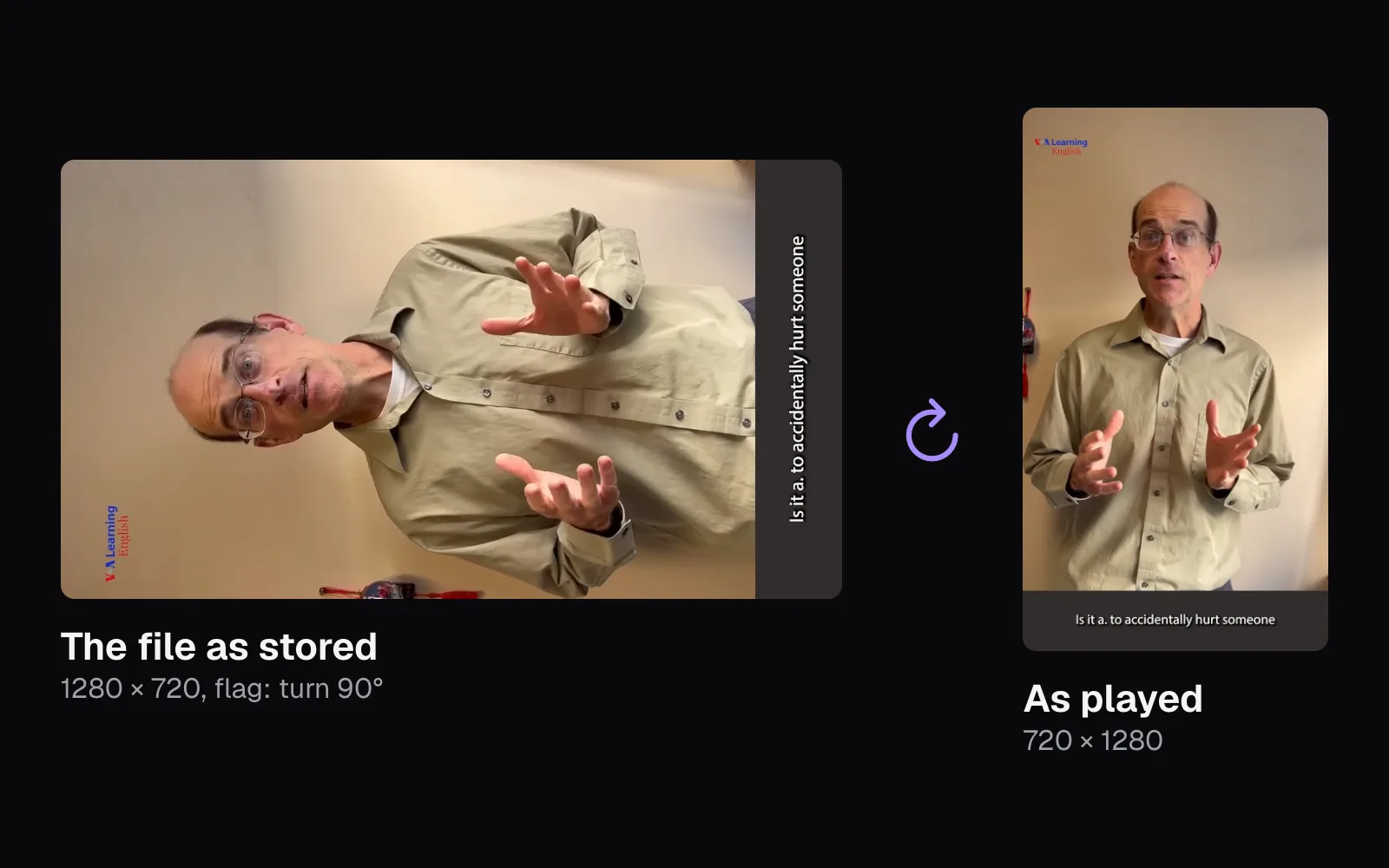
So a vertical phone video is, very often, a wide picture lying on its side plus a note saying “turn this a quarter turn clockwise”. That's what our hero picture shows: the frame as the file holds it, and the same frame as a player shows it.
Where the flag lives: nine numbers in the track header
An MP4 or MOV file keeps a header for each track, the tkhd box, and Apple's QuickTime File Format reference lists among its fields a 36-byte “matrix structure associated with this track”. It's a 3-by-3 transformation matrix, and Apple explains that such a matrix “defines how to map points from one coordinate space into another”, which covers “translation, rotation, and scaling.” Its numbers are fixed-point: the first two columns in 16.16 format, the last in 2.30. MP4 grew out of QuickTime, as our guide to video containers explains, and keeps the same header.
We read the matrix of every test file straight from its bytes. An unturned file holds the identity, 1 0 0 / 0 1 0 / 0 0 1, which means “leave it as it is”. Our 90° talker file holds 0 1 0 / −1 0 0 / 720 0 1. Read each row as where one direction of the stored picture ends up: (0, 1) sends its width downward, (−1, 0) sends its height to the left, and (720, 0) slides the turned picture 720 pixels to the right so that it lands back on screen. The stored picture's top edge becomes the right edge: a quarter turn clockwise. The 180° file holds −1 and −1 on the diagonal, which turns the picture upside down, and the 270° file turns it the other way: 0 −1 0 / 1 0 0 / 0 1280 1.
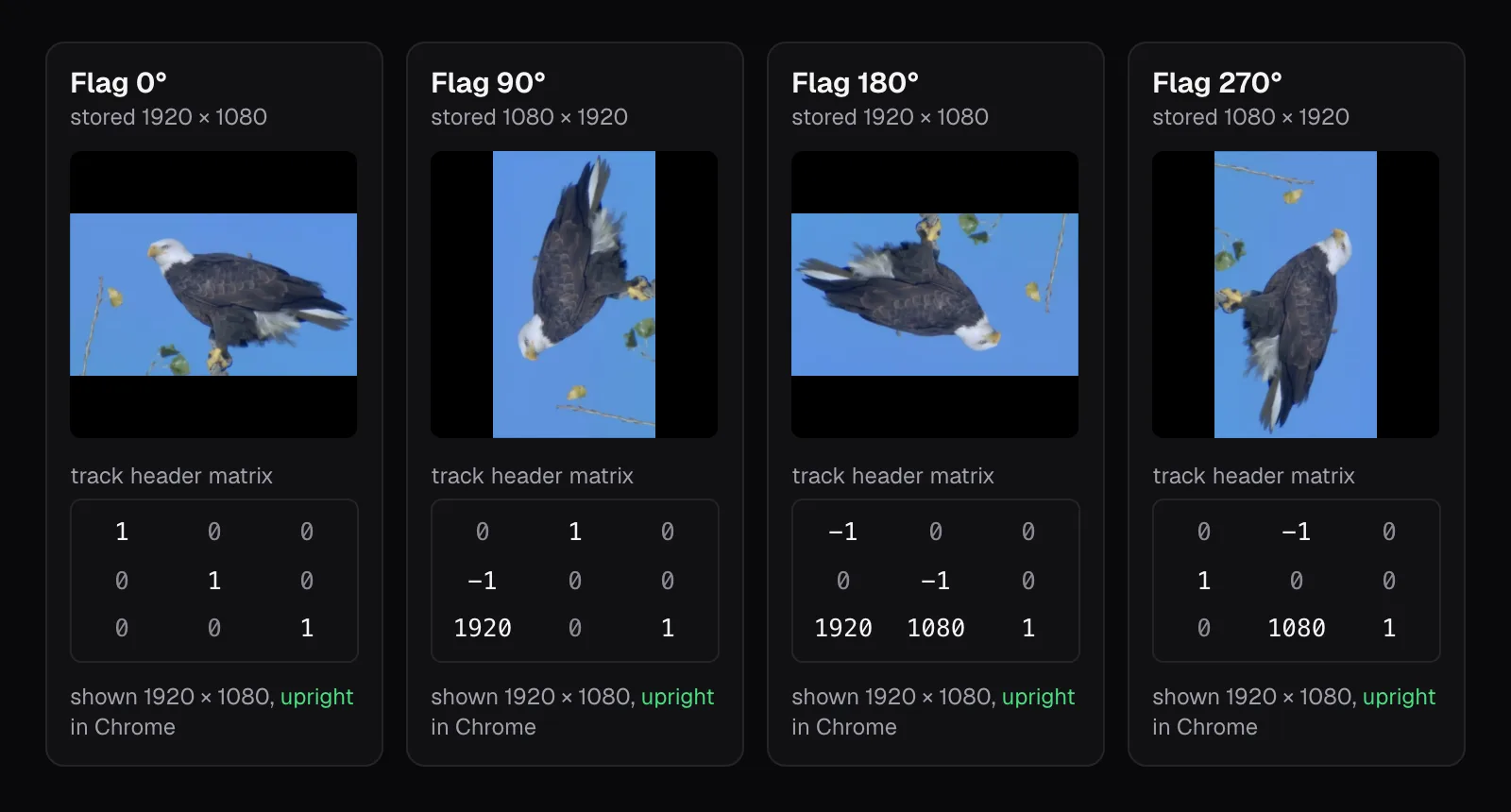
The flag is all that separates a sideways file from an upright one. Our 90° talker file and our flagless one hold the same 360 frames: we compared them packet by packet, and every one was identical, byte for byte. The difference that matters is in those nine numbers, and it decides everything: one file plays upright, the other lies on its side in every program we tried.
A track has one matrix, so one turn for the whole clip. A phone turned halfway through a recording can describe only one of its two positions, so whether a player reads the flag or not, one of the two parts plays sideways.
We opened every file in four programs
Each test file went to four programs on the same Mac. Chrome 157 opened it by itself in a tab, in the browser's own player. WebKit, the engine Safari is built on, did the same in version 27.2 as Playwright ships it. Quick Look, the Mac's file previewer, made a thumbnail of each in macOS 26.6.2. And Cutlia's Resize & Crop opened it with the shape set to “Original”. For each picture we worked out how it was turned by matching it against the footage's own upright frame turned four ways.
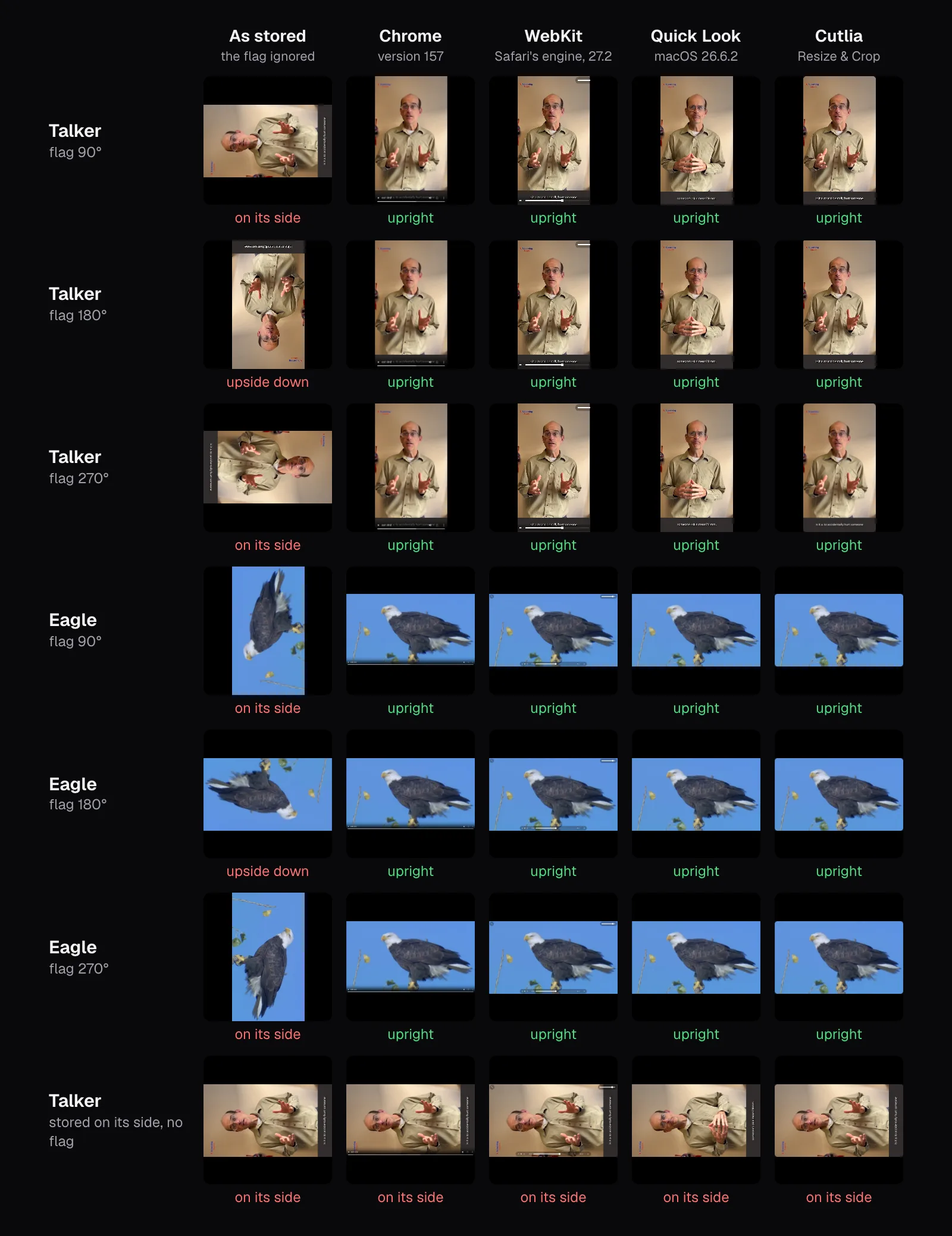
All four read every flag. Chrome's video element reported the talker files as 720 × 1280 whether they were stored wide or tall, WebKit agreed, Quick Look made portrait thumbnails of all three, and Cutlia's editor listed each as 720×1280 above the preview. The flagless file was 1280 × 720 and lying down everywhere, which is right: with no flag, there's nothing to tell a player that the picture needs turning.
The first column is what a program sees if it ignores the flag. We made it by decoding each file's frame with WebCodecs, the browser's own video decoder for web apps, and drawing it with the flag set aside. The W3C's WebCodecs specification gives its decoder settings a rotation that “sets the rotation attribute on decoded frames” and defaults to 0: a program that reads frames itself gets them as stored unless it passes the file's flag along. So any program that decodes the frames itself, rather than handing the file to a player, has to apply the flag on its own.
Why a video still plays sideways: three ways it happens
The four programs we tried all honored the flag. When a video plays sideways anyway, one of three things has happened.
- A program that ignores the flag. Android's own documentation warns that “some video players may choose to ignore” the matrix. Those players show the stored picture: the first column of our grid. The file is fine, and it plays upright in programs that read the flag.
- A flag lost along the way. Anything that copies the frames into a new file has to copy the flag too. A program that forgets it leaves the frames turned as they were stored, behind a header that no longer says to turn them back: our flagless file, sideways in every program we tried. Containers differ here as well. Matroska, the format behind MKV, can store a turn, but in its own way: its standard, RFC 9559, has a
ProjectionPoseRollelement that “can be used to indicate that the image from the associated video track SHOULD be rotated for presentation”. - A flag that was wrong, or never written. Apple's camera framework works the angle out from gravity, with a rotation coordinator that “monitors the physical orientation of a capture device” and gives angles “to keep images level, relative to gravity.” Pointed straight down at a table, a phone has little to go on, and one turned mid-recording runs into the one-matrix limit above. Such a file plays sideways in every program that reads the flag, Cutlia's preview included.
The test that tells them apart is simple: open the file in a program that reads flags. If it's upright there, the first cause is yours, and the fix is a file that needs no flag. If it's sideways there too, the flag is missing or wrong, and the picture itself has to be turned.
What Cutlia's tools do with the flag
Cutlia reads the flag when a file opens and works with the turned size everywhere after. The preview draws the browser's own decoding of the video, so it shows what Chrome showed, and every export that re-renders the picture draws each frame already turned, then writes a file with no flag. Exports that copy the picture instead keep the flag, as they should, since the frames are the same frames. We ran our 90° talker file through the tools and read each result back.
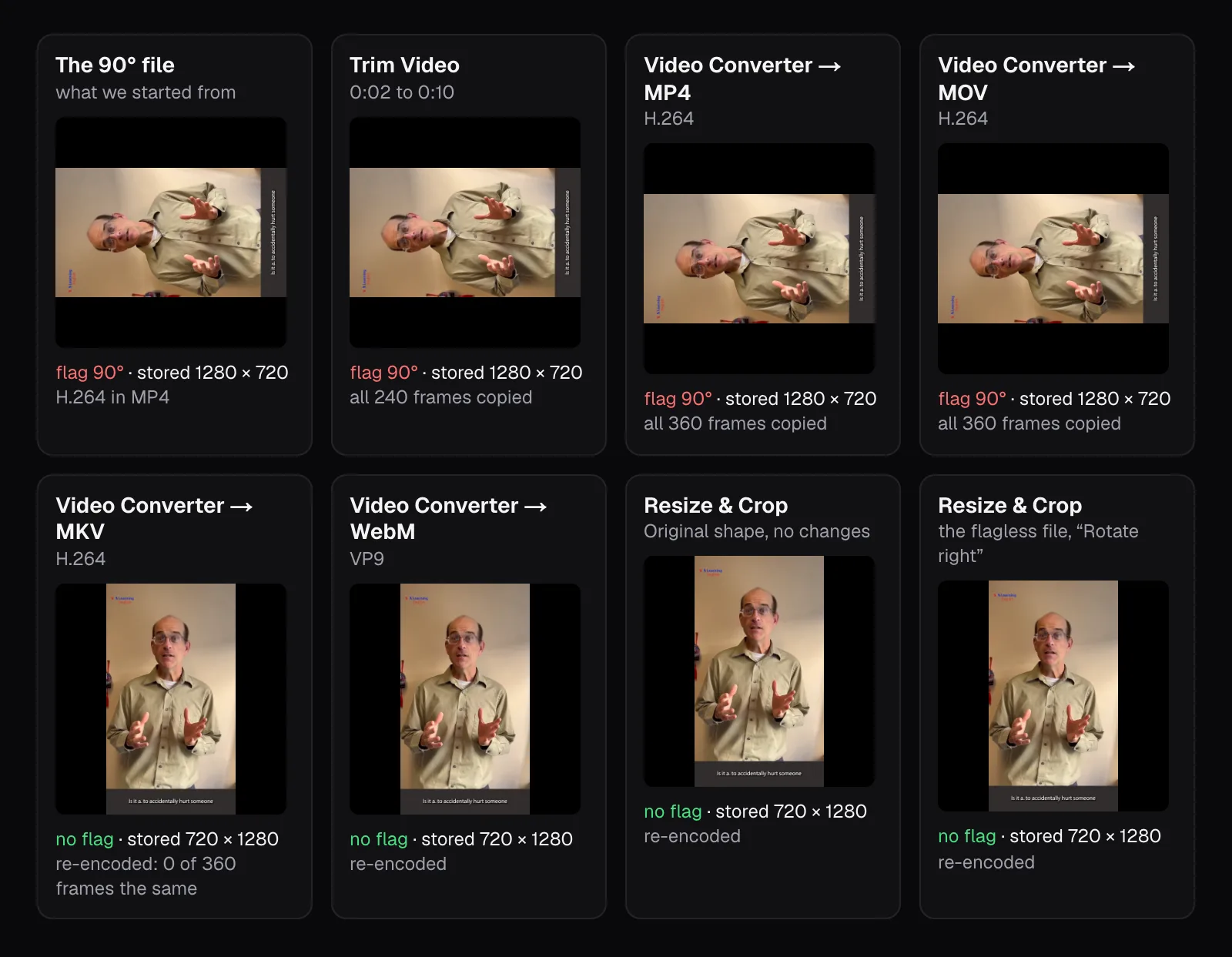
- Trim Video cut 0:02 to 0:10 and said “Lossless — the picture is copied as it is, so the export takes seconds.” All 240 frames of the result were the original's, byte for byte, still 1280 × 720 under the 90° flag. Chrome played it upright; a program that ignores flags would show it sideways, exactly like the original. Removing a part from the middle makes Trim Video re-render the picture instead, which turns it for real.
- Video Converter to MP4 or MOV copied all 360 frames, byte for byte, and the matrix with them. A format change of this kind is a new box around the same picture, so it can't fix a flag problem. An HEVC video is another matter: to MP4 or MOV with “Convert HEVC to H.264” on, as the converter's own page starts, its picture is re-encoded, and so turned upright.
- To MKV, the converter came out differently: 720 × 1280 frames, upright, no flag, and none of the 360 frames the original's. Mediabunny, the library Cutlia writes files with, doesn't put a turn into Matroska files when it converts; it re-encodes the picture upright instead. WebM can't hold H.264, so there the picture was re-encoded to VP9, and it came out upright as well. Cutlia's documentation says the same of AVI, MPG and WMV: the turn is applied before encoding, because those containers can't store one.
- Resize & Crop always re-renders the picture. With nothing changed, the 90° file came out as a 720 × 1280 MP4 whose frames stand upright as stored, with an identity matrix. The 180° eagle came out 1920 × 1080, upright, no flag.
Fix it for good: turn the picture, not the flag
A file whose frames are stored upright, with no flag, plays the same in every program, whether it reads flags or not. Making one means decoding every frame, turning it and encoding it again, which is what Resize & Crop does:
- Open the video in Resize & Crop, and choose “Original” under “Format”. The tool starts on 9:16, which crops a picture of any other shape.
- Look at the preview. If it's upright, the file's flag is right and only some other program ignores it: change nothing.
- If it's on its side, press “Rotate right” or “Rotate left” under “Rotate & flip” until it stands up; each press is a quarter turn, so an upside-down video takes two. Text that reads backward means the picture is mirrored: “Flip horizontally” mirrors it back.
- Check “Size”: it starts at 720p for a video whose short side is under 1,000 pixels and 1080p for bigger ones, and offers 1440p and 4K when the video has that much detail. Match your original's size.
- Press “Export video”. The result is an MP4 (ours held H.264 picture), named after the original with “-cutlia” added.
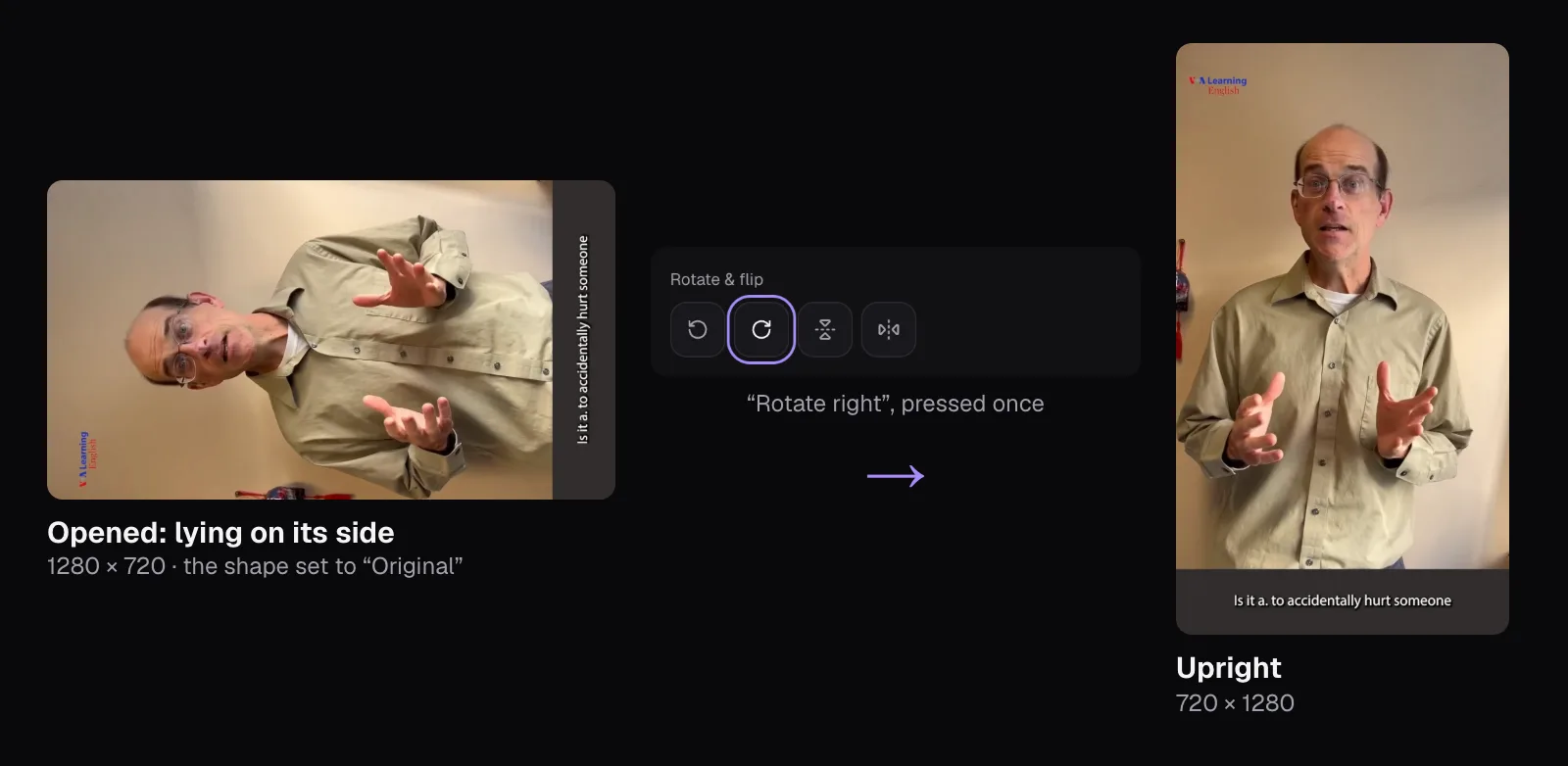
The flagless file, turned once, came out as a 720 × 1280 MP4 with an identity matrix, upright in Chrome and upright when decoded with the flag ignored, because there was no flag left to ignore. The 90° file, exported with nothing changed, came out the same way.
You can also fix it on the phone before sending, as of November 2026. Apple's iPhone User Guide has you open the video in Photos, tap the Edit button, then the Crop button, and use Rotate, which turns it “90 degrees”. In Google Photos on Android you tap “Crop”, then “Rotate”, and “Save” makes a copy with your edits. We didn't test whether these apps turn the frames themselves or only write a new flag, so if the video still lies down in the program that gave you trouble, re-encode it as above.
What the fix costs: one re-encode
Re-encoding means the encoder makes a fresh approximation of every frame, so the pixels change slightly. We compared the frame at 0:07 of Resize & Crop's upright export with the same frame of the 90° file, decoded and turned by its flag, all 921,600 pixels of it. The average difference was 0.75 of 255 levels per color channel, the PSNR (an engineering score of how close a copy is, higher meaning closer) was 45.5 dB, and 0.04% of the pixels changed by more than 12 levels. At actual size, the two are hard to tell apart.
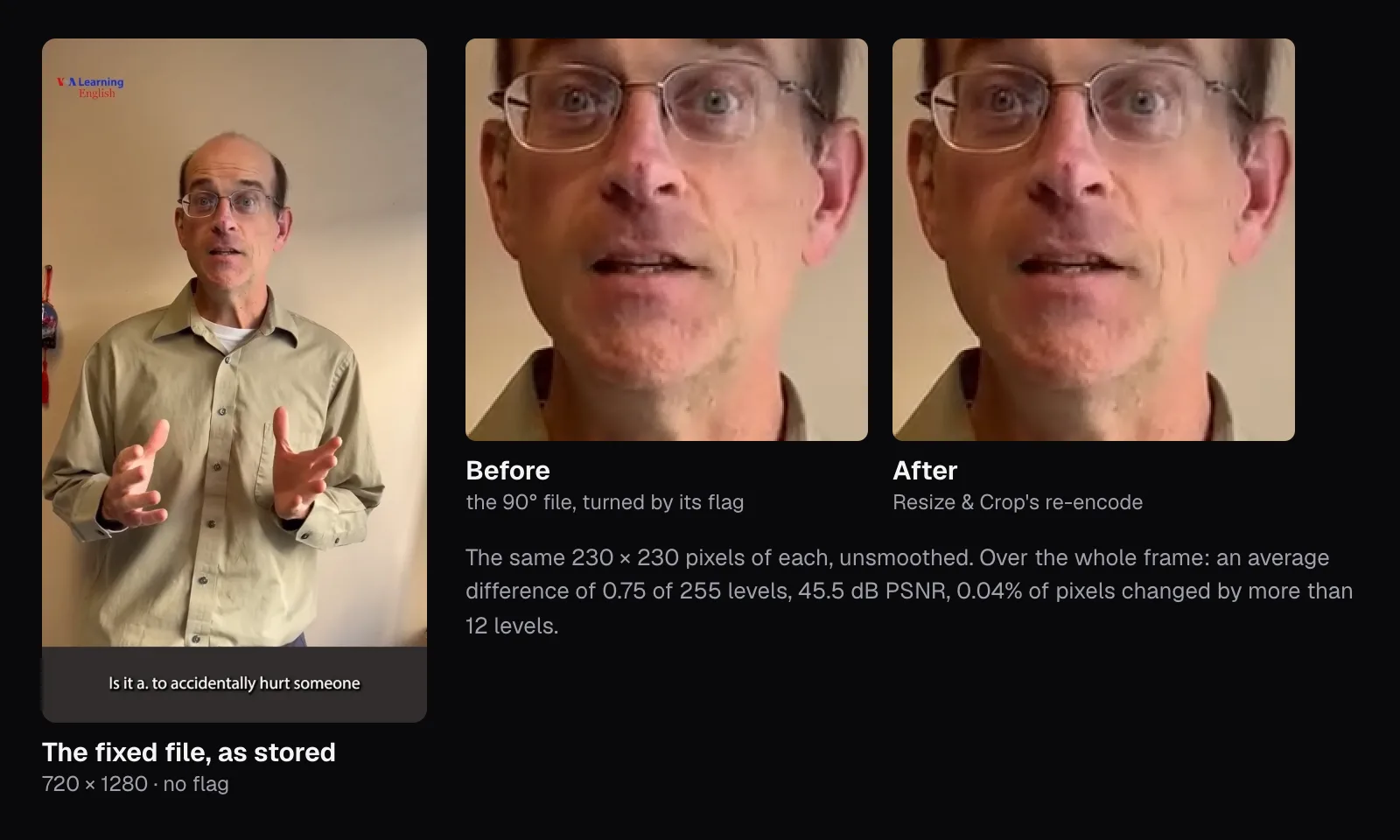
The file also got smaller: 2.9 MB against 3.2 MB for the 12-second clip, because the encoder chose its own bitrate, 1.7 megabits a second of picture against the test file's 1.9. The converter's WebM changed more, an average of 1.45 levels and 41.0 dB, re-encoded to a different codec at less than half the bitrate. The price is small, but it is a price, and every further re-encode adds to it, as our guide to compressing without visible loss measures. Do the turn in the same export as any other change, and keep the original.
Which fix to use
| What you see | Why | What to do |
|---|---|---|
| Upright on the phone and in Cutlia, sideways in one program | That program ignores the flag | Export it from Resize & Crop on “Original”, nothing turned |
| Sideways everywhere, Cutlia's preview included | The flag is missing or wrong | “Rotate right” or “Rotate left” once, then export |
| Upside down everywhere | The flag is missing or wrong by half a turn | Rotate twice, then export |
| Text reads backward | The picture is mirrored | “Flip horizontally”, then export |
| Part of the clip upright, part sideways | The phone was turned while recording | Export each part from Resize & Crop with its own turn, choosing it under “Part”, then join them with Merge Videos |
Renaming the file, trimming it without removing a middle part, or converting an H.264 video to MP4 or MOV leaves the frames and the flag exactly as they were, so none of them changes how it plays. If the video also needs a new shape, a vertical cut of a wide clip for instance, that's a different job, framing rather than turning, covered in our guide to making a horizontal video vertical; Resize & Crop does both in one export.
Questions people ask
Why is my video sideways on my computer but not on my phone?
Phones often store a video's frames as the camera sensor delivers them and add a rotation flag telling players to turn them. Your phone reads the flag; the program on your computer doesn't, or the flag was lost when the file was copied or converted. Chrome, WebKit, the Mac's Quick Look and Cutlia all read it in our test. Re-encoding the picture upright, with no flag, makes it play the same everywhere.
How do I rotate a video permanently?
Re-encode it with the turn applied to the frames themselves rather than to a flag. In Cutlia's Resize & Crop, choose the Original shape, press Rotate right or Rotate left until the preview is upright, and export: the result stores upright frames and no rotation flag, so even a player that ignores flags shows it correctly. If the preview is already upright, export without turning anything.
Does rotating a video reduce its quality?
Turning the frames means re-encoding them, which changes the picture slightly. Our upright export differed from the original by an average of 0.75 of 255 levels per color channel, with 0.04% of pixels changed by more than 12 levels, which is hard to see at actual size. Changing only the flag costs nothing, but it fixes the video only in players that read flags.
Why didn't trimming or converting fix the rotation?
Because both copied the picture and its flag together. In our test, Trim Video's lossless cut and the Video Converter's MP4 and MOV kept the original's frames, byte for byte, under the same 90° flag, so a program that showed the original sideways would show them sideways too. Only a re-encode that turns each frame, such as a Resize & Crop export, changes how the picture is stored.
Can I fix a sideways video without re-encoding it?
Yes, by rewriting the flag instead of the picture: that's how we made our test files, copying all 360 frames of a clip into a new MP4 with a new matrix in its track header. It's quick and lossless, but the result still depends on the player reading the flag. When a program ignores flags, only a re-encode with upright frames fixes it there.
Why is my video upside down?
Either its flag says 180° and the program you're using ignores it, or the file has no flag or a wrong one, so even programs that read flags show it upside down. To tell which, open it in a program that reads flags, such as Chrome. If it's upright there, re-encode it with nothing turned; if it's still upside down, rotate it twice in Resize & Crop and export.
Sources
Where the facts in this guide come from, besides our own tests:
- CameraCharacteristics: SENSOR_ORIENTATION — Android Developers
- MediaRecorder: setOrientationHint — Android Developers
- AVCaptureConnection: videoRotationAngle — Apple Developer Documentation
- AVCaptureDevice.RotationCoordinator — Apple Developer Documentation
- QuickTime File Format: Track header atom — Apple Developer Documentation
- QuickTime File Format: Matrices — Apple Developer Documentation
- MF_MT_VIDEO_ROTATION attribute — Microsoft Learn
- WebCodecs (W3C Working Draft) — W3C
- RFC 9559: Matroska Media Container Format Specification — IETF
- image-orientation — MDN Web Docs
- Crop, rotate, flip, or straighten photos and videos on iPhone — Apple Support
- Edit your videos with Google Photos (Android) — Google Photos Help
Footage in this guide
The pictures were made with Cutlia's tools from this openly licensed footage, found on Wikimedia Commons:
- To get under someones' skin — VOA Learning English, Public domain
- Bald Eagle (Haliaeetus leucocephalus) in USA — U.S. Fish and Wildlife Service, Public domain