Formats and playback
How to put a video in PowerPoint, Keynote or Google Slides so it plays on the day
We read what Microsoft, Apple and Google ask for, made two nature clips ready with Cutlia, and checked every file we made against each app’s help pages.
By the Cutlia team · Published · 16 min read

The short version
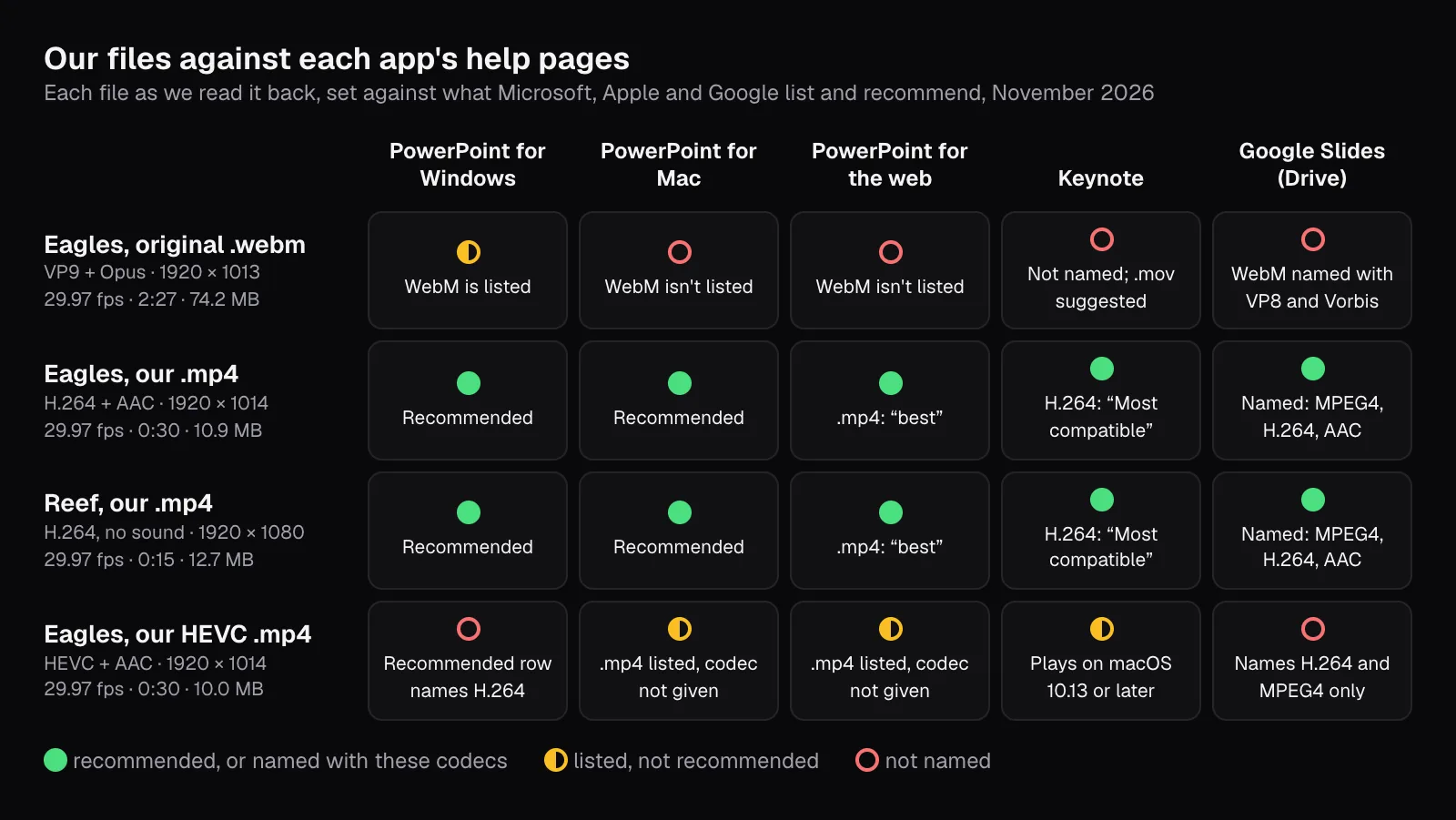
- Give PowerPoint, Keynote and Google Slides an MP4 with H.264 picture and AAC sound: it’s Microsoft’s recommendation, the codec Keynote calls “Most compatible”, and a format Google Drive, where a Slides video lives, names as playable.
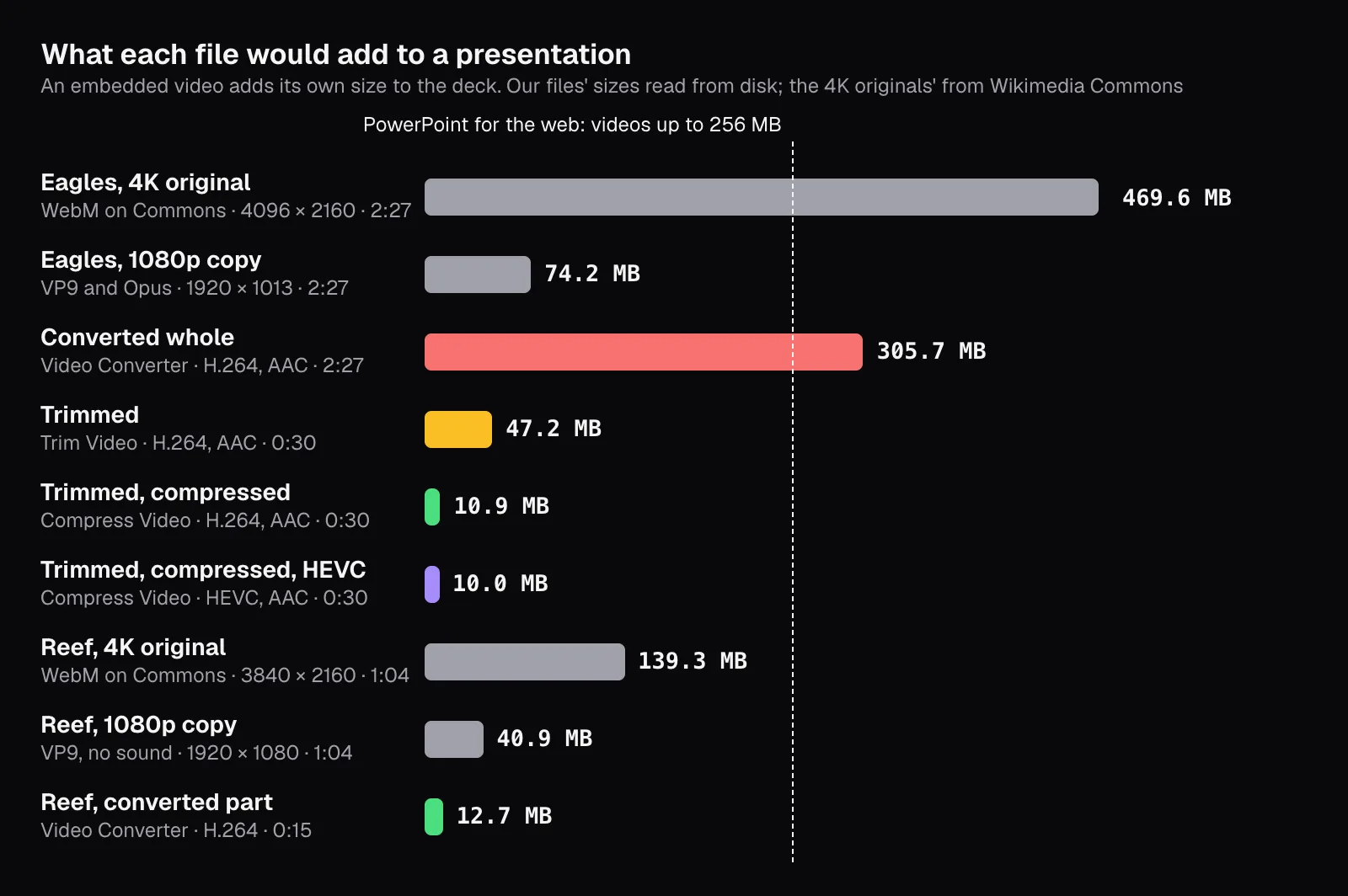
- Trim before you insert: our eagles clip converted whole made a 305.7 MB file, over PowerPoint for the web’s 256 MB limit, while the 30 seconds we needed came to 47.2 MB, or 10.9 MB compressed.
- Trim, convert and compress in a single export from the original file: Compress Video takes a start and an end too, so the picture is encoded only once.
- Embed the video in PowerPoint and Keynote so it travels inside the deck; in Google Slides it stays in Drive, so share the deck with whoever presents and upload the video well before the talk.
- Keep HEVC for decks you show yourself: it made our clip 0.9 MB smaller and kept more detail, but Microsoft’s recommendation names H.264 and Apple says HEVC movies play only on macOS 10.13 or later.
A video that plays on your own laptop can still turn into a black rectangle, an error message or a broken link when the deck opens on the computer in the meeting room. PowerPoint, Keynote and Google Slides each publish what they take, and their answers don't match: WebM is on PowerPoint for Windows' list but not on PowerPoint for Mac's, Keynote leaves the question to QuickTime, and Google Slides takes a video only from YouTube, a web address or Google Drive.
So we read the three makers' help pages as they stand in November 2026 and prepared two real clips the way they ask. One is NASA's footage of bald eagles nesting at Kennedy Space Center, a 2:27 WebM; the other is Adam Fish's drone shot of a green sea turtle over the reef at Lady Musgrave Island, Queensland, a 1:04 WebM without sound. We trimmed, converted and compressed them with Cutlia's tools in Chrome on a MacBook Air with an Apple M5 chip, read every file back and set each one against each app's list. We didn't run the three apps themselves: the comparison is with what their makers document.
What each app accepts, in its maker's words
PowerPoint gives the plainest answer. Microsoft's page of supported formats recommends, for video, “.mp4 files encoded with H.264 video and AAC audio” on Windows and on Mac alike, and its instructions for inserting a video say it again: “Use .mp4 files encoded with H.264 video (also known as MPEG-4 AVC) and AAC audio.” Past that, the versions part ways. PowerPoint for Windows also lists .m4v, .mov and .webm, and calls WMV, MPEG-2, AVI and 3GPP “limited and deprecated in PowerPoint version 2505 and above”. PowerPoint for Mac lists AVI, MPEG and QuickTime movies among others, but not WebM, and says “Windows Media files (.wmv, .wma) aren't supported on PowerPoint for macOS.” PowerPoint for the web asks for .mp4 “for best presentation quality and experience” and “supports insertion of video files up to 256 MB.”
Keynote publishes no list. Apple's user guide says video files “must be in a format that QuickTime supports on your Mac”, and if one won't add or play, to convert it with iMovie, QuickTime Player or Compressor into “a QuickTime file (with a .mov filename extension)”. Its Reduce File Size command says more. The first movie option, “Most compatible (H.264)”, converts movies to H.264, “which plays on most iOS devices, iPadOS devices, and Mac computers”. The second, HEVC, gives “the best quality at the smallest file size”, but plays only on Macs with macOS 10.13 or later and on iPhones and iPads from iOS 11 and iPadOS 13.
Google Slides asks where the video is rather than what it is. Under Insert, then Video, its help page offers three sources: “Search YouTube”, “By URL” and “Google Drive”. A file on your computer goes to Drive first, and Drive's help lists what it plays: “MPEG4, 3GPP, and MOV files (h264 and MPEG4 video codecs; AAC audio codec)”, WebM with “Vp8 video codec; Vorbis Audio codec”, then AVI, MPEGPS, WMV, FLV, MTS and OGG, under the warning “Not all video types may work on all devices.”
| App | Recommends | Also lists | Limit it states |
|---|---|---|---|
| PowerPoint for Windows | .mp4 with H.264 and AAC | .m4v, .mov, .webm; WMV, AVI and MPEG-2 deprecated from version 2505 | None on the pages we read |
| PowerPoint for Mac | .mp4 with H.264 and AAC | .avi, .m4v, .mpg, .m2v, .ts, .mov, .dif; no WMV | None on the pages we read |
| PowerPoint for the web | .mp4 | .mov, .wmv, .avi, .m4v, .mkv, .asf, .ts | 256 MB per video |
| Keynote | H.264, “Most compatible” | Whatever QuickTime plays; .mov to convert to | HEVC plays on macOS 10.13 or later |
| Google Slides | No format: video from Drive, YouTube or a URL | Drive: MP4, MOV and 3GPP with H.264 and AAC; WebM with VP8 and Vorbis; six more | Drive plays at most 1920 × 1080 |
Two clips for a talk, neither in a format the apps ask for
Both clips are on Wikimedia Commons as 4K WebM files, and we worked from the 1080p copies Commons makes of them. The eagles copy is 74.2 MB: VP9 picture and Opus sound in WebM, 1920 × 1013 at 29.97 frames per second, 2 minutes 27 seconds. The reef copy is 40.9 MB: VP9 in WebM with no sound track at all, 1920 × 1080 at 29.97 frames per second, 1 minute 4 seconds.
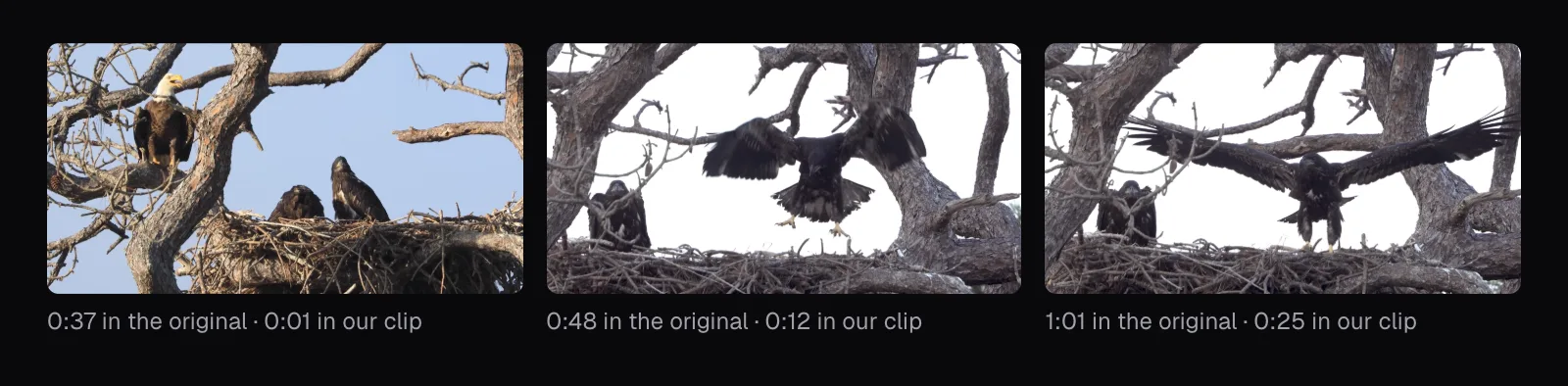
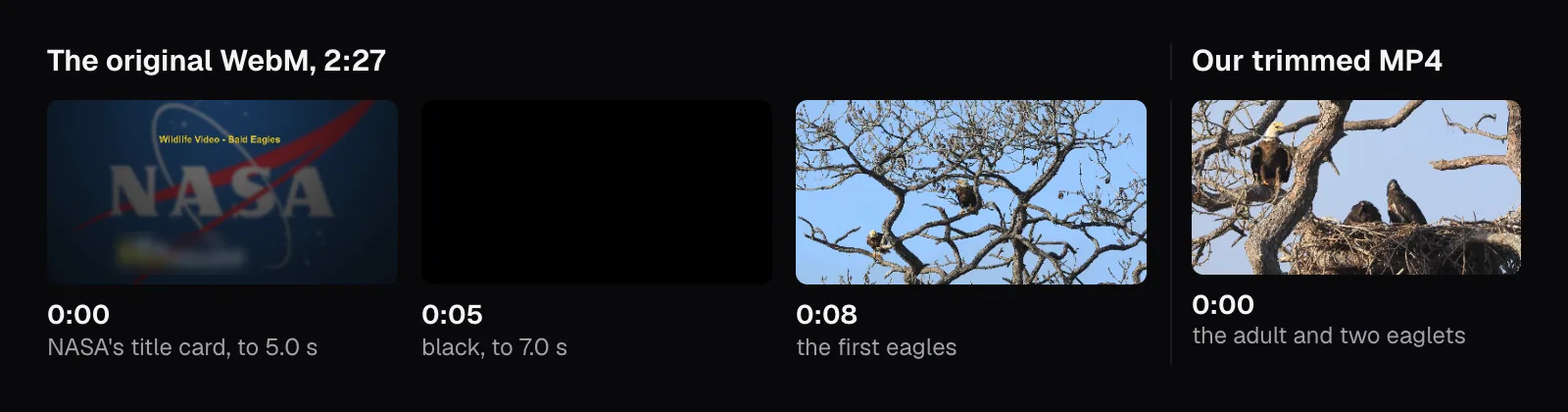
Neither would do as it was. WebM is on one of the lists above, PowerPoint for Windows', and Drive names WebM only with VP8 and Vorbis, while both files hold VP9 and the eagles' sound is Opus. The eagles file also doesn't open on eagles: its first five seconds are NASA's title card, then come two seconds of black, and the birds appear at 0:07. For a talk we wanted 30 seconds of it, from 0:36 to 1:06: an adult bald eagle on a branch above two eaglets, then a young eagle dropping onto the nest and spreading its wings. From the reef we wanted the first 15 seconds, while the turtle swims through the middle of the frame.

Trim first: the deck carries every second you keep
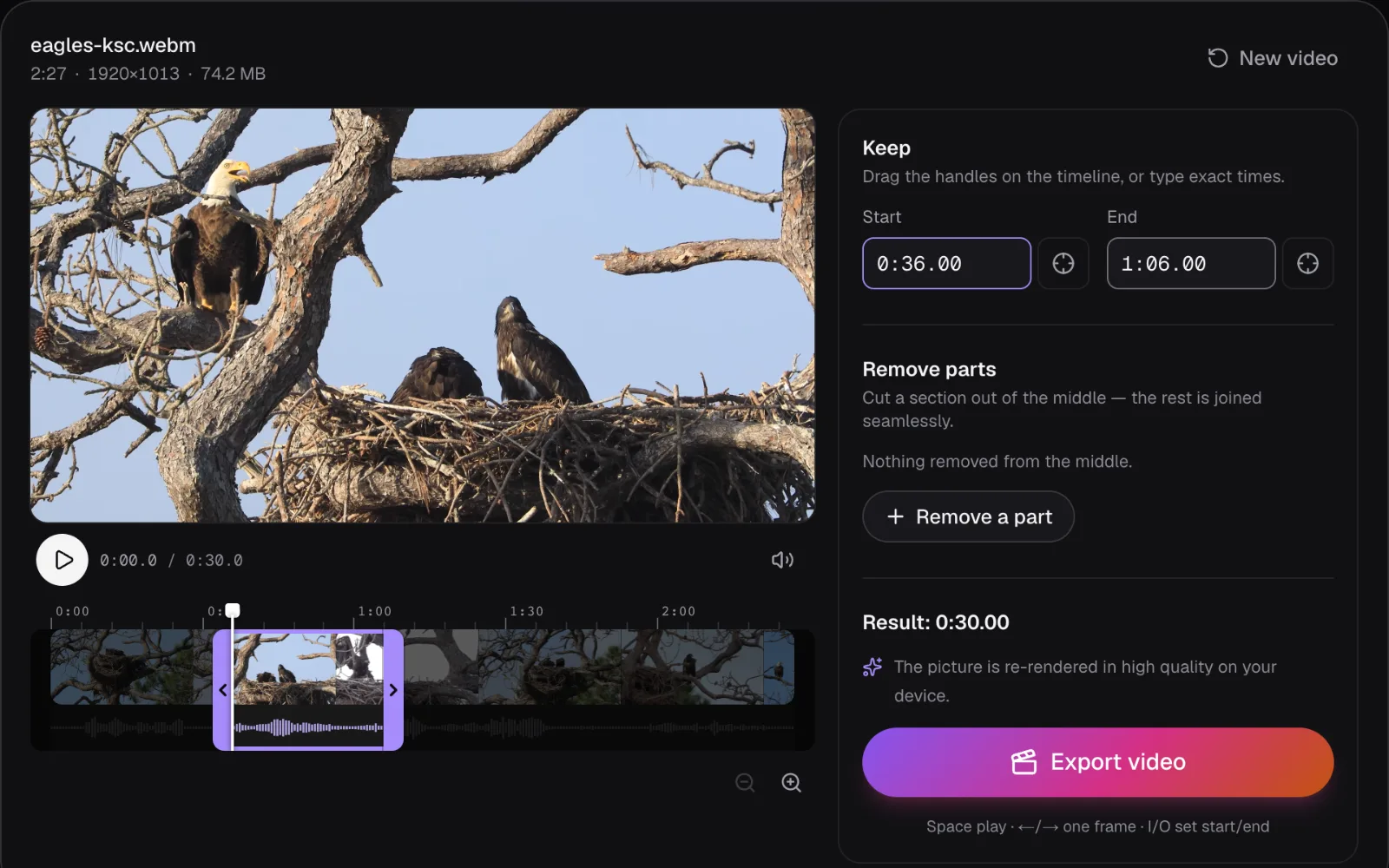
An embedded video travels inside the deck at its full length, so cutting it down comes first. We opened the eagles in Trim Video, typed 0:36 and 1:06 into its “Start” and “End” fields and exported. Trim Video always makes an MP4, and a VP9 picture isn't one it copies into an MP4, so the panel said before we began: “The picture is re-rendered in high quality on your device.” It came out as H.264 with AAC sound: the trim and the conversion were one export.
Size is the main reason to do it. Converted whole with the Video Converter, the eagles clip became a 305.7 MB MP4, more than four times the WebM it came from and past the 256 MB that PowerPoint for the web accepts. The 30 seconds we kept came to 47.2 MB. Second for second, the trim weighs about three times the WebM and the whole conversion four times, because a picture the tools can't copy is encoded again in high quality, so the copy loses as little as it can: 16.5 megabits a second for the whole clip and 12.4 for the trim, where the WebM averages 4.0. How many bits each codec needs for the same picture is what our comparison of H.264, HEVC, VP9 and AV1 measures.
The apps can trim too, with limits and extra steps. PowerPoint trims only “videos that you've inserted from your computer”, and to get a trimmed clip out as a file of its own, Microsoft says you “must compress the media and then use the Save Media as command”. Keynote's Reduce File Size has a box called “Remove trimmed parts of movies and audio”, which deletes what was trimmed away in the Format sidebar: until you use it, those parts stay in the presentation. A file trimmed before it goes in needs neither step, in any of the three apps.
Trimming also decides how the video begins. Keynote lets you choose “the frame that's displayed on a slide to represent the video” with a Poster Frame slider, but a clip that starts on the eagles leaves your audience no title card or black to sit through, whatever the app.
Convert to an MP4 with H.264 picture and AAC sound
Microsoft's recommendation names three separate things. MP4 is the container, the file that holds the tracks and an index of where every frame sits. H.264 is the codec that compresses the picture, mostly by describing each frame as changes to the frames around it, and AAC the codec for the sound. An .mp4 can hold other codecs, which is why Microsoft names all three; our guide to MP4, MOV, MKV and AVI goes through the containers.
For the reef we used the Video Converter, which starts on MP4. We set its “Part of the video” to 0:00–0:15 and changed nothing else. Its panel read “Converted to H.264 on your device.” and showed no sound settings, since the clip has no sound. On the eagles it added “Sound converted to AAC.”: the converter copies only AAC or MP3 sound into an MP4, so the Opus track was encoded again.
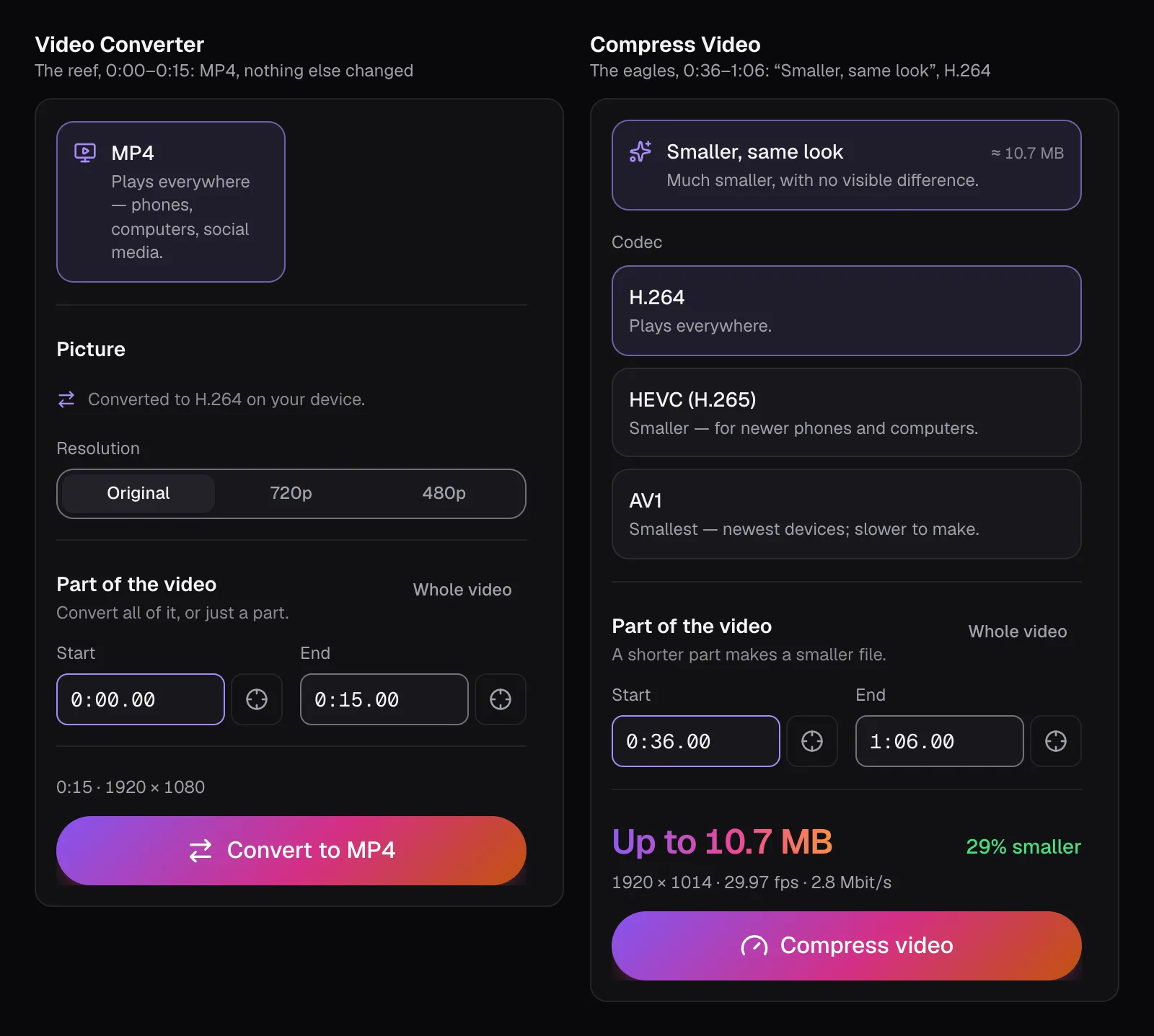
Then we read the files back. Every MP4 we made begins with an ftyp box carrying the brand isom; each H.264 picture track is labeled avc1.640028, H.264 in its High profile, and the eagles' sound tracks mp4a.40.2, which is AAC. The frame rate stayed at 29.97 per second. The reef kept its 1920 × 1080, and its 15 seconds came to 12.7 MB. The eagles came out one row taller, at 1920 × 1014: encoders need an even number of rows, so Cutlia placed the 1,013-row picture whole in the middle of a 1,014-row frame.
To see what the conversion cost, we decoded frames of each file in Chrome and compared them with the same frames of the WebM. The reef's were on average 1.0 to 1.1 levels of 255 from the original, per pixel and color, and at most 0.01% of a frame changed by more than 12 levels: a difference you'd have to measure to find.
Compress to a size the deck can carry
A 47.2 MB clip is fine on the laptop you present from but heavy in a deck you email, upload or share, and ten clips like it make a deck of nearly half a gigabyte. Microsoft's answer is Compress Media, which is in PowerPoint for Windows “but not on PowerPoint for Mac or PowerPoint for the web”, with three settings: Full HD (1080p) to “Save space while maintaining overall audio and video quality”, HD (720p), and Standard (480p) for “when you are sending presentations via e-mail.” It warns that “Embedded subtitles and alternate audio tracks are lost in this compression process.” Keynote's Reduce File Size can convert movies to H.264 or HEVC as well.
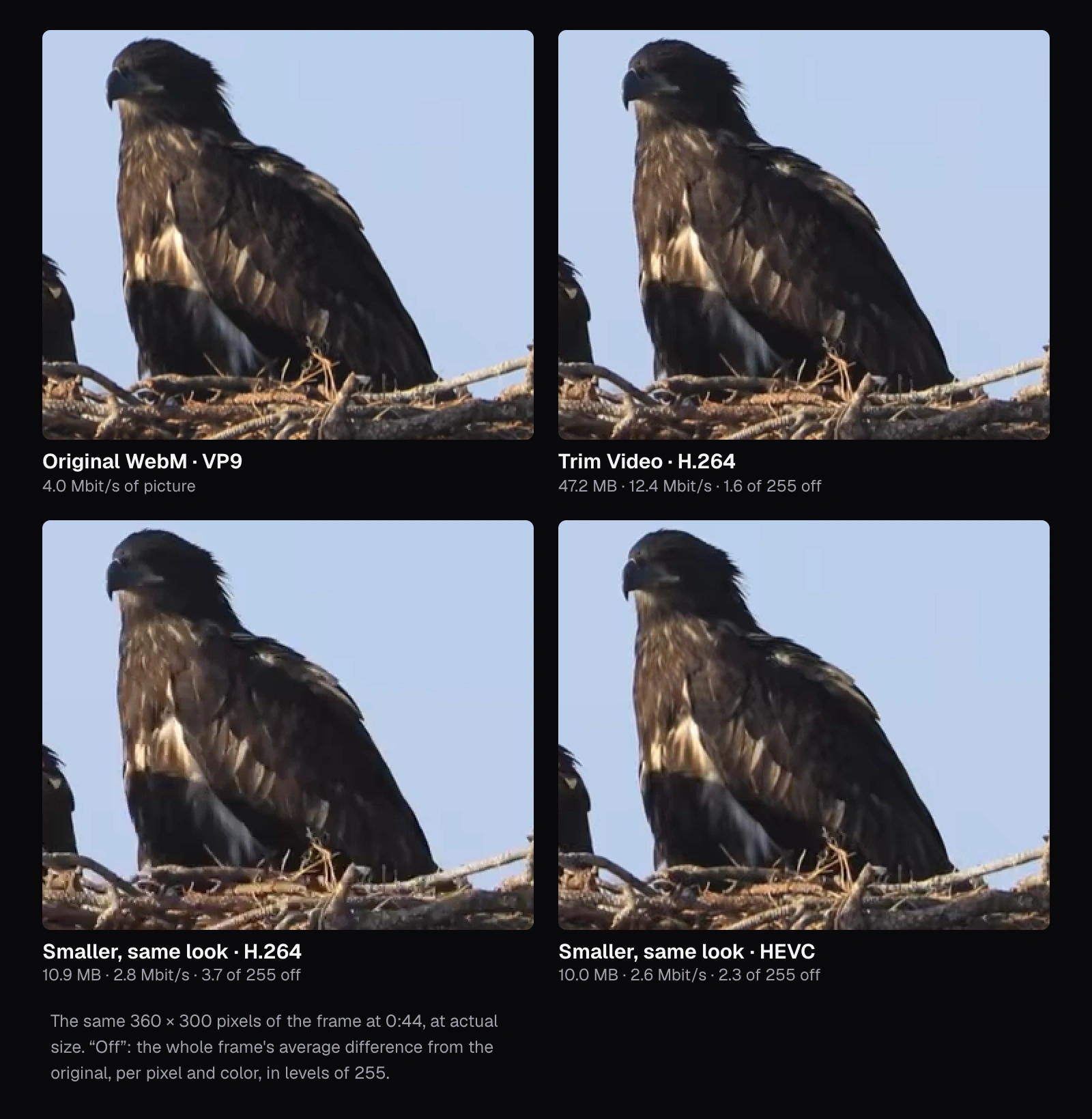
We compressed before the video went in, with Compress Video, opening the original WebM again rather than the trimmed MP4 so the picture was encoded only once. Its “Part of the video” fields took the same 0:36 and 1:06, so trimming, converting and compressing happened in a single export. On its first goal, “Smaller, same look”, with the H.264 codec, it kept the full picture at 29.97 frames per second, planned 2.8 megabits a second in all and made a 10.9 MB file, under a quarter of Trim Video's 47.2 MB.
That saving has a price you can measure. At four moments of the clip, the compressed frames were on average 2.5 to 3.7 levels from the original, and 3% to 13% of each frame changed by more than 12 levels; for Trim Video's file the figures were 1.2 to 1.6 levels and under 0.4%. Compress Video describes this goal as “Much smaller, with no visible difference.” At actual pixels, the way a 1080p projector shows the clip, we found that hard to dispute in the crops below; looked at closely or enlarged, it no longer holds: the compressed eaglet's feathers and the nest's twigs are softer. Our guide to compressing without visible loss measures where that line falls for other kinds of footage.
HEVC, 4K and size limits: what they meant for these clips
HEVC. Compress Video also offers HEVC, which this Chrome could encode. The same part on the same goal came to 10.0 MB, 0.9 MB less than the H.264 file, and kept more: 1.8 to 2.3 levels from the original, and no more than 3.1% of a frame changed by more than 12 levels. But Microsoft's recommended row names H.264, Drive names H.264 and MPEG4, and Apple says HEVC movies play only on macOS 10.13 or later, iOS 11 or later and iPadOS 13 or later. Keynote can even undo the choice: with “Optimize media for older devices” selected in its settings, it converts HEVC movies to H.264 as you add them. For a deck shown on a computer you haven't seen, H.264 is the codec every list agrees on; our guide to iPhone videos that won't play covers HEVC files from a phone.
4K. Both originals are 4K: Commons holds the eagles at 4096 × 2160 in a 469.6 MB file and the reef at 3840 × 2160 in a 139.3 MB one. The eagles original alone is over PowerPoint for the web's 256 MB. In Google Slides the extra pixels may never be seen, because Drive, where the video is stored, says its “maximum playback resolution is 1920 x 1080”. PowerPoint's Compress Media tops out at Full HD (1080p), and Keynote's “Movie Quality” sets a maximum resolution of its own. A 4K frame has about four times the pixels of a 1080p one, and on a 1080p projector those pixels add size and nothing else.
Size limits. The only limit per video we found that a clip for a slide could reach is PowerPoint for the web's 256 MB: Drive stores videos up to 5 TB, if you have that much storage. Google converts presentations to Slides “Up to 100 MB”, a size a PowerPoint deck with a few embedded videos can pass. Keynote and the PowerPoint desktop apps state no limit on the pages we read: each video simply adds its own size to the file.
Embedded, linked or in Drive: what breaks on another computer
A video in PowerPoint is embedded unless you choose otherwise, and Microsoft spells out the trade-off: “Inserting an embedded video is convenient, but it increases the size of your presentation”, while “A linked video keeps your presentation file smaller, but links can break.” Its playback tips are firmer: “It's a good idea to embed media files rather than link to them. Embedding media files will guarantee their playback.” If you must link, Microsoft says to copy the video into the same folder as the presentation before you link to it, and the two then have to travel together.
Before you send the file, PowerPoint for Windows can check it. Under File, then Info, an Optimize Compatibility button appears “If the media in your presentation was inserted in a format that might have compatibility issues when played on another device”; for linked videos it reports that they need to be embedded, and Microsoft calls running it before sending “The best solution” to a missing codec on someone else's computer, though it drops embedded subtitles and alternate audio tracks. For a deck made on a PC and shown on a Mac, the advice is to “use media with the .mp4 file format extension.”
Apple's guide names one Keynote setting for playing a presentation “on a different computer or device from the one you used to create the presentation”: in Keynote's General settings, select “Copy audio and movies into document.” The advice sits in its instructions for soundtracks, but the setting names movies too. A YouTube or Vimeo video is another matter: “You must be connected to the internet to play a video from the web.”
In Google Slides the video stays a file in Drive; Drive's own help mentions videos “played within other files, like Google Docs or Slides.” Whoever presents needs access, so Google's help for Slides walks through sharing a presentation with video in it, as Editor, Commenter or Viewer, with an access checker that suggests permissions. Drive adds two conditions: playing video there needs third-party cookies turned on, and a large file just uploaded can answer “Video is still processing. Try again later.”
Making the video start when you want it to
In PowerPoint the default start, In Click Sequence, plays the video at your next click anywhere on the slide, or the next press of the Spacebar, the Right arrow key or another key that advances the show. The Start list on the Playback tab also offers Automatically, and When Clicked On, which waits for a click on the video itself.
In Keynote a video plays when you click it, unless you clear “Start movie on click” in the Movie tab of the Format sidebar to start it with the slide. The same tab has “Play movie across slides” and a Repeat menu with Loop and Loop Back and Forth.
Google Slides “now automatically plays videos like other animation or slide transitions”. Its default, Play (on click), starts the video when you advance the slide; Play (automatically) needs no click; Play (manual) waits for a click on the video and “was previously the default”, so check an older deck, which Google suggests updating.
What to do, app by app
- Every app: start from the part you need, as an MP4 with H.264 and AAC at 1080p. For a deck that stays on your computer, Trim Video's high-quality file is enough; for one that travels, set the same start and end in Compress Video and export once. Keep the original file.
- PowerPoint for Windows or Mac: insert the file (on Windows: Insert, then Video, then This Device) and leave it embedded. On Windows, look under File, then Info, for Optimize Compatibility before you send the deck.
- PowerPoint for the web: use .mp4 and keep each video under 256 MB.
- Keynote: H.264 is the “Most compatible” choice; select “Copy audio and movies into document” before moving the deck, and keep HEVC for Macs on macOS 10.13 or later.
- Google Slides: upload the MP4 to Drive in good time, insert it from Drive, and share the deck with whoever presents. Drive plays nothing above 1920 × 1080, so a 1080p file is all it needs.
- On the day: open the deck on the computer you'll present from and play each video once, with the sound on.
If the deck itself is too big to email, our guide to sending a large video covers the limits; if your clip is already an H.264 MP4, our guide to cutting without re-encoding shows how to trim it without touching the picture.
Questions people ask
What video format works best in PowerPoint?
An .mp4 file with H.264 video and AAC audio. Microsoft recommends exactly that on its page of supported formats, for Windows and Mac alike, and PowerPoint for the web asks for .mp4 for the best quality. PowerPoint for Windows also lists .mov, .m4v and .webm. Support for WMV, AVI and MPEG-2 is limited and deprecated from version 2505, and PowerPoint for Mac doesn't take WMV at all.
Should I embed or link a video in PowerPoint?
Embed it unless the size of the deck is a real problem. Microsoft's tips say embedding guarantees playback but makes the file bigger, while a linked video keeps the file small and breaks when the video isn't where the link points. If you link, put the video in the same folder as the presentation and move them together. Trimming and compressing the video first keeps an embedded deck manageable.
Can I upload a video from my computer to Google Slides?
Not directly. Google's help for Slides offers three sources for a video: a YouTube search, a URL, or Google Drive. Upload the file to Drive first, then insert it from there. Drive lists MP4 with H.264 and AAC among the formats it plays, and plays video at most at 1920 × 1080, so a 1080p MP4 is all a slide needs. Share the deck with whoever presents it.
Why does my video play on my computer but not on the presentation computer?
Among the causes Microsoft's help names are a linked video, which didn't travel with the deck, and a codec the other computer doesn't have. It suggests running Optimize Compatibility, under File and Info, before you share a PowerPoint deck, and using .mp4 media for a deck made on a PC and shown on a Mac. In Keynote, select “Copy audio and movies into document” before moving the presentation.
How big can a video in a presentation be?
PowerPoint for the web takes videos up to 256 MB each; the pages we read give no limit for the desktop apps or Keynote, where each video simply adds its size to the deck. A Slides video stays in Drive, which stores videos up to 5 TB if your storage allows, and Google converts presentations to Slides up to 100 MB. Our 2:27 eagles clip, converted whole to MP4, came to 305.7 MB; the 30 seconds we needed, compressed, came to 10.9 MB.
Sources
Where the facts in this guide come from, besides our own tests:
- Video and audio file formats supported in PowerPoint — Microsoft Support
- Insert and play a video file from your computer — Microsoft Support
- Tips for improving audio and video playback and compatibility in PowerPoint — Microsoft Support
- Are you having video or audio playback issues? — Microsoft Support
- Compress your media files — Microsoft Support
- Trim a video, music clip, or sound clip in PowerPoint — Microsoft Support
- Add video and audio in Keynote on Mac — Apple Support (Keynote User Guide)
- Edit video and audio in Keynote on Mac — Apple Support (Keynote User Guide)
- Set movie and image formats for Keynote presentations on Mac — Apple Support (Keynote User Guide)
- Reduce a presentation’s file size in Keynote on Mac — Apple Support (Keynote User Guide)
- Insert or delete images & videos — Google Docs Editors Help
- Store & play video in Google Drive — Google Drive Help
- Files you can store in Google Drive — Google Drive Help
Footage in this guide
The pictures were made with Cutlia's tools from this openly licensed footage, found on Wikimedia Commons:
- Wildlife Video - Bald Eagles (KSC-20260313-MH-JBS01-0001-Wildlife Video Bald Eagles BROLL-M19993) — NASA Kennedy Space Center, Public domain
- Aerial view of a green sea turtle (Chelonia mydas) swimming in the reef at Lady Musgrave Island, Queensland, Australia — Adam Fish, CC BY 3.0