Formats and playback
Why won't my iPhone video play on Windows, Android or a TV?
We made an HEVC .mov from public-domain eagle footage, played it in Chrome with and without an HEVC decoder, converted it to H.264 four ways, and measured what each copy cost in size and changed in the picture.
By the Cutlia team · Published · 16 min read
The short version
- An iPhone set to High Efficiency records its videos in HEVC (H.265), and a device without an HEVC decoder can’t show the picture: in a Chrome with its HEVC decoding switched off, our .mov “played” with its clock running and not one frame of picture.
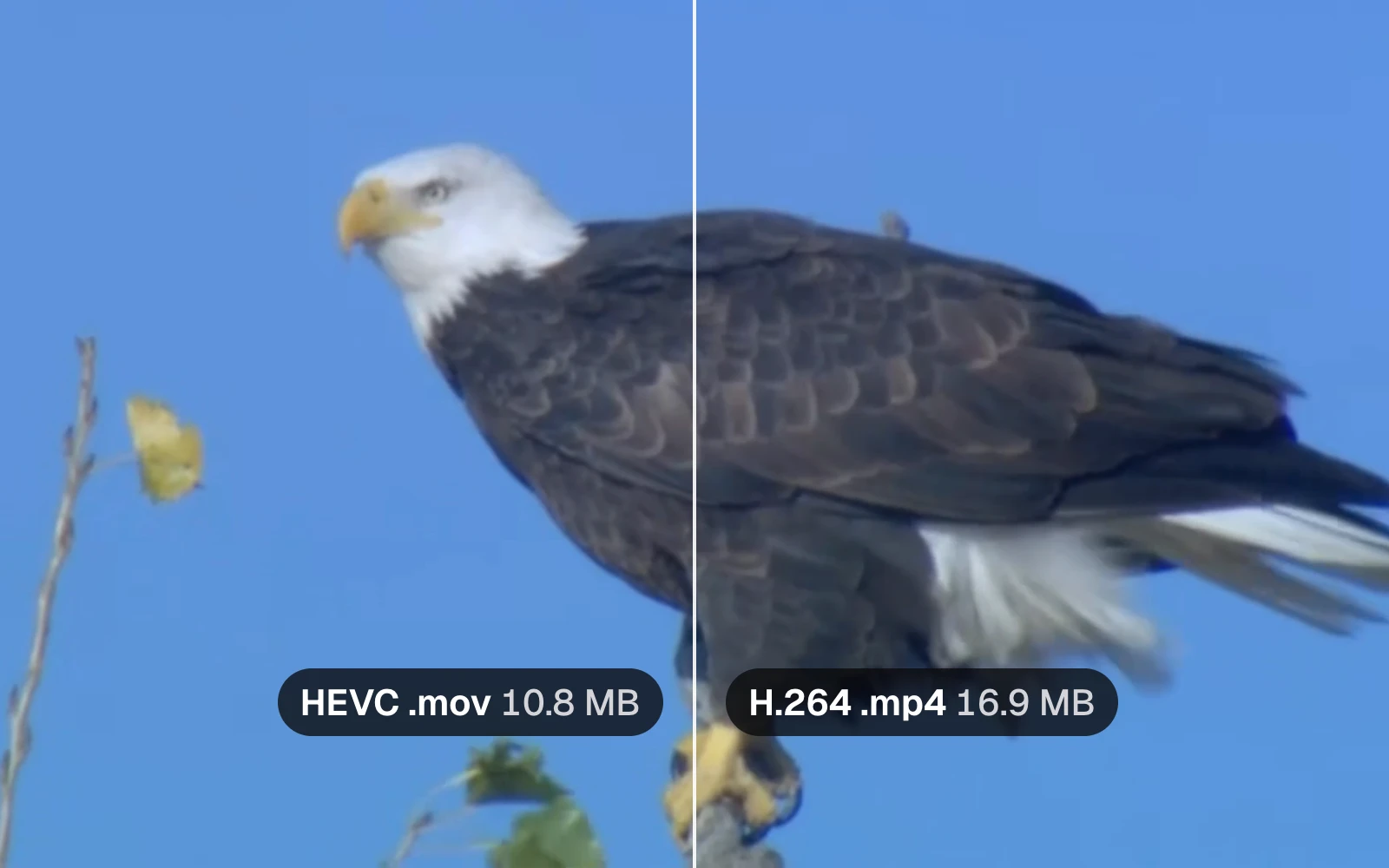
- The fix for a video you already have is converting it to H.264: on Cutlia’s HEVC to H.264 page our 52-second 1080p clip took 5.4 seconds and grew from 10.8 MB to 16.9 MB, with no change we could see in the frames we compared.
- If the H.264 file also has to be small, choose 720p on the same page (10.3 MB) or use Compress Video (7.1 MB): both came out smaller than the HEVC original, for slightly more change to the picture.
- To stop the problem at the source, set the iPhone’s Settings › Camera › Formats to Most Compatible, which Apple says records new videos in H.264 — at the cost of larger files on the phone.
- A Windows PC of your own can play HEVC after installing Microsoft’s HEVC Video Extensions ($0.99 in the US Microsoft Store in November 2026), but that fixes only that PC, not the people you send the video to.
On the iPhone that filmed it, the video looks perfect. Copied to a Windows laptop, it can play sound over a black rectangle; a smart TV can call the file unsupported; another phone can show a thumbnail that won't open. The file itself can be perfectly fine. What the other device lacks is a decoder for the way the picture was compressed: HEVC, the codec an iPhone records with when its camera is set to High Efficiency, often in HDR.
To show what happens and what the fix costs, we made an HEVC video ourselves, from public-domain footage anyone can check: 52 seconds of a bald eagle filmed by the U.S. Fish and Wildlife Service, 1920 × 1080 at 23.976 frames per second. We played it in Chrome with and without an HEVC decoder, converted it to H.264 four ways with Cutlia's tools, and compared five frames of every copy with the HEVC file, pixel by pixel. Everything ran in Chrome 157 on a MacBook Air with an Apple M5 chip, and no file left that laptop.
What High Efficiency records: HEVC in a .mov
Apple added support for HEVC (High Efficiency Video Coding, also called H.265) in iOS 11 and macOS High Sierra, and every iPhone from the iPhone 7 on can record it. Its support page explains the appeal plainly: HEVC and its photo counterpart HEIF “offer better compression than JPEG and H.264, so they use less storage space on your devices and iCloud Photos, while preserving the same visual quality.”
Apple's developer notes say the Camera app saves its videos as QuickTime movies, with the .mov extension, but the extension doesn't tell you which codec is inside. A .mov (the QuickTime format, which MDN notes Apple created for its media framework of the same name) or an .mp4 is a container, a box for the picture, the sound and the timing; the codec is the method that compressed the picture, and it's the codec a player must understand. That's why two .mov files can behave in opposite ways, and why renaming one to .mp4 changes nothing. Our guide to containers covers the boxes; the guide to codecs measures how much smaller HEVC really makes a picture than H.264.
Many iPhone videos carry a second layer: HDR. Apple's iPhone guide says supported models record video in Dolby Vision HDR. Apple's developer notes describe that format as Dolby Vision Profile 8.4: 10-bit HEVC built on HLG (hybrid log-gamma, one of the two ways of coding HDR brightness in Android's table of HDR formats; the other is PQ), designed so that HEVC decoders without Dolby Vision can still play it as HLG. An HDR iPhone video therefore needs a decoder that handles 10-bit HEVC, not only the 8-bit kind.
Our test file is a stand-in, made with Cutlia: Compress Video encoded the eagle as HEVC (it offers that codec where the browser can encode it), and the MP4 to MOV page copied it into a .mov. The result is 10.8 MB of HEVC at 1.67 Mbit/s with AAC sound. We also asked this Chrome what its encoders can make: 8-bit HEVC (the Main profile) yes, at 1080p and at 4K; 10-bit HEVC (Main 10), the kind an HDR iPhone video uses, no. So our file is standard range, and what this guide says about HDR comes from Apple's pages and Cutlia's code, not from a test file.
If your video shows a picture but has no sound, that's a different problem: Why does my video play with no sound, and how do I fix it?.
What a player does when it can't decode HEVC
Whether Chrome plays HEVC depends on the computer. MDN's codec guide, as of November 2026, says Chrome supports HEVC “for devices with hardware support on Windows 8+, Linux and ChromeOS”, and for all devices on macOS Big Sur and later and on Android 5.0 and later. On this MacBook Air it does: asked through the browser's media interfaces, it reported that it can play and decode HEVC, 10-bit 4K included.
As a stand-in for a computer without an HEVC decoder, we started a second copy of the same Chrome with its HEVC decoding switched off (a command-line switch, --disable-features=PlatformHEVCDecoderSupport). That Chrome said it couldn't play or decode HEVC at all, while it still said it could play H.264. Then we opened our .mov in each browser's own video player and started it playing.
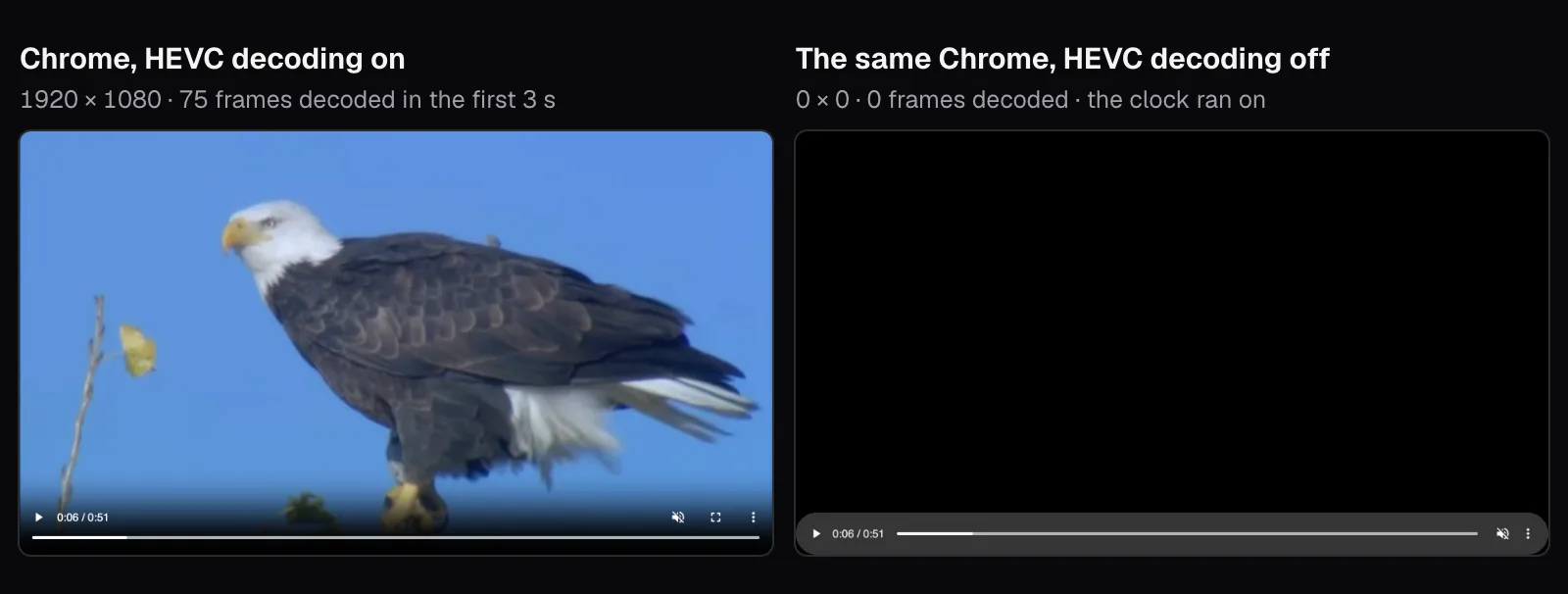
Both players said they were playing, and in both the clock ran: 3 seconds into playback, the one without a decoder stood at 0:02.6. But where the first had decoded 75 frames of a 1920 × 1080 picture, the second had decoded none and reported a picture of 0 × 0 pixels. It had decoded the AAC sound track, and its player showed the controls it shows for a sound file, without a full-screen button. (The eagle clip's sound is all but silent, peaking 75 dB below full scale, so there was nothing to hear; with an iPhone video you'd hear its sound over the black.)
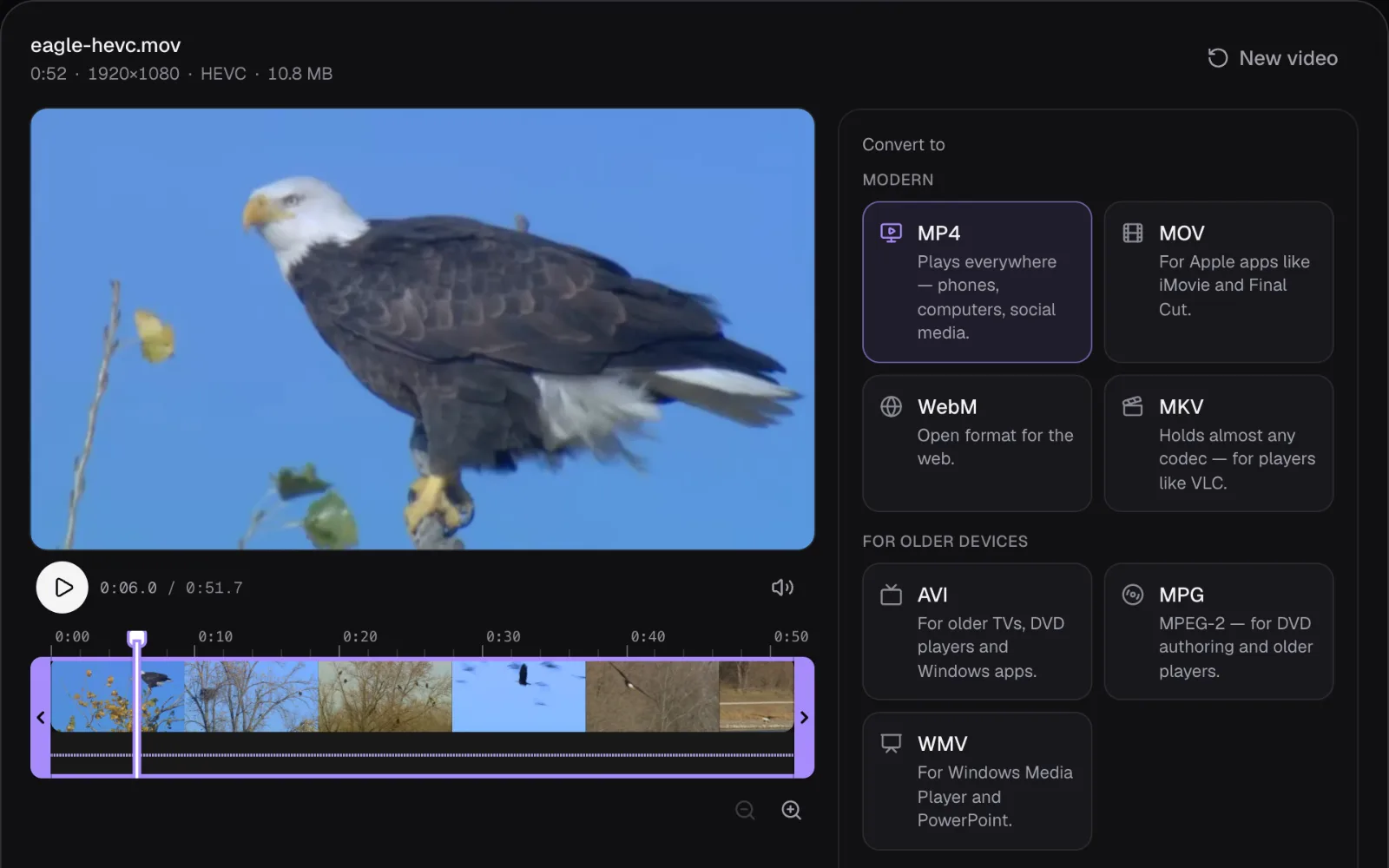
Other players fail differently. Windows Media Player may show an error instead: Microsoft says its errors numbered 0xC00D11xx “typically occur when there is a problem with audio or video codecs”. A file browser needs to decode a frame to draw a video's thumbnail, so without a decoder it may show none. To find out what a file holds, open it on Cutlia's HEVC to H.264 page: the line under its name names the codec before you convert it, as in the screenshot further down, and nothing is uploaded to read it.
Where HEVC plays in November 2026
Windows. Microsoft's troubleshooting page for Windows Media Player lists the video formats Windows supports “out of the box”: “MPEG-4 (H.264), H.263, VC-1, WMV, DV, VP8, and Motion JPEG”. HEVC is in the next list, of additions from the Microsoft Store: the HEVC Video Extension “adds support for the HEVC (H.265) video format”. Its Store listing, HEVC Video Extensions, cost $0.99 in the US store when we checked, and says it's designed to use the hardware of some newer PCs, “including those with an Intel 7th Generation Core processor and newer GPU”, for 4K; on PCs without hardware support for HEVC it decodes in software, and “the playback experience might vary based on the video resolution and PC performance.” To see whether a PC already has it, Microsoft's HDR page says to open Settings, select Apps › Apps & features and search for “video extension”.
That explains a puzzling case: an HEVC video that plays in Chrome on a PC but not in Windows' own player. MDN lists Chrome's HEVC support on Windows as depending only on the PC's hardware, while for Edge it adds that the HEVC Video Extensions must be installed; Windows' own players rely on the extension too.
Android. Google's list of formats built into Android includes an HEVC decoder from Android 5.0, in MP4 and Matroska (.mkv) files; .mov isn't among the file types it names. The Android 16 compatibility rules make an HEVC decoder compulsory for handheld devices such as phones, but the minimum they guarantee is small: Main Profile Level 3 and standard-definition video, up to 720 × 480 at 30 frames per second. HEVC at HD sizes, 720p and 1080p, is required only “if there is a hardware decoder”. Whether a 4K iPhone video plays is up to the phone. HDR is optional too: only devices that support HDR must play HLG, as 10-bit HEVC, and Google lists Dolby Vision among the formats a manufacturer may add.
TVs and older devices. TVs differ by model, and no single list covers them. The nearest thing to a rule is Apple's advice about its own older devices: “On some older devices, support for HEVC is affected by the resolution and frame rate (fps) of the video. Resolutions of 1080p or lower and frame rates of 60 fps or lower are more broadly compatible with older devices.” A TV whose decoder stops at 1080p shows the same pattern: some iPhone videos play, and the 4K ones don't.
| Where | H.264 | HEVC, as its maker documents it |
|---|---|---|
| Windows' own players | Out of the box | With the HEVC Video Extensions from the Microsoft Store |
| Chrome on Windows | Yes | On PCs whose hardware decodes HEVC (MDN) |
| Android phones | Required decoder | Required at SD; 720p and 1080p required only with a hardware decoder |
| Apple devices | Yes | From iOS 11 and macOS High Sierra; on some older models, depending on resolution and frame rate |
Converting to H.264: what the HEVC to H.264 page does
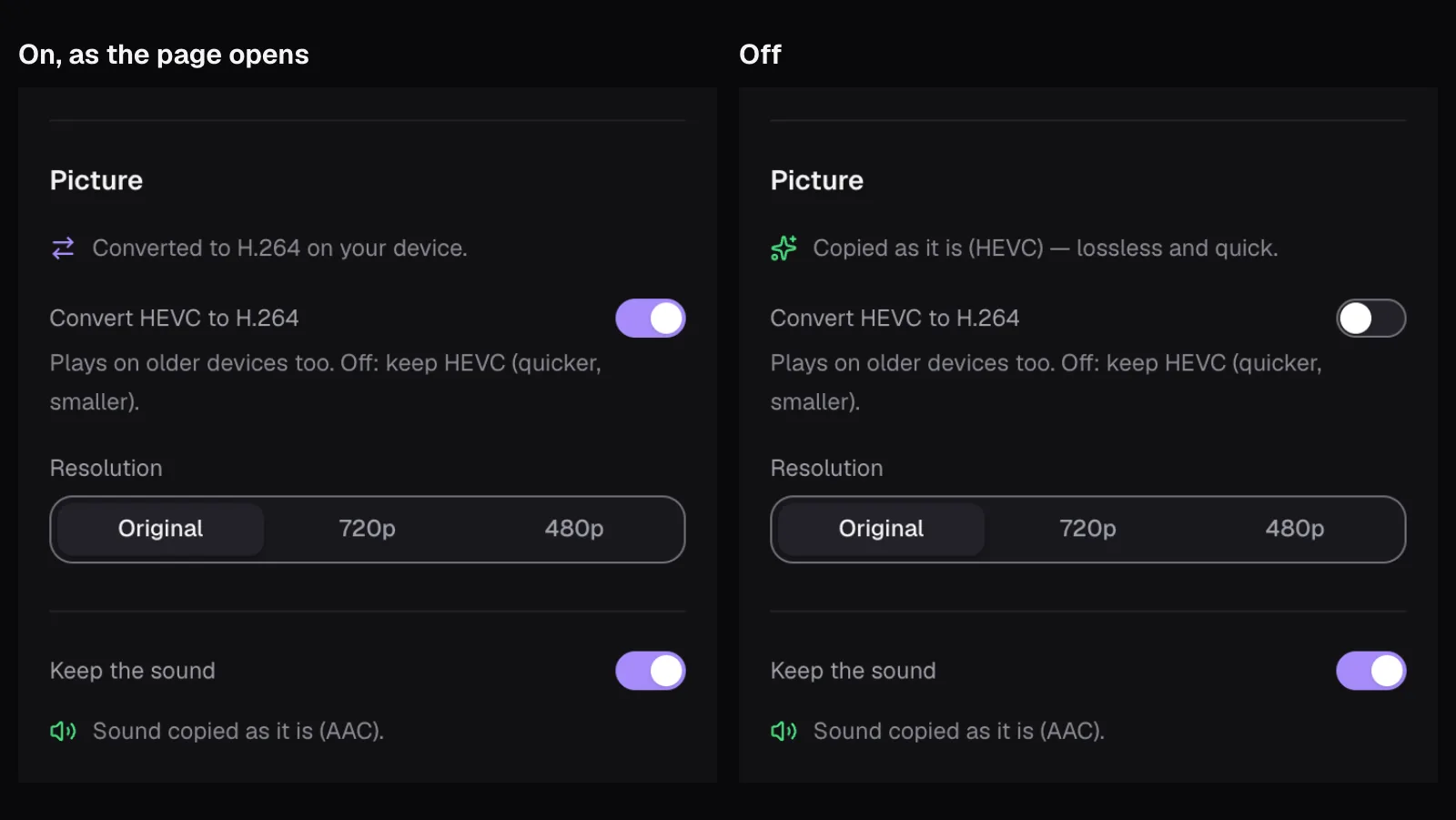
Converting means decoding every frame of the HEVC picture and compressing it again as H.264, the codec every row of the table above plays. On the HEVC to H.264 page, MP4 is chosen and the “Convert HEVC to H.264” switch is on as the page opens. Our .mov opened in 0.3 seconds, because this Chrome decodes HEVC itself, and the page showed what it would do before we pressed anything: the picture “Converted to H.264 on your device” and the “Sound copied as it is (AAC)”.
In Cutlia's code, the switch decides whether the picture is copied or rebuilt. On, each frame is decoded by the browser, drawn and handed to the browser's H.264 encoder, at the High profile where the browser offers it, with a keyframe (a frame stored whole, which a player can start from) every 2 seconds. The encoder is asked for a high quality rather than a target size, so the size follows from the footage. Off, the HEVC packets are copied into the MP4 untouched: a different box, the same codec.
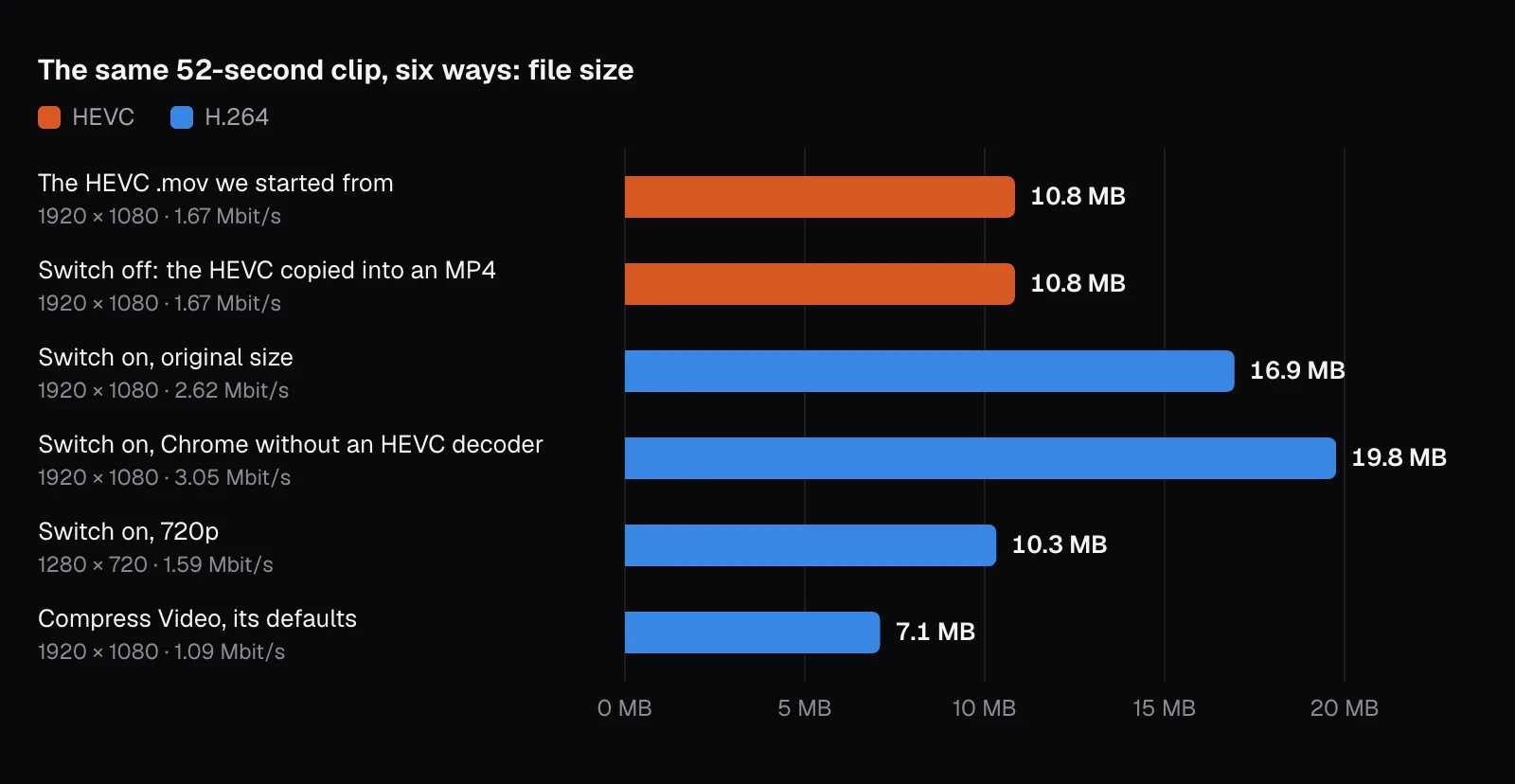
We converted the .mov in four ways on that page and in Compress Video:
| What we did | Picture | Size |
|---|---|---|
| The HEVC .mov we started from | HEVC, 1920 × 1080, 1.67 Mbit/s | 10.8 MB |
| Switch on, original size | H.264, 1920 × 1080, 2.62 Mbit/s | 16.9 MB |
| Switch on, 720p | H.264, 1280 × 720, 1.59 Mbit/s | 10.3 MB |
| Switch off | HEVC, copied | 10.8 MB |
| Compress Video, its defaults | H.264, 1920 × 1080, 1.09 Mbit/s | 7.1 MB |
At full size the conversion took 5.4 seconds, the middle of three runs (8.0, 5.4 and 5.4). With the switch off, the copy was ready almost at once and saved nothing: it helps only with a program that rejects the .mov container itself, never with a device that has no HEVC decoder.
What converting cost: size and pixels
At its original size, the H.264 file came out 1.6 times as big as the HEVC one: 16.9 MB against 10.8 MB, 2.62 Mbit/s against 1.67. Part of that is the codec, since H.264 needs more data than HEVC for the same detail; part is the converter's setting, which aims to keep the picture rather than to hit a size. If the file has to be small as well as playable, there are two ways, both of which came out smaller than the HEVC original: 720p on the same page, at 10.3 MB, or Compress Video, whose default goal, “Smaller, same look”, made a 7.1 MB H.264 MP4 at full size in one step.
Size is half the cost; the other half is what re-encoding changes. Each conversion decodes the picture and compresses it again, and that second compression discards a little more. To measure how much, we took five frames from each file (the perched eagle close up, a nest in a bare tree, the eagle on a branch and two moments in flight), as Chrome draws them, and compared them with the same frames of the HEVC .mov, pixel by pixel. The measure, PSNR (peak signal-to-noise ratio), is in decibels: the higher, the closer two pictures are, and identical pictures would score infinity. We also counted the pixels in which a color channel moved by more than 12 steps on its scale of 0 to 255, a change large enough to look for.
- Original size: 46.5 to 51.3 dB, and at most 54 of a frame's 2,073,600 pixels moved by more than 12 steps.
- 720p: 44.9 to 49.5 dB, scaled back up to 1080p for the comparison, so this includes what the smaller size lost.
- Compress Video: 42.5 to 49.5 dB, the lowest in the frame of the perched eagle, where 1,411 pixels (0.07%) moved by more than 12 steps.

Side by side, enlarged, we couldn't point to a difference between the HEVC and the full-size H.264. The 720p copy is the one that looks softer when enlarged like this, because it has fewer pixels to start with. Each further conversion adds a little change, though, so always convert from the file the iPhone made, not from an earlier copy, and convert once.
When the browser can't decode HEVC either
A converter in a browser has the same problem as the player: to re-encode HEVC it first has to decode it. Cutlia's answer, in its code, is a second route. When the browser can't decode a file's picture, Cutlia converts the file as it's opened, with FFmpeg's decoder compiled to WebAssembly, running on the computer's processor instead of its video hardware. The pictures are then encoded as H.264 by the browser, which still has an H.264 encoder.
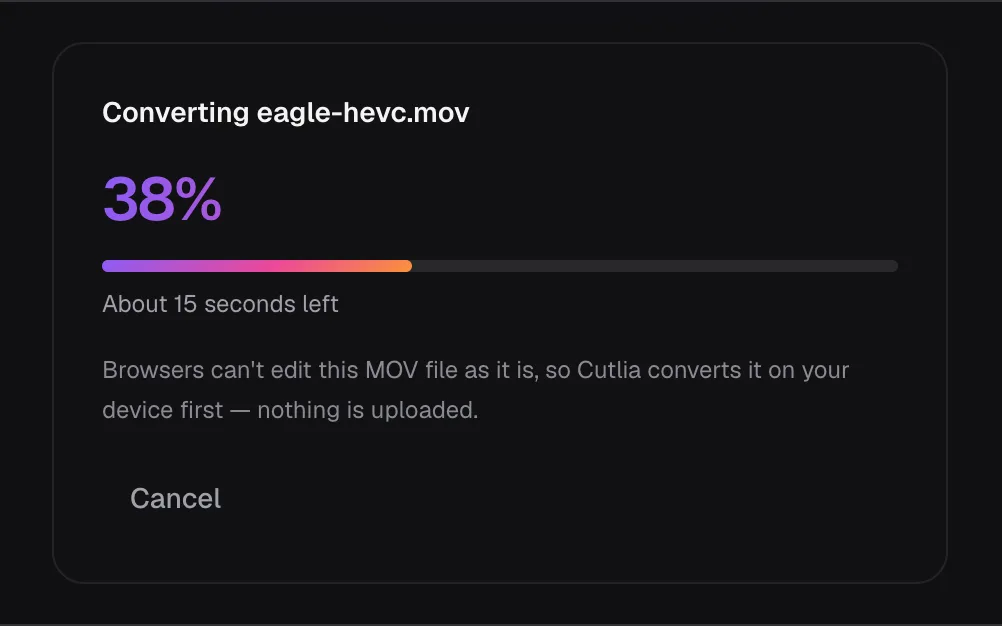
We opened the .mov on the HEVC to H.264 page in the Chrome with its HEVC decoding switched off. It worked, slowly: opening took 17.3 seconds in each of three runs, against 0.3 seconds where Chrome decodes HEVC itself, and the whole job took far longer than the 5.4-second conversion in the Chrome that decodes HEVC. Once open, the editor said the picture would be “Converted to H.264 on your device”, and “Convert to MP4” was done almost at once, because the H.264 made on opening was simply copied. Our clip was 52 seconds of 1080p; decoded this way, without the computer's own HEVC decoder, 4K takes Cutlia more than a minute for every minute of video.
The result was also less faithful: 19.8 MB at 3.05 Mbit/s, larger than the other route's 16.9 MB, and only 32.6 to 37.5 dB against the HEVC frames, against 46.5 to 51.3. Most of that difference is a shift in color across the whole picture rather than lost detail: on average, depending on the frame, the red channel came out about 3 to 10 steps lower (on the 0-to-255 scale), green about 2 to 3 lower and blue up to about 4 lower. It's a measurable change, so where you have the choice, convert in a browser that decodes HEVC itself.
HDR iPhone videos: Dolby Vision, HLG and what survives
HDR adds its own compatibility problem on top of the codec. Apple says an iPhone shares HDR video as HDR with devices on iOS 13.4, iPadOS 13.4, macOS 10.15.4 or later, while “other devices receive an SDR version of the same video”. When you convert the file yourself, it's the converter that decides what an HDR picture turns into.
Apple's developer notes describe the job: “Down-converting 10-bit HDR to 8-bit SDR involves two independent transformations: HDR to SDR color space conversion and 10-bit to 8-bit bit-depth conversion.” The first fits HDR's wider range of brightness and color into what a standard screen shows (tone mapping); the second reduces the number of steps per color. Here is what Cutlia's code does with each:
- Switch on, in a browser that decodes HEVC: each frame is drawn onto an ordinary 8-bit, standard-range canvas and encoded from there as 8-bit H.264. Cutlia has no tone-mapping step of its own; fitting an HDR frame's colors into that canvas is left to the browser's drawing. Whatever the original was, the result is a standard-range file.
- In a browser that can't decode HEVC: the converter that runs on opening reduces the picture to 8 bits and does no tone mapping at all: Cutlia's code converts it as it is. The brightness values written for an HDR curve are kept as they are and played back as standard range, so expect the colors and contrast of an HDR video not to match the iPhone's.
- Switch off: the HEVC packets are copied as they are, HDR or not. The picture isn't re-encoded, and nothing is fixed: it's still HEVC.
Which fix to use
It depends on how the video travels and how often this happens:
- Share it the Apple way. By AirDrop, Messages or email, Apple says the video “might automatically be shared in a more compatible format, such as JPEG or H.264” when the receiving device needs it. iCloud Photos is different: it keeps the original format, so expect HEVC from it.
- Import over USB. When a PC imports from a connected iPhone, Apple says the media might be converted to H.264, unless Settings › Apps › Photos is set to “Keep Originals”.
- Export on a Mac. QuickTime Player's File › Export As offers “Greater Compatibility (H.264)” in place of “Smaller File Size (HEVC)”.
- Convert it anywhere else. On the HEVC to H.264 page, leave the switch on; choose 720p for an older TV or phone, or when the file must stay small. To send it by email or chat, use Compress Video instead, which makes a small H.264 in one step (see How to send a large video by email, WhatsApp or Discord). The general Video Converter works the same way for other formats.
- Add the decoder on your own Windows PC. HEVC Video Extensions lets that PC's apps play the file. It doesn't help the next person you send it to.
To change what the iPhone records from now on, Apple's steps are: open Settings, tap Camera, tap Formats, then tap Most Compatible. Apple says all new photos and videos then use JPEG or H.264, and choosing High Efficiency switches back. The setting only exists on models that can record HEVC, and it doesn't touch the videos already in your library. For older devices, Apple also points to the resolution and frame rate under Settings › Camera › Record Video.
| Where your videos usually go | Camera format | Why |
|---|---|---|
| Other Apple devices, AirDrop, Messages | High Efficiency | Apple's sharing can convert when the other side needs it |
| A Windows PC of your own | High Efficiency | Add HEVC Video Extensions once, keep the smaller files |
| Clients, schools, other people's PCs | Most Compatible | You can't install anything on their side |
| A TV, from a USB stick | Most Compatible, at 1080p | No HEVC decoder needed, and 1080p asks less of an older TV than 4K |
If you're unsure, leave High Efficiency on and convert the occasional video that needs it: our 52 seconds took 5.4 seconds, while Most Compatible makes every recording larger whether anyone else watches it or not.
Questions people ask
Why does my iPhone video play sound but show a black screen?
The player can decode the AAC sound but has no decoder for the HEVC picture, so it plays the file as if it were only sound. We saw exactly that in a Chrome with its HEVC decoding switched off: the clock ran, no frame was decoded. Add an HEVC decoder to that device, or convert the video to H.264.
Does converting HEVC to H.264 lower the quality?
It changes the picture a little, as any re-encoding does, but in our test not visibly: at full size the H.264 frames measured 46.5 to 51.3 dB against the HEVC ones, and at most 54 of a frame’s two million pixels changed by more than 12 steps on the 0-to-255 scale. The cost is size: 16.9 MB instead of 10.8 MB. Always convert from the original file.
Why does my HEVC video play in Chrome but not in Windows’ player?
MDN lists Chrome’s HEVC support on Windows 8 and later as depending only on the PC having hardware for it. Windows’ own players need Microsoft’s HEVC Video Extensions from the Microsoft Store, which cost $0.99 in the US store in November 2026. Without either, convert the video to H.264, which Windows plays out of the box.
Should I set my iPhone camera to Most Compatible?
Only if your videos mostly go to devices you don’t control, such as other people’s PCs or a TV. Apple says Most Compatible records new photos and videos as JPEG and H.264, formats it calls more broadly compatible, while High Efficiency saves storage. It doesn’t convert videos already on the phone.
Can I just rename the .mov file to .mp4?
No. Renaming changes the name, not the codec: the picture inside is still HEVC, so a device without an HEVC decoder still can’t show it. Copying the HEVC into a real MP4, as Cutlia’s converter does with its switch off, helps only with programs that reject the .mov container itself.
Sources
Where the facts in this guide come from, besides our own tests:
- Using HEIF or HEVC media on Apple devices — Apple Support
- Change video recording settings on iPhone — Apple Support (iPhone User Guide)
- Adjust HDR camera settings on iPhone — Apple Support (iPhone User Guide)
- Incorporating HDR video with Dolby Vision into your apps — Apple Developer
- Troubleshoot Windows Media Player errors — Microsoft Support
- Codecs FAQ — Microsoft Support
- What is HDR in Windows? — Microsoft Support
- HEVC Video Extensions — Microsoft Store
- Supported media formats — Android Developers
- Android 16 Compatibility Definition — Android Open Source Project
- Web video codec guide — MDN Web Docs
- Media container formats (file types) — MDN Web Docs
Footage in this guide
The pictures were made with Cutlia's tools from this openly licensed footage, found on Wikimedia Commons:
- Bald Eagle (Haliaeetus leucocephalus) in USA — U.S. Fish and Wildlife Service, Public domain