Sound and music
How do you bleep out one word without clipping the words around it?
We bleeped a name twice and silenced one sentence in a real NASA interview, then decoded every file the edits made and measured what was left.
By the Cutlia team · Published · 14 min read
The short version
- Find the word with a transcript, then set its edges on the waveform: the transcript's times for the first “Brandi” we bleeped started 0.17 seconds late and covered only about half of the word.
- Start a bleep in the small dip just before the word and end it in the dip after; zoomed in, Mute Video's timeline showed about 200 pixels a second, enough to place each edge to the hundredth.
- Bleep single words and silence anything longer; to do both in one video, export twice, because the Silence or Bleep choice applies to every part of one export.
- Mute Video removes the sound inside a part instead of covering it: under its 1,000 Hz bleep we found nothing of the voice left, and 12-millisecond ramps at the edges keep it from clicking.
- Check the result before you post it: listen on headphones, run the file through a transcript again, and fix any captions or subtitles that still spell the word out.
Taking one word out of a video is easy to start and hard to get right. The button that says “Bleep” is the easy part. The hard part is the hundredth of a second at each end: start the bleep a little late and the first syllable gets through; end it a little late and the next word loses its first sound.
To find out what getting it right takes, we edited a real NASA interview from April 2019: Brandi Dean talking with astronaut Jessica Meir in a studio, and Christina Koch joining them live from the International Space Station. It runs 1 minute 50 seconds. We used Video to Text to find what to take out and Mute Video to take it out, both running in Chrome on a MacBook Air with an Apple M5 chip. Then we decoded the sound of every file the edits produced and measured it: where each bleep sits, how loud it is, what's left underneath, and what speech recognition still hears.
Nothing in this interview needs hiding. We bleeped Brandi Dean's first name, which Koch says twice, because taking a name out of a recording is a job many people really have, and we silenced one short sentence because it ends on a clean pause. The edits were made to show the technique; they weren't published as anything else.
Remove all sound, silence a part, or bleep a word
Mute Video asks one question first, “What to do”, and offers three answers. Each one leaves a different kind of file behind.
- “Remove all sound” drops the sound track from the file entirely. On an MP4 with an H.264 picture nothing else has to change, so it's quick: our 1:50 MP4 came back in 0.2 seconds, with no sound track at all and its picture untouched. Use it when everything you hear is unusable (wind, a stranger's phone call, music you have no right to publish) or when you'll add your own sound later.
- “Mute parts” with “Silence” keeps the sound and sets the parts you mark to nothing. Use it for anything longer than a word or two: a sentence, a background conversation, a cough.
- “Mute parts” with “Bleep” replaces each marked part with a tone. Use it for single words that have to go while the sentence around them stays: a swear word, a name, a phone number read out loud.
- “Change the volume” lowers or raises the sound of the whole video, from 0 to 200% in steps of 5 (it starts at 50%). It's for sound that's distracting rather than unacceptable.
None of these makes the video shorter. A silenced or bleeped part keeps its place in time, and the picture keeps playing through it. When the moment should disappear altogether, picture included, cut it out with Trim Video instead.
The test: one interview, one name, one sentence
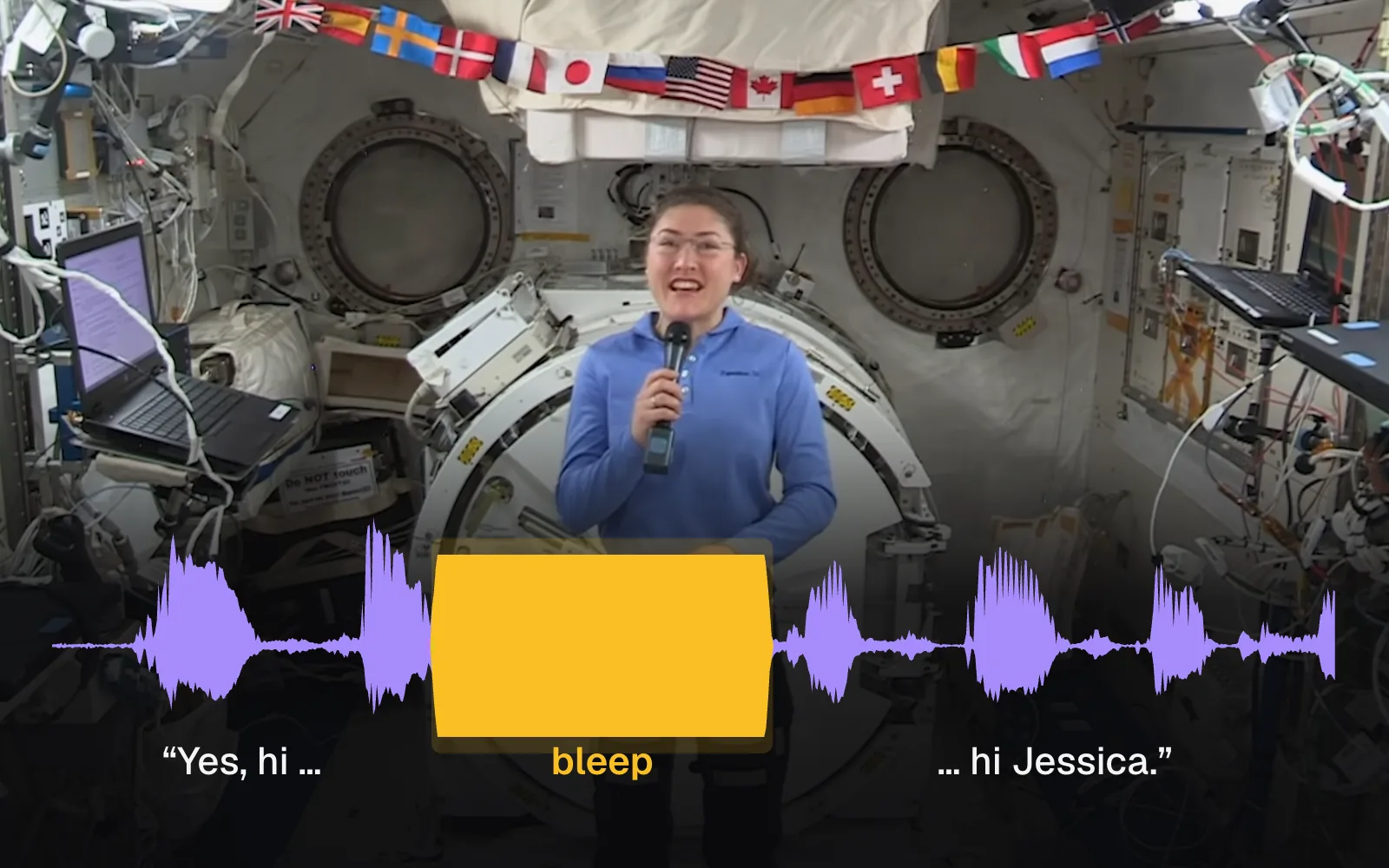
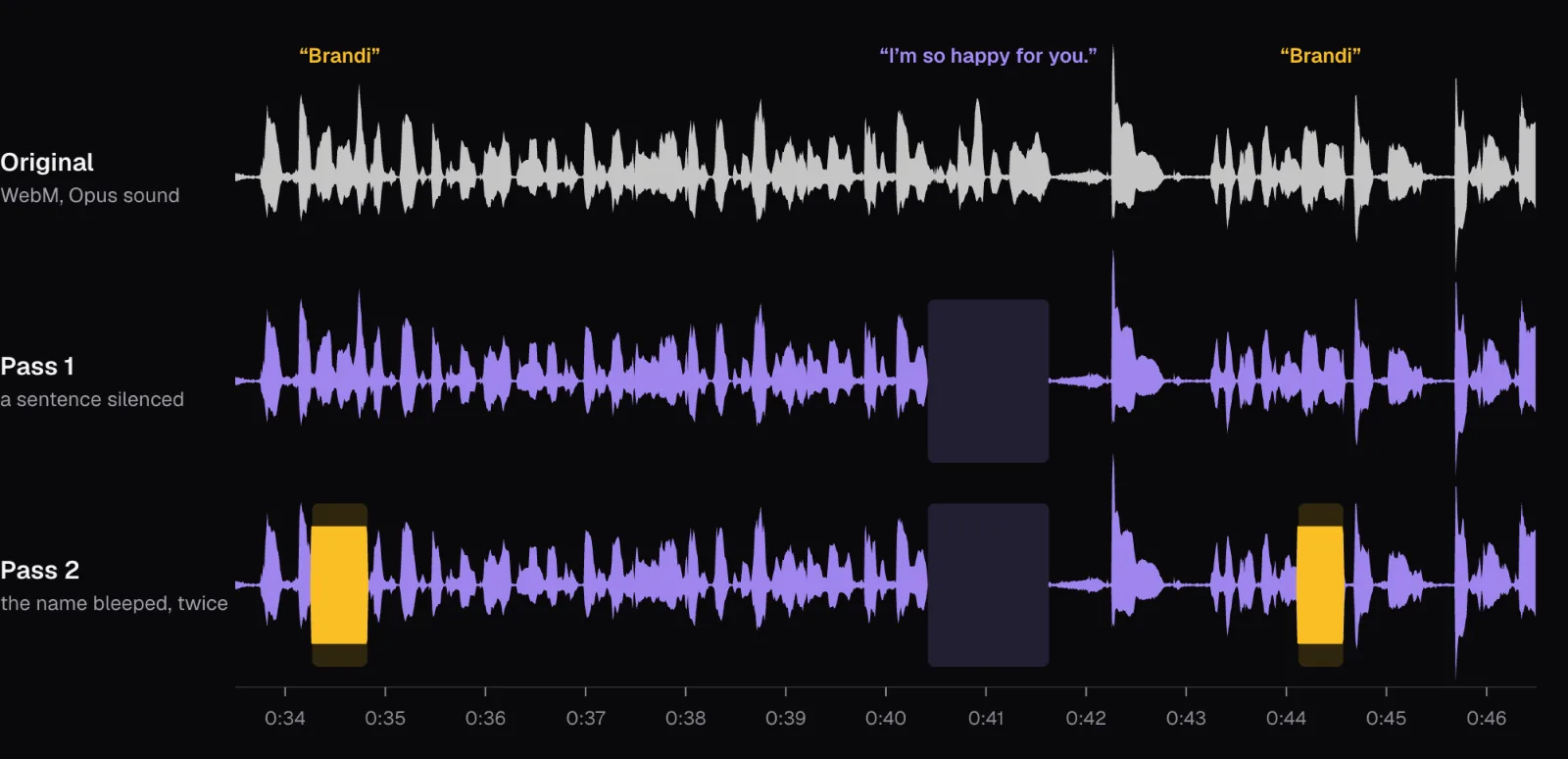
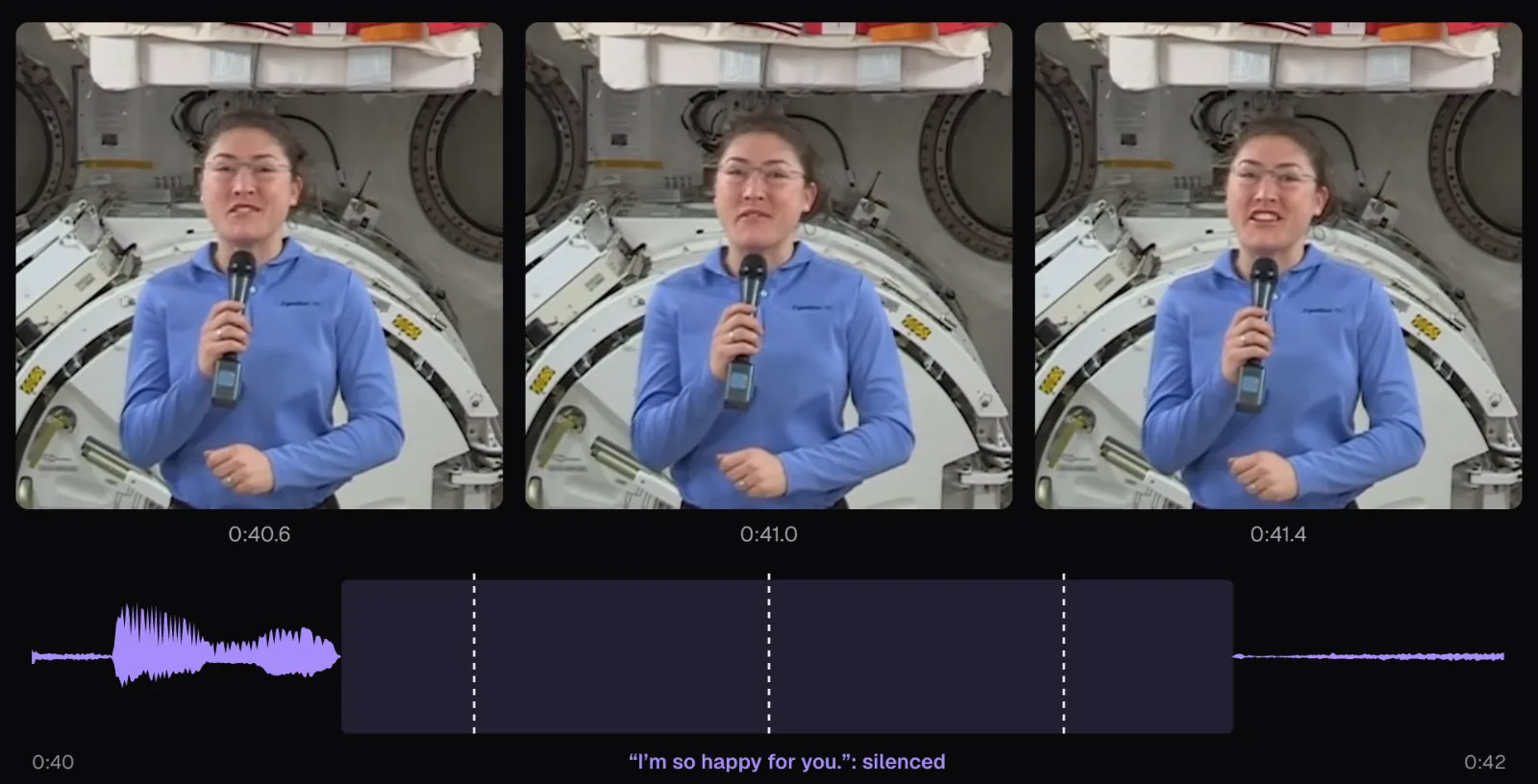
The interview is a WebM file: 1920 × 1080, VP9 picture, Opus sound, 20.3 MB. We made two edits in it. The first silences Koch's “I'm so happy for you.” (0:40.42 to 0:41.63). The second bleeps “Brandi” both times Koch says it: in “Yes, hi Brandi, hi Jessica” (0:34.27 to 0:34.82) and in “To get to your question, Brandi, it feels awesome” (0:44.12 to 0:44.57).
That took two passes, for a reason to know before you start: the choice between “Silence” and “Bleep” (Mute Video calls it “Instead of the sound”) applies to every part of one export. So the first pass silenced the sentence and saved an MP4; the second opened that MP4 and bleeped the names. To test the advice in the next sections, we also made a third file, bleeped at the times the transcript gave instead of the times we read off the waveform. Every level and waveform in this guide comes from the files themselves (the original and the downloads), decoded in Chrome into their raw samples with the Web Audio API's decodeAudioData().
| Export | What changed | Picture | Time | Size |
|---|---|---|---|---|
| Pass 1 | The sentence silenced | VP9 re-encoded to H.264 | 11.0 s | 30.8 MB |
| Pass 2 | The name bleeped twice, in pass 1's file | Copied | 0.8 s | 30.9 MB |
| No sound | “Remove all sound” on pass 1's file | Copied | 0.2 s | 28.9 MB |
Times are the middle of three runs, from pressing “Export video” to the Download button: read them as a comparison between the passes, not as what to expect on your own computer. The first pass was slow and made the file bigger because Mute Video copies only H.264 and HEVC pictures into the MP4s it makes, so it rebuilt the VP9 picture as H.264, and its panel said so before we exported: “The picture is re-rendered in high quality on your device.” The second pass started from an H.264 MP4, and the panel changed to “The picture isn't re-encoded”. We checked: all 2,644 picture packets of pass 2 are byte-for-byte the ones pass 1 wrote. How do you cut a video without losing quality? explains why copying is so much faster than encoding.
Find the word with a transcript
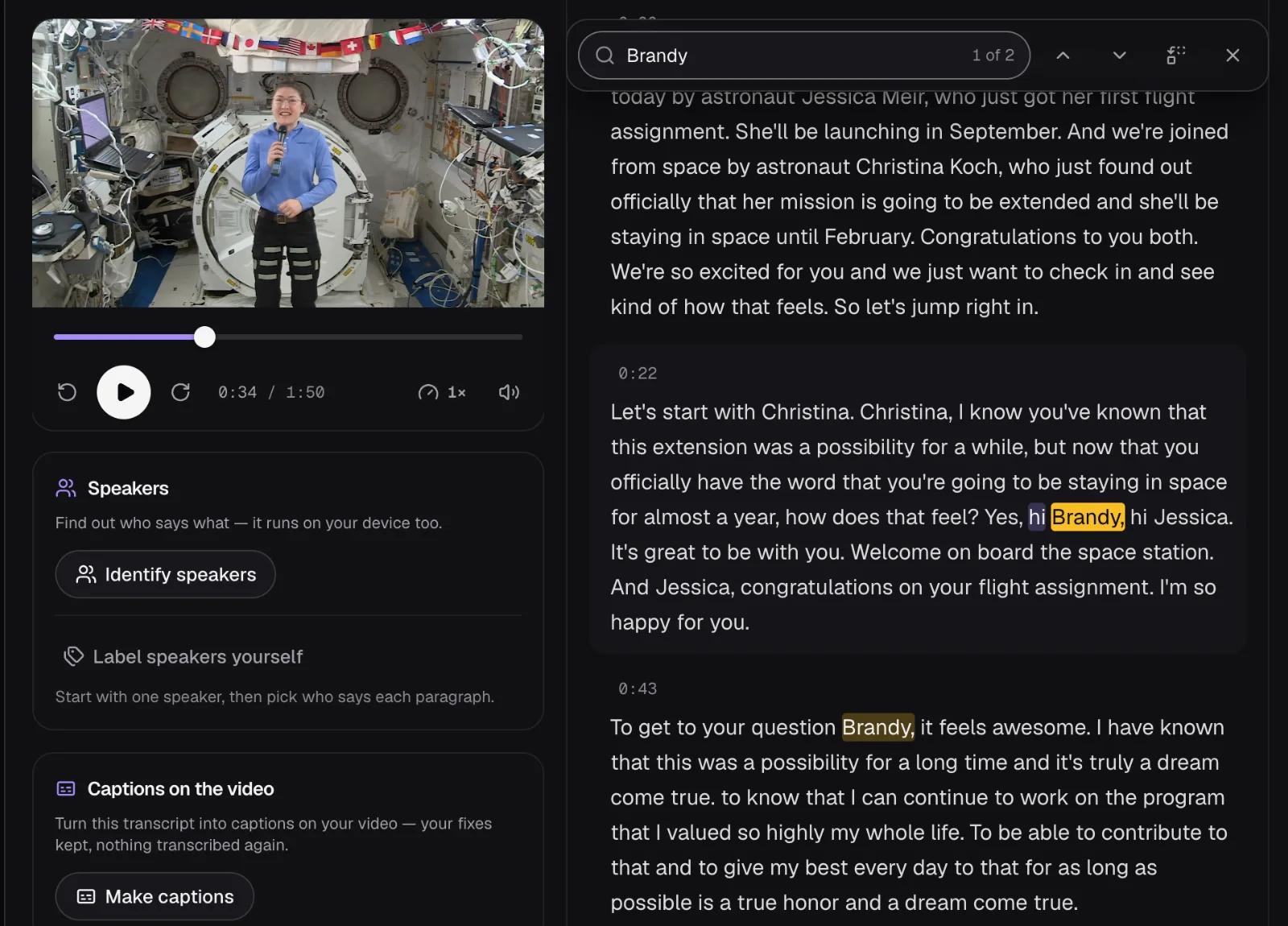
In a short clip you can find a word by playing it a few times. In a long interview, or when one word is said several times, a transcript is quicker and safer. Video to Text transcribed the whole interview on the laptop (nothing is uploaded): 394 words, the language detected as English, every word with its own start and end time.
We typed the name into its “Find” bar, and it answered “1 of 2”. That count matters more than it looks: when a name or a number has to go, it has to go every time it's said, and a second mention ten seconds later is easy to miss by ear. Clicking the highlighted word jumped the player straight to it, at 0:34.44.
Notice the spelling. The transcript wrote the name as “Brandy”; the caption on screen says Brandi. Speech recognition writes what a word sounds like, so search for the sound, and search for part of it: Find ignores case, accents and punctuation and matches inside words, so “brand” would have found both spellings. Our guide to transcribing a video without uploading it explains how the transcript is made on your own computer.
Transcript times are close, not exact
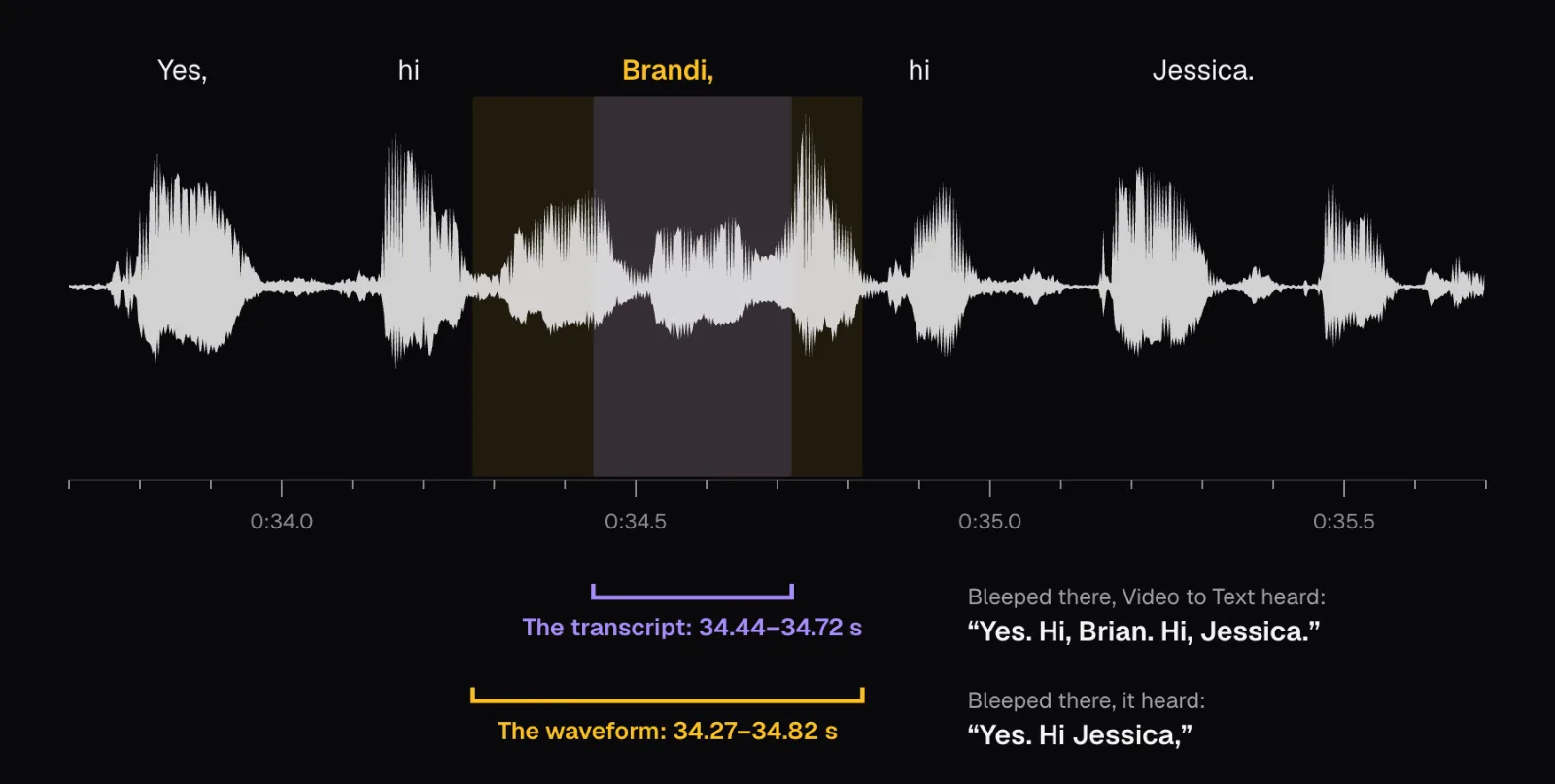
The transcript put the first “Brandy” at 0:34.44 to 0:34.72. Zoomed in on the waveform, the word runs from 0:34.27 to 0:34.82, almost twice as long. The transcript's start was 0.17 seconds late and its end 0.10 seconds early, so it covered about half of the word. The second time was similar: the transcript said 0:44.28, and the name starts at 0:44.12.
Automatic word times are estimates of where a word sits, good enough to jump to it and too rough to cut on. To see whether the difference matters, we bleeped the name at the transcript's times and ran that file back through Video to Text. It wrote “Yes. Hi, Brian. Hi, Jessica.” The sixth of a second of the name left before the bleep, as loud as the rest of her speech, and nearly a tenth of a second left after it were enough for a listener (here, a machine) to hear a name, if not quite the right one. Where the second name had been, it wrote “question break”.
The same test on the file bleeped at the waveform's edges came back as “Yes. Hi Jessica, it's great to be with you” and “to get to your question, it feels awesome”: no name, and no sound mistaken for one.
Set the edges on the waveform
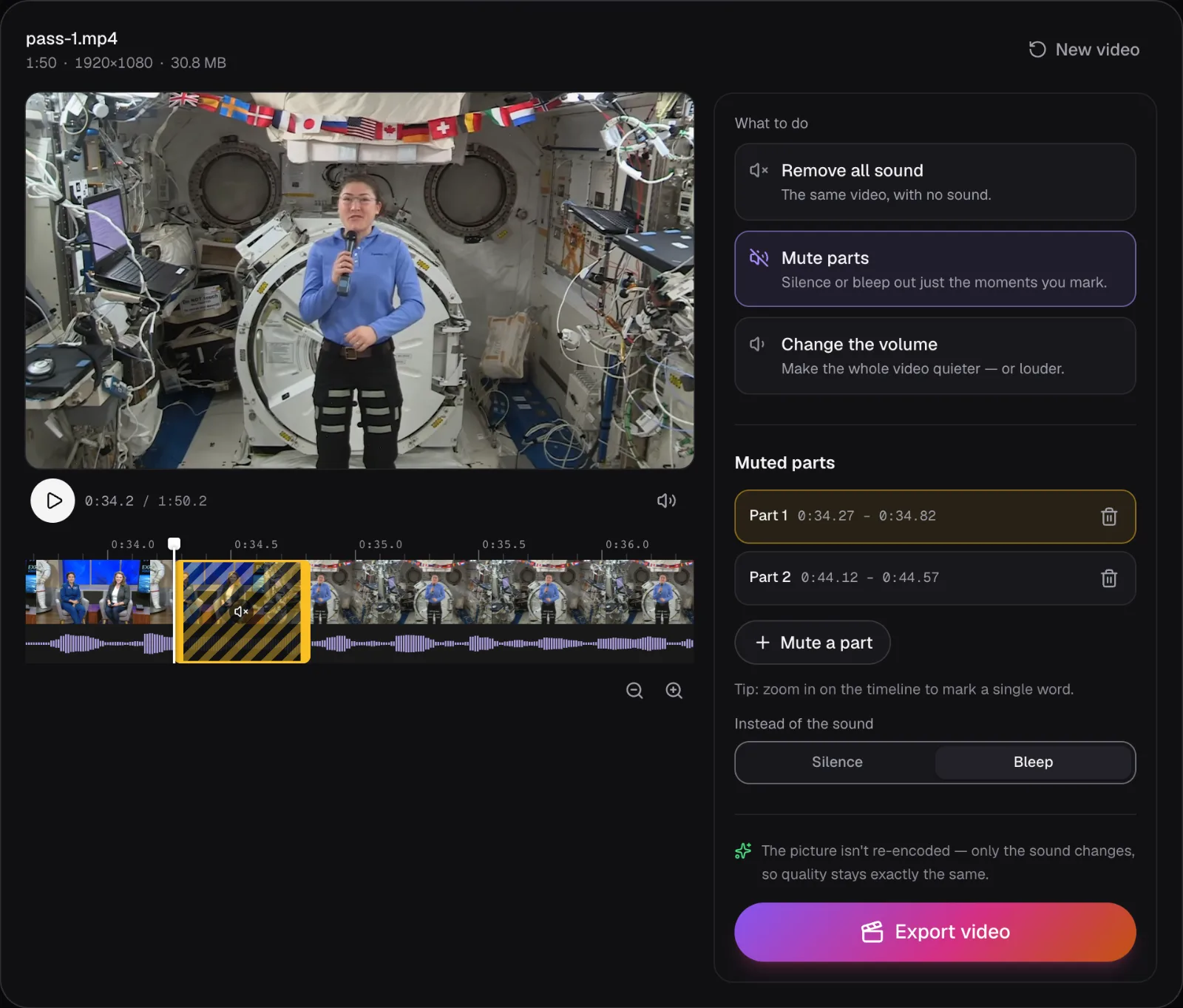
In Mute Video, choosing “Mute parts” puts a first part on the timeline, a stretch of up to 1.5 seconds centered on the playhead; “Mute a part” adds more. Drag a part to move it and drag its ends to resize it. The panel's tip says to zoom in for a single word, and it means it: on our screen the whole 1:50 fit the timeline at about five pixels a second. After eight presses of “Zoom in” it showed about 200 pixels a second (the most is 240), so one pixel was five thousandths of a second.
What to look for once you're zoomed in:
- Words are bumps, but fluent speech has few gaps. Between “hi” and “Brandi” there's no silence at all, only a short dip.
- Consonants like b, d, p and t leave a dip before them, because the lips or tongue close for a moment. “Brandi” starts with one, which made its start easy to find: the quiet moment right after “hi”.
- Hissing sounds (s, sh, f, the ss in Jessica) look small but are clearly audible. Don't end a bleep at what looks like the end of the word if a faint stretch follows that could be its last consonant.
- When in doubt, cover a little more. A bleep that takes a hundredth of a second from the next word is hard to notice; one that lets a syllable through isn't.
Then play it. The preview plays the same volume changes and the same tone the export will make, so what you hear is what you'll get. A selected part moves by one frame with the arrow keys and by a second with Shift, Delete removes it, and the panel lists every part to the hundredth of a second, which is how we read the times in this guide.
What Mute Video does to the sound
Inside a marked part, Mute Video multiplies the original sound by zero, so the voice isn't lowered or covered, it's removed. With “Silence” that's all: inside the sentence we silenced (we measured from 20 milliseconds inside each edge, because AAC encoding blurs a cut slightly), the loudest sample of pass 1 measured −98 dBFS. That unit counts decibels below the loudest sound a file can hold, so 0 is the ceiling and every level here is negative; −98 is far below anything you could hear. With “Bleep”, a pure 1,000 Hz tone takes the voice's place, at a fixed level of a quarter of full scale.
Our measurements of pass 2 match the code exactly: 1,000 Hz, peaks at −12.0 dBFS, an average (RMS) level of −15.1 dBFS, in both places. Then we fitted the tone to the samples and subtracted it. What remained measured −86 dBFS, the AAC encoding's own noise rather than anything of her voice; her speech around it averages −27 dBFS. That matters if the reason for the bleep is privacy: there's no word underneath to recover.
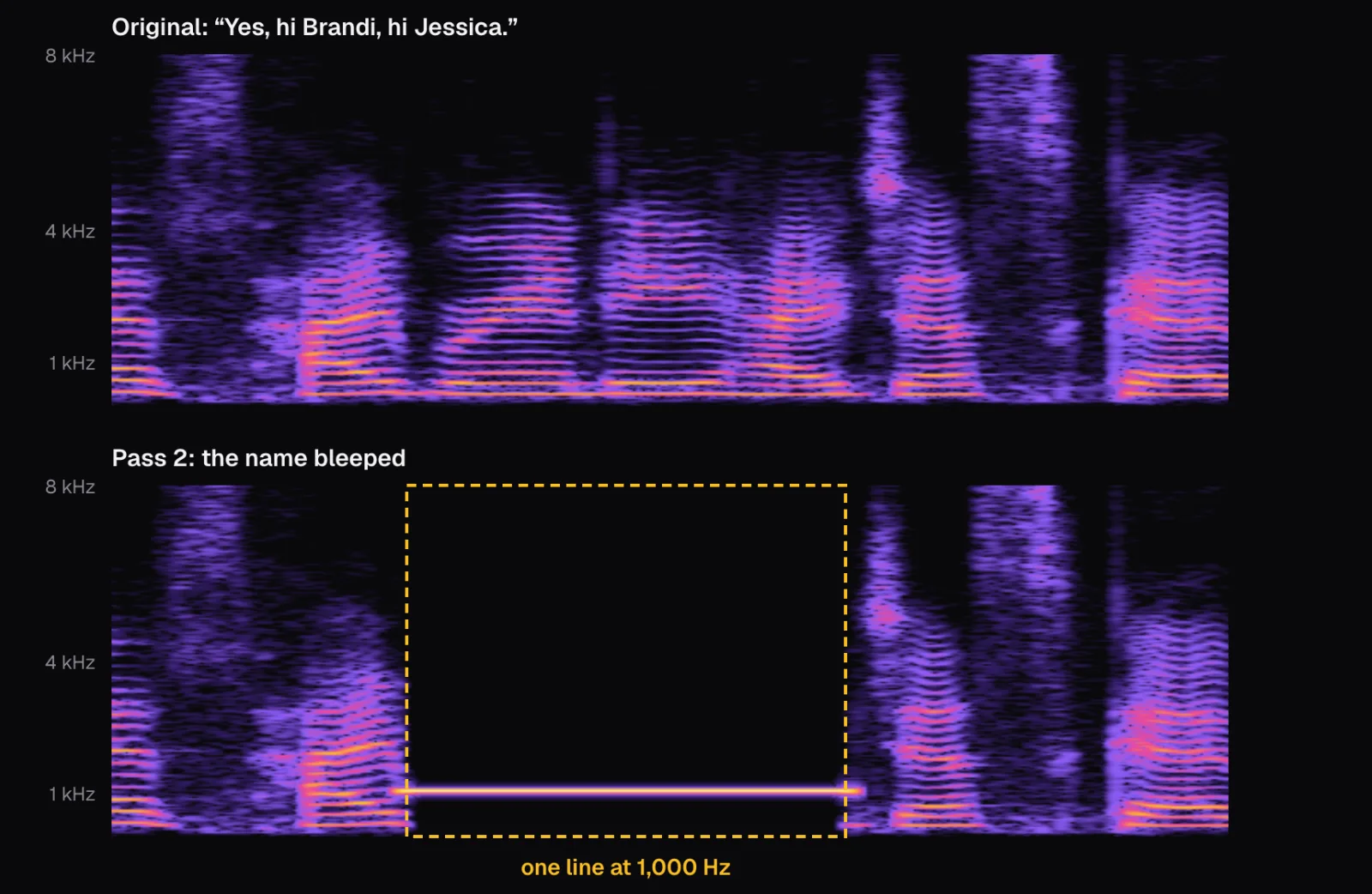
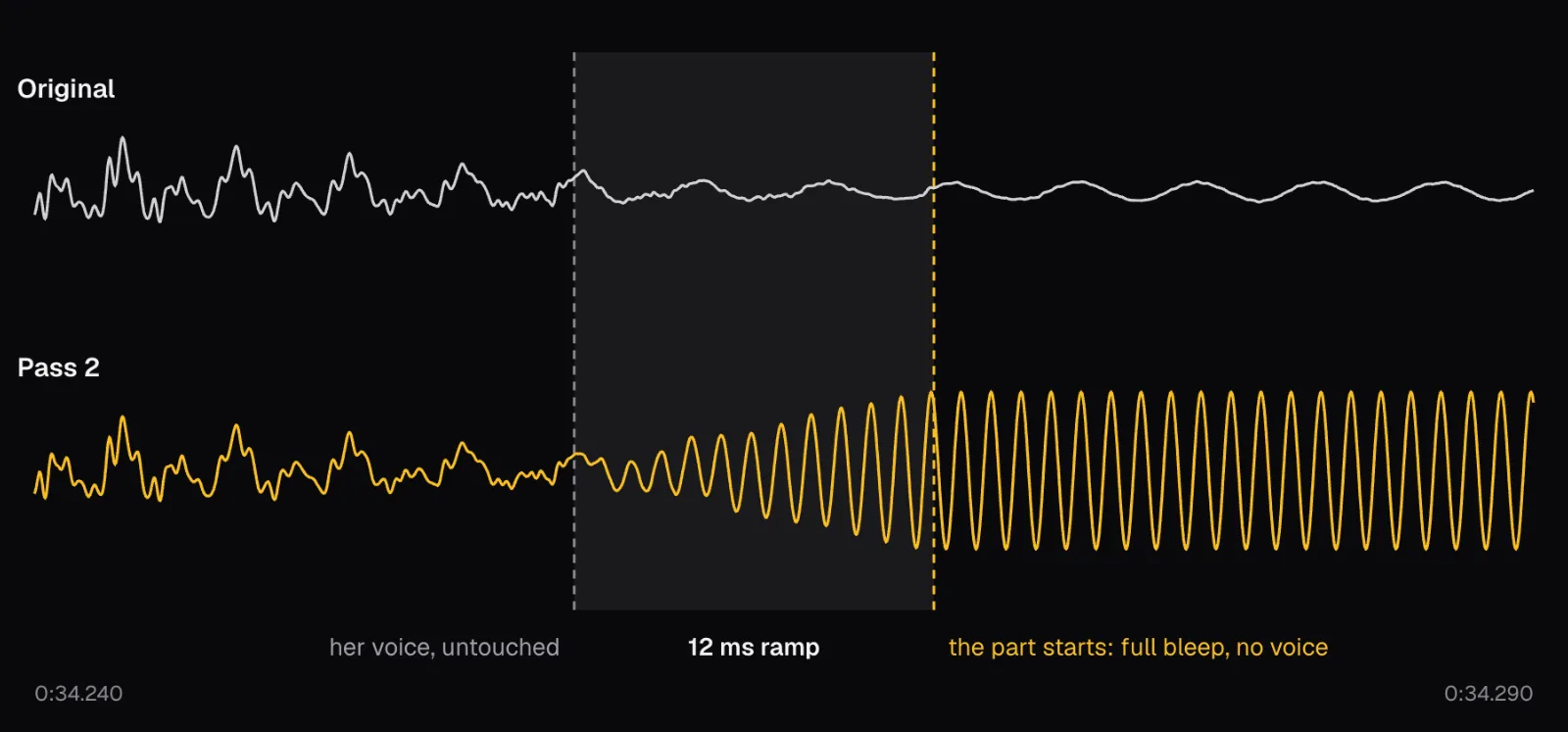
At the edges, Mute Video doesn't switch from voice to tone in one sample. A sound that jumps from one value to another clicks, so it adds a 12-millisecond ramp just outside each part: the voice fades out while the tone fades in. Because the ramps sit outside the part, the part itself is covered from its first sample to its last. Two parts 24 milliseconds apart or closer are joined into one, so their ramps never overlap.
The sound itself is always rebuilt, because it changed: ours came out as AAC at 48 kHz in stereo. Mute Video asks the encoder for 192 kbps; what the encoder actually wrote averaged about 138 kbps over the file. Each pass re-encodes it once more, which is one reason to keep the number of passes small.
How loud a bleep is, and why it stands out
We measured the bleep against the voice it replaced. The first “Brandi” averaged −25.9 dBFS; the bleep in its place averages −15.1 dBFS, about 11 dB more. Over her whole greeting, with the pauses left out, her voice averaged −27.0 dBFS. Yet her loudest moments are louder than the bleep: the name itself peaked at −8.0 dBFS, while the tone never goes above −12.0.
Both are true because speech and a tone spend their time differently. A voice rises to brief peaks on stressed syllables and spends most of the time well below them; a tone swings up to the same peak a thousand times a second and never eases off. So the bleep carries much more sound on average than the speech around it, though it never comes near clipping. That suits its job: a bleep is supposed to be noticed. It tells the viewer that something was taken out, and it leaves no doubt that the gap is an edit rather than a fault.
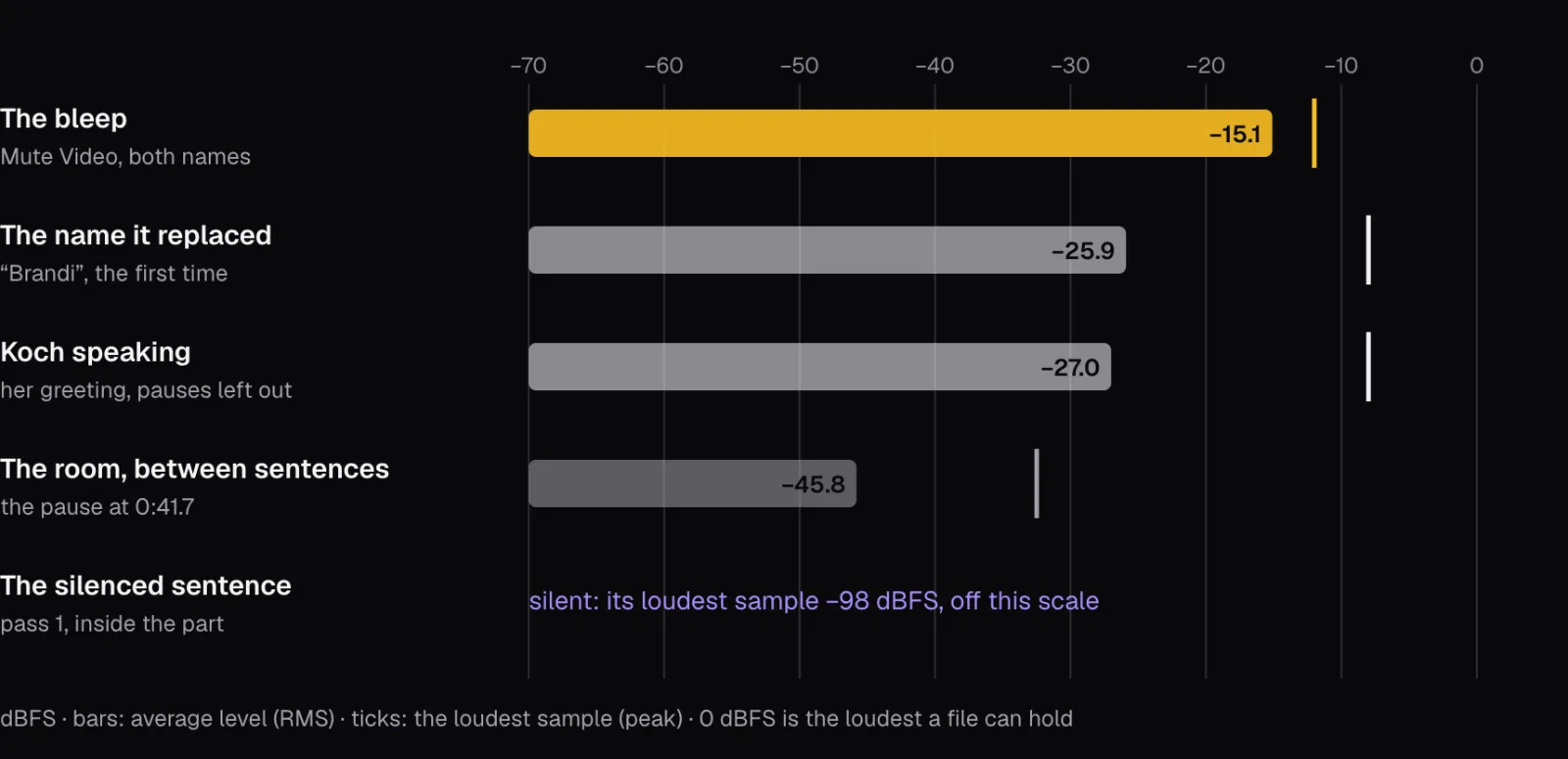
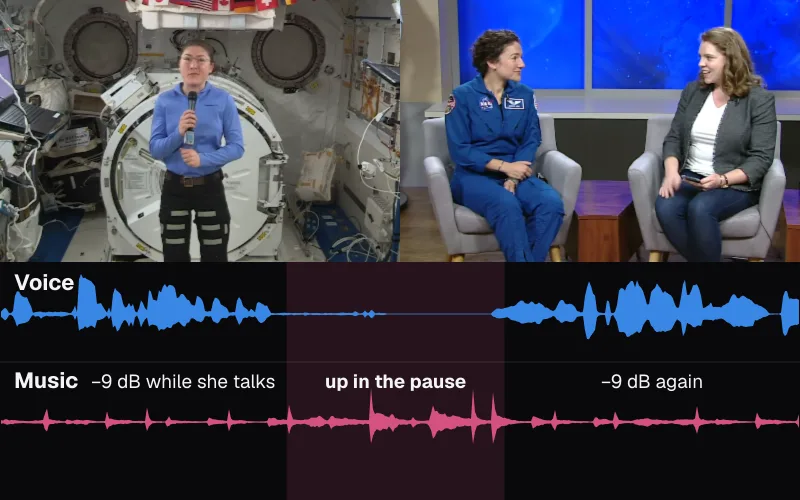
The level is fixed: Mute Video has no setting for the bleep's volume. If it's too much for your video, choose “Silence” instead. Silence has its own giveaway, shown at the bottom of the chart. The pause after Koch's sentence still holds the station's background noise at −45.8 dBFS, while the silenced part holds nothing at all, so on headphones a long silenced stretch can sound like a dropout. If you're balancing a voice against music rather than removing it, our guide to background music levels covers that.
Silence, bleep or cut: which to use
Here's how we'd choose, after this test:
- One word, in a sentence that stays: bleep it. Half a second of silence in the middle of a sentence can sound like a glitch; a bleep sounds intentional. Bleep every mention, and set the edges on the waveform.
- A sentence or longer: silence it, or cut it. A bleep longer than a second or so starts to grate. Silence is gentler, but the picture keeps playing: our silenced sentence left Koch on screen, mouth moving, for 1.2 seconds without a sound. If the speaker is on camera, cutting the moment with Trim Video is often cleaner, at the price of a jump in the picture.
- Both in one video: two passes. When the picture isn't H.264 or HEVC (like our WebM's VP9), the first pass re-encodes it; open that pass's MP4 for the second, which copies it.
- Noise or chatter under everything: change the volume, or remove the sound. Parts are for moments; a constant problem needs the whole track.
- Dead air, not words: Remove Silence cuts the pauses out instead of leaving them in. How much silence should you cut from a talking video? shows what each pace does.
Before you post: where the word can survive
A clean bleep in the sound doesn't remove the word from everywhere else it may be. Before you share the video, check:
- Captions and subtitles. Captions made before the edit, burned in or in an SRT or VTT file, still spell the word out. Edit them too; our guide to caption files explains which kind lives where.
- The picture. Lips can be read, and a name may be on screen anyway: in this interview it's written under Brandi Dean in the opening seconds.
- The original file. Mute Video makes a new file and leaves yours as it was, so the uncensored version still exists on your device. Keep it private, or keep just its sound for your records with Video to MP3; our guide to saving a video's sound compares the formats.
- The result itself. Listen to every edit on headphones, and if you made a transcript to find the word, run the edited file through it again, as we did. It's a quick way to learn whether a piece of the word got through.
If the reason for bleeping is a platform's rules rather than privacy, read the platform's own words. As of November 2026, YouTube's advertiser-friendly content guidelines count “bleeping or muting the word” as obscured profanity and list obscured profanity among the content that can earn ad revenue.
The tools in this guide
Mute Video
Silence a whole video or just the parts you choose.
Video to Text
Transcripts in 100 languages, with speakers and timestamps — made on your device, never uploaded.
Trim Video
Cut the start, end or middle of any clip in seconds.
Remove Silence
Dead air out, every word kept — a tighter video in a minute.
Video to MP3
Pull the soundtrack out of any video in seconds.
Questions people ask
Can I bleep some parts and silence others in the same video?
Not in one export: Mute Video's “Instead of the sound” choice applies to every part you mark. Export twice instead. Silence the long parts first, then open that MP4 and bleep the words. In our test the second pass took 0.8 seconds against 11 for the first, because an MP4 with an H.264 picture is copied rather than re-encoded; all 2,644 picture packets came out identical. The sound is re-encoded on each pass, so keep passes to a minimum.
Can someone remove a bleep and hear the word underneath?
Not from a file Mute Video made. Inside a marked part the original sound is multiplied by zero before the tone is added, so the word isn't under the bleep: it's gone. When we fitted the 1,000 Hz tone and subtracted it, what remained measured −86 dBFS, encoding noise about 60 dB below her voice. A beep simply laid over a voice, without muting it, would leave the word there to be recovered.
Does YouTube still show ads on a video with bleeped swearing?
YouTube's advertiser-friendly content guidelines, as of November 2026, list “abbreviated or obscured profanity” among content that can earn ad revenue, and define obscured profanity as “things like bleeping or muting the word.” The same page says profanity at the start of a video or throughout most of it may not be suitable for advertising. Read the current guidelines before you rely on them: they change.
Does muting part of a video lower its quality?
Not the picture, if it's H.264 or HEVC: Mute Video copies it untouched, as our second pass showed. Other pictures, like the VP9 in our WebM, are re-encoded once (into H.264 in our test), and the panel says so before you export. The sound is always rebuilt because it changed; ours came out as AAC, 48 kHz stereo, averaging about 138 kbps against the 192 kbps Mute Video asks for.
How precisely can I mark a single word?
To within a few thousandths of a second. Mute Video's timeline zooms to 240 pixels per second; we worked at about 200, where one pixel is five milliseconds. The panel lists each part to the hundredth of a second, a selected part moves one frame at a time with the arrow keys and a second at a time with Shift, and a part can be as short as 0.05 seconds.
Sources
Where the facts in this guide come from, besides our own tests:
- Advertiser-friendly content guidelines — YouTube Help
- BaseAudioContext: decodeAudioData() method — MDN Web Docs
- Astronauts Koch and Meir React to International Space Station Mission Updates (description) — NASA, on Wikimedia Commons
Footage in this guide
The pictures were made with Cutlia's tools from this openly licensed footage, found on Wikimedia Commons:
- Astronauts Koch and Meir React to International Space Station Mission Updates — NASA, Public domain