Formats and playback
GIF or MP4 for a short looping clip: which should you use?
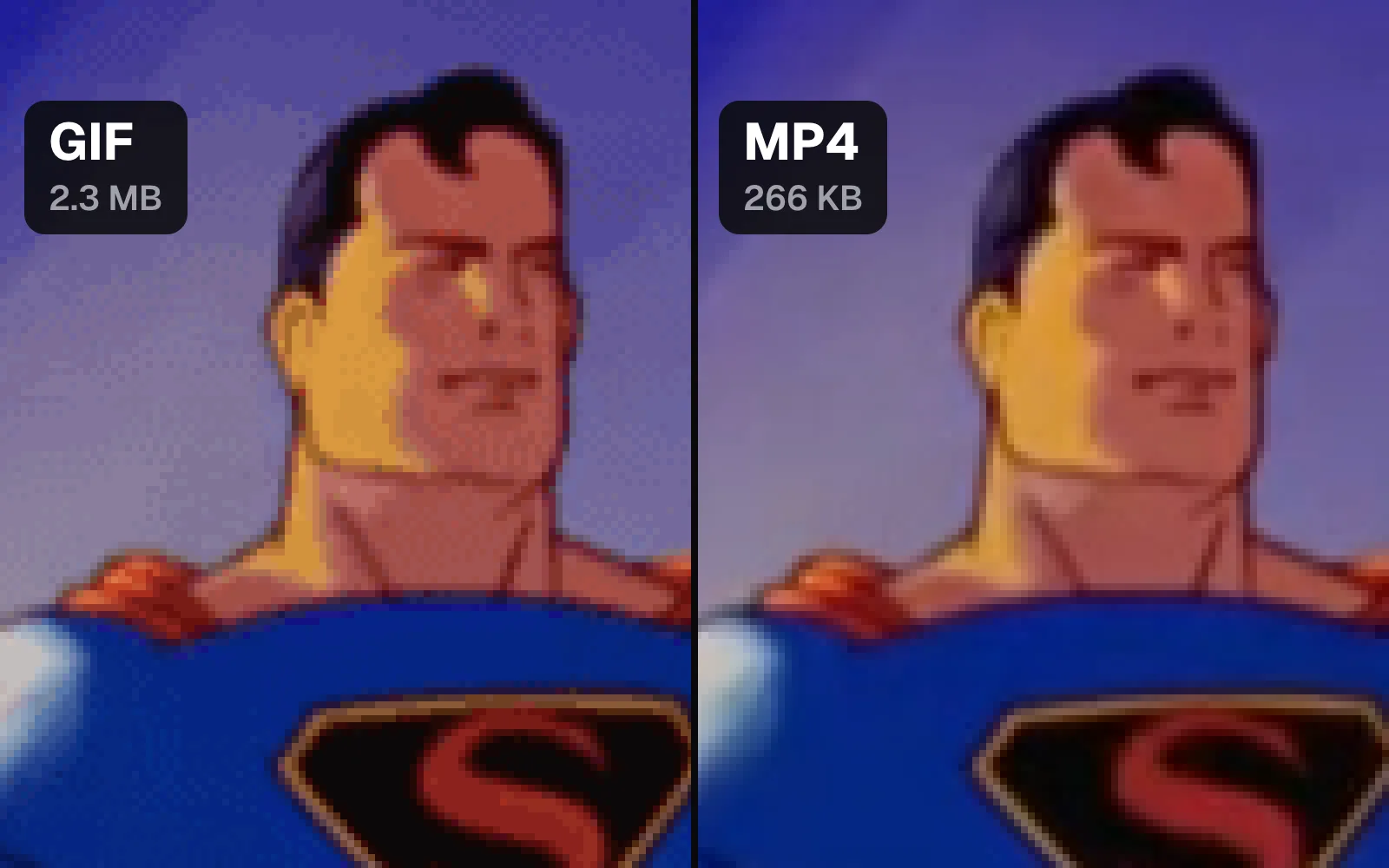
We turned four seconds of a 1943 Superman cartoon and four seconds of a humpback's tail into 22 GIFs and 6 MP4s, then measured every file and enlarged the pixels.
By the Cutlia team · Published · 15 min read
The short version
- Use an MP4 wherever video is accepted: at the same 640 × 480 size, our main GIF was 8 to 10.5 times the size of the MP4s for a cartoon and 3.7 to 34 times for rippling water.
- A GIF's size follows how much of the picture changes: Superman standing still cost 8 KB a frame, the same shot with the camera moving 49 KB, and the whale's water 152 KB.
- If it has to be a GIF, make it narrower and shorter first: 480 pixels instead of 640 made ours about 40% smaller, while 64 colors instead of 256 saved 27 to 28%.
- “Smooth gradients” (dithering) turns banding into fine grain at a price: switching it off saved 21% on the cartoon and 8% on the whale, but left blotchy bands in the light beams.
- To make an MP4 behave like a GIF on a web page, use <video autoplay loop muted playsinline>: Chrome's policy, and Safari's since iOS 10, let a muted video start playing on its own.
GIF is the format people reach for when a clip should loop, start without a click and work anywhere a picture works: a chat, an email, a README, a slide. It is also an image format from the late 1980s, built around a table of at most 256 colors and with no idea of motion, so a few seconds of video can weigh many times more as a GIF than the same seconds as an MP4.
To find out how much more, and why, we took four seconds of two very different pictures — Superman standing in the light beams of the 1943 cartoon The Mummy Strikes, and a humpback whale's tail over rippling water, filmed from a drone — and made each into 11 GIFs with Cutlia's Video to GIF and into 3 MP4s. Then we read every file back: its size, its colors, the bytes each frame takes, and what its pixels look like when you enlarge them.
What a GIF stores, and why it was never meant for video
CompuServe introduced GIF in 1987, and the version every animated GIF uses, 89a, followed in July 1989; its specification is dated 31 July 1990. A GIF frame is not a photograph but a grid of numbers: each pixel is an 8-bit value pointing into a color table of 2, 4, 8 and so on up to 256 entries, each entry a 24-bit color. Those numbers are then compressed with LZW, a lossless method that builds a dictionary of the sequences it has already seen and writes each repeat as a short code.
Animation came later and stayed simple. An animated GIF is a series of images, each a rectangle drawn over whatever is already on screen, each with a delay in hundredths of a second, and each optionally naming one color of the table that means “leave this pixel as it is”. The specification is frank about it: the format “is not intended as a platform for animation, even though it can be done in a limited way.” Looping isn't in the 1990 document at all. Our GIFs carry their loop count in an application extension, the kind of block the specification leaves for application-specific information, named NETSCAPE2.0: Cutlia's encoder writes it when “Playback” is set to “Loop” or “Boomerang” and leaves it out for “Once”. And there is no sound track of any kind.
Two consequences matter for everything below:
- The loss happens before compression. LZW loses nothing, but a video frame holds far more than 256 colors, so making a GIF means choosing which 256 survive, and every pixel is drawn with one of them.
- A GIF can't describe movement. It has no way to say “this part slid two pixels to the left”. A pixel either stays exactly as it was, or it is written out again in full.
What an MP4 does instead
MP4 is a container, and the picture in every MP4 of this test is H.264, which MDN calls broadly compatible in browsers (the container side is covered in MP4, MOV, MKV, WebM or AVI: which video format should you use?). H.264 has no palette: most of its profiles give each pixel 8 bits per color component, with the color detail stored at half the brightness's resolution in each direction (4:2:0 subsampling). Its compression is lossy and based on the discrete cosine transform, which describes small blocks of the picture as sums of smooth patterns, so the encoder can drop the faint ones first.
The bigger difference is motion compensation. MDN describes it as looking for motion “either of the camera or of objects in the frame of view”, storing how far each part moved, and then storing only the differences the shift doesn't explain. Full frames, called key frames, come at intervals to keep errors from piling up. So when the cartoon's camera pushes in on Superman, an H.264 encoder can describe most of the next frame as blocks of the previous one, each shifted a little outward, plus a small correction. A GIF has to write every pixel whose color changed.
The trade-off runs the other way for quality. A GIF keeps a still area exactly as its palette drew it, frame after frame. An MP4 throws detail away, so when it is given few bits, fine texture turns soft or blocky. How the number of bits decides that is covered in How bitrate, resolution and frame rate decide a video's file size.
How we tested: two clips, 22 GIFs and 6 MP4s
The cartoon moment is 1:02 to 1:06 of the restored The Mummy Strikes: Superman stands still in the light for a little over a second, then the camera slowly starts to push in. Flat colors and black outlines make it close to the best case for GIF, though the soft beams of light behind him are the kind of gradient a palette struggles with. The whale moment is 0:17 to 0:21 of NOAA's drone footage: a raised tail, a second whale glowing turquoise under the surface, and sunlit ripples that change everywhere in every frame — close to the worst case.
Both formats had to start from the same frames, and Video to GIF has no crop, so we first cut each moment out with Resize & Crop, set to “Classic” 4:3 at 720p: two 960 × 720 MP4s, 4.03 seconds each. For the cartoon that also removed the black bars the restoration puts on either side of the film's almost-4:3 picture.
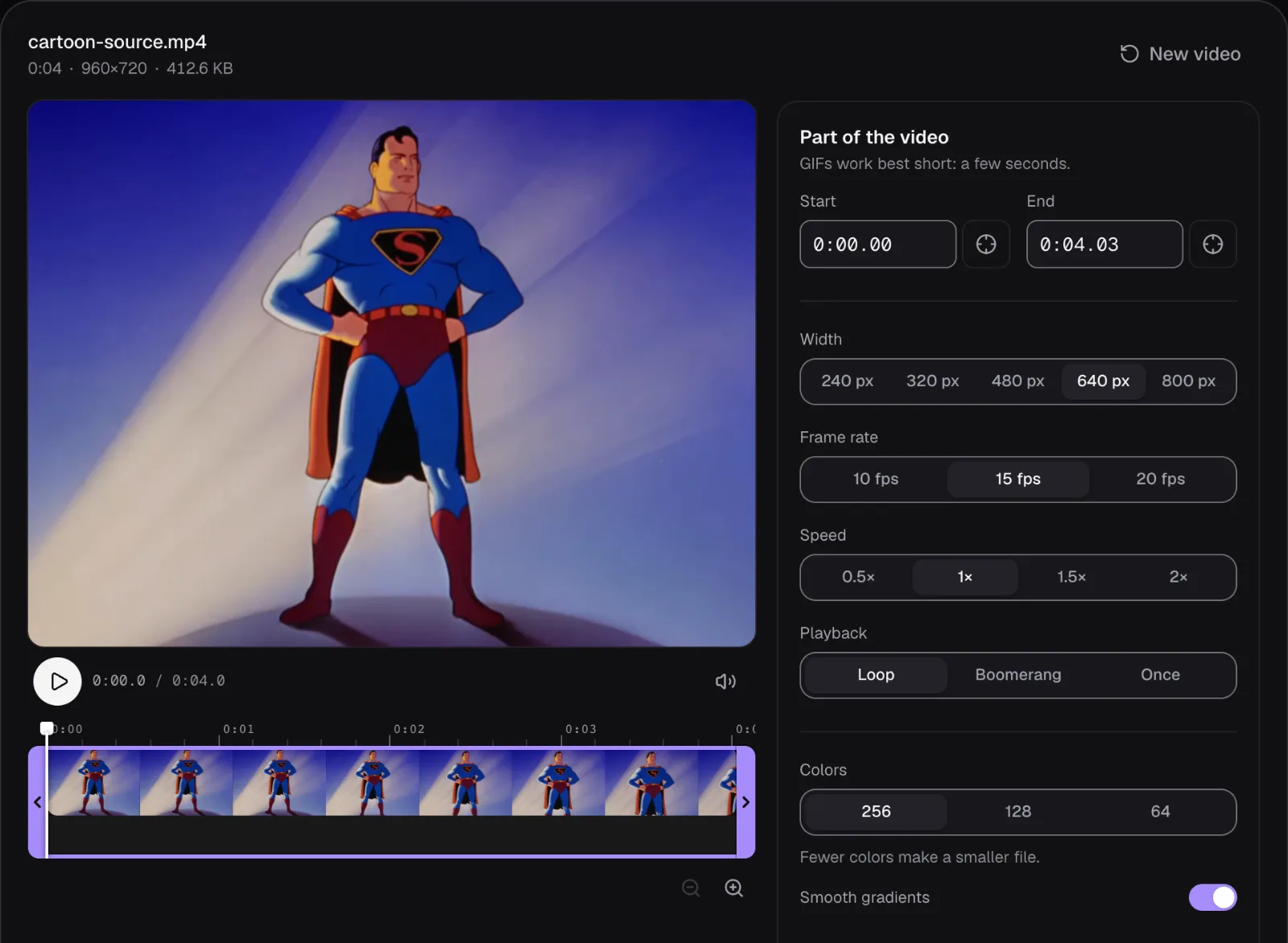
Video to GIF opened each cut at 480 pixels wide, 15 frames a second, 256 colors, “Smooth gradients” on and “Loop”, and summed it up as “61 frames · 480 × 360 · 0:04.0”. We kept that as one GIF and made ten more, mostly at 640 pixels (640 × 480) with one setting changed at a time: 128 and 64 colors, “Smooth gradients” off at each color count, 10 and 20 frames a second, 320 pixels wide, and a small one at 320 pixels, 10 frames a second and 64 colors. The MP4s were made from the same cuts at 640 × 480 with the sound off: the Video Converter at 480p, Compress Video on “Smaller, same look” at 480p, and the GIF to MP4 page fed the 640-pixel GIF.
Every file was then read back by the test script: each GIF block by block (the bytes of every frame, its rectangle, its colors), each MP4 with Mediabunny (frames, frame rate, bitrate). Everything ran in Chrome on a MacBook Air with an Apple M5 chip, on the laptop itself.
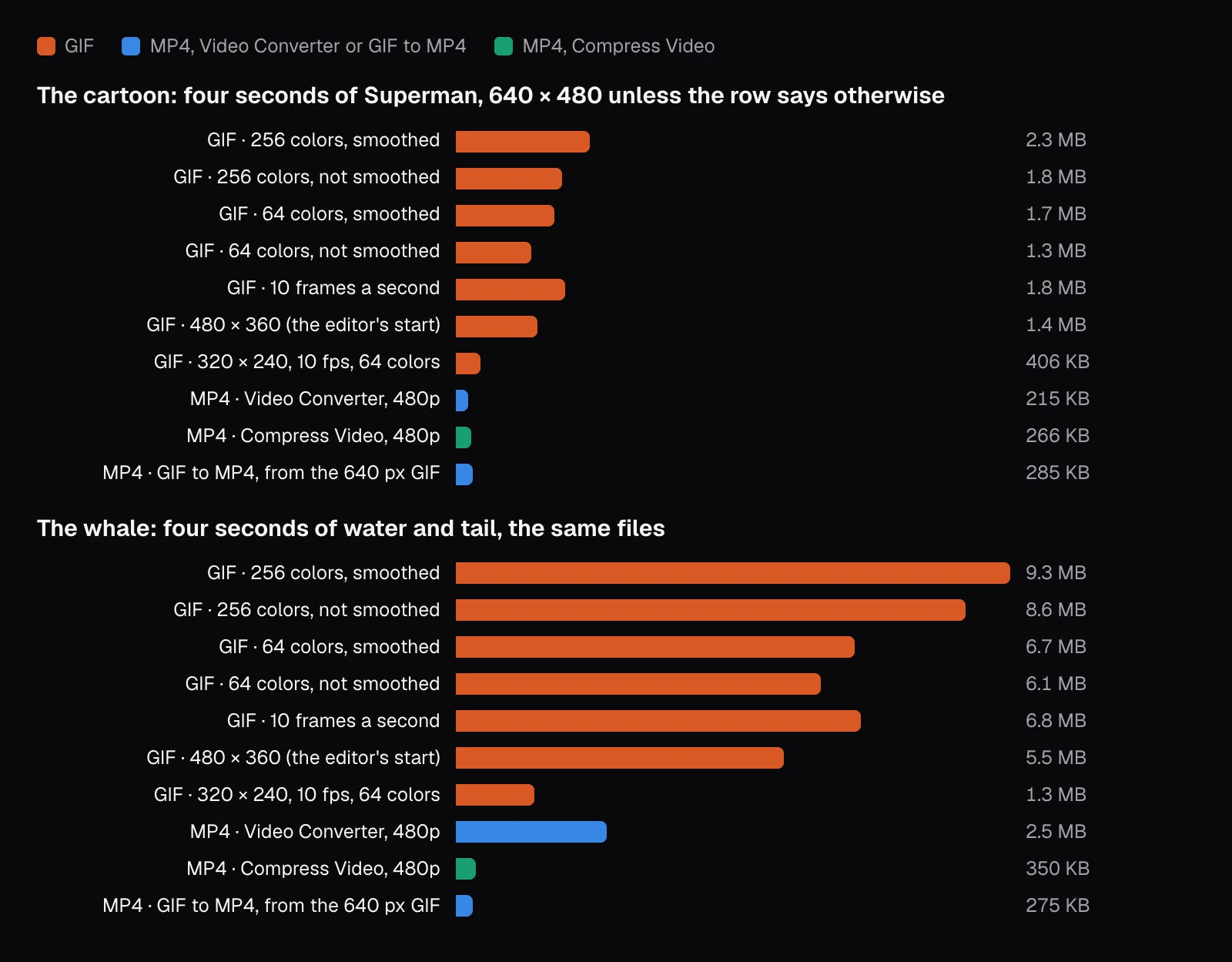
The sizes: at 640 × 480, GIFs 4 to 34 times bigger than MP4s
Here are the files that matter most, all four seconds long:
| File | Cartoon | Whale |
|---|---|---|
| GIF, 640 × 480, 15 fps, 256 colors, smoothed | 2.3 MB | 9.3 MB |
| GIF, 480 × 360 (the editor's starting point) | 1.4 MB | 5.5 MB |
| GIF, 320 × 240, 10 fps, 64 colors | 406 KB | 1.3 MB |
| MP4, Video Converter, 640 × 480 | 215 KB | 2.5 MB |
| MP4, Compress Video, 640 × 480 | 266 KB | 350 KB |
| MP4, GIF to MP4 from the 640 × 480 GIF | 285 KB | 275 KB |
| The 1080p original's own picture data for those seconds | 446 KB | 1.4 MB |
At the same 640 × 480, the cartoon's GIF was 8.5 times the size of the Compress Video MP4 and 10.5 times the converter's. The whale's was 26.7 times the Compress Video MP4. The one MP4 that came close was the converter's whale: the converter doesn't aim at a size but re-encodes at a high quality setting, and the rippling water took 5.0 Mbit/s. Even so, that MP4 carried nearly 30 frames a second, as the footage does, and the GIF, with 15, was still 3.7 times its size.
Shrinking the GIF helps less than you'd hope. Our smallest — a quarter of the pixels, two thirds of the frames, a quarter of the colors — was still 1.5 times the size of the cartoon's Compress Video MP4 and 3.75 times the whale's. And every 640-pixel GIF outweighed the 1080p footage it came from: the originals' pictures take 446 KB and 1.4 MB for those four seconds, with nearly seven times the pixels in each frame and more frames, and the main GIFs took 5.1 and 6.6 times as much.
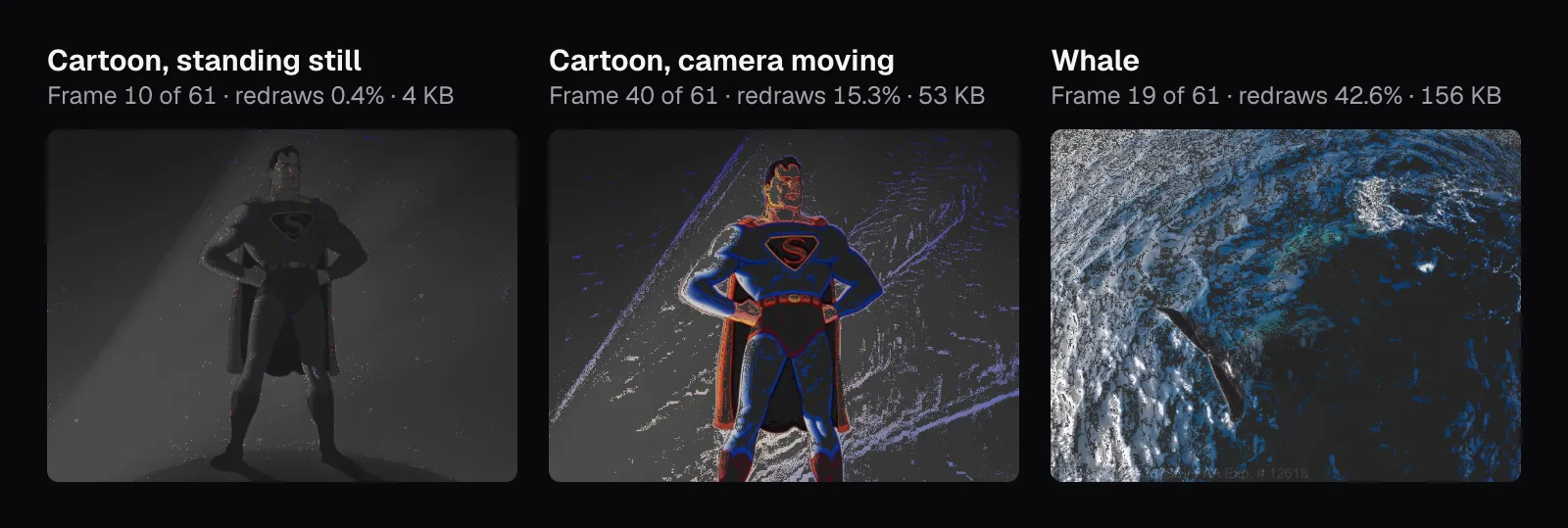
Why a GIF grows with every pixel that changes
Cutlia's encoder does what the format allows to keep a GIF small. The first frame is stored whole. For every frame after it, each pixel is compared with what is already on screen: if the color shown is within a small distance of the pixel's true color (a squared distance of 108, about 6 steps out of 255 on each of red, green and blue) or at least as close as the new palette color would be, the pixel is left alone and written as the transparent “keep” color. The frame is then cut down to the rectangle around the pixels that did change, and a frame that changes nothing only lengthens the one before it. Delays are rounded so their running total stays exact: at 15 frames a second they run 7, 6, 7 hundredths of a second, adding up to 4.07 seconds for 61 frames.
That works well while nothing moves. Frame 10 of the cartoon, with Superman standing still, redrew 0.4% of the picture and took 4 KB; up to 1.4 seconds, the 20 frames after the first averaged 8 KB. Then the camera's push gathers pace. Frame 40 redrew 15.3% of the picture and took 53 KB, and the 40 frames from 1.4 seconds on averaged 49 KB, six times as much. On the whale nothing ever holds still: frame 19 redrew 42.6% and took 156 KB, and its frames after the first averaged 152 KB.
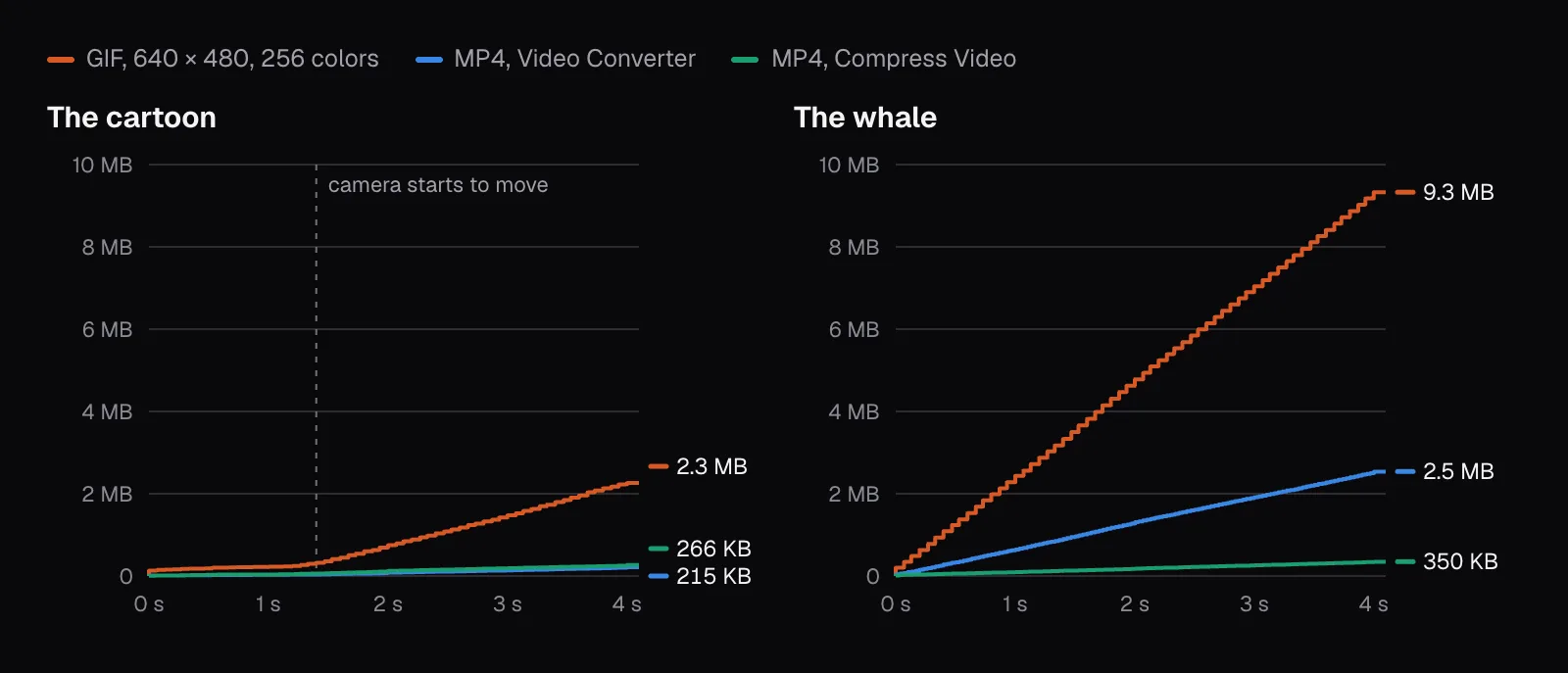
The running totals show the same thing over time. The cartoon's GIF line is nearly flat until the camera moves, then climbs steeply; the whale's climbs from the first frame to the last. The Compress Video lines barely leave the floor, and even the converter's whale, at 5.0 Mbit/s, climbs at about a quarter of the GIF's slope: motion compensation turns much of a moving frame into a few instructions, while the GIF stores every changed pixel losslessly, including every speck of grain the palette step adds.
This is also why frame rate is a weak lever. Cutting from 15 to 10 frames a second removed a third of the frames but only 19% of the cartoon's bytes and 27% of the whale's, because each remaining frame differs more from the one before: the share redrawn rose from 9.5% to 12.2% on the cartoon and from 41.3% to 48.2% on the whale. Going up to 20 frames a second added 18% and 19%. Width is a much stronger lever: 480 pixels instead of 640 made both GIFs about 40% smaller, and 320 pixels 70 to 73% smaller, close to the share of pixels removed (44% and 75%).
256 colors, chosen once for the whole clip
A GIF may carry a separate color table for every frame, but palettes that change from frame to frame make colors shimmer, so Cutlia's encoder chooses one for the whole clip. It renders the clip once just to sample colors (every second pixel, from every frame of a clip as short as ours or from roughly 90 frames spread over a longer one), counts them in a histogram of 32,768 bins (5 bits per channel), splits that color space again and again at the median of its widest spread (median cut), and refines the result with three rounds of k-means, which moves each palette color to the average of the colors closest to it. One entry stays free for the transparent “keep” color, so “256” means 255 real colors: both 640-pixel GIFs used all 255.
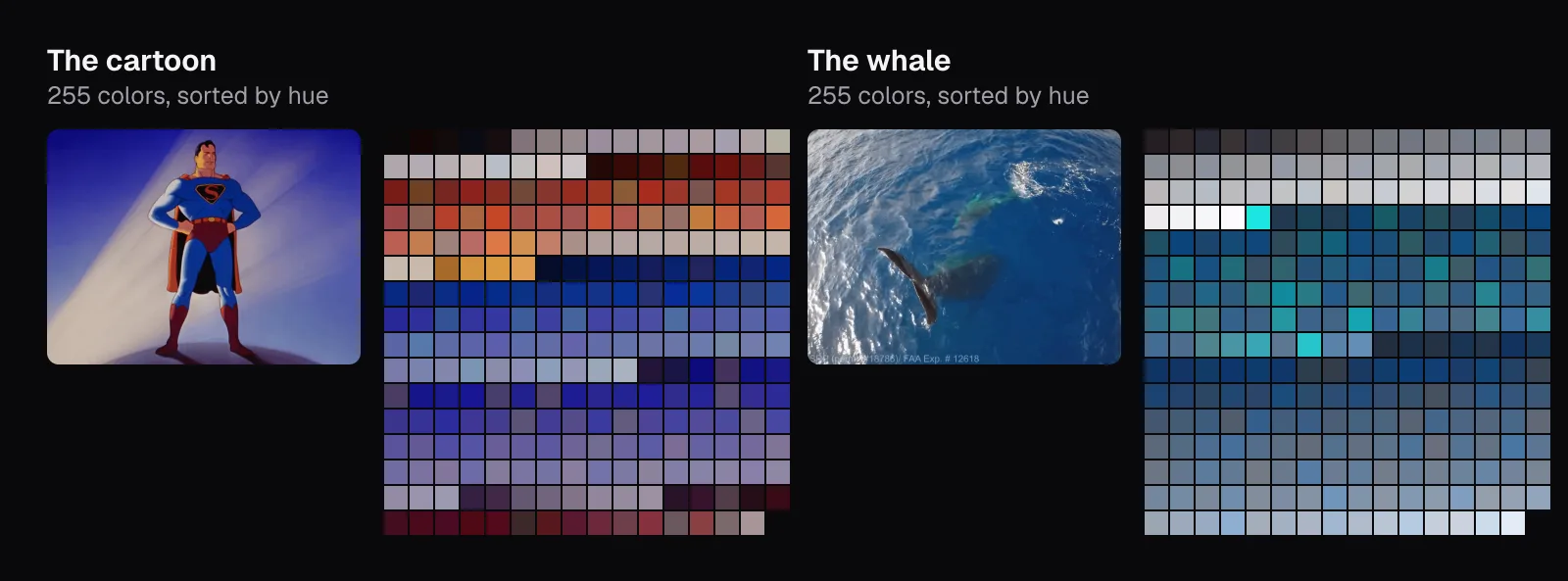
A smooth gradient, like the beams behind Superman, spans a narrow range of colors that only a few palette entries fall into, so without help it is drawn as flat steps: banding. Fewer colors make the steps wider and the file smaller, though by less than you might expect. 128 colors saved 15% on the cartoon and 14% on the whale; 64 colors saved 27% and 28%. Most of a GIF's weight is in pixels that change, not in how many colors they can be.
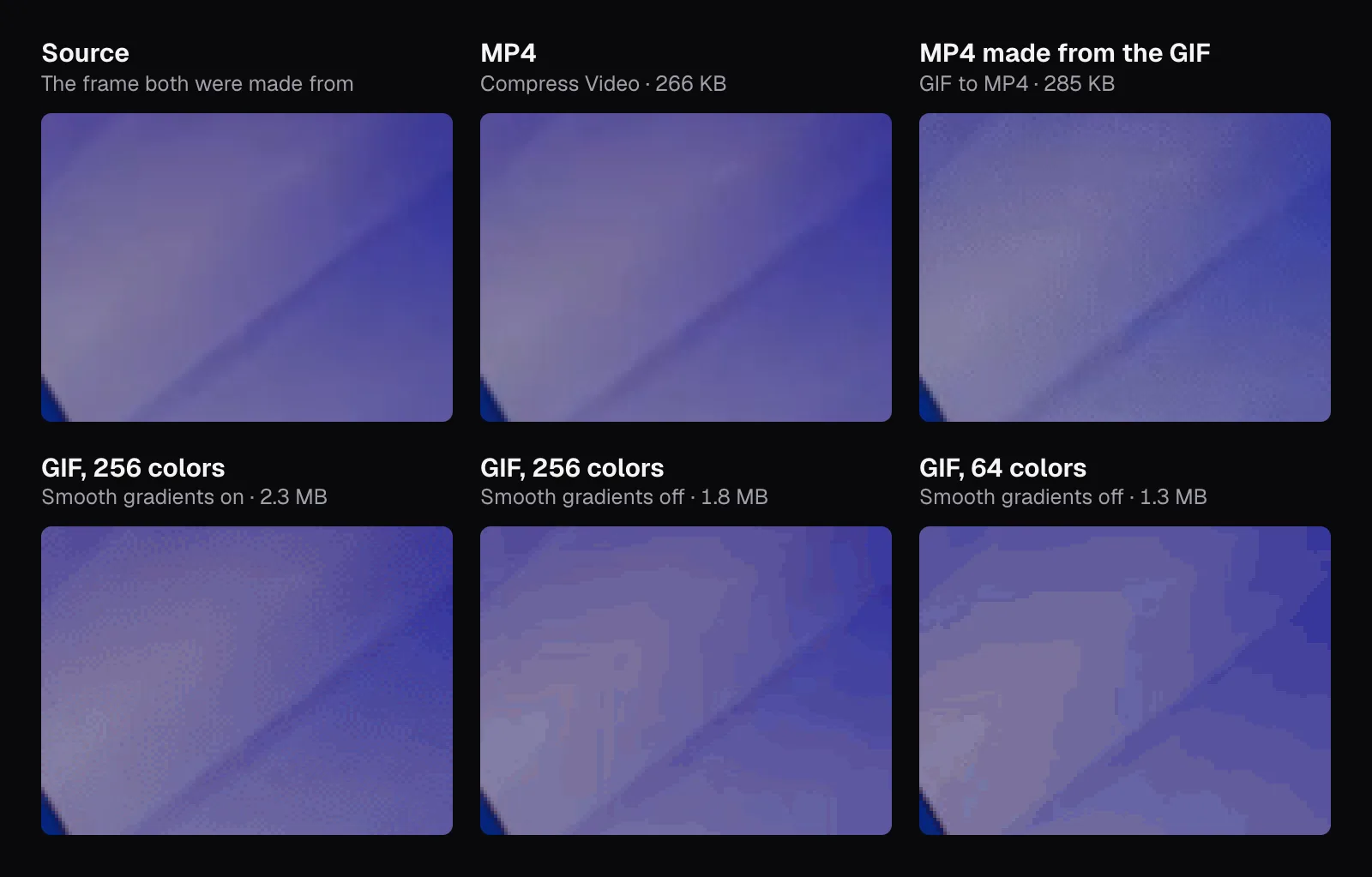
Dithering: banding or grain, and what each costs
“Smooth gradients” switches on dithering, which hides banding by mixing nearby palette colors in a fine pattern so that, from a normal distance, the eye averages them into the missing shade. Cutlia uses Floyd–Steinberg error diffusion: each pixel takes the nearest palette color, and the difference between that and its true color is passed on to the pixels not yet drawn — 7/16 to the next one in the row, and 3/16, 5/16 and 1/16 to the three below. Rows alternate direction (serpentine) so the error doesn't drift one way, and only 85% of it is passed on, which keeps the grain calmer than the textbook version.
The grain is real data, though, and LZW can't compress noise. Turning “Smooth gradients” off saved 21% on the cartoon, where dithering roughly doubled the cost of the first frame (68 KB without, 134 KB with), and only 8% on the whale, whose water was full of fine detail already. On the whale the difference is also hard to see, except where the picture is smooth: the second whale's turquoise glow.
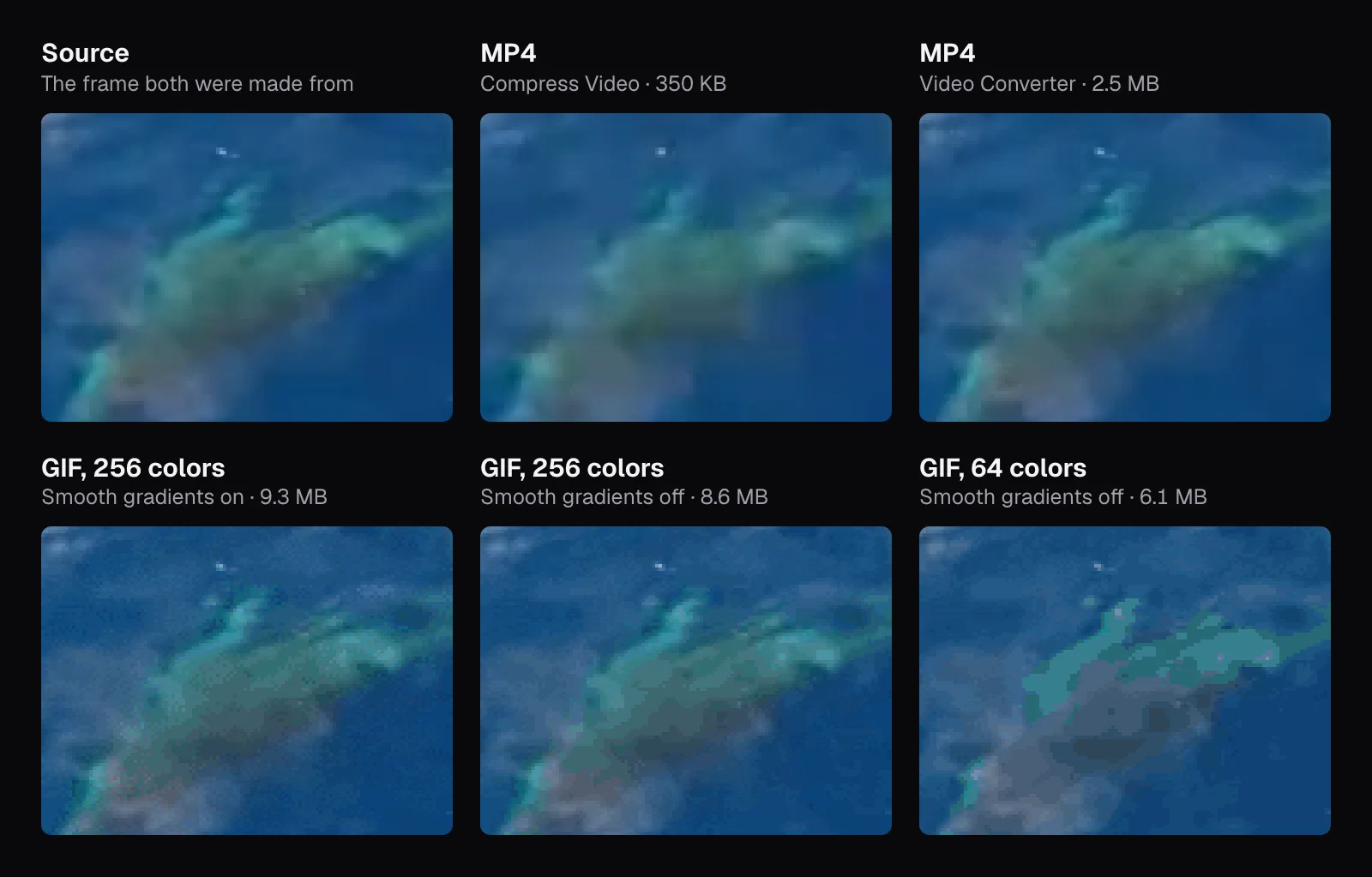
So which way to set it:
- On for skies, skin, light, shadows and anything filmed with a camera: banding on those reads as a defect, and grain doesn't.
- Off for flat graphics, screen recordings, charts and text, where there are few gradients to band and the grain only costs bytes.
- Off with fewer colors when size beats looks: 64 colors without smoothing cut the cartoon by 44% and the whale by 34%, at the price of the blotches in the pictures above.
Where GIFs and MP4s play, loop and autoplay
A GIF plays anywhere an image does, loops if it carries a loop count, and never asks for permission, because it has no sound. An MP4 on a web page can do the same. Google's web.dev guide lists the three traits a video needs to copy — it plays automatically, loops, and is silent — and gives the recipe: <video autoplay loop muted playsinline>. The muted attribute is what makes it work. Chrome's autoplay policy states: “Muted autoplay is always allowed.” WebKit relaxed Safari on iOS in iOS 10 so that muted videos may start without a user gesture, and so that videos marked playsinline play in the page instead of full screen. WebKit gave its reason in that 2016 announcement: GIFs “can be up to twelve times as expensive in bandwidth and twice as expensive in energy use” as H.264 video. Safari has also accepted a video file in an <img> element since version 11.1; MDN notes that no other browser does.
Outside web pages, here is what the services say on their own pages, as of November 2026:
- Telegram announced in January 2016 that it was re-encoding all GIFs into MPEG-4 videos, which “require up to 95% less disk space for the same image quality”.
- X, in its developer documentation, caps an animated GIF at 15 MB and recommends at most 1280 × 1080 pixels and 350 frames; a video on a post may be up to 8 GB (16 GB with Premium).
- GitHub takes GIFs and MP4, MOV and WebM videos in issues and pull requests, with 10 MB for images and GIFs and 10 MB for videos on a free plan (100 MB on a paid one), and recommends H.264. Our whale GIF at 20 frames a second, 11.1 MB, would be refused, while every MP4 we made would fit.
- Outlook plays animated GIFs in email by default, Microsoft says; when only the first frame shows, animations are turned off, in Outlook's options on older versions or in Windows' own animation setting on newer ones. Put the message in the first frame.
Which to use, and how to make a GIF worth its size
Use an MP4 wherever video is accepted: your own web pages, chat apps, social posts, GitHub, presentations that take video. It was smaller than the GIF of the same size in every comparison we made, wasn't held to a palette, and its only visible loss was some softness in fine detail at Compress Video's lower bitrate.
Use a GIF where only images go: email, image-only fields in forums, wikis and help desks, and anywhere a file has to animate without a player. Then make it light:
- Keep it short. Every second that moves is paid for in full; the editor allows up to 30 seconds, but a few is what a GIF is for.
- Choose the width first. 480 pixels saved about 40% against 640, and 320 pixels 70 to 73%: the strongest of the settings we tried.
- Prefer still backgrounds. A locked-off shot, a cartoon or a screen recording with one thing moving costs a fraction of a handheld or drone shot: compare 8 KB and 152 KB a frame.
- Then trim frames and colors. 10 frames a second and 64 colors saved about 20 to 30% each, and “Smooth gradients” off saves more on flat pictures.
- Crop before you convert. Video to GIF has no crop, so cut away bars and empty space in Resize & Crop first: every pixel you don't keep is a pixel the GIF doesn't redraw.
Starting from an MP4, the MP4 to GIF page is the same editor. If you already have a GIF that's too heavy for where it's going, GIF to MP4 keeps its frames and timing — our 9.3 MB whale GIF became a 275 KB MP4 with the same 61 frames — though it can't restore the colors the GIF threw away. And to play one backwards or back and forth, Reverse GIF makes a new GIF of it (more on that in Which videos look magical in reverse, and how do you make a boomerang?).
Questions people ask
Why is my GIF so much bigger than the video it came from?
A GIF stores every pixel that changes in full, with no way to describe motion, while H.264 predicts most frames from the ones before them. In our test a four-second GIF at 640 × 480, 15 frames a second and 256 colors took 5.1 to 6.6 times the bytes of the 1080p footage it came from, and 8.5 to 27 times a 640 × 480 MP4 from Compress Video.
Does converting a GIF to MP4 lose quality?
It re-encodes the frames, so fine grain gets a little softer, and in our test it saved most of the space: our 2.3 MB and 9.3 MB GIFs became MP4s of 285 KB and 275 KB with the same 61 frames and timing. It can't add back what the GIF lost: the 256-color palette and its grain stay in the MP4.
Can an MP4 loop and autoplay like a GIF?
On a web page, yes: a video element with the autoplay, loop, muted and playsinline attributes plays by itself, repeats and stays in the page, and browsers let it start on its own because it is muted. Elsewhere, whether a video loops is up to the app that plays it, so check where it will be posted.
How many colors can a GIF have?
Up to 256 per color table. The format allows a separate table for each frame, but Cutlia uses one for the whole clip so colors don't shimmer, with one entry kept for transparency: choosing 256 gives 255 real colors. Anything in between those colors is either rounded to the nearest one or dithered.
Should I leave dithering on when I make a GIF?
Leave it on for anything filmed and for gradients, where banding looks worse than grain. Turn it off for flat graphics, screen recordings and text, or when the file must be smaller: in our test it saved 21% on a cartoon and 8% on water footage, with visible bands in the cartoon's light.
Sources
Where the facts in this guide come from, besides our own tests:
- Graphics Interchange Format, Version 89a — CompuServe (hosted by W3C)
- Image file type and format guide — MDN Web Docs
- Web video codec guide — MDN Web Docs
- <video>: The Video Embed element — MDN Web Docs
- Autoplay guide for media and Web Audio APIs — MDN Web Docs
- Replace animated GIFs with video for faster page loads — web.dev (Google)
- Autoplay policy in Chrome — Chrome for Developers
- New <video> Policies for iOS — WebKit
- GIF Revolution — Telegram
- Media best practices — X Developer Platform
- Attaching files — GitHub Docs
- The animated graphic in my e-mail message doesn't work — Microsoft Support
Footage in this guide
The pictures were made with Cutlia's tools from this openly licensed footage, found on Wikimedia Commons:
- The Mummy Strikes — Famous Studios, Public domain
- Humpback whale Tail Sailing behaviour — NOAA Sanctuaries, CC BY 3.0