Sizes and sharing
Why is my screen recording so big, and how do I shrink it without blurry text?
We recorded 66 seconds of a browser window drawn at Retina density with Playwright’s recorder, shrank the file nine ways, and compared the text in every copy with the original’s.
By the Cutlia team · Published · 16 min read
The short version
- Screen recordings are big because they keep every pixel of a high-density screen, many times a second, compressed on the fly: our 66-second test recording, a 1280 × 720 window drawn at Retina density and filmed at 60 frames a second by Playwright’s recorder, came to 95.7 MB, 86.7 MB a minute.
- Halve the resolution of a recording made on a 2× screen: our 720p copy was 27.9 MB, and on a normal screen its text differed from the original’s by less than half a level of brightness out of 255.
- Keep more resolution only for people who will watch on a Retina screen or full screen on a big monitor: there the 720p copy’s text was visibly softer, while a 1080p copy shown full screen on a 1080p monitor stayed within 0.43 levels of the original.
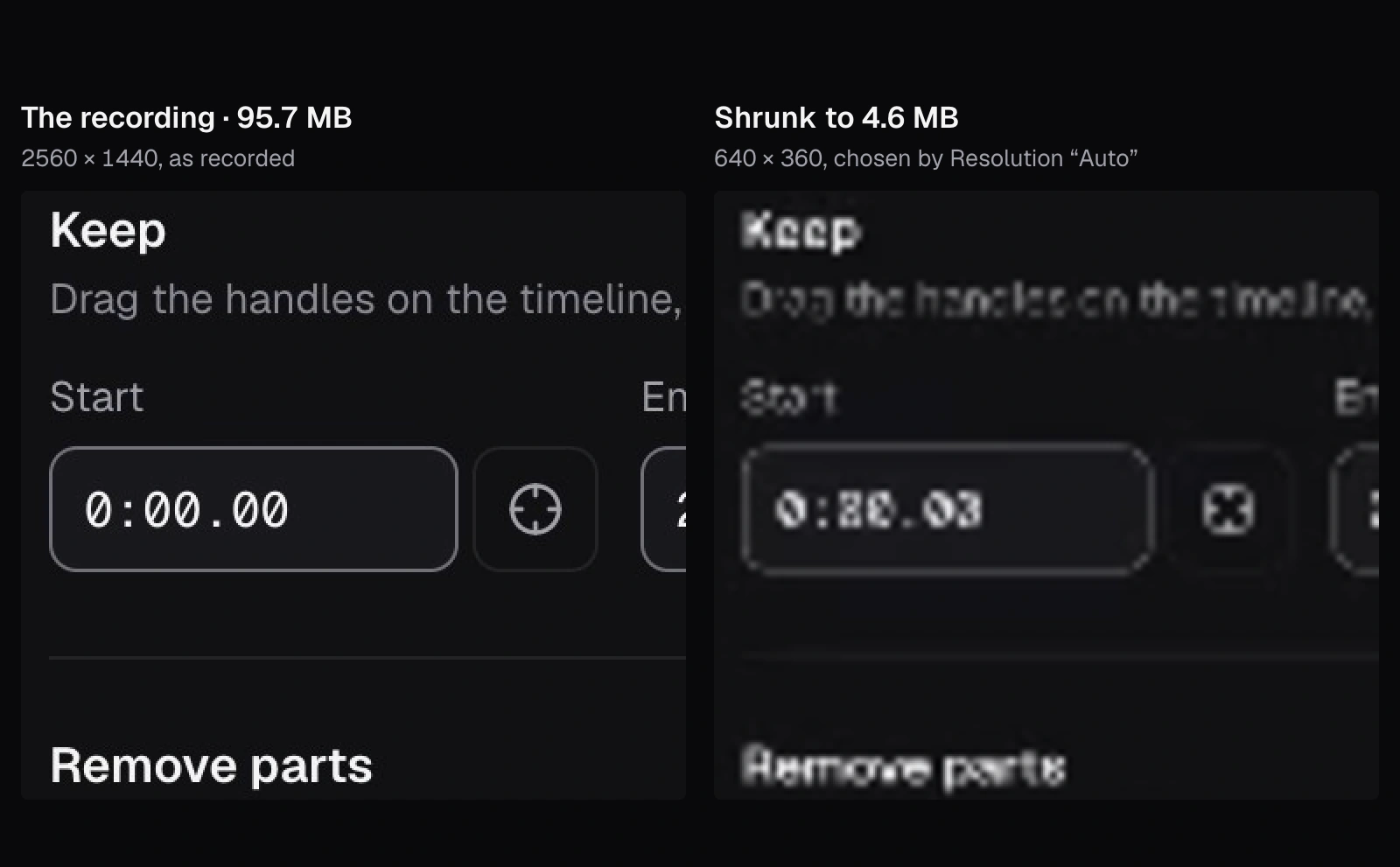
- When you aim for a size, set Compress Video’s Resolution yourself instead of leaving it on Auto: at 5 MB, Auto chose 640 × 360 and the text turned to mush, while the same 5 MB at 720p kept it readable.
- Most of a screen recording repeats itself (only 855 of our 3,974 frames showed anything new), so 30 frames a second is plenty for text and clicks: “Smallest file” made ours 9.0 MB, 91% smaller, with the text still clean.
You record a minute of your screen to show a colleague a bug or walk someone through a setting, and the file is too big to attach. When you finally squeeze it small enough, the menus and labels you wanted people to read have turned to fuzz.
Both come down to pixels: how many a recording keeps, and how many the text keeps when you shrink it. To show where the bytes in a screen recording go, we made one with Playwright, the browser-automation tool we test Cutlia with, rather than a screen-recording app: 66 seconds of a browser window 1,280 by 720 points in size, drawn at Retina density, so 2,560 by 1,440 pixels at 60 frames a second. In it, a reader scrolls one of our guides, then opens a NASA clip of bald eagles in Trim Video and plays it. Then we shrank the recording nine ways with Compress Video and Resize & Crop, took every file apart packet by packet, and compared the text in each copy with the original's, as three different screens would show it. Everything ran in Chrome on a MacBook Air with an Apple M5 chip, and no file left it.
What makes a screen recording so big
Three things multiply together. The first is the number of pixels. Screens sold as Retina or HiDPI usually draw each point of the picture with two pixels across and two down, so the same window holds four times as many pixels as on an ordinary screen. MDN, the web developers' reference, puts it in numbers: a ratio of physical pixels to CSS pixels of 1 “indicates a classic 96 DPI display, while a value of 2 is expected for HiDPI/Retina displays.” Apple gives the 13-inch MacBook Air's screen a native resolution of 2,560 by 1,664 pixels, as of November 2026. A recording that keeps every one of them has 4.3 million pixels to describe in each frame; ours, of a smaller window, had 3.7 million.
The second is the frame rate. Our recorder, set to 60 frames a second, stored 60 pictures for every second, whether anything moved or not: to keep the rate constant, its encoder “duplicates frames as needed”, in the words of Playwright's source code. The third is how the recorder compresses: it squeezes each frame as it arrives, and that costs more bits than a careful encode of the finished file. The WebM Project's guide to its encoder explains the difference: a one-pass encoder “never knows what is coming next so it has to base its encoding decision on recent history”, while two passes give “better quality and more accurate data rate control.”
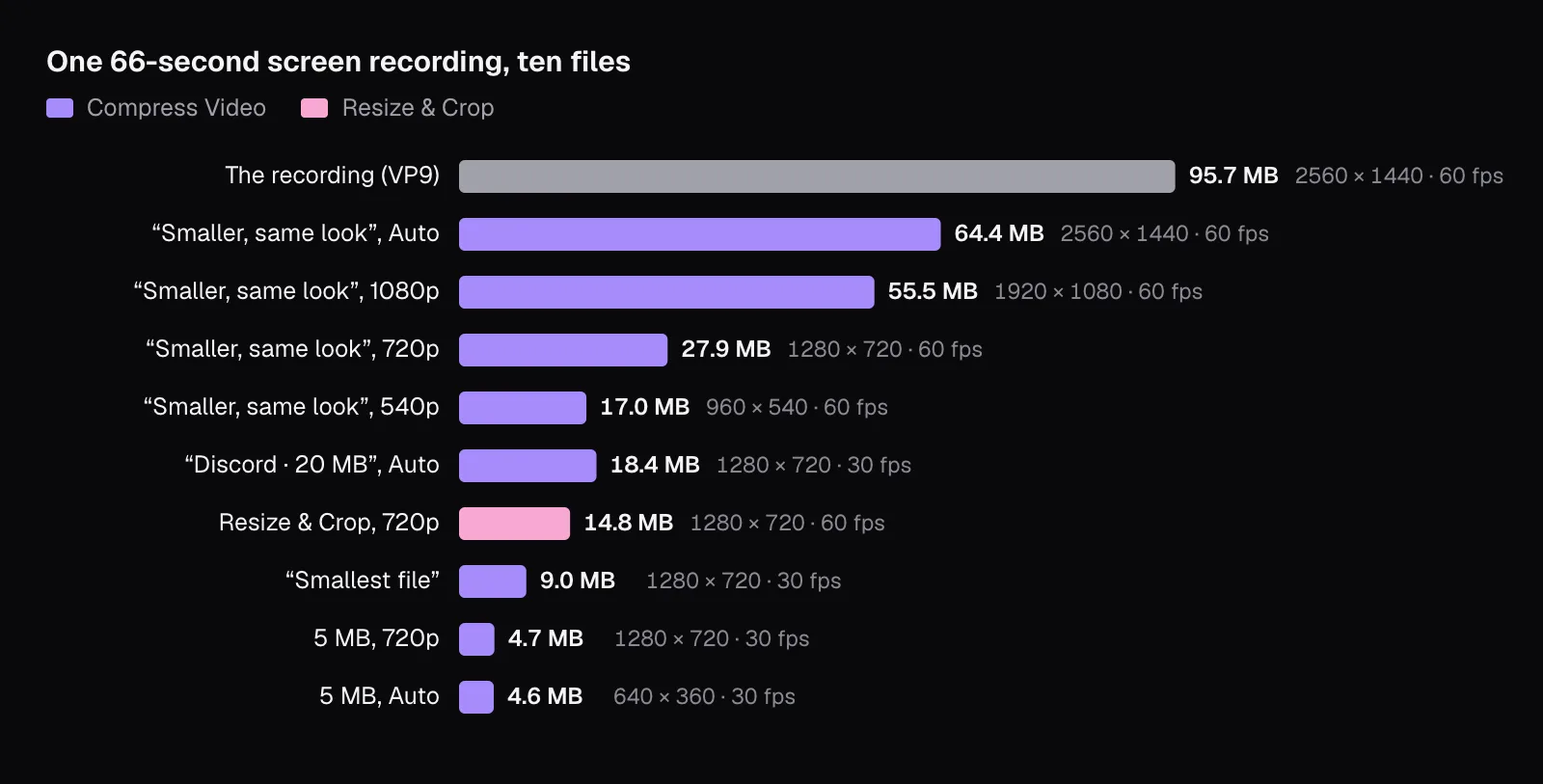
At 2,560 × 1,440 pixels and 60 frames a second, our recording came to 95.7 MB for 1 minute 6 seconds, or 86.7 MB a minute. The eagle clip it shows, 1920 × 1013 at 30 frames a second, takes 30.2 MB a minute in its own file: the recording spends almost three times as much, and the clip fills only part of it.
Our recording: a guide, an editor and a pair of eagles
Playwright can film a browser tab as it works. Its recorder takes the pictures Chrome hands it, each a JPEG at quality 90, and compresses them into VP9 in a WebM file, at settings its source code describes plainly: “do not use too much cpu to keep up with incoming frames” and “do not buffer frames for lookahead, encode as they arrive.” For our size and frame rate those settings allow about 24.6 megabits a second as a target maximum. We started Chrome drawing at 2× and checked a frame: the recording holds 2,560 × 1,440 sharp pixels. It isn't the recorder built into macOS or Windows, and its file sizes aren't theirs: treat our numbers as one recorder's, and the reasons behind them as the part that carries over.
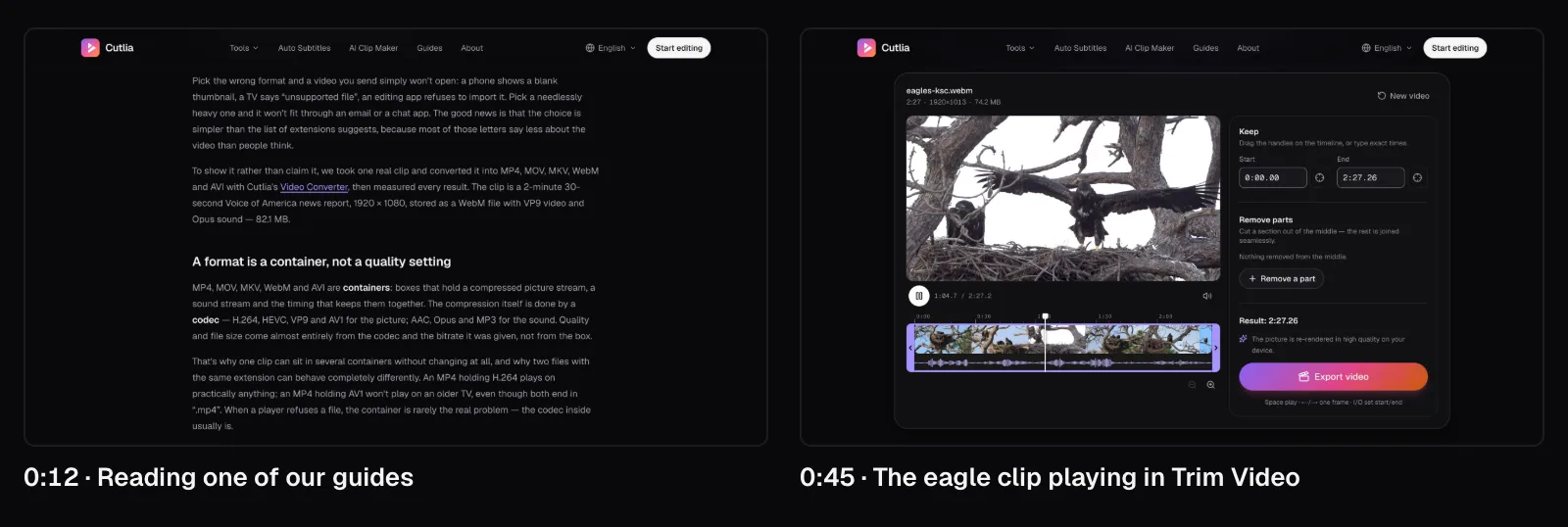
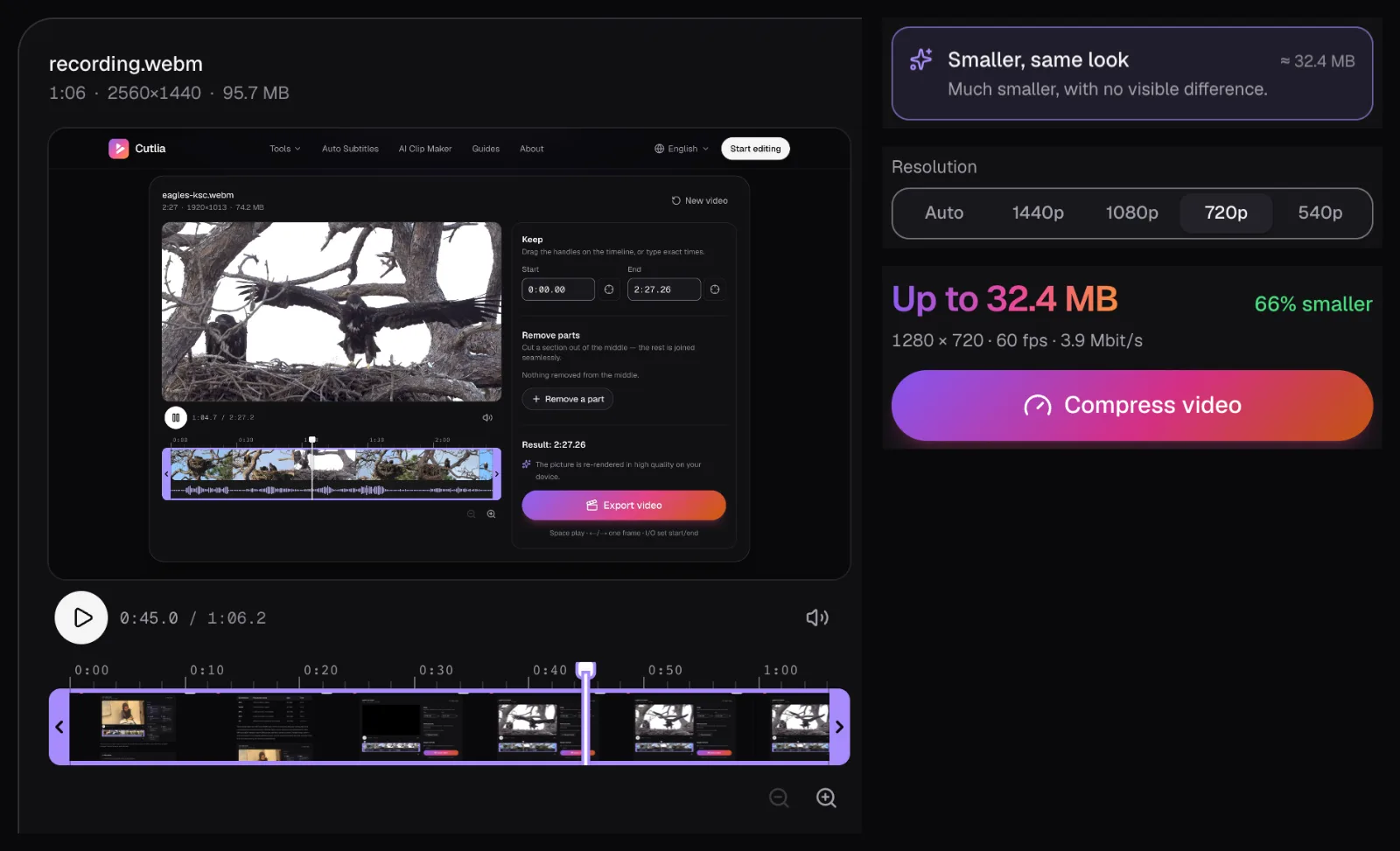
The session went like this: three seconds on the guide, then six scrolls of a little over half the window each, with a pause to read after every one, 23 seconds in all. Then Trim Video opened, the eagle clip loaded, the playhead stepped forward 58 seconds, and the clip played for 25.5 seconds: a young eagle beating its wings on the nest, then flying straight at the camera. The recording stops after three seconds of pause: still text, scrolling and moving video, the ingredients of most screen recordings.
We then shrank it with Compress Video's “Smaller, same look” goal at its own size (with Resolution on “Auto”, which kept 2560 × 1440) and at 1080p, 720p and 540p, with “Smallest file”, with “Discord · 20 MB”, and with a custom size of 5 MB twice, once with Resolution on “Auto” and once at 720p. A ninth copy came from Resize & Crop at 720p with Format set to “Original”. Every copy is an MP4 with H.264 picture.
A still screen costs almost nothing to describe
A video codec doesn't store 60 complete pictures a second. Every so often it stores a full picture, a keyframe; for the frames in between, it stores only what changed since the frames before. When nothing changed, there is almost nothing to say. Our recording had a keyframe every 2.13 seconds, 32 in all, and the largest took 583 KB. Half of its 3,974 frames took 743 bytes or less, and 2,226 took under a kilobyte.
To see how much of it was new, we decoded every frame, shrank it to 640 × 360 and compared it with the one before. Only 855 frames showed anything new; in 3,010, not one pixel had changed by more than a trace. While the reader read, 12 of 1,104 frames were new. During the six scrolls, 158 of 276 were: about 34 new pictures a second.
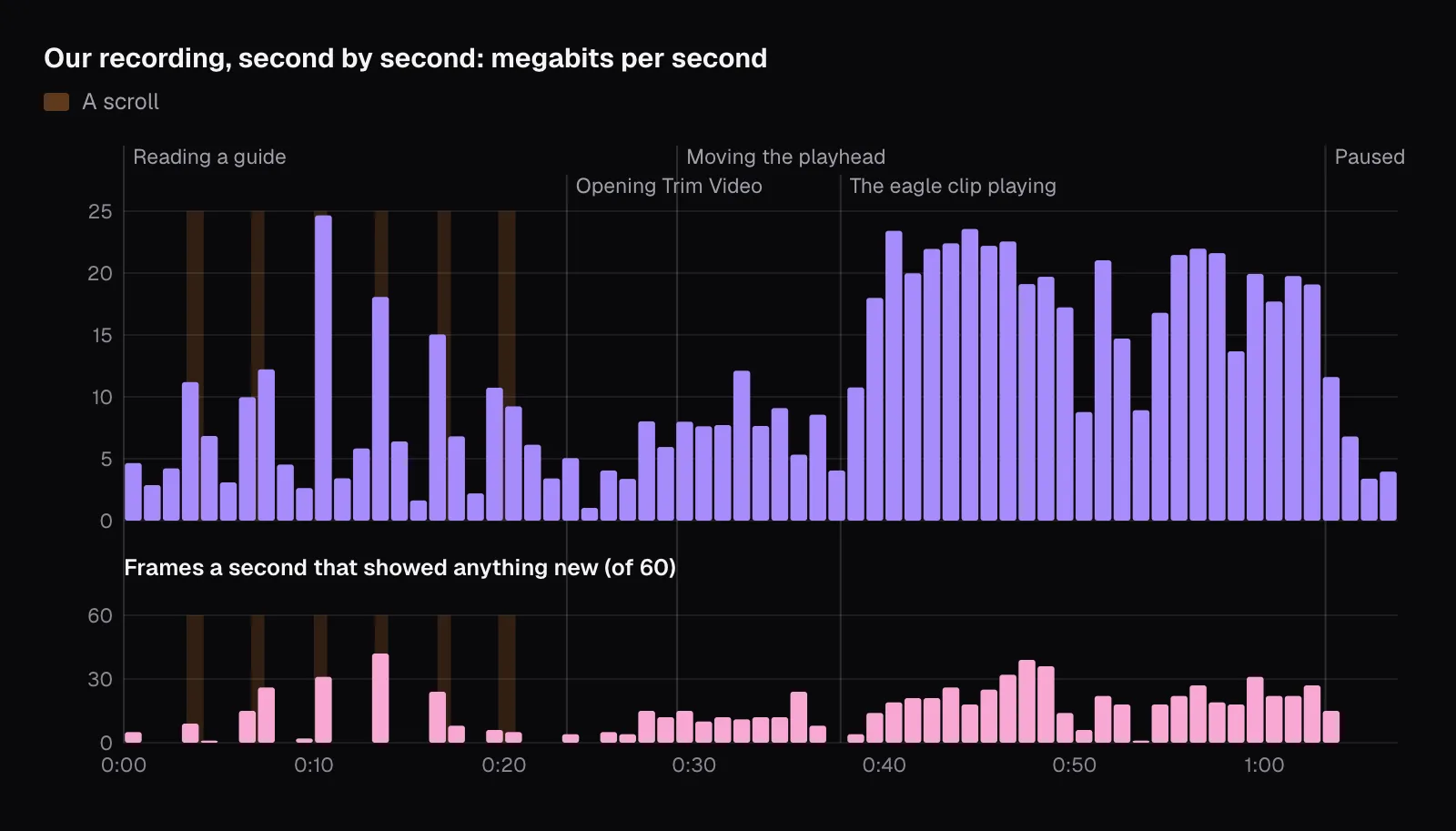
Even so, the still seconds weren't free in the original. While the reader read, the recorder's encoder sent 8 keyframes and, about six times a second, a frame bigger than 20 KB (57 KB in the middle of the range), though almost nothing on screen changed: 4.35 megabits a second for a still page. Compress Video, working on the finished file, spent 2.23 megabits a second on the same seconds in its copy at the same 2560 × 1440, and 0.66 in its 720p copy, which spent 6.0 on the seconds of the clip playing. That gap, between what our recorder spent on a still screen and what it needed to, is the room every copy below works in.
Why text is the first thing to go
Text is the hardest thing on a still screen to keep. Letters are thin strokes with sharp edges, light on dark or dark on light, and the meaning lives in small details: the bowl of an e, the gap in a 0 that tells it from an 8. Take away pixels and the strokes merge; take away bits and the codec smooths exactly that kind of sharp detail. In our copies, lost pixels did far more harm to the text than lost bits.
Resolution decides how many pixels each letter gets. The guide's text is set at 16 CSS pixels, its headings at 22, and the editor's hint under “Keep” at 12. Each CSS pixel is two pixels in our recording, so body text is set 32 pixels high there; at 720p it's 16, at 540p 12, and at 360p only 8. The 12-pixel hint gets 6 pixels at 360p, too few to draw an a, an e and an o so they don't look alike.
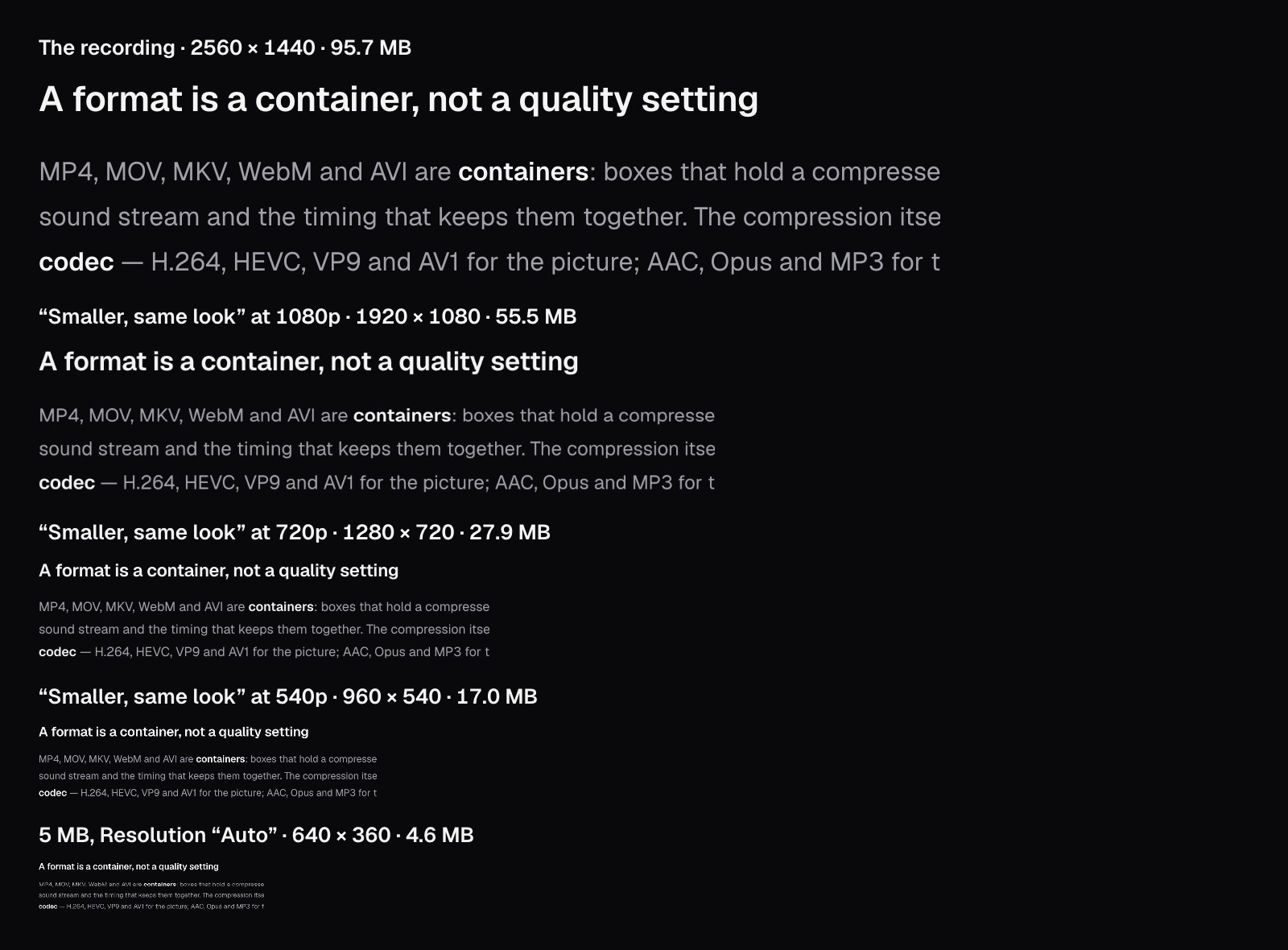
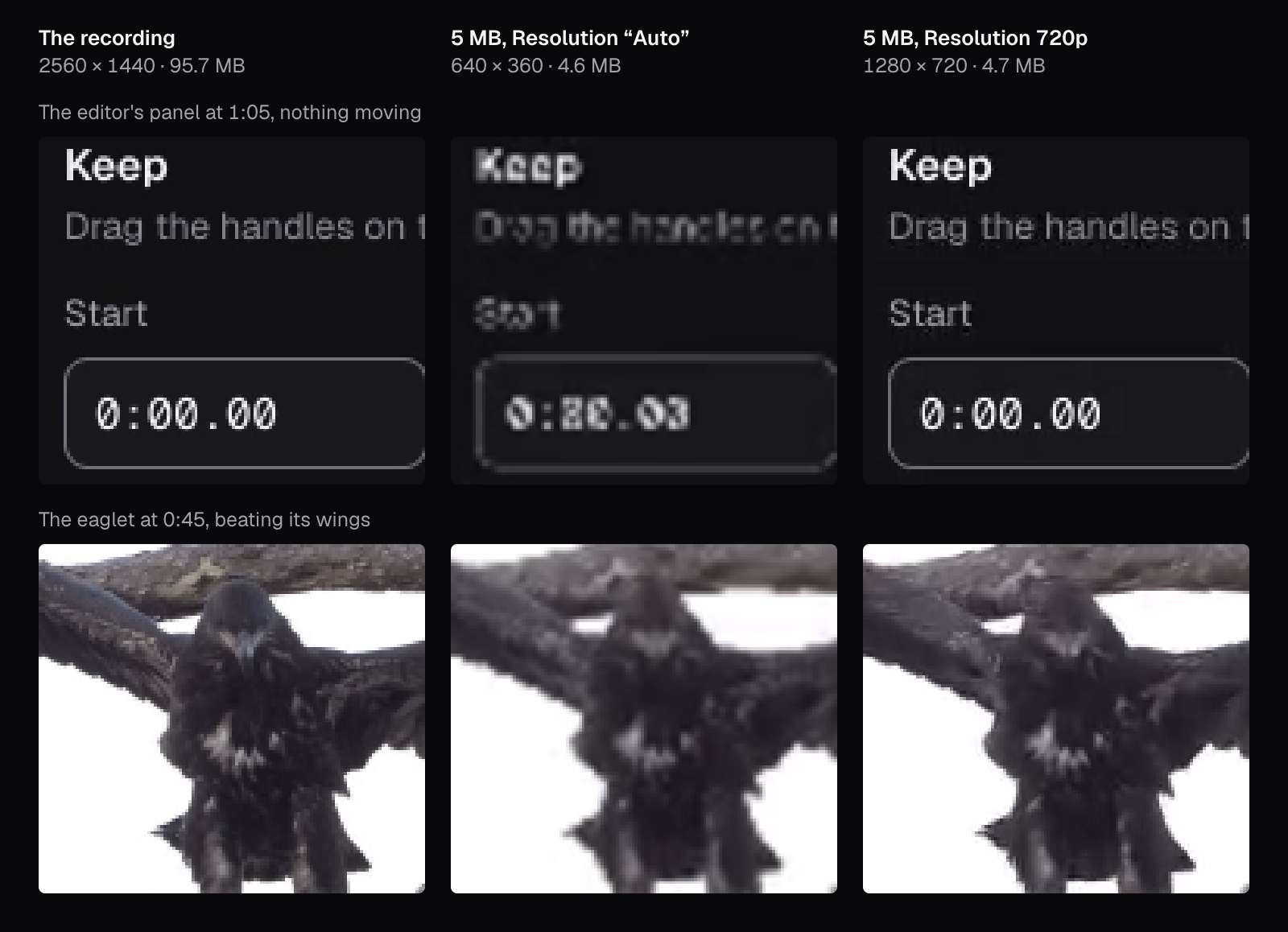
The hero picture at the top shows the result at 640 × 360, the size Compress Video picked by itself for a 5 MB goal. The time field's “0:00.00” is drawn in a 14-pixel monospace font, so 7 pixels in that copy, and its zeros merge into shapes that read more like 8s and a 3. For anyone following a tutorial, that is worse than blur: it's a wrong number.
Half the resolution, the same picture on a normal screen
A screen recording made on a 2× screen holds twice the pixels, across and down, that an ordinary screen can show of it. Shown at the size it was recorded, our 1,280-point window takes 1,280 × 720 pixels on a normal screen, so the screen shrinks the 2,560 × 1,440 recording by half before it draws a single pixel. A copy made at exactly half the resolution arrives already at that size.
We checked it. For each copy, we drew its frame as three screens would show it and compared the brightness of every pixel in a block of the guide's text with the original's, drawn the same way: at the window's size on a normal screen, full screen on a 1080p monitor, and on a Retina screen at the window's size. The numbers are the average difference in brightness, in levels out of 255.
| Copy | Size | Normal screen | Full screen, 1080p | Retina screen |
|---|---|---|---|---|
| 2560 × 1440, “Smaller, same look” | 64.4 MB | 0.29 | 0.36 | 0.52 |
| 1920 × 1080, “Smaller, same look” | 55.5 MB | 2.11 | 0.43 | 3.45 |
| 1280 × 720, “Smaller, same look” | 27.9 MB | 0.47 | 3.81 | 5.40 |
| 960 × 540, “Smaller, same look” | 17.0 MB | 5.12 | 5.88 | 7.07 |
| 1280 × 720, “Smallest file”, 30 fps | 9.0 MB | 0.67 | 3.88 | 5.46 |
On a normal screen, the 720p copy was nearly as close to the recording as the full-size re-encode, at less than half its size: 0.47 levels against 0.29. The 1080p copy did worse there, 2.11, and the loss came from the scaling: a 1,920-pixel picture shown 1,280 pixels wide is resampled to two thirds, which softens thin strokes. Full screen on a 1080p monitor, where it shows at its own size, it came within 0.43, while the 720p copy, enlarged by half, drifted to 3.81. On a Retina screen everything below full size is enlarged, and the 720p copy reached 5.40.
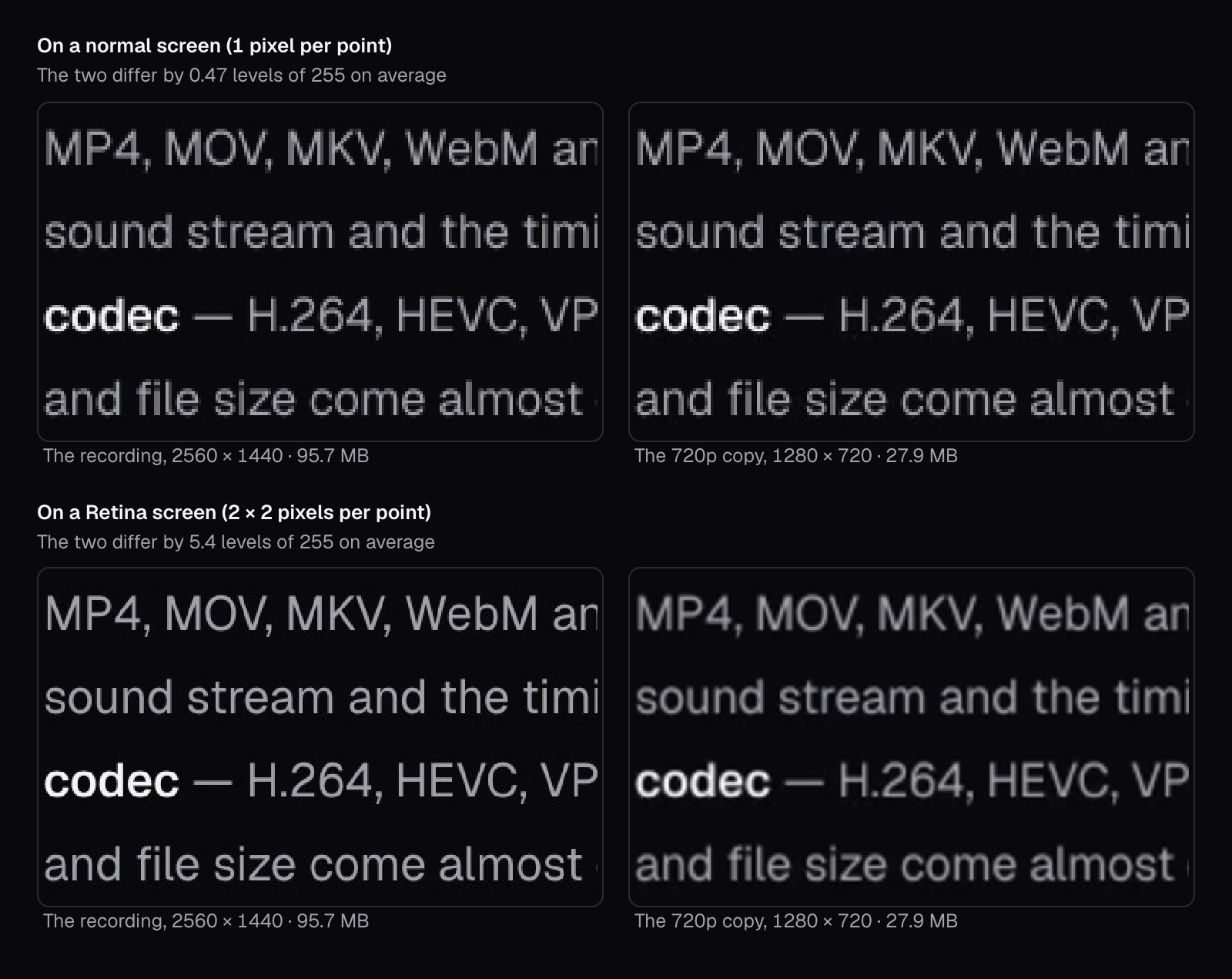
So size the copy for the screen it will be watched on. Halving suits a video shown in a page, a chat or an email, and anyone on an ordinary laptop or monitor. If your audience watches full screen on large monitors, 1080p is worth its size; if they all have Retina screens and the text is small, keep the full resolution. At 540p even a normal screen showed the loss, 5.12 levels: below half, the copy has fewer pixels than the screen.
Frame rate: 60 frames a second, few of them new
Sixty frames a second only pays when the picture changes sixty times a second. In our recording, the scrolls brought about 34 new pictures a second, and the eagle clip, which has 30 frames a second of its own, about 21: 527 new frames in 25.5 seconds, fewer than the 765 or so the clip holds in that time. Some of its frames may have changed too little to count at 640 × 360, and some may never have reached the recording; our count can't tell the two apart. Capturing is work for the computer too, as Microsoft notes of its own recorder: “Higher quality and frame rate generally requires the PC to work harder, which may decrease performance.”
For a recording of menus, text and clicks, 30 frames a second is plenty, and it halves what Compress Video budgets. Its goals reason in bits per pixel per frame: “Smaller, same look” keeps the file's frame rate and plans 0.07 bits for every pixel of every frame, so a recording made at 30 frames a second gets half the bitrate of one made at 60. “Smallest file” plans 0.04, at most 720p when Resolution is on “Auto”, and like the size goals never more than 30 frames a second. On our recording it planned 1.1 megabits a second and made a 9.0 MB file, 91% smaller than the original. Its text, on a normal screen, differed from the recording's by 0.67 levels, against 0.47 for the 720p copy at 60 frames and 27.9 MB.
What it gave up was the moving video inside the recording. Compared in the eagle clip's box, at 0:45, its picture differed by 3.84 levels against 0.87 for the 60-frame 720p copy. A recording of a game, an animation or a video playing needs more bits than one of a spreadsheet, and low bitrates show there first. How frame rate, resolution and bitrate trade against each other is the subject of our guide to bitrate, resolution and file size.
Hitting a size limit: set the resolution yourself
Compress Video's size goals work out a bitrate from the size you ask for and the length of the video, and with Resolution on “Auto” they then lower the picture size until there are at least 0.05 bits for every pixel of every frame. Below that, its code notes, H.264 “starts to blur”. That rule suits camera footage, where every pixel moves. A screen recording is mostly still, and its text needs pixels more than it needs bits.
“Discord · 20 MB” went well on its own: Auto chose 1280 × 720 at 30 frames a second, 2.3 megabits a second, and made 18.4 MB, with the guide's text exactly as close to the original as the 60-frame 720p copy. At a custom 5 MB, Auto went down to 640 × 360, and that is the file in the hero picture. We made the same 5 MB at 720p as well. Compress Video warned “That's a lot of video for this size, so it will look blocky. Choose a shorter part or a larger size.”, and it was right about the moving picture. But the text stayed readable: 1.23 levels from the original against 9.20 for Auto's 360p copy, and even the eaglet came out closer, 5.18 levels against 7.74.
If you need to fit a limit, choose the goal and then pick 720p (or 1080p for a recording of a larger screen) instead of “Auto”. If the result is still too blocky, do what the warning says and keep a shorter part (Compress Video's “Part of the video”): fewer seconds leave more bits for each one. How the services' limits work, and why an email attachment grows on the way, is in our guide to sending a large video.
What the Mac, iPhone and Windows recorders give you
The pages Apple and Microsoft publish about their recorders don't give a bitrate or a resolution, as of November 2026, so the useful part is what you can choose before you press Record.
- Mac. The Screenshot app (Shift-Command-5) records the entire screen, a selected portion, or, in macOS Tahoe 26 or later, a selected window. On supported Macs with Tahoe 26 or later, Options offers a capture format: “SDR (Most Compatible)”, which uses H.264, or HDR, which uses HEVC. Apple notes that an HDR recording shown on an SDR display has “slightly reduced quality.” Recordings are saved as .mov files named “Screen Recording” with the date and time.
- iPhone and iPad. The Record button in Control Center starts after a three-second countdown, and the recording goes to the Photos app.
- Windows. Snipping Tool records a rectangle you draw (Windows logo key + Shift + R): you “Select the area of the screen you wish to record”, then Start. For games, Settings › Gaming › Captures sets the frame rate and the video quality of Game Bar's clips, and Microsoft explains that “Video quality controls both resolution and bitrate.”
Recording a window or a portion instead of the whole screen cuts the pixels before they're ever stored, and it keeps the rest of your screen out of the file. In SDR, Apple's recorder uses H.264; where HEVC may not play, on some Windows PCs and in some browsers, is laid out in our guide to H.264, HEVC, VP9 and AV1.
Which settings to use for your recording
For most screen recordings, three steps give a small file with sharp text. First cut what nobody needs: the seconds of finding the window at the start and the Stop button at the end. Trim Video does it, and when the recording is H.264 or HEVC, the two formats Apple names for the Mac's recordings, it copies the part you keep without re-encoding it (more on that in our guide to cutting without re-encoding). Then open the trimmed file in Compress Video, or skip Trim Video and set “Part of the video” there, and choose:
- “Smaller, same look” for a recording with video, animation or a lot of scrolling; “Smallest file” for menus, text and clicks, where 30 frames a second is enough.
- Resolution at about half the recording's height: 720p for a 1440-pixel-high recording like ours. A recording that kept every pixel of a 13-inch MacBook Air's screen would be 1,664 pixels high; half is 832, and 1080p is the nearest choice above it. Going up keeps the copy at least as large as a normal screen shows it; going down, as our 540p copy did, leaves the text fewer pixels than the screen has.
- A size goal only when a service limits you, and then still with Resolution set by hand.
Resize & Crop makes a smaller copy too, if you set Format to “Original” (it starts on a tall 9:16 frame) and Size to 720p. It doesn't aim for a size: it kept our 60 frames a second and made 14.8 MB, with the text 0.80 levels from the original on a normal screen. Use it when you also want to crop, say to cut a recording of the whole screen down to the one window that matters, and Compress Video when the size is the point.
Two things to avoid. Don't go below half the recording's resolution when people need to read it: our 540p copy saved another 10.9 MB and cost the text more than anything else short of 360p. And don't compress the same recording again and again; start each time from the original, for the reasons laid out in our test of how far a video can be compressed.
Questions people ask
Why is a one-minute screen recording so large?
Because it stores every pixel of your screen many times a second, compressed as it goes. A Retina screen draws a window with four times the pixels an ordinary screen uses, and a recorder has to squeeze each frame as it arrives. Our 66-second test recording of a 1280 × 720 window at Retina density, filmed at 60 frames a second by Playwright’s recorder, came to 95.7 MB, even though only 855 of its 3,974 frames showed anything new.
Does compressing a screen recording make the text blurry?
Only if the copy has too few pixels or too few bits for its size. In our test, a 720p copy of a 2560 × 1440 recording, 71% smaller, differed from the original by less than half a level of brightness on a normal screen. Text blurred when the resolution dropped below half, to 540p and especially 360p, where a 14-pixel time field became unreadable.
What resolution should I export a screen recording at?
About half the recording’s height if it was made on a Retina or other 2× screen, and the nearest size above that if half isn’t offered: 720p for a 1440-pixel recording, 1080p for one 1,664 pixels high. Keep 1080p or more if viewers will watch full screen on large monitors, and the full resolution only if they’ll watch on Retina screens.
Should I record my screen at 30 or 60 fps?
Thirty is enough for menus, typing and clicks: in our recording, even scrolling brought only about 34 new pictures a second, and reading brought almost none. Choose 60 for games, fast animation or recordings where smooth scrolling is the point. Compress Video’s “Smallest file” and size goals bring a 60 fps recording down to 30 anyway.
How do I make a Mac screen recording smaller?
Trim the start and end first: Apple names H.264 and HEVC as the Mac’s recording formats, and Trim Video cuts both without re-encoding. Then open the file in Compress Video, choose “Smaller, same look” or “Smallest file”, and set Resolution to about half the recording’s height. The result is an MP4, with H.264 picture unless you pick another codec; in our test it was 71% smaller at 720p.
Sources
Where the facts in this guide come from, besides our own tests:
- Window: devicePixelRatio property — MDN Web Docs
- MacBook Air: Tech Specs — Apple
- How to record the screen on Mac — Apple Support
- Take screenshots or screen recordings on Mac — Apple Support (Mac User Guide)
- Record the screen on your iPhone, iPad, or iPod touch — Apple Support
- Use Snipping Tool to capture screenshots — Microsoft Support
- Adjust capture settings on Windows — Xbox Support (Microsoft)
- VP8 Encode Parameter Guide — The WebM Project
- Playwright 1.64.1 source: videoRecorder.ts (the video recorder's encoder settings) — Microsoft (Playwright on GitHub)
- Playwright 1.64.1 source: screencast.ts (the pictures Chrome hands the recorder) — Microsoft (Playwright on GitHub)
- Wildlife Video - Bald Eagles: the footage's record — Wikimedia Commons (NASA Kennedy Space Center)
Footage in this guide
The pictures were made with Cutlia's tools from this openly licensed footage, found on Wikimedia Commons:
- Wildlife Video - Bald Eagles (KSC-20260313-MH-JBS01-0001-Wildlife Video Bald Eagles BROLL-M19993) — NASA Kennedy Space Center, Public domain